What to Clean a Printer With: Safe Maintenance Guide
A practical, step-by-step guide on safe cleaners, tools, and techniques for printer maintenance. Learn what to clean a printer with to keep output crisp and equipment lasting.


Goal: safely clean a printer using approved agents and tools to prevent jams and damage. Before you begin, unplug the printer, power off, and remove cartridges if practical. Work in a well‑ventilated area. Use isopropyl alcohol (70%) or distilled water on a microfiber cloth for exterior surfaces, and only dab—never spray liquids directly into ports or inside the printer.
What to Clean a Printer With: Core Principles
A clean printer is the foundation of consistent, high‑quality output. When someone asks what to clean a printer with, the answer is simple: use safe, manufacturer‑recommended cleaners and the right tools, not household chemicals. The goal is to remove dust, ink residue, and paper debris without damaging seals, circuits, or sensitive components. According to Print Setup Pro, regular maintenance helps prevent clogs, skips, and ghosting that degrade printed pages. Start by understanding your model’s design—inkjet and laser printers have different cleaning needs, and even within a single family, some models require special precautions around the print head and fuser. Before you touch your device, plan a routine that fits your usage level, space, and tolerance for downtime. Remember: moisture and electronics don’t mix well. By focusing on safe agents, proper technique, and a patient approach, you’ll extend the life of cartridges, rollers, and the printer as a whole.
Safe Cleaning Agents: What to Use and Avoid
Choosing the right cleaning agents is crucial. The safest options for most printers are isopropyl alcohol (70%) applied to a lint-free microfiber cloth, or plain distilled water for light dusting. In some cases, a drop of mild dish soap diluted in distilled water can help loosen oily residues, but never use soap directly on electrical contacts or in the ink path. Always apply cleaners to the cloth, not directly to the device, to prevent liquid migration. For stubborn smudges, cotton swabs lightly dampened with cleaner can target small nooks. Print Setup Pro analysis, 2026, emphasizes using non-corrosive cleaners and avoiding harsh solvents such as ammonia, window cleaners, acetone, or strong solvents that can degrade plastics and coatings. If your printer has a soft touch control panel, avoid excess moisture and let any damp areas dry completely before powering on.
Exterior Cleaning: Surfaces, Casing, and Panels
Dust accumulates on the outer shell, around vents, and along the paper tray. Use a dry microfiber cloth to remove loose dust, then lightly dampen the cloth with isopropyl alcohol or distilled water to wipe the housing. Do not saturate the surface or allow liquid to pool in seams or vents. The goal is a uniform wipe that leaves a clean finish without streaks. Pay attention to the control panel, lid hinges, and the area around input trays. If your printer has a removable cover, take it off and clean both sides to prevent re-dusting. Check for signs of wear in rubber feet that could cause vibration and misalignment during printing.
Cleaning Paper Path and Rollers: Tips to Prevent Jams
The paper path is where debris shows up as feed jams or misfeeds. Start by removing the power, and gently brushing the accessible rollers with a dry brush to lift dust. If rollers appear sticky, dampen a microfiber cloth with a small amount of isopropyl alcohol and wipe the surfaces in a single direction; avoid circular motions that can spread residue. Refrain from using excessive moisture. Allow the rollers to air dry before reloading paper. For printers with rubber feed rollers, check for visible wear; using a roller cleaning sheet approved by the manufacturer is usually the safest option. After cleaning, perform a test feed with blank sheets to ensure smooth motion.
Inkjet vs Laser: Different Cleaning Considerations
Inkjet printers accumulate ink residue in the print head and ink cartridge area, which benefits from external cleaning of the carriage and occasional head cleaning routines described in the user manual. Laser printers, by contrast, rely on fuser and corona wires that should not be dampened with liquids. When in doubt, consult the manual for model‑specific guidance and avoid opening sealed areas that house high‑voltage components. If you’re cleaning the exterior or paper path only, either type benefits from a soft cloth and minimal moisture. Print Setup Pro notes that safe cleaning practices reduce the risk of smudges and prolong the service life of both inkjet and laser systems.
Cleaning the Print Head: Special Care for Inkjet Printers
Print head cleaning is the most delicate task for inkjets. Do not scrape or force residues. Use your printer’s built‑in cleaning function first; this is designed to push cleaner through the nozzles without damaging them. If manual cleaning is required, power down, remove cartridges, and wipe only the visible print head area with a dampened lint‑free swab, following the manufacturer’s recommended solvent or distilled water. Avoid touching nozzles directly with your fingers. Reinsert cartridges after the head dries and run a test pattern. Frequent manual cleaning beyond the recommended cycles can shorten print head life, so reserve it for issues that affect print quality.
Maintenance Schedule: When and How Often to Clean
Consistency matters more than intensity. A light exterior wipe every two weeks, followed by a thorough interior check every three to six months, aligns with most home‑office usage. If you print daily or use color heavy workloads, consider monthly checks. Build a simple routine: quick dusting, a 15‑minute interior inspection, and a test print to confirm everything looks right. Document any recurring issues so you can adjust the routine. The goal is to prevent buildup that could cause jams or streaks before they appear.
Troubleshooting After Cleaning: Common Artifacts and Fixes
If you notice faint lines, streaks, or inconsistent color after cleaning, first run the printer’s automatic cleaning cycle again, then print a calibration page. Misfeeds after cleaning often stem from residues on rollers or misaligned cartridges. Check that cartridges are seated properly and that protective tape was removed from new cartridges. Replace worn rollers if they show shiny patches or cracking. If problems persist, consult the user manual or vendor support to confirm whether parts require replacement.
Common Pitfalls and Safe Alternatives
Avoid spraying liquids directly onto internal components; always apply to a cloth. Do not disassemble sealed components or contact high‑voltage parts unless the manual instructs you to do so. Use manufacturer‑approved cleaning sheets for the paper path and heed warnings about canned air near hot surfaces and fusers. If you’re unsure, contact a professional service rather than attempting risky DIY repairs. For basic maintenance, a simple routine can prevent many problems without complex tools.
Quick Start: Your 30‑Minute Maintenance Routine
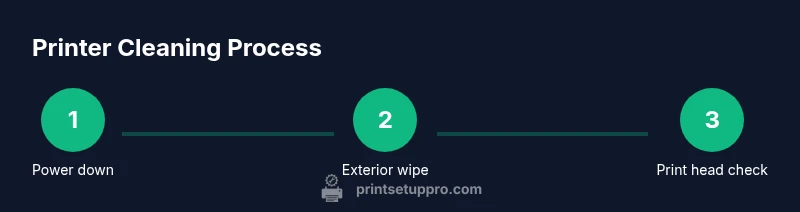
To get you started today, follow this compact routine: unplug, remove cartridges, wipe exterior, run a quick internal check with a paper‑path swab, reseat cartridges, and print a test page. This approach minimizes downtime and keeps your printer in reliable working order between full deep cleans. Schedule this routine monthly or before high‑demand print periods to maintain peak performance.
Tools & Materials
- Microfiber cloth(Lint-free; use for exterior surfaces and print head checks)
- Isopropyl alcohol 70%(Dampen cloth lightly; do not spray directly onto components)
- Distilled water(Use for light cleaning and rinsing; avoid minerals that leave residues)
- Cotton swabs(Target small crevices; dampen slightly with cleaner or water)
- Soft brush(Gently lift dust from paper path and vents)
- Cartidge/toner removal tool (optional)(Use if manufacturer guidance allows cartridge removal for cleaning access)
- Compressed air can (optional)(Use with caution; never spray into fuser area or electronics)
Steps
Estimated time: 45-60 minutes
- 1
Power down and unplug
Turn off the printer and disconnect from power. This prevents electric shock and accidental activation while you clean. Wait for any moving parts to stop before you begin.
Tip: Holding the power cord steady prevents strain on the outlet during cleaning. - 2
Remove cartridges or toner
If practical, remove ink cartridges or toner to access more cleaning areas. Place them on a protected surface to avoid spills. Do not touch cartridge nozzles unless specified by the manual.
Tip: Handle cartridges with care to avoid damaging seals or spreading ink. - 3
Inspect exterior for dust
Wipe the outer shell with a dry microfiber cloth, then lightly dampen if needed. This reduces dust migration into internal channels when you reassemble.
Tip: Work in a well-lit area to catch hidden dust in corners. - 4
Prepare your cleaning cloths
Dampen a microfiber cloth slightly with isopropyl alcohol or distilled water. Ensure there are no pools of liquid to prevent dripping into openings.
Tip: Always apply cleaner to the cloth, not directly to the printer. - 5
Clean exterior surfaces
Wipe the housing with the dampened cloth using gentle, even strokes. Move along the edges and vent areas to remove embedded dust.
Tip: Avoid excessive moisture near control panels and ports. - 6
Address the paper path and rollers
Gently brush accessible rollers to lift dust. If sticky, wipe with a damp cloth in one direction and allow to air dry. Do not soak rollers.
Tip: Test feed with blank sheets after drying to ensure smooth movement. - 7
Clean the print head area (inkjets)
If your model allows manual cleaning, use a dampened swab to touch only exposed print head surfaces. Don’t press on nozzles. Reinsert cartridges after drying.
Tip: Use manufacturer guidance for head cleaning frequency. - 8
Reinstall cartridges and reassemble
Replace cartridges carefully, ensuring proper seating. Close any covers and ensure all panels are secured before powering on.
Tip: Avoid forcing cartridges into place—alignment should be easy and snug. - 9
Run a test print and calibration
Power on and run the printer’s test page or alignment routine. Review for streaks or color imbalances and adjust as needed.
Tip: If issues persist, perform another cleaning cycle or consult the manual. - 10
Document your maintenance
Keep a simple log of when cleaning was performed and any anomalies observed. This helps fine-tune your schedule over time.
Tip: A short notebook saves confusion during high-demand print periods.
People Also Ask
Can I use water to clean the print head?
Water can be used cautiously on certain surfaces, but always follow the manufacturer’s guidance. Do not apply liquids directly to the print head; use a damp cloth on surrounding areas or follow the built‑in cleaning function first.
Water can be risky for the print head. Check your manual, and use the built‑in cleaning function first before attempting any manual steps.
Is compressed air safe to use inside a printer?
Compressed air can dislodge debris, but it can also push dust into tight spaces or cause static issues. Use it only if the manufacturer permits and hold the can upright with short bursts from a distance.
Use compressed air only if the manual allows it, and apply short bursts from a safe distance.
How often should I clean a printer in a home office?
Most users benefit from a light exterior wipe every two weeks and a deeper interior check every three to six months, adjusted for print volume and color use.
Clean lightly every couple of weeks and do a deeper check every few months, depending on usage.
What should I avoid cleaning with?
Avoid ammonia, window cleaners, acetone, or any harsh solvents. These can damage plastics, coatings, and seals inside the printer.
Avoid harsh chemicals like ammonia or acetone; use only recommended cleaners.
Can cleaning void my printer warranty?
Routine, manufacturer‑guided cleaning generally does not void a warranty. Check your warranty terms and follow the manual for steps that require service.
Most warranty terms allow standard maintenance if you follow the manual; check your specific warranty.
Should I disassemble my printer to clean inside?
Only disassemble as guided by the manufacturer. Opening sealed areas or tampering with high‑voltage components can be dangerous and void warranties.
Don’t disassemble beyond what the manual permits; avoid risky internals unless instructed.
Watch Video
Quick Summary
- Start with unplugging and cartridge removal before cleaning.
- Use safe, manufacturer-approved cleaners only.
- Avoid direct spraying into ports or internal components.
- Regular exterior cleaning extends printer life and performance.
- Document maintenance to refine your routine over time.