When to Reset an Epson Printer: A Step-by-Step Guide
Learn exactly when to reset an Epson printer, what a reset does and does not do, safe methods, and step-by-step guidance to resolve common errors without risking firmware or settings.


This quick guide explains when a reset helps, which Epson errors respond to reset, and the safest, model-agnostic steps to perform a reset without losing critical settings or firmware integrity. We'll also cover precautions, back-up tips, and how to verify printer function after the reset. This is essential for home offices and students alike.
Understanding when to reset an Epson printer
Knowing when to reset epson printer is a crucial skill for home offices, students, and small businesses. A reset is not a cure-all, but it can clear temporary memory, reset stuck software states, and re-establish communication between the printer and your computer or network. You should consider a reset after you have exhausted basic troubleshooting steps such as checking ink levels, reseating cartridges, clearing print queues, and restarting devices. In many cases, a reset can resolve phantom errors, stalled jobs, or flaky connectivity by restoring the printer to a known good state. If you encounter persistent issues that recur after a restart or appear as undefined error codes, a reset becomes a sensible next step. Remember to consult your model’s manual because methods and terminology vary by series and firmware versions. The goal is to reset only when it’s appropriate and safe for your specific Epson model.
According to Print Setup Pro, understanding the context for a reset helps you avoid unnecessary data loss or configuration changes. The team notes that resets are most effective for memory-related glitches and temporary communication hiccups, not for physical damage or worn components. If your printer prints blank pages, produces garbled text, or shows error codes that persist after a reset, you should pursue service or more targeted diagnostics rather than repeatedly resetting.
note”: null},
Tools & Materials
- Printer owner’s manual or model-specific reset instructions(Keep handy to confirm exact steps and button combinations for your Epson model.)
- Printer power cable and a reliable power source(Make sure the printer remains powered during any reset procedure.)
- Computer or smartphone with Epson software (optional)(Helpful for firmware checks or network settings after reset.)
- Pen and paper to record settings(Useful for backing up network names (SSID) and password during resets.)
- USB cable for direct connection (if your model supports it)(Some models offer a more stable reset path via USB.)
Steps
Estimated time: 20-45 minutes
- 1
Back up printer settings
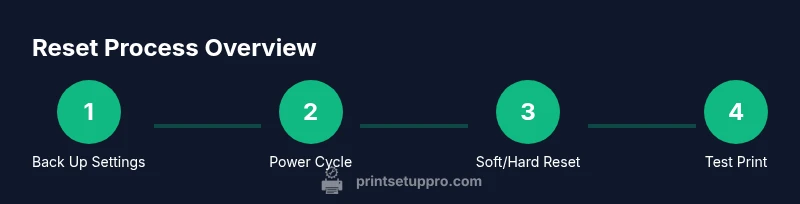
Before resetting, record any important network settings, print queues, and preferences. This helps you restore your preferred configuration after the reset. If your model supports exporting settings, use it to create a quick backup.
Tip: Document SSIDs, printer names, and any custom print settings you use regularly. - 2
Power down and prepare
Turn off the printer and unplug it from the power source to ensure a clean reset, reducing the risk of firmware conflicts. If you rely on a network, briefly disable the Wi-Fi on your router to avoid late reconnect issues.
Tip: Wait 30 seconds after unplugging to ensure all capacitors discharge. - 3
Power cycle the printer
Reconnect the power after the brief pause and turn the device back on. A simple power cycle can clear temporary memory and reinitialize internal modules.
Tip: If your model supports a soft reset via the control panel, perform it after the power cycle if available. - 4
Use model-specific reset option
Navigate to Settings or Maintenance and select the appropriate reset option (e.g., Reset Network, Reset All Settings). Follow prompts exactly as shown by the on-screen menu.
Tip: Choose the least disruptive reset available first (soft reset) before more thorough options. - 5
Perform a hardware reset if available
If your model includes a physical reset button or a hardware combo (buttons pressed together), use it as directed by the manual. This step should only be used if the software reset did not help.
Tip: Do not press and hold hardware reset for too long; follow the manual’s timing guidance. - 6
Test print and verify
Print a diagnostic page and a regular document to verify that the issue is resolved and that print quality is stable. Check alignment, color accuracy, and paper handling.
Tip: If issues persist, record the exact error codes and consult the manual or support before attempting another reset.
People Also Ask
When should I reset my Epson printer?
Resetting is appropriate after basic troubleshooting fails and if you’re seeing memory-related errors or continuous communication problems. Do not reset for physical damage, cartridge leaks, or worn components. If uncertain, consult the manual or support.
Reset when memory or connectivity issues persist after basic checks. Do not reset for obvious hardware damage; consult support if unsure.
Will a reset erase my saved Wi‑Fi network or print settings?
A reset can restore default settings and may remove certain saved configurations. Back up network names and printer preferences before resetting so you can restore them afterward.
A reset may remove some saved settings, so back them up first.
What is the difference between a soft reset and a hard reset on Epson printers?
A soft reset typically clears temporary memory and restarts processes, while a hard reset restores factory defaults. Start with a soft reset if available; move to a hard reset only if necessary and after saving important settings.
Soft resets clear memory; hard resets restore defaults—start soft, go hard only if needed.
Can I reset my Epson printer from the control panel?
Many Epson models offer on-device reset options through the control panel under Settings or Maintenance. If your model lacks this feature, use the general power-cycle method or see the manual for model-specific steps.
Yes, many models let you reset from the panel; others require a power cycle or manual steps.
What should I do if the printer still doesn’t work after a reset?
If issues persist, review exact error codes, check for firmware updates, and consider contacting Epson support or a technician. Persistent problems may indicate hardware faults rather than software state.
If problems persist after reset, check error codes and firmware, then contact support.
Is resetting safe for inkjet printers with external components?
Resetting is generally safe for inkjet printers when following the manufacturer’s steps. Avoid forced resets or methods not documented for your model to prevent damage.
Resetting is usually safe if you follow the model’s official steps.
Watch Video
Quick Summary
- Back up settings before resetting
- Use the soft reset first, then hardware reset if needed
- Test print to confirm success and rule out persistent issues
- Reset is for memory/communication issues, not hardware damage
- Keep firmware up to date after reset