What to Do When Epson Printer Isn't Printing
Discover step-by-step troubleshooting for Epson printers not printing. From ink checks to driver updates, Print Setup Pro guides you to a fast, safe fix for home offices and students.


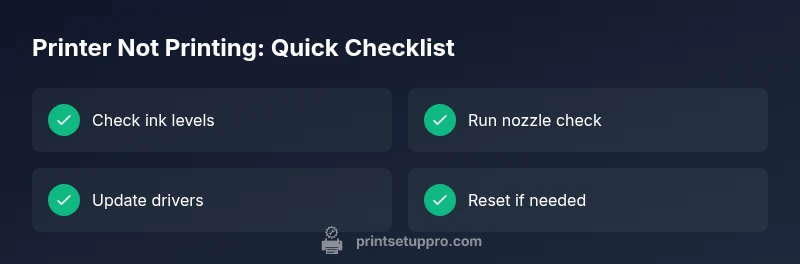
The most likely causes are low ink, clogged print heads, or a stalled driver. Start with quick checks: verify ink levels and run a nozzle check, confirm the Epson printer is online, and print a test page. If that fails, update or reinstall the driver, reset the printer, and try a direct USB connection. For stubborn issues, escalate to professional service.
Quick sanity checks before deep troubleshooting
Before you dive into deeper fixes, perform a few quick checks to rule out obvious causes. According to Print Setup Pro, most Epson printing problems are resolved by simple hardware checks and driver updates. Start with the basics: verify the printer shows as Online in both the printer control panel and your computer, ensure there are no stuck jobs in the print queue, and confirm the device is connected to the correct network or USB port. If you recently changed Wi‑Fi settings or installed a software update, run the connection wizard again. A short power cycle can clear temporary stalls—turn the printer off, unplug for 30 seconds, then plug back in and power on.
According to Print Setup Pro, addressing the simplest possibilities first saves time and prevents chasing phantom faults. If the issue persists after these checks, proceed with the deeper troubleshooting steps outlined below.
Check ink levels and cartridges
Low ink or empty cartridges are by far the most common reason for a printer not to print. Start by opening the printer software or control panel and check the ink indicator for each cartridge. If any color is low, replace with genuine Epson cartridges or a compatible alternative that is well-sealed. After replacing, run a first nozzle check to confirm ink is reaching the print head. Re-seat cartridges firmly and ensure they are snapped into place. If you use refillable cartridges, ensure the vents are clear and the chips are communicating with the printer. Clean hands and a clean area will help avoid introducing dust into the ink system.
Tip: Keep spare cartridges on hand so you can complete a quick swap without interrupting a workflow. If the cartridges are new but not recognized, reinsert them while the printer is powered off.
Verify printer online status and wake from idle
A device may show as online but be paused in the OS or sat in a 'Offline' state in the print queue. Check the status in Windows (Settings > Devices > Printers & scanners) or macOS (System Preferences > Printers & Scanners) and ensure the Epson printer is set as the default. Open the print queue and cancel any stuck jobs. If the printer goes offline after a wake, disable 'Use Printer Offline' and reconnect via USB or rejoin the Wi‑Fi network using the built‑in network setup wizard.
If you rely on a wireless connection, consider temporarily linking the printer to your computer with a USB cable to rule out network issues. Print Setup Pro notes that connectivity problems often masquerade as printing faults.
Run nozzle check and head cleaning
If printouts show missing lines or faint color, perform a nozzle check first. In the printer software, print a nozzle pattern page and inspect for broken lines. If gaps appear, run the head cleaning utility. Do not over-clean; run one or two cleanings and re-check. After cleaning, print a test page. If the issue persists, repeat the nozzle check again. Replacing worn heads is not typical for consumer printers, but extended clogging may require professional service.
Pro tip: Space out cleaning cycles to avoid stressing the printer’s ink system. If you notice repeated clogs, consider changing ink brands or cartridges to improve flow.
Driver and software troubleshooting
Outdated or corrupted drivers can stop Epson printers from printing even when the hardware is fine. Check your operating system's device manager or system report for the installed driver version. Visit Epson’s official support site to download the latest compatible driver, firmware, and software. If Windows updates caused a regression, try reinstalling the driver or rolling back to a previous version. On Mac, ensure the correct printer profile is selected in Print Settings. If multiple software packages affect the print pipeline, disable or uninstall conflicting software to restore priority to the printer driver.
Tip: Always download drivers directly from Epson’s official site to avoid rogue installers. If you’re unsure about compatibility, use Print Setup Pro’s compatibility checklist before installing.
Connectivity: USB vs Wi‑Fi and printer queue
Poor or intermittent connections are a frequent culprit for printers that won’t print. If you’re using USB, try a different port and a direct cable (no USB hubs). For networked printers, check the router, ensure the printer is on the same network, and verify the IP address hasn’t changed. Disable VPNs or firewalls that might block print traffic temporarily while testing. Remove and re-add the printer in your OS’s printer list after re‑connecting.
If you’re in a shared office or student dorm, ensure other devices aren’t saturating the network with large data transfers during print jobs, which can cause timeouts. Print Setup Pro notes that stabilizing the connection is often enough to restore printing.
Reset options and firmware updates
If basic steps fail, perform a soft reset by turning the printer off, waiting 30 seconds, then turning it back on. For deeper resets, consult the user manual for a factory reset method. Firmware updates can fix printing issues and improve compatibility; download the latest firmware from Epson’s official site and follow the on‑screen instructions carefully. Do not interrupt the firmware update, and avoid turning off the printer during the process. After updating, re-test with a simple print job to confirm success.
Always backup or note down preferred settings before a factory reset, as it may revert to defaults.
Preventive maintenance and best practices
Prevention is the best cure. Keep ink fresh and use the printer regularly to prevent nozzle drying. Schedule regular nozzle checks and cleaning cycles if you print intermittently. Store and transport cartridges per the manufacturer’s recommendations. Use genuine Epson ink to minimize clogging risk. Maintain a clean print path by removing dust and paper scraps, and periodically run a test page to catch issues early. Consider a quarterly maintenance routine if your printing frequency is low.
Pro tip: Maintain a small kit with microfiber cloths, isopropyl alcohol, and replacement cartridges to handle minor maintenance in minutes rather than hours.
Quick wrap on the middle content
The information above provides a comprehensive, step‑by‑step approach to diagnosing and fixing most Epson printer non‑printing issues. If you exhaust these steps without success, it’s time to escalate to professional support and consider device replacement if your printer is old or frequently malfunctioning.
Steps
Estimated time: 30-60 minutes
- 1
Gather supplies and prep
Collect the printer, the original ink cartridges, a clean microfiber cloth, and a stable workspace. Power off the printer and the computer before handling cartridges to avoid damage. Confirm you have a USB cable or stable network access for testing.
Tip: Have spare cartridges and the manual handy. - 2
Check ink levels and replace cartridges
Open the printer software or control panel and inspect each cartridge level. Replace any cartridge that is low or empty with the correct Epson or compatible option. Re-seating the cartridge after replacement helps ensure proper communication with the printer.
Tip: Ensure cartridges are seated and clicked into place. - 3
Run nozzle check
Print a nozzle check pattern from the printer utility. Look for broken lines or gaps. If lines are missing, proceed to head cleaning but do not overdo it; excessive cleaning wastes ink and can damage the head.
Tip: Document any error codes shown on the pattern. - 4
Head cleaning and re-test
Run the head cleaning cycle once or twice, then print another nozzle check and a test page. If lines are still missing, repeat once more before seeking professional help. Do not repeatedly clean in a single session.
Tip: Let the printer rest briefly between cleaning cycles. - 5
Driver update or reinstall
Visit Epson’s official site and download the latest driver and firmware for your model. Install, restart, and re-check the print queue. If a recent update caused trouble, try a clean install or rolling back to the previous driver version.
Tip: Use the exact driver for your OS version. - 6
Test with USB connection
Connect the printer directly to the computer with a USB cable and bypass the network. Try a simple print job to rule out network-related issues. If printing works over USB but not over Wi‑Fi, investigate the router and wireless settings.
Tip: Avoid USB hubs during testing. - 7
Check connectivity and network setup
If using Wi‑Fi, confirm the printer is on the same network as the computer and that the IP address is current. Re-add the printer in the OS if necessary. Disable VPNs temporarily to exclude network filtering as the cause.
Tip: Renew the printer’s DHCP lease if you suspect IP changes. - 8
Final test and escalation
Run a final print test; if printing remains inconsistent, perform a soft reset or factory reset per the manual and reconfigure settings. If issues persist, contact Epson support or a local service center with error codes and model details.
Tip: Document error codes and steps tried for faster support.
Diagnosis: Printer not printing after sending a print job
Possible Causes
- highLow or empty ink cartridges
- highClogged print head/nozzle
- highOutdated or corrupted printer driver
- lowPaper jam or path obstruction
- lowConnectivity issue (USB/Wi-Fi)
Fixes
- easyCheck ink levels and replace cartridges if needed
- easyRun nozzle check and perform head cleaning
- easyUpdate or reinstall the printer driver
- easyClear paper jams and verify paper path
- easyRe-establish USB or network connection, re-add printer
People Also Ask
Why is my Epson printer not printing even though it shows online?
Online status can mask underlying problems like ink depletion, clogged heads, or driver conflicts. Start with ink checks, run a nozzle test, and verify the driver is current. If the issue persists, review the print queue and recent software changes.
If your Epson shows online but won’t print, check ink, run a nozzle test, and verify drivers. If needed, review the print queue and recent software changes.
What should I do first when Epson printer isn’t printing?
Begin with the basics: power cycle the printer, check for stuck print jobs, verify ink levels, and attempt a test print. If those steps don’t help, move on to nozzle checks and driver updates.
Start with a power cycle, check for stuck jobs, and verify ink. Then run a test and update the driver if needed.
How do I fix a clogged print head on an Epson printer?
Run a nozzle check to confirm clogs, then perform head cleaning. If lines remain broken after one or two cleanings, stop and test again later; repeated cleaning can waste ink and cause further issues.
Do a nozzle check, then clean the head once or twice and re-test. Stop if lines stay broken to avoid waste.
Why did the printer stop printing after a driver update?
Driver updates can cause compatibility glitches. Try reinstalling the latest driver from Epson, or roll back to a prior version if available. Ensure the OS and printer language settings match.
Sometimes a driver update causes issues. Reinstall the latest driver or roll back to a previous version if possible.
Is it safe to reset the printer to fix not printing?
A soft reset or factory reset can help, but back up preferences first. Follow the manual for steps and avoid interrupting firmware updates during resets.
Resetting can help, but back up settings first and don’t interrupt firmware updates.
When should I contact Epson support?
If issues persist after completing the troubleshooting steps, contact Epson support with model number and any error codes. Warranty or service options may apply.
If it still won’t print after these steps, contact Epson support with your model and error codes.
Watch Video
Quick Summary
- Check ink levels and run a nozzle test.
- Update or reinstall the printer driver.
- Verify USB/Wi‑Fi connectivity and test printing.
- Perform head cleaning only when necessary.