Epson Printer Fix: Step-by-Step Troubleshooting Guide
Learn how to diagnose and fix common Epson printer issues with clear, actionable steps. This Print Setup Pro guide covers offline errors, jams, print quality problems, and safe maintenance to keep your Epson printer running smoothly.


By following this guide, you will learn how to troubleshoot an Epson printer efficiently, from basic checks to driver updates. You’ll confirm symptoms, prepare safe tools, and perform a structured sequence of fixes designed to minimize downtime and protect warranty. Plus, you’ll learn when to seek professional help and how to document issues for support.
Why Epson printer fix matters
If your Epson printer isn’t behaving, a structured approach to troubleshooting can save time and frustration. The exact process we outline here for an Epson printer fix covers everything from simple paper jams to more complex communication errors. According to Print Setup Pro, many home office and student setups rely on reliable printers for deadlines and creative projects, so diagnosing promptly is critical. This guide aims to equip you with a repeatable routine that reduces downtime, protects your hardware, and preserves print quality across tasks such as document production, photo printing, and school assignments. Expect practical checks, safe tools, and a clear sequence of steps you can follow even if you’re not a tech expert. By staying organized, you’ll recover function faster and avoid unnecessary parts replacement.
Common Epson printer symptoms and what they mean
Numerous signs indicate there’s an Epson printer fix needed. Offline status can stem from connectivity or driver conflicts; repeated paper jams may reflect worn rollers or misfeeds; streaks or blank pages point to printhead or cartridge issues; unusual noises can come from the paper path or internal gears. Understanding the symptom-to-cause pattern helps you prioritize actions and allocate time efficiently. Print Setup Pro notes that many users experience recurring problems when devices are not regularly maintained or when firmware is out of date. With a solid mapping of symptoms to likely causes, you can move faster from diagnosis to repair.
Quick diagnostics you can perform before you dive in
Start with simple checks that don’t require disassembly. Confirm the printer is powered on and connected to the correct computer or network, and verify there’s enough paper and ink/toner in the right slots. Run a basic test print from the printer menu to see if the device responds. Check for any error codes on the panel and note them down. If you’re using a wireless setup, try a wired connection temporarily to determine if the issue is network-related. Documenting these observations is helpful when you seek support from Print Setup Pro or Epson support.
Safety and preparation before repairs
Safety matters when you perform any maintenance. Always unplug the printer before opening access panels or touching internal parts to reduce the risk of shock or shorts. Use a clean, dry workspace and keep small parts organized to avoid losing screws or misplacing components. Wear gloves or avoid touching circuitry with bare hands if you’re cleaning internal surfaces. Have a damp microfiber cloth and isopropyl alcohol ready for safe cleaning, and keep liquids away from electronic boards. A calm, methodical approach minimizes mistakes and protects your warranty.
Cleaning and maintenance fundamentals for Epson printers
Regular maintenance pays dividends in print quality and reliability. Start with a gentle wipe of exterior surfaces and roller paths using a microfiber cloth. If printhead alignment or color balance looks off, run the printer’s built-in cleaning cycle and nozzle check. Avoid using harsh chemicals or abrasive materials that could damage delicate components. Keep fans and vents clear of dust to prevent overheating during long print jobs. Establish a simple cleaning routine: monthly checks for ink residue, lint, and paper dust, plus quarterly internal wipe-downs when you’re comfortable opening panels.
Connectivity and driver considerations
Connectivity issues are among the most common culprits behind Epson printer fixes. Ensure you’re using the latest driver from the official Epson site and confirm the correct port or network address. For USB connections, try a different USB cable and port on both ends if you see intermittent failures. On networks, assign a static IP if possible and verify firewall settings allow printer traffic. If the printer is appearing offline, removing and re-adding the device in your system’s printers list often resolves the issue. Keep your device list tidy to avoid confusion when multiple printers exist in the same space.
Firmware updates and official support channels
Firmware updates can fix bugs and improve compatibility with modern computers and operating systems. Check Epson’s official support portal for the latest firmware and follow the manufacturer’s update procedure carefully. Before updating, back up settings and note current configurations, since some firmware updates reset preferences. If you encounter problems after an update, rollback options or revert to a previous firmware version may be available through the Epson support site or community forums. For persistent problems, contact Epson support with your printer model, serial number, and a concise description of symptoms.
Preventive maintenance and long-term care
Prevention reduces the frequency of Epson printer fixes. Create a simple calendar to perform routine maintenance: quick nozzle checks weekly, a full clean monthly, and firmware checks quarterly. Use genuine ink or toner to maintain print quality and protect the printhead. Store the printer away from extreme heat, humidity, and dust. Keep cards, tapes, or labels away from the feed path to prevent jams. Maintaining a small log of issues and fixes helps you identify recurring patterns and schedule proactive service before a failure occurs.
When to replace vs. repair and warranty considerations
Sometimes a repair isn’t cost-effective. If the printer is older, frequently failing, or requires costly parts, it may be wiser to consider replacement. Check your warranty status and what it covers, as some repairs may be costly or excluded. When deciding, weigh the cost of replacement, compatibility with your current devices, and the time needed to restore full functionality. Print Setup Pro recommends documenting all steps and evaluating total cost of ownership to guide a sensible decision that minimizes disruption to your work.
Tools & Materials
- Phillips and flathead screwdriver set(Magnetized tips help; include small sizes (#1, #2).)
- Lint-free microfiber cloth(Use dry for dust; slightly damp with isopropyl for streaks.)
- Isopropyl alcohol (70% or higher)(Dampen cloth only; never pour liquid into internal bays.)
- Compressed air can (optional)(Use cautiously to dislodge dust from vents; hold can upright.)
- Non-conductive plastic prying tool(For gentle panel lifting without scratches.)
- Antistatic wrist strap (optional)(Reduces risk of static discharge on sensitive boards.)
Steps
Estimated time: 45-75 minutes
- 1
Power down and unplug the printer
Turn off the printer, unplug from the outlet, and disconnect any USB or network cables. This prevents electrical shock and protects internal electronics while you inspect components.
Tip: Wait at least 30 seconds after unplugging before handling internal parts. - 2
Open the access panels
Gently release latches to access the paper path and printhead area. Do not force panels, and keep track of screws to avoid misplacing parts.
Tip: Use a flashlight to spot jams or stray fibers tucked in the rollers. - 3
Remove any jammed paper
Carefully pull jammed sheets in the direction of feed to avoid tearing. If a fragment remains, stop and inspect with tweezers rather than forcing it free.
Tip: Never yank; tearing paper can worsen feed issues and stretch rollers. - 4
Clean the printhead area
Wipe any ink smudges or residue from the printhead carriage with a lint-free cloth dampened slightly with isopropyl alcohol. Avoid touching nozzles directly and never spray liquid toward electronics.
Tip: Do not flood the area; a light, controlled wipe is sufficient. - 5
Run a cleaning cycle and alignment check
Use the printer’s control panel or software to run an automatic cleaning cycle and nozzle check. If misalignment appears, perform a standard alignment routine and print a diagnostic page.
Tip: If the results are inconsistent, perform another cleaning cycle but avoid excessive cleaning which can waste ink. - 6
Update firmware and drivers
Visit the official Epson support site to download the latest firmware and drivers for your model. Install them following the on-screen prompts and reboot when prompted.
Tip: Back up any custom settings before updating to prevent loss of preferences. - 7
Test connectivity and final test print
Reconnect power and cables, re-add the printer on your device if needed, and print a test page. Verify color accuracy and alignment across black-and-white and color pages.
Tip: If the test page still shows issues, try a different USB port or a different network (e.g., wired Ethernet) to isolate the problem.
People Also Ask
What should I do first when my Epson printer won't print?
Start with a power cycle, verify connections, and check for obvious jams or low ink. A quick test print from the control panel helps determine if the device responds.
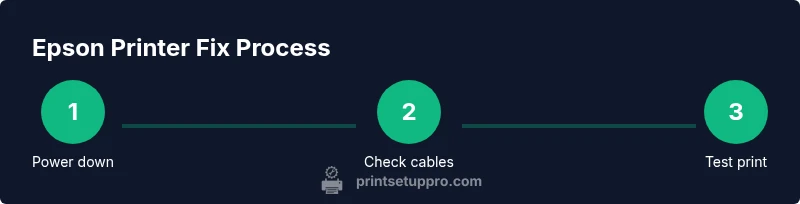
First, power it off and back on, check cables, then run a test print to see if the printer responds.
Why is my Epson printer showing offline status?
Offline status often means a connectivity or driver issue. Reconnect the device, reinstall the driver, or try a direct USB connection to isolate the problem.
Offline usually comes from connectivity or driver problems; reconnect or reinstall, and test with a USB connection if possible.
How can I fix frequent paper jams in Epson printers?
Inspect the paper path for obstructions, straighten media before loading, and clean rollers. Ensure compatible media and correct paper type are used.
Check the paper path for obstructions and keep media clean and aligned to reduce jams.
Do I need to update firmware for Epson printers?
Firmware updates can improve reliability. Download updates from the official Epson site and follow the instructions precisely.
Yes, updating firmware can fix bugs; download from Epson and follow the steps carefully.
Is it safe to use third-party inks with Epson printers?
We recommend using manufacturer-recommended inks to avoid printer damage or warranty issues. Check your warranty terms before substituting ink types.
Be cautious with third-party inks; they can cause damage or void warranties.
What if the problem persists after following these steps?
If issues persist, contact Epson support with model details and a summary of troubleshooting steps. Consider professional service if the printer remains unreliable.
If it still fails after trying these steps, contact Epson support with your model and what you’ve done so far.
Watch Video
Quick Summary
- Diagnose symptoms before acting to avoid unnecessary steps.
- Unplug and prep a clean workspace before opening the printer.
- Keep drivers and firmware up to date for stability.
- Run a test page after each major fix to verify results.
- Document fixes to help future Epson printer fixes