How to Check Printer Online: A Complete How-To Guide
Learn how to check printer online, diagnose connectivity, and fix common issues. A comprehensive, educator-friendly guide for home offices, students, and small businesses.


To check printer online, access the printer’s web interface or manufacturer app to view status, ink levels, and error messages. You’ll need the printer’s model, a connected network, and login credentials. This quick check helps diagnose connectivity problems and determine whether issues stem from hardware, drivers, or network settings. Start with the web UI for the fastest results.
What it means to check printer online
Checking printer online means verifying whether the device is reachable over your network and what its current status is. It covers screen status, ink or toner levels, queued jobs, and any active error codes. For home office users and students, the online check is often faster and more reliable than inspecting the device physically. According to Print Setup Pro, starting with the printer’s web interface is often the fastest route. If your printer is connected to the network, you can view most status indicators directly in the built-in web UI or the vendor app. Keep in mind that some data is only available when the printer is connected to the internet or managed through cloud services. In rare cases, a firmware-based feature flag may enable certain status details. This practical scope helps triage issues quickly: verify connectivity, confirm whether you’re dealing with a printing problem, and decide whether you should update firmware, reconfigure the network, or replace a component.
In addition to status indicators, online checks can reveal whether a print queue is clogged, if there’s a paper jam, or if a consumable needs replacement. If you routinely check online, you’ll build a quick reference for typical symptoms and fixes. The process is iterative: you confirm a status, perform a small test, and compare results across different interfaces to validate findings.
Methods to check printer online
There are several reliable routes to check printer online status. First, the printer’s own web user interface (UI): by entering the device’s IP address or hostname in a browser you can see live status, error codes, and maintenance tasks. Second, manufacturer apps: many printers pair with mobile or desktop apps that present status summaries, ink/toner levels, and remote print options in a friendly layout. Third, the operating system’s built-in status page: on Windows or macOS you can view the printer’s status from the Control Panel or System Settings and initiate tests from there. Fourth, cloud-based dashboards and print-management software: organizational accounts allow status dashboards, queue monitoring, and remote job submission to compatible devices. Fifth, remote access or enterprise solutions: if you’re in a school or business environment, centralized management can pull status data from multiple printers. In practice, you’ll often use a combination of methods, starting with the web UI, then cross-checking in the app for consistency. The key is familiarity—knowing where to look for status indicators and what each icon or color means. This reduces firefighting time when issues arise.
Prep: what you need before checking online
Before you begin an online check, gather a few essentials to make the process smooth and repeatable. Note the printer’s exact model and, if possible, its firmware version. Identify how the printer is connected (Wi‑Fi, Ethernet, or USB-to-network sharing) and locate its current IP address or hostname. Have a computer or mobile device on the same network ready, with a browser or the printer’s official app installed. If you intend to use the web UI, you may need admin credentials; many printers ship with a default password that should be changed immediately for security. Also, prepare a small notebook or digital note to log status changes, error codes, and any steps you take to resolve issues. If you must, print a network configuration page directly from the printer’s control panel to reveal the IP address and network path. This preparation minimizes back-and-forth and reduces the time spent diagnosing the issue. By keeping these details handy, you can verify status quickly, confirm whether you’re dealing with a connectivity problem, and decide whether you should adjust network settings, replace consumables, or perform a firmware update.
How the online check flow works in practice
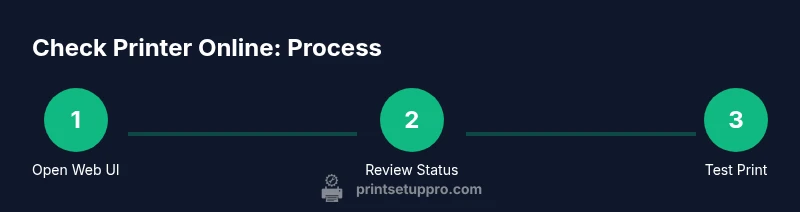
Open the printer’s web UI using its IP address (or use the vendor app on a mobile device). Log in if required, then read the main status page to confirm whether the printer is Online or Offline, and note ink/toner levels, page count, and any active warnings. Check the error codes page if a problem is indicated. Next, inspect the print queue from the browser or app to ensure there are no stuck jobs; cancel or reprint as needed. If the device appears unreachable, run a basic network test: ping the printer’s IP from your computer and verify the network path to the printer is clear. Validate the IP address hasn’t changed after a reboot and consider assigning a static IP to prevent future changes. If cloud or mobile apps are available, cross-check status there to ensure consistency. Finally, perform a small test print directly from the UI or app to confirm functional status. Document outcomes and plan follow-up steps if issues persist.
Troubleshooting common issues when checking printer online
Offline status is the most common hurdle. If the printer shows Offline, verify network connectivity, confirm the correct IP address, and re-establish the connection if needed. A frequent culprit is IP address changes after router reboots; consider assigning a static IP or DHCP reservation. Firewalls or network isolation can block status pings or app sync; temporarily disable restrictions or add exceptions for the printer. If login credentials fail, reset the password and re-login. Outdated firmware can limit status reporting or cloud features; check for updates via the UI or the vendor app, then install and reboot. Finally, if you see inconsistent data between the UI and the app, it may indicate multiple issues: a faulty network path, ambiguous error codes, or a failing print head. Run a controlled test and clear any stale jobs to isolate the cause.
Security, privacy, and best practices
Accessing printer status remotely or through cloud services exposes a surface for potential misuse. Always use HTTPS-enabled interfaces and strong, unique passwords for admin accounts. Enable two-factor authentication where available and keep firmware up-to-date to protect against known vulnerabilities. If you’re on a shared or public network, avoid exposing the printer’s admin UI to the internet; use VPNs or secure remote management when needed. Regularly review connected devices and revoke access for devices you no longer use. Document your security settings so you can reproduce a safe configuration if something changes.
Real-world scenarios and best practices
Consider a scenario where a printer reports low ink via the web UI but prints normally from a test page. In this case, schedule a cartridge replacement before it runs dry, then monitor the status in subsequent online checks. If a printer becomes intermittently offline after a router reboot, set a static IP, ensure the printer remains on the same network, and test connectivity with a simple ping command. For multi-user environments, maintain a simple procedure: (1) check status in web UI, (2) verify queue, (3) confirm with the vendor app, (4) print test page, (5) document results. Having a repeatable routine reduces downtime and helps you scale printing for a small team.
Final thoughts and practical recommendations
A proactive approach to checking printer online reduces downtime and improves reliability. Use a consistent sequence of checks, and keep firmware and apps up to date. Practically, most issues boil down to network topology, IP conflicts, or outdated firmware. By maintaining a small log of status changes and actions, you’ll build an effective playbook to diagnose future problems quickly. ThePrint Setup Pro team recommends incorporating online checks into regular printer maintenance as a first-line diagnostic tool.
Tools & Materials
- Printer model and serial(Know the exact model to access the correct UI and firmware options)
- Computer or smartphone on the same network(Needed to access web UI or vendor apps)
- Network access (Wi-Fi or Ethernet)(Stable connection minimizes false negatives)
- Admin login credentials for the printer UI/app(Use secure credentials; change defaults)
- Printer IP address or hostname(Used to reach the web UI; print a network config page if needed)
- Printer manual or quick-start guide(Useful for model-specific steps or codes)
Steps
Estimated time: 30-60 minutes
- 1
Open the printer's web interface
On a computer or mobile device connected to the same network, enter the printer’s IP address or hostname into a web browser. If you don’t know the address, print a network configuration page from the printer's control panel, or check the router client list. Ensure you’re not using a guest network that blocks printer access.
Tip: Label the IP address for future quick access. - 2
Log in to the admin panel
Enter admin credentials to access full status details. If you’ve never configured credentials, refer to the manual for the default login and then change it to a strong password. Non-admin users can often view limited status but may not see diagnostics or firmware options.
Tip: If you’re unsure of the password, reset via the printer’s reset procedure and re-secure the device. - 3
Review status and consumables
Navigate to the status page to verify Online/Offline state, paper tray status, and ink or toner levels. Note any error codes and their meanings from the vendor's guide. If ink is low, plan a cartridge replacement; if there’s a jam, follow the on-screen instructions to clear it.
Tip: Take a screenshot of the status page for your records. - 4
Check the print queue and recent jobs
Open the print queue within the web UI and look for stuck or failed jobs. Cancel or reprint as needed. This helps determine if the issue is related to a single job or to the device itself.
Tip: If a job is stuck, restart the print spooler on the computer after canceling the stuck document. - 5
Verify network connectivity
From another device on the same network, ping the printer’s IP address and check for responses. If there’s no reply, re-check network settings, verify the IP hasn’t changed, and consider a DHCP lease or static IP reservation to prevent future changes.
Tip: Consider reserving a static IP to stabilize access. - 6
Cross-check with mobile/cloud app
If a vendor app is available, sign in and compare status with the web UI. Look for firmware updates and apply them if needed. Apps can provide a holistic view that complements the web UI and alerts you to issues the UI might not surface.
Tip: Always run a test print after applying updates to confirm visibility and reliability. - 7
Document findings and test print
Make a short log of the status observed, actions taken, and results of a test print. Re-test printing to confirm resolution. If issues persist, escalate with the exact steps performed to speed up future troubleshooting.
Tip: Keep a living document of changes and outcomes for quick reference.
People Also Ask
What does it mean if my printer shows offline when I check printer online?
Offline means the device cannot be reached by your computer on the network. Causes include a wrong IP address, network issues, or the printer being asleep. Start by confirming the IP, ensuring the device is powered on, and checking network connectivity. If needed, reboot the printer and router, then verify again.
Offline status means the printer can't be reached on the network; check IP, power, and connectivity, then reboot if needed.
Can I check printer online if I’m not on the same Wi-Fi network?
Yes, many printers support cloud-based status checks or vendor apps that work over the internet. Ensure you enable secure cloud access and sign in with your account on a trusted device.
Yes, you can check status remotely using cloud services or the vendor app if you enable secure access.
Do I always need admin rights to check online status?
Most detailed status information requires admin access, but some basic status can be viewed without it. If you’re troubleshooting, obtain admin credentials or request temporary access from your IT administrator.
Generally you’ll need admin rights for full status details, but some basics can be seen without it.
What if the printer doesn’t appear in the web UI?
Verify the printer is on the same network, confirm its IP address, and check for IP conflicts. If problems persist, reboot the printer and router, then re-check. If it still doesn’t appear, check firewall settings or contact support.
If it doesn’t appear, verify network, IP, and try rebooting; check firewall settings if needed.
Is it safe to check printer online over the internet?
Yes, when you use HTTPS interfaces, strong passwords, and up-to-date firmware. Avoid exposing admin UI to public networks; use secure connections or VPNs for remote checks.
Yes, safely check online with HTTPS, strong passwords, and regular firmware updates.
Watch Video
Quick Summary
- Check online status first via web UI for fastest results
- Cross-check with vendor apps to confirm consistency
- Secure credentials and firmware updates are essential
- Test print after each corrective action