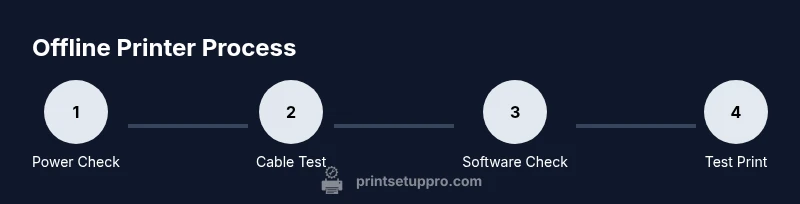
How to Check If Your Printer Is Offline
Learn how to check if a printer is offline, diagnose connectivity issues, and restore printing quickly with a step-by-step guide from Print Setup Pro.


To check if a printer is offline, start by verifying the printer status on your computer (Windows or macOS). Confirm power and connections, inspect network or USB cables, and pause any active print jobs. This quick guide walks you through network checks, driver status, and common fixes to restore printing quickly.
Why Printer Offline Happens and How to Think About It
According to Print Setup Pro, the offline status is usually not a hardware death sentence but a signal that communication between devices has been disrupted. Common causes include power issues, loose cables, misconfigured network settings, outdated drivers, or a stuck job in the print queue. Understanding the root cause helps you choose the fastest fix. This section explains how to think about how to check if printer is offline and what signals to look for. You’ll see that most problems fall into a few categories: connection problems (USB, Ethernet, Wi‑Fi), software or driver issues, and queue or service problems on the computer. With this mindset, you can approach troubleshooting calmly and systematically, saving time and avoiding unnecessary steps.
Throughout the process, keep your printer’s model number handy and note any error codes that appear on the display or in the OS. This information often points to a specific fix and can speed up support calls. Print Setup Pro’s practical approach emphasizes pruning variables one by one until the issue becomes obvious.
Start with the Basics: Power, Cables, and Status Lights
Begin with the simplest checks. Ensure the printer is powered on and that the power light is steady or blinking as expected for your model. Inspect the power cord and any surge protector to ensure a clean connection. Next, verify data cables (USB or Ethernet) are firmly seated at both ends and not damaged. If you’re testing a network printer, confirm the printer’s IP address is visible on the device panel or via the printer’s onboard menu. Status lights on the printer can indicate specific problems (for example, a blinking light might signal a paper jam or low ink). This foundational step often resolves many offline issues without delving into software.
- Look for error icons on the printer display and write down any codes.
- If the cable is loose, reseat it firmly; avoid using damaged cables.
- If the printer is new, verify it has completed setup and is ready to print.
Check Printer Status on Your Computer (Windows and macOS)
The next layer is validating how your computer sees the printer. On Windows, open Settings > Devices > Printers & scanners, select your printer, and check status. If it shows offline, try selecting Open queue, then Cancel all documents, and finally set printer to Online. On macOS, go to System Settings > Printers & Scanners, highlight the printer, and confirm that Status reads Idle or Online. If status is Offline, remove and re-add the printer by using the plus (+) button.
Printing from a newly configured print queue updates can fix stale connection data. If you recently updated your OS or printer drivers, re-check the driver version against the manufacturer site for compatibility. Print Setup Pro recommends keeping drivers current and re-adding the device after major updates to ensure clean communication paths.
Confirm Print Spooler and Queues
Spooler problems are a common cause of printers appearing offline. On Windows, open Services and locate the Print Spooler service. Stop the service, navigate to C:\Windows\System32\spool\PRINTERS and delete any stuck files, then restart the spooler. On macOS, reset the print system by right-clicking the Printer list and choosing Reset System, then re-add your printer. After resetting, send a test page to confirm that new jobs are accepted rather than sitting in a queue.
If you see stuck documents in the queue, cancel them individually or right‑click and choose Restart. Avoid canceling critical jobs during busy work times. Regularly clearing the queue helps prevent “offline” symptoms caused by blocked jobs.
Troubleshoot Wireless and Networked Printers
Wireless printers add layers of potential issues, including router DNS conflicts, IP address changes, or weak Wi‑Fi signals. Start by checking the printer’s network status from its control panel and ensure it is connected to the correct SSID. If the router assigned a new IP, use a static IP for the printer or reserve its IP in the router settings. Update the printer’s wireless firmware if an update is available, as firmware fixes often address connectivity bugs. If possible, place the printer within a stronger signal zone or use a wired connection for reliability.
For mixed networks (wired and wireless devices), ensure the computer and printer are on the same subnet. A mismatch can cause communication to fail even when devices are visible on the network. If you have a VPN or firewall, temporarily disable it to test connectivity, then re-enable and adjust rules as needed.
Test Print, Clear Queues, and Reconnect
After performing the above checks, run a real print test with a simple document. If it prints, the issue is likely resolved; if not, revisit steps or try a different connection method (USB vs network). Reconnect from scratch by removing the printer, restarting the computer and printer, and then re-adding the printer in the OS’s printer settings. When re-adding, choose the correct driver (or let the OS find a compatible one) and ensure the default printer is set correctly for your workflow.
If the problem persists after a full re-install, the issue may be deeper—such as a router misconfiguration, DNS issues, or a hardware fault. Recording the exact sequence of steps you took helps you escalate the issue with service support and prevents repeating steps unnecessarily.
When to Seek Professional Help or Replace
If you have completed a thorough check of power, cables, settings, and drivers, but the printer remains offline, it may be time to seek professional support or consider replacement. Persistent offline status can be caused by failing components such as control boards, network adapters, or print heads, which typically require specialist tools. Before replacing, verify warranty status and check for known issues reported by the manufacturer for your model. An expert diagnosis can prevent unnecessary replacement costs.
Print Setup Pro recommends documenting every step you took and the results so you can provide a precise history to the support technician. If the model is older or in high-demand environments, budgeting for a replacement printer with modern connectivity options can yield long-term reliability gains.
Tools & Materials
- Printer power cable(Firm connection to a live outlet; avoid daisy chaining through power strips)
- Printer data cable (USB or Ethernet)(Use the correct connector type for your model and device)
- Computer with printer drivers installed(Keep drivers up to date for both Windows and macOS)
- Access to printer settings on computer(Needed to view status and reset queues)
- Router/Wi‑Fi network credentials(Useful for wireless printers and network tests)
- A spare USB drive (optional)(Can be handy for driver reinstallation offline)
- Access to printer queue(Important for canceling stuck jobs)
Steps
Estimated time: 20-40 minutes
- 1
Power cycle and check status lights
Turn the printer off, wait 15 seconds, and turn it back on. Observe the status lights and any error displays. A reset can clear minor faults and reinitialize network modules.
Tip: If the lights indicate a fault, consult the manual for the specific error code. - 2
Inspect cables and physical connections
Unplug and reseat the USB or Ethernet cable at both ends. Check for wear or damage and replace if needed. For wireless printers, verify the device is connected to the intended network.
Tip: Avoid using damaged cables; a fresh cable can solve intermittent disconnects. - 3
Check printer status in the OS
On Windows, view the printer status in Settings > Devices > Printers & scanners. On macOS, check in System Settings > Printers & Scanners. If the status shows offline, try bringing it online or removing and re-adding the device.
Tip: Set the printer as default after re-adding to prevent future offline status. - 4
Clear the print queue and reset spooler
Open the print queue and cancel all documents. In Windows, restart the Print Spooler service; in macOS, reset the print system if needed. This clears stuck jobs that can force an offline state.
Tip: Only delete documents you recognize to avoid losing work. - 5
Test printing via different connection
If possible, test a USB connection after a network test or vice versa. This helps identify whether the issue is network or printer-specific.
Tip: Document results with dates and times for troubleshooting history. - 6
Update drivers or reinstall
Check for driver updates on the manufacturer site or let the OS fetch compatible drivers. If problems continue, uninstall and reinstall the printer in the OS.
Tip: Use the latest driver from the official site rather than generic ones. - 7
Escalate if issues persist
If all steps fail, contact support with model number, firmware version, and steps performed. Consider replacement if the device is aging or underperforming.
Tip: Keep a summary of trials and outcomes to speed up support.
People Also Ask
What does it mean when my printer shows offline?
Offline typically means the computer and printer cannot communicate. This can be due to cables, network issues, driver problems, or a paused print queue. Work through basic checks first before assuming hardware failure.
Offline means your computer can't communicate with the printer. Start with cables, network, and driver checks to restore connectivity.
How do I reset the print spooler in Windows?
Open Services, locate Print Spooler, stop it, delete pending documents in the Printers folder, and restart the spooler. This clears stuck jobs that can cause offline status.
Go to services, stop the spooler, clear the queue, and restart the spooler to reset printing.
Why is my printer offline even though it’s connected via USB?
USB offline can result from a faulty cable, a misconfigured port, or a stale driver. Try using a different USB port, replace the cable, and reinstall the printer driver.
If USB says offline, check cable, try another port, and reinstall drivers to restore communication.
Can the router cause offline status for a network printer?
Yes. A misconfigured router or DNS issues can block printer communication. Ensure the printer’s IP is correct, consider reserving an IP, and simplify the network path if possible.
Router issues can block the printer; verify IP settings and network stability.
When should I replace the printer rather than troubleshoot?
If the device is aging, frequently fails, or lacks driver support for current systems, replacement may be cost-effective. Compare repair costs with a new model featuring modern connectivity.
Consider replacement if repairs exceed the cost of a new unit or if compatibility is poor.
Watch Video
Quick Summary
- Identify root cause by breaking down power, connection, software, and queue factors.
- Clear the print queue and reset spooler to resolve many offline states.
- Test both USB and network connections to isolate the fault source.
- Keep drivers updated and re-add the printer after major OS updates.
- Document steps and outcomes to streamline future troubleshooting.