How to Check Printer Status: A Practical Guide
Learn how to check printer status across Windows, macOS, and mobile. Read how to read status lights, view the queue, confirm network connections, and fix offline or error states with practical steps from Print Setup Pro.


Why Checking Printer Status Matters
According to Print Setup Pro, understanding a printer's status helps you avoid wasted prints and downtime. In a typical home office or classroom, printers can appear ready even when they’re not, leading to failed jobs, jams, or misfeeds. By developing a routine to check status, you gain confidence that the device is prepared to print, and you can quickly identify and isolate the root cause of most issues. Print setups often fail not because the hardware is broken, but because status signals and queues aren’t interpreted correctly. A proactive approach reduces paper waste, saves time, and lowers frustration for students, home office users, and small teams. This section lays the foundation: what status indicators mean, how they relate to real-world problems, and how to structure a quick check you can perform in under five minutes.
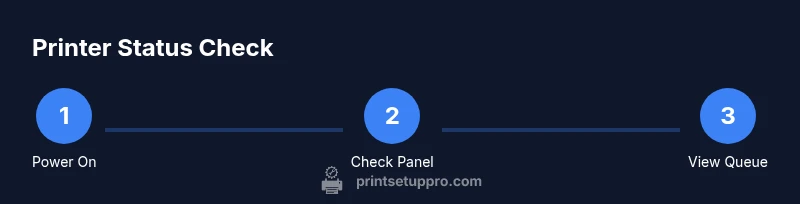
To get started, commit to a simple mental model: status lights and messages point you toward the current condition, the queue shows what’s queued, and the network/driver layer explains connectivity. With that framework, you’ll be able to triage efficiently and keep your printing workflow moving smoothly. The goal is not to memorize every code, but to know where to look and what action to take next.
-1
Visual Cues and Panel Messages
Printers display a mix of LEDs, icons, and on-screen messages that signal their state. A steady light often means the device is ready; blinking lights can indicate activity or a scheduled pause, and a flashing error LED usually accompanies a specific error code. On-screen panels may show words like Offline, Paused, Paper Jam, Low Ink/Toner, or Maintenance Required. While each brand uses its own vocabulary, the underlying concepts are similar: online vs offline, ready vs busy, and error vs warning.
Learning to translate these cues is a core time-saver. Start by noting the color and pattern of any lights, then cross-check the panel’s message with your printer’s manual or the vendor’s support site. If you’re unsure, capture a photo of the display and look up the code later. Over time, you’ll recognize common patterns—like a blinking amber light indicating a paper jam—and react with a targeted fix rather than a broad guess.