Printer is Offline HP: Quick Troubleshooting Guide
Experiencing a printer is offline hp status? Print Setup Pro guides you through quick resets, network checks, and driver updates to restore HP printing. Follow the diagnostic flow for fast, safe resolution.


printer is offline hp? The most likely cause is a network or spooler issue. Quick fix: restart the printer and router, verify the printer isn’t paused in the print queue, reconnect the device to Wi‑Fi or USB, and install any available HP driver updates. If the problem persists, use the diagnostic flow below for deeper fixes.
Understanding why printer is offline hp
When an HP printer reports an offline status, it is almost never a hardware failure. More often, the problem lies in connectivity, software, or queue management. In this guide from Print Setup Pro, we’ll cover how network settings, firewall rules, and spooler services can push a printer into the offline state. You’ll learn to reproduce the issue, isolate the cause, and apply safe, effective fixes that don’t require expensive service calls. By following the steps here, home offices and small teams can regain reliable printing with minimal downtime. The goal is to restore visibility of the HP printer in Windows, macOS, and mobile apps, so you can print from your preferred device without confusion.
Common causes of HP printer going offline
There are several frequent culprits behind an offline HP printer:
- Network connectivity drops or router misconfigurations
- The printer is paused or set to work offline in the print queue
- IP address conflicts or changes after a router reboot
- Outdated or missing printer drivers/firmware
- The Print Spooler service on Windows or CUPS on macOS is not running
- A faulty USB or Ethernet cable causing intermittent connection
Identifying the correct cause is essential because the fix changes depending on whether the issue is on the network, the device, or the software layer. Print Setup Pro emphasizes starting with the simplest checks and moving toward more complex repairs only as needed.
Quick checks you can perform immediately
Before diving into configuration, perform these fast checks:
- Confirm the HP printer shows as Ready on its control panel and that there are no error lights or messages.
- Open the computer’s printer queue and ensure the HP printer is not paused or set to offline.
- If using a network connection, verify the printer has a valid IP address and is reachable (ping the IP from a PC).
- If you suspect queue corruption, cancel all jobs and restart the print spooler service (Windows) or the CUPS service (macOS).
- Test printing from another app or device to determine if the issue is isolated to one program.
These quick checks help you determine whether the problem is device-agnostic or tied to a specific app or PC.
Networking, USB, and spooler: what to inspect first
A systematic approach covers three main domains: network connectivity, USB/Wi‑Fi adapters, and spooler services. Start with the network: ensure the printer and computer are on the same network, the router isn’t blocking traffic, and that the printer’s wireless settings are intact. For USB setups, try a different USB cable and port on both ends. If using Windows, verify that the Print Spooler service is running and set to automatic, then clear any stuck jobs. For macOS, reset the printer system and re-add the printer.
Keep in mind that firewalls or antivirus software can block printer communication; temporarily disable protection for testing (re-enable afterward).
Step-by-step fixes that usually solve the issue
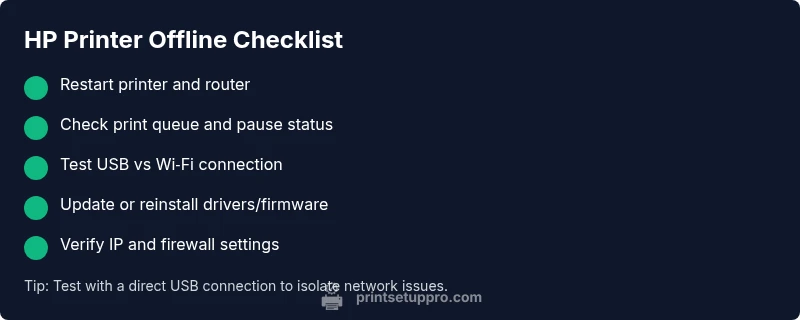
- Power cycle everything: unplug printer, router, and computer for 60 seconds, then plug back in. 2) Reconnect to network or switch to USB for a direct test. 3) In the printer settings, verify the chosen connection (Wi‑Fi or Ethernet) matches the network. 4) Update or reinstall HP printer drivers and firmware from the official HP site. 5) Remove and re-add the printer in your OS printing preferences. 6) If using Windows, restart the Print Spooler service and run a printer troubleshooter if available.
Tip: Keep driver installers downloaded so you can reinstall quickly if the driver cache becomes corrupted. If this doesn’t resolve the issue, advance to deeper network analysis or hardware checks.
TIPS & WARNINGS
- Safety first: unplug devices only when necessary and avoid pulling cables from live ports.
- Don’t skip driver updates; outdated software is a frequent cause of connectivity problems.
- Always test with a simple print job after each change to verify progress.
- If you’re on a corporate network, ensure group policies aren’t restricting printer traffic.
- Some HP printers have firmware options that reset network settings; use these cautiously and only if standard reconnection fails.
How to prevent offline status in the future
Proactive steps reduce the odds of offline issues:
- Enable automatic driver updates and firmware checks for the printer.
- Assign a fixed IP to the printer to avoid IP changes after router reboots.
- Regularly reboot the network gear and printer to refresh DNS and routing caches.
- Keep a spare USB cable for quick labs when testing connectivity.
- Maintain a simple, documented troubleshooting checklist so you can resolve issues quickly in the future.
Steps
Estimated time: 25-40 minutes
- 1
Identify the symptom and gather details
Confirm the exact error message, printer model, and whether the issue affects all computers or just one. Note recent changes (software updates, router reboot, new network).
Tip: Write down the printer's IP address and the exact status text to compare against troubleshooting guides. - 2
Power cycle all devices
Turn off the printer, router, and computer. Wait 60 seconds, then power them back on in that order. This resets many transient networking glitches.
Tip: Avoid unplugging cables during power cycles; allow devices to boot completely before testing. - 3
Check print queue and spooler
Open the printer queue and ensure the printer isn’t paused. On Windows, restart the Print Spooler service; on macOS, restart the CUPS service if needed.
Tip: Cancel all pending jobs to eliminate a stuck print job as a potential blocker. - 4
Test connectivity with different interfaces
If the printer is on Wi‑Fi, consider a temporary USB connection to verify whether the issue is network-related. Check IP configuration and ping the printer’s IP.
Tip: If ping fails, reconfigure the printer’s network settings or assign a static IP. - 5
Update or reinstall drivers and firmware
Download the latest HP driver package and firmware from HP’s site. Install, then reboot the printer and computer.
Tip: Use the exact model name when searching the HP site to avoid installing the wrong driver. - 6
Re-add the printer and run tests
Remove the printer from OS settings, then add it again. Print a test page from multiple apps to confirm full functionality.
Tip: Document the successful test results for future reference.
Diagnosis: Printer shows offline in Windows/macOS or printer panel indicates offline
Possible Causes
- highNetwork connectivity issue
- mediumPrinter paused or set offline in print queue
- mediumOutdated driver or firmware
- mediumPrint Spooler/CUPS not running
- lowFaulty USB/Ethernet cable or port
Fixes
- easyPower cycle printer, router, and computer
- easyVerify and restore network connection; reconnect printer
- easyClear print queue and restart the spooler service
- mediumUpdate or reinstall printer drivers/firmware
- easyTest direct USB connection to isolate network issues
- mediumReset network settings on the printer if needed
People Also Ask
What does it mean when the printer shows as offline?
Offline generally indicates the computer cannot reach the printer, due to connectivity or spooler issues rather than a hardware failure.
When a printer shows offline, it usually means the device can't be reached by the computer, often due to network or spooler problems.
Why might my HP printer go offline after a Windows update?
Updates can reset services or disrupt driver settings. Recheck the spooler, reconnect the printer, and reinstall or update the HP driver after the update.
Windows updates can reset printer services, so recheck the spooler and driver after updates.
Is the HP Smart app helpful for fixing offline printers?
Yes. The HP Smart app can reconfigure connectivity, run basic tests, and help re-add a printer to your network or device.
HP Smart can help reconfigure connection and test printer status.
Should I reset the printer's network settings?
Only if standard reconnect steps fail. After resetting, reconfigure the Wi‑Fi or Ethernet settings and re-add the printer.
Only reset network settings if normal fixes don’t restore connectivity.
When should I contact HP support?
If the printer remains offline after basic troubleshooting and driver updates, consider contacting HP support or a local service technician.
If issues persist after troubleshooting, contact HP support.
Watch Video
Quick Summary
- Identify the root cause before acting.
- Restart everything to clear transient faults.
- Keep drivers and firmware up to date.
- Document steps to prevent repeat offline states.