Printer Without Computer: Standalone Printing Guide
Discover how to print directly from a printer without a computer using USB, memory cards, or Wi-Fi Direct. This guide covers setup, compatible files, and practical troubleshooting for home offices.


According to Print Setup Pro, you can print from a printer without a computer by using built‑in direct‑print options such as USB Direct Print, memory‑card slots, or Wi‑Fi Direct. This step‑by‑step guide explains what you need and how to use these features reliably, so you can print standalone without tying up a computer.
What a printer without a computer really means
Printer without a computer means a device that can receive, process, and print jobs without a connected PC. Most modern standalone printers support direct printing via USB Direct Print, memory-card slots, or Wi‑Fi Direct. Not every model offers all options; some only accept USB drives, others read SD cards or support wireless printing from a mobile device. For home offices, understanding your model's capabilities helps you decide the fastest, least cluttered workflow. According to Print Setup Pro, a printer with robust standalone features can streamline everyday tasks and keep your computer free for other work. In practice, this means you can print receipts, photos, or documents directly from the printer, reducing steps and potential tech headaches.
Direct printing methods
-
USB Direct Print: The printer reads a file stored on a USB drive and prints without a PC. Ensure the file type is supported, and format the drive as FAT32 for broad compatibility. This method is quick and reliable when you have a single file to print. Pro-tip: keep the USB drive labeled with a simple file name to find it fast in the printer menu.
-
Memory-card printing: Many printers include SD or microSD card slots. Copy your document or image to the card, insert it, and use the printer's control panel to select and print. This is ideal for batch jobs or when the file is already on portable storage.
-
Wi‑Fi Direct and mobile printing: Wi‑Fi Direct lets you connect a phone or tablet directly to the printer without a router. Use the manufacturer's app or the built‑in print option to send files. Pro-tip: enable direct printing in the app settings and verify file compatibility before printing.
Each method serves different scenarios, so the best choice depends on your available media, file type, and how often you print without a computer.
Choosing a printer for standalone printing
When selecting a device for standalone printing, look for a built‑in memory card reader, a USB host port, and support for Wi‑Fi Direct. Confirm the printer’s control panel is intuitive and that it presents the file list clearly. Check the user manual or the manufacturer’s site for supported file formats and page sizes. Print Setup Pro recommends prioritizing models with robust on‑device menus, clear status indicators, and reliable firmware; these features reduce guesswork during direct printing and help you avoid unnecessary trips to a connected computer. If you’re upgrading, plan a quick hands‑on test to verify the printer handles your typical documents, photos, and labels without a PC.
File formats and media for standalone printing
Direct printing works best with widely supported formats such as PDFs, JPEGs, and PNGs. Some printers also handle TIFF or BMP files, but feature support varies by model. Before you print, ensure your media (USB drive or memory card) is formatted correctly (commonly FAT32) and that the file isn’t password‑protected. For multi‑page documents, consider printing in batches to monitor quality and avoid wasting paper. If your printer supports printing from cloud storage through its own app, you may print from a mobile device when the PC isn’t available, but always confirm file compatibility first.
Preparing media and files for direct print
Start by organizing content on a USB drive or memory card with clear, simple file names. Convert complex layouts to supported formats (PDF for multi‑page docs, JPEG/PNG for images). Remove any password protection or encryption that could block the printer from accessing the file. If you’re printing photos, check resolution and color settings to prevent dull or oversaturated outputs. Keep a spare media card on hand in case you need a quick swap during a busy printing session.
Step-by-step setup for direct printing (USB/SD/Wi‑Fi Direct)
Direct printing without a computer hinges on using the printer’s built‑in features. Access the printer’s control panel and locate the print-from-media option. If using USB, insert the drive, locate your file, and select print with your preferred settings. For memory cards, copy your file to the card, insert it, and navigate to the file through the menu. If using Wi‑Fi Direct, enable the feature on the printer and pair your mobile device; print from the chosen app and select the file. Always confirm page size, color mode, and orientation before printing to avoid waste.
Pro-tip: keep all media physically away from moisture and extreme temperatures to prevent data corruption or device damage.
Troubleshooting direct print problems
If the printer doesn’t recognize the media, reinsert it after powering off and back on. Ensure the file is in a supported format and that the media is not corrupted. For USB Direct Print, try a different USB drive or reformat (FAT32) and re‑copy the file. If printing from memory cards, verify the card is inserted correctly and that the printer supports the card type. When using Wi‑Fi Direct, check that the connection is stable and that the printer isn’t in an error state like paper jam or low ink. Finally, consult the model’s manual for model‑specific steps.
Mobile printing vs direct USB/SD printing
Mobile printing via Wi‑Fi Direct or the printer’s companion app can be very convenient, but it relies on a stable wireless connection and compatible file types. Direct USB/SD printing removes network dependencies and can be faster for single files. For sensitive documents, consider physical security: remove USB drives promptly after printing, and avoid storing documents on portable media longer than necessary. In most cases, having both options available gives you maximum flexibility for a busy home office or small business.
Security and privacy considerations for standalone printing
Direct printing creates fewer opportunities for interception than cloud printing, but it still requires careful handling of media. Treat removable media devices as you would any data carrier: don’t leave USB drives or memory cards unattended, sanitize devices before reusing, and delete sensitive files after printing if possible. If your printer stores completed jobs in its memory, periodically purge the queue or enable automatic deletion. For shared devices, set up user permissions and keep firmware up to date to mitigate vulnerabilities.
Tools & Materials
- Printer with direct print capability (USB Direct Print, memory card reader, or Wi‑Fi Direct)(Verify features in the manual; confirm supported file types)
- USB flash drive(Format as FAT32; ensure file is PDF/JPEG/PNG)
- SD/memory card(Use if the printer supports memory cards)
- Smartphone or tablet with printing app(Use for wireless direct printing if available)
- Printer manual(Helpful for model-specific steps and troubleshooting)
- Power outlet or extension cord(Ensure continuous power during printing)
Steps
Estimated time: 25-40 minutes
- 1
Check printer capabilities
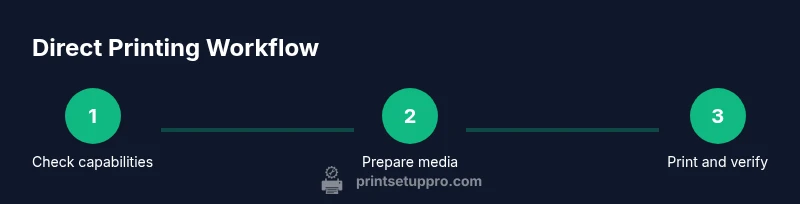
Review the printer’s manual or on‑screen menus to confirm direct‑print options such as USB Direct Print, memory‑card printing, or Wi‑Fi Direct. Understanding supported methods prevents wasted time trying an unsupported workflow.
Tip: If uncertain, search the model number + 'direct print' in the manufacturer’s site. - 2
Prepare media
Format the USB drive or memory card to FAT32 if required, and copy your print file (PDF or image) to the media. Keep filenames simple and avoid password‑protected files.
Tip: Label the media clearly to identify the correct file quickly on the printer. - 3
Insert media into printer
Insert the USB drive or memory card into the printer’s corresponding port. Do not force media in; ensure it sits flat and properly seated.
Tip: If a card is not recognized, re-seat or try a different card format. - 4
Access the print menu
Navigate the printer’s control panel to the direct print option (USB/Memory Card) or the Wi‑Fi Direct setup if using a mobile device.
Tip: If your model uses a dedicated app, open it and choose the direct print source first. - 5
Select the file
Browse the list of files on the media and select the one you want to print. Preview the file if the option is available to catch layout issues.
Tip: Choose a high‑contrast file name to avoid mis‑selection on small screens. - 6
Configure print options
Set copies, color mode, page size, and orientation before printing. If printing photos, adjust brightness and color accuracy for best results.
Tip: Preview the print layout whenever possible to avoid waste. - 7
Print and verify output
Send the print job and watch the first pages for accuracy. If something looks off, cancel and recheck media and file format.
Tip: Keep an eye on paper type and weight settings that match the media loaded. - 8
Alternative: print from mobile
If you prefer mobile, pair your device with the printer via Wi‑Fi Direct or the printer’s app and print the file from the app’s interface.
Tip: Ensure both devices are on the same network or directly connected for a smoother experience.
People Also Ask
Can all printers print without a computer?
No. Standalone printing depends on model features like USB Direct Print, memory-card readers, or Wi‑Fi Direct. Check your printer’s manual to confirm which methods are supported.
Not all printers support standalone printing. Check your model’s manual to see if USB Direct Print, memory cards, or Wi‑Fi Direct are available.
What formats are supported for direct printing?
Common formats include PDFs and standard image formats (JPEG, PNG). Some models support TIFF or BMP; verify your printer’s documentation for exact compatibility.
Most direct prints support PDFs and common image formats; always confirm with your printer’s manual.
Is Wi‑Fi Direct secure for printing sensitive documents?
Wi‑Fi Direct can be secure if you enable strong device pairing and disable it when not in use. Avoid leaving direct‑print mode on when not needed to minimize exposure.
Wi‑Fi Direct can be secure with proper pairing; turn it off when you’re done.
How can I print from a smartphone to a standalone printer?
Use the printer’s companion app or Wi‑Fi Direct to connect your phone to the printer, then select your file and print. Ensure the app supports direct printing for your model.
Print from your phone using the printer’s app or Wi‑Fi Direct, then choose the file to print.
What are common troubleshooting steps if printing fails?
Verify the media is seated correctly and the file type is supported. Reinsert media, try a different USB drive or card, and check for any printer error messages. Restart the printer if needed.
Check media seating, file types, and errors. Reinsert media and restart if necessary.
What should I do if the printer shows an unsupported file warning?
Convert the file to a compatible format (PDF or JPEG/PNG) and retry. If the issue persists, consult the manual for supported file types and software versions.
Convert to a supported format like PDF or JPEG and try again; consult the manual if needed.
Watch Video
Quick Summary
- Verify printer supports standalone printing before starting
- Use USB/SD or Wi‑Fi Direct for reliable direct printing
- Prepare media and files in compatible formats ahead of time
- Test outputs and adjust settings before large print runs