Status Idle Printer: Quick Troubleshooting Guide
Resolve a status idle printer quickly with expert troubleshooting, diagnostic flow, and proven fixes from Print Setup Pro to restore steady printing in home offices and small shops.


The most likely cause of a status idle printer is a connectivity or driver issue rather than a hardware fault. Quick fix: ensure the printer is online and on the same network, reset the printer and clear the job queue, then reinstall or update the driver. If it remains idle, continue with the diagnostic flow below.
What a status idle printer means
A printer that shows a status idle but does not print is typically waiting for a higher-level signal from the computer, network, or printer firmware rather than a physical jam or power failure. The term status idle printer often occurs when the device is connected and powered but not actively processing print data. In most home office scenarios, this condition arises from a mismatch between device state and job queue, or from a stale driver, spooler, or network session. According to Print Setup Pro, most idle states are caused by software or network problems rather than hardware faults. Understanding this helps you prioritize steps: first verify connectivity, then address the print queue and driver state, and finally confirm firmware readiness. Proactive maintenance reduces the chance of recurring idle states and keeps your workflow moving smoothly.
Quick checks to run before deep troubleshooting
Start with the simplest steps and escalate only as needed. Make sure the printer is powered on, connected to the same network as your computer or mobile device, and shows a ready or online status on its display. Check the print queue on your computer to ensure there are no stuck jobs, and cancel any that are paused or stuck. If you’re on Windows, open the Devices and Printers panel, right-click the printer, and deselect “Use Printer Offline” if it’s checked. On macOS, use System Preferences > Printers & Scanners to verify the status and try a test print from a different app. If you use wireless printing, confirm the Wi‑Fi signal strength and check any firewall rules that might block printer traffic. These basic checks often resolve a status idle printer without needing further steps.
Common culprits mapped to symptoms
If the basic checks don’t solve the issue, common culprits include a stale print job, a paused queue, or a stalled spooler service. A misconfigured IP address or a DHCP lease renewal can cause the printer to appear idle while it still sits on the network. Driver mismatches between operating system updates and printer firmware can also trigger idle status. For users with multiple printers, be careful to select the correct device in the print dialog; sending jobs to the wrong device can create confusion and the appearance that the selected printer is idle. Document these observations so you can reference them during diagnostics or when escalating to support.
Collecting data helps shorten restoration time
Before taking action, gather essential data: printer model, firmware version, driver version, host computer OS version, and the exact error message or status text shown on the device or software. Print a configuration page if possible to capture network settings, IP address, and queue status. This information speeds up diagnosis and makes it easier for you to reproduce steps or share details with support. Maintain a simple log of changes, including times and outcomes, so you can identify which fixes actually move the needle. This disciplined approach is a hallmark of effective printer troubleshooting and aligns with Print Setup Pro’s recommended practices.
How firmware and drivers influence idle behavior
Printer idle states often trace back to software layers rather than hardware faults. Outdated drivers or firmware can prevent the printer from accepting new jobs even when it is physically ready. Ensure you download drivers from the official vendor site and apply firmware updates only when the printer is idle and not actively printing. If your operating system auto-updates, verify that the printer driver remains compatible after each major update. In some cases, removing and reinstalling the printer driver is the simplest path to reestablish clean communication between computer and device and eliminate the idle status.
Safety and best practices while troubleshooting
Always power down only when recommended by the manufacturer and never attempt to service internal components while the device is connected to power. When handling network changes, avoid modifying devices on critical production networks without authorization. Use protective steps like exporting printer profiles before making changes and testing one change at a time to avoid cascading issues. If you are unsure, stop and consult professional guidance. Print Setup Pro emphasizes a methodical approach: verify basics first, then advance through layers of configuration, and conclude with a test print to confirm resolution.
Steps
Estimated time: 25-40 minutes
- 1
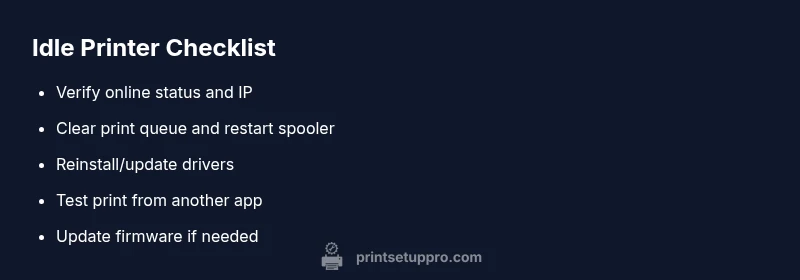
Verify online status and network connection
Confirm the printer is powered and shows online status on its display. Check that the printer and the host computer are on the same network, and that you can reach the printer’s IP address from a browser or ping test. If either device is on a guest or isolated network, move it to the main network or create a trusted bridge.
Tip: Document the printer’s current IP and note any changes after reboot. - 2
Clear print queue and restart spooler
Open the print queue, cancel all pending jobs, and clear the spooler cache on your computer. Then restart the spooler service (Windows) or the print system (macOS). Re-queue a simple test page after the restart.
Tip: Perform these steps with admin privileges to ensure changes persist. - 3
Reinstall or update the driver
Uninstall the current driver, reboot, then install the latest driver from the official vendor site. If you’re using a universal print driver, try the vendor-specific driver for the device model to reduce compatibility issues.
Tip: Prefer a clean install over an in-place update for reliability. - 4
Check IP configuration
If the printer uses DHCP, ensure it received a valid IP and isn’t subject to lease renewal conflicts. Consider setting a static IP within the same subnet to avoid future address churn.
Tip: Record the IP used for quick future reference. - 5
Test from a different app or device
Send a print job from another application or a different computer, or try printing a test page directly from the printer’s web interface. This helps determine if the issue is app-specific or device-wide.
Tip: If the test prints, the problem is likely with the original host or application configuration. - 6
Update firmware and confirm compatibility
Download and apply the latest firmware from the vendor. After updating, perform a full power cycle and print a few pages to confirm normal operation.
Tip: Never update firmware during a power outage; ensure the device has a stable power source.
Diagnosis: Printer shows 'Status Idle' and does not print despite jobs being sent
Possible Causes
- highNetwork connectivity issue
- highPrinter is offline or paused
- mediumOutdated or corrupted driver
- mediumSpooler service malfunction
- lowIP address conflict or duplicate name
Fixes
- easyCheck printer online status and network connection; verify IP address and gateway reachability
- easyPause/Resume printer and restart the spooler service on the host computer
- mediumReinstall or update the printer driver from the vendor site
- mediumReset the printer to factory defaults if configuration is suspected to be corrupted
- hardUpdate the printer firmware and ensure compatibility with current OS and drivers
People Also Ask
Why does my printer show 'Status Idle' even when I sent a print job?
A common cause is a software issue such as a stale queue, paused spooler, or mismatched driver. Hardware problems are less likely but still possible. Start with network checks, then clear the queue, and reinstall the driver if needed.
Printer shows idle because software or network issues are delaying the job. Begin with basic checks, then address the queue and driver state, and test again.
Is 'Status Idle' the same as 'Offline'?
Not exactly. 'Idle' means the printer is connected but not currently processing a job, while 'Offline' indicates the device cannot be reached at all. Both require different checks, particularly around network reachability and device status.
Idle means connected but not printing; offline means unreachable. Check network reachability and device status to distinguish them.
What should I check first when my printer won't print?
Start with the basics: confirm power, check online status, ensure the device is on the same network, and cancel any stuck jobs. Then verify the correct printer is selected in the application and test a simple print.
First, confirm power and online status, then verify network, and cancel any stuck jobs before testing a simple print.
When should I contact support?
If you have followed the diagnostic flow and the status idle printer persists, or if you encounter firmware or hardware faults beyond basic configuration, contact vendor support or a qualified technician.
If the issue persists after the steps, contact support or a technician.
Can updating firmware fix idle printer issues?
Firmware updates can resolve idle states caused by software bugs or compatibility problems. Always back up settings, update via the vendor’s official site, and perform a post-update test print.
Yes, firmware updates can fix idle issues, but update carefully and test afterward.
How long does it typically take to fix a status idle printer?
Resolution time varies by cause but most home setups resolve within 20 to 45 minutes when following a structured diagnostic flow and step-by-step fixes.
Most issues resolve within 20 to 45 minutes with a structured approach.
Watch Video
Quick Summary
- Verify online status and network first
- Clear the queue before driver updates
- Update firmware only after confirming connectivity
- Document changes for future reference
- Escalate to professional help if idle state persists