Why Can't I Connect to My Printer: Quick Fixes
Struggling with printer connectivity? This urgent guide walks you through wireless, USB, and driver issues with clear steps to reconnect fast. Learn to diagnose network problems, update firmware, and prevent future interruptions.


Printer connection failures are usually due to a network or driver mismatch. Check power, re-connect to the correct network or USB, and update drivers. For a complete, step-by-step fix, read the full guide.
Why connectivity fails
If you’ve ever asked why can't connect to printer, the short answer is usually a network or software mismatch. Most problems start when the printer appears offline or is not reachable from the device you’re using. Causes include the printer being paused, a weak or wrong Wi‑Fi signal, an active USB or Ethernet connection that conflicts with wireless, outdated firmware, or missing/corrupt printer drivers. In addition, secured or isolated networks—such as guest networks or corporate firewalls—can block print traffic. Understanding these common culprits helps you target the right fix without unnecessary tinkering.
Quick checks you can do now
Start with the basics to cut through the noise. Confirm the printer is powered on and showing a ready status. Print a network configuration or status page from the printer’s control panel to verify the current connection (Wi‑Fi or Ethernet). Make sure your computer, phone, or tablet is on the same network as the printer. If you’re using USB, try a different cable or port and unplug/replug the cable firmly. Restart both the printer and the device you’re printing from to clear temporary glitches. If the issue persists, note any error messages or codes they display; these guide the next steps.
Wireless vs USB: three scenarios
Scenario A — Wireless printing from a laptop on the same network: Ensure the printer is connected to the correct SSID and that the password was entered correctly. If the network uses a guest or segregated network, print traffic may be blocked. Scenario B — Printing from a smartphone over Wi‑Fi: Some devices require the printer to be discoverable via Bonjour/AirPrint or a manufacturer app. Check compatibility and enable required services on the printer. Scenario C — USB direct printing: The computer should recognize the printer in the OS printer settings. If not, try a different USB port or a different computer to rule out a faulty host device.
Network settings deep dive
Many connectivity blocks stem from router or network settings. Check that AP isolation (client isolation) is disabled, as it prevents devices from talking to each other. Verify the printer has a valid IP address and isn’t conflicting with another device. If your network uses DHCP, ensure the printer is configured to obtain an IP automatically. If problems persist, assign a static IP outside the router’s DHCP range to avoid future conflicts. Review firewall rules or parental controls that might block print traffic on ports commonly used by printers (e.g., 9100, 137–139, or 161–162) and temporarily disable VPNs to test local printing.
Step-by-step: fix the most common cause
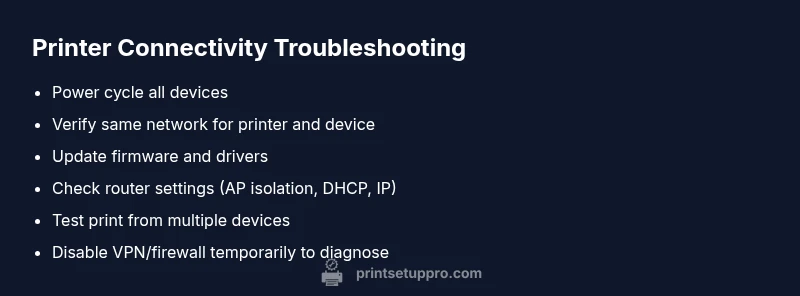
- Power cycle everything: turn off the printer, router, and printing device, then turn them back on after a minute. 2) Confirm both devices are on the same network and that the printer shows a connected status. 3) Reinstall the printer drivers or apps on your computer or mobile device and re-add the printer in the OS settings. 4) Update printer firmware and software on the device you print from. 5) Print a test page and check the print queue for errors. 6) If you still can’t print, reset the printer’s network settings and reconnect from scratch. Tip: keep a log of the steps you take to avoid repeating work.
Drivers, firmware, and apps
Outdated drivers or firmware are common culprits. On Windows, run Windows Update and visit the printer vendor’s site to install the latest drivers for your model. On macOS, remove the device and re-add it via System Preferences > Printers & Scanners, selecting the correct driver or using AirPrint if supported. For wireless printers, ensure the printer’s firmware is current and compatible with your network. Reinstalling the manufacturer’s app on mobile devices can also resolve discovery issues. If the printer is listed but not printing, check the print spooler service (Windows) or reset the printing system (Mac).
Safety, warnings, and best practices
Never expose your printer to untrusted networks. Use a strong, unique Wi‑Fi password and disable UPnP on the router if you notice strange traffic. Avoid opening unnecessary ports unless you’re certain they’re required by your printer model. When in doubt, consult your printer’s manual and firmware release notes to avoid bricking the device. If you’re uncomfortable with network changes, seek professional assistance to prevent unintended disruptions.
Prevention and maintenance to avoid future issues
Schedule regular firmware updates for both printer and connected devices. Keep drivers current on all computers and mobile devices. Maintain consistent network settings by avoiding frequent SSID or password changes. Use the printer’s built‑in network diagnostics monthly to catch configuration drift early, and keep a simple checklist of steps to run when issues arise to minimize downtime.
Steps
Estimated time: 25-45 minutes
- 1
Prepare and verify basics
Power cycle all devices involved (printer, router, computer/tablet). Confirm the printer shows a ready status and verify the display for network information.
Tip: This often clears unresponsive network states without changing any settings. - 2
Ensure same network and correct connection
Make sure the printer is connected to the same Wi‑Fi network as your device, or that the USB connection is secure. Print a test page from the printer to confirm connectivity.
Tip: If you’re on a guest network, switching to the main network might be necessary. - 3
Reinstall drivers or add printer again
On your device, remove the old printer entry and reinstall using the latest driver package from the manufacturer or add via native OS utilities.
Tip: Use the manufacturer’s app if it supports automatic discovery. - 4
Update firmware and software
Check for available firmware updates for the printer and software updates for the printing apps on your devices. Install updates and reboot.
Tip: Firmware updates can fix compatibility with newer OS versions. - 5
Check network settings and IPs
Review router settings for AP isolation, ensure DHCP is active, and verify the printer has a valid IP. Consider assigning a static IP to avoid future conflicts.
Tip: Document the IP address for troubleshooting and future use. - 6
Test print and monitor
Print a test page from one or more devices. If printing fails, note any error codes displayed by the printer for targeted fixes.
Tip: Error codes accelerate troubleshooting; search the exact code in the manual.
Diagnosis: Printer will not connect to the network or print over Wi‑Fi/USB
Possible Causes
- highPrinter offline or paused
- highIncorrect network credentials or wrong SSID
- mediumOutdated firmware or drivers
- mediumIP address conflicts or DHCP issues
- mediumFirewall/antivirus blocking print traffic
Fixes
- easyPower cycle printer, router, and printing devices to reset connections
- easyConfirm the printer is on the correct network and rejoin the network
- easyUpdate printer firmware and reinstall/reset drivers on all devices
- mediumCheck router settings for AP isolation, DHCP, and IP conflicts; assign a static IP if needed
- mediumTemporarily disable firewall/VPN to test local printing, then reconfigure as needed
People Also Ask
Why won’t my printer connect to Wi‑Fi after a router change?
Router changes can alter the network name (SSID) or password. Reconnect the printer to the new SSID and update the stored credentials on all devices. If problems persist, check for network isolation or guest networks that block printer traffic.
Router changes often require re‑connecting the printer to the new network and updating credentials on devices.
How do I reconnect my printer to the network on Windows or macOS?
On Windows, go to Settings > Devices > Printers & scanners, remove the printer, then Add a printer again. On macOS, open System Preferences > Printers & Scanners, select the printer, and click ‘Reset printing system’ if needed before re-adding.
Re-connect by removing and re‑adding the printer in your OS printer settings.
I can see the printer but it won’t print; what should I check first?
Check the print queue for stuck jobs, ensure there are no error messages on the printer, and verify the correct default printer is chosen. Restart the spooler service if necessary and reprint.
If it shows in the queue but won’t print, check the queue and spooler, then try again.
Do I still need drivers for wireless printing?
Many wireless printers work with AirPrint or manufacturer apps, but some features require up-to-date drivers. Installing or updating drivers ensures full functionality and compatibility with your OS.
Wireless printing can work with built‑in protocols, but drivers help with reliability and features.
Can antivirus or firewall block printer connections?
Yes. Firewalls or security software can block ports used by printers. Temporarily disable protections for testing, then whitelist printer ports and re-enable protection.
Security software can block printer traffic; whitelist the printer ports after testing.
What if nothing works after following these steps?
Document all steps you’ve tried and the exact error messages. Contact printer support with model number, firmware version, OS version, and network setup to get targeted help.
If it still fails, gather details and contact support for tailored assistance.
Watch Video
Quick Summary
- Verify all cables and power first
- Keep printer and device on the same network
- Update firmware and drivers regularly
- Re-add the printer if discovery fails
- Check and adjust network security settings to allow print traffic