Why Does Your Printer Go Offline? A Step-by-Step Troubleshooting Guide
Struggling with an offline printer? This urgent, step-by-step guide helps home offices and students diagnose why your printer goes offline and fix it fast with safe, proven steps.


According to Print Setup Pro, most offline-printer problems begin with a disruption in connectivity, a paused print queue, or an outdated driver. The Print Setup Pro team found that rebooting devices and reestablishing connections solve many cases quickly. If the problem persists, reprint a test page and verify the device appears online in your OS printer list. This quick reset often restores normal printing.
Why does printer go offline? The short answer is that most offline-printer problems begin with a disruption in connectivity, a paused print queue, or an outdated driver. According to Print Setup Pro, these issues are overwhelmingly caused by simple, repeatable causes that you can fix with a structured approach. The Print Setup Pro team found that rebooting devices and reestablishing connections solve the majority of beginner offline incidents within minutes. In this section, we outline the common patterns you’ll see, the symptoms to watch for, and the first steps you should take to bring your printer back online. You’ll notice the printer shows as "Offline" in the operating system, or you may see a red status icon on the printer control panel. If you print from a shared network or cloud print service, you might also see delays or a failure to discover the device. The goal here is to provide a practical checklist you can follow right away, without requiring advanced IT tools.
Start with the basics: check connections and power
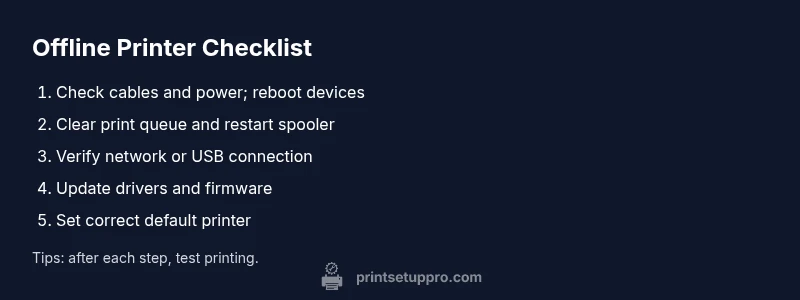
The most common reason a printer goes offline is a simple connectivity issue. Start by inspecting power cables, USB cords, and network cables. Make sure the printer’s power switch is on and the LED indicators show normal status. If you use wireless printing, confirm the printer is connected to the right Wi-Fi network and that the router is functioning. A quick power cycle can clear minor glitches: unplug the printer and router for 30 seconds, then plug them back in. After rebooting, recheck the printer's reported status in your computer’s Devices and Printers or Printers & Scanners pane. If the device still shows offline, proceed to the next steps. This stage is about eliminating obvious, non-technical failures before moving to more involved diagnostics.
Inspect the print queue and spooler
A stuck print job or a stopped spooler can lock the printer in an offline state. On Windows, open Services and restart the Print Spooler service, then cancel any stuck jobs in the Print Queue. On macOS, use the Print Center or System Settings to view and cancel pending tasks. Clearing the queue forces the OS to resend items to the printer. After clearing, try a simple test page. If the status remains Offline, it’s time to verify network settings or move to driver checks.
Verify network settings or USB path
For network printers, ensure the device has a valid IP address and is reachable by pinging from your PC. Disable any VPNs or firewall rules that might block port 9100 or printers' standard ports if you control security settings. If you connect via USB, swap in a known-good cable and try a different USB port on the computer. Some printers support direct USB-to-PC printing, bypassing Wi-Fi; in that case, select the USB option as the default connection. Re-add the printer in your OS after confirming network visibility.
Update drivers and firmware
Outdated drivers or firmware can cause intermittent disconnects or an apparent offline state. Check the printer manufacturer’s website for the latest drivers compatible with your operating system. Install any available firmware updates through the printer’s built-in menu or software utility. After updating, re-launch the printer spooler and reprint a test page. If your printer is shared across a network, repeat the process on all connected devices to prevent version mismatch.
OS-specific steps for Windows and macOS
Windows users should ensure the printer is set as the default and that the printer is not paused. Use the Troubleshooter for printers as a quick diagnostic tool and verify that the correct port is selected (USB vs WSD). On macOS, remove and re-add the printer in System Preferences > Printers & Scanners, and check that the correct driver is installed. In both OSes, confirm the printer queue is empty and that the device appears online after connection restoration.
Common software conflicts and auto-recovery steps
Security software, VPNs, or corporate proxies can occasionally block printer communications. Temporarily disable antivirus protection or create an exception for the printer’s port and software. Some print-management apps also mis-route jobs or cache credentials, leading to an offline status. If you use cloud printing or third-party print services, sign out and back in to refresh credentials. Finally, ensure user permissions on the printer allow printing for the account you are using.
Proactive maintenance to prevent offline issues
Establish a routine to keep printing healthy: schedule regular driver updates, run printer-cleaning tasks, and keep a stable network. Periodically restart your router and re-check the printer’s IP address. Maintain clean cables and avoid keeping devices on power strips that surge during storms. Consider enabling automatic firmware updates if supported by your model. The goal is to reduce the chances of recurring offline events by keeping software aligned and hardware in good condition.
Steps
Estimated time: 20-45 minutes
- 1
Power and cable check
Inspect all power cords and data cables for damage or loose connections. Ensure the printer is powered on and shows normal indicators. If you find a loose connection, reseat it firmly and re-test. After this check, print a diagnostic page or test page to confirm basic communication.
Tip: Unplug and re-seat cables for a fresh connection. - 2
Reboot and re-connect
Perform a full power cycle: unplug the printer, router, and computer for at least 30 seconds, then plug them back in in the same order. Reconnect the printer to the network or via USB and wait for devices to finish negotiating. Attempt a test print from one device to verify status has changed to online.
Tip: Give devices time to reacquire IPs if you’re on DHCP. - 3
Clear the print queue and spooler
Open the printer queue, cancel all pending jobs, and restart the Print Spooler service (Windows) or clear the queue (Mac). This clears stuck tasks that may falsely report offline. After clearing, send a new print job and observe whether it processes.
Tip: Set spooler startup to automatic to reduce future delays. - 4
Test print and verify online status
Print a simple page from one device to confirm the printer responds. Check the printer status in the OS to see if it switches from Offline to Online. If it remains offline, proceed to driver and firmware checks.
Tip: Always test with a single device first to isolate causes. - 5
Update drivers and firmware
Visit the manufacturer’s site to download the latest drivers for your OS. Install any firmware updates using the printer’s menu or software utility, then reboot and test again. If the printer is shared, update every connected device to avoid version mismatch.
Tip: Keep a backup of old drivers in case you need to rollback. - 6
Configure defaults and ports
In Windows, ensure the correct port is selected (USB or network) and set the printer as default. In macOS, re-add the printer if necessary and confirm the correct driver is installed. Re-test after applying changes.
Tip: After changes, always re-test with a fresh print job.
Diagnosis: Printer shows offline status in OS or cannot print despite being powered on
Possible Causes
- highPower or cable issue
- highNetwork connectivity problems (Wi‑Fi, router, or switch)
- mediumPaused print job or corrupted spooler queue
- mediumOutdated drivers, firmware, or incompatible OS
- lowIncorrect default printer or sharing settings
Fixes
- easyCheck power, cables, and outlets; reseat connectors
- easyReboot printer, router, and computer; re-connect to network or USB path
- easyOpen print queue, cancel jobs, restart spooler service, and re-send jobs
- mediumUpdate drivers and firmware; reinstall if needed
- easyVerify default printer and correct port; adjust sharing settings
People Also Ask
What does 'printer offline' mean?
Offline means the OS cannot communicate with the printer at that moment. It can be caused by connectivity glitches, a paused queue, or software problems. Following the diagnostic flow helps restore online status quickly.
Offline means your computer can’t reach the printer right now. Check the connection, clear the queue, and try a restart to fix it quickly.
Why is my printer offline after a Windows update?
Sometimes Windows updates affect drivers or the print spooler. Re-check the driver version, restart the spooler, and re-add the printer to the OS to re-establish communication.
Windows updates can disrupt printer drivers or the spooler; restarting those and re-adding the printer usually resolves it.
How do I fix a stuck print queue?
Open the queue, cancel all pending documents, and restart the print spooler. Then try printing again to see if the queue clears.
Cancel the stuck jobs and restart the spooler, then print a test page.
Can antivirus software block printer offline status?
Yes, security software can block printer communications. Temporarily disable it or add a trusted exception for the printer software and ports used.
Security software can block printer traffic; temporarily disable or add an exception and try again.
Is it safe to reset network settings on the printer?
Resetting network settings can help resolve connectivity issues. Rejoin Wi‑Fi or reconnect via USB after the reset and test printing.
Resetting network settings can fix connectivity, then reconnect and test printing.
When should I contact support?
If offline persists after following the troubleshooting flow and driver updates, contact the printer manufacturer or a local IT professional for hands-on help.
If it still won’t work after trying these steps, reach out to support for expert help.
Watch Video
Quick Summary
- Start with power and connection checks to stop most offline issues
- Clear the print queue and restart the spooler before touching drivers
- Keep drivers/firmware up to date to prevent recurrences
- Set the correct default printer and port on each device
- Establish a routine maintenance plan to minimize future offline events