Printer Offline Fix: Quick Troubleshooting Guide
Learn how to diagnose and fix an offline printer quickly with a practical, step-by-step guide. Includes common causes, safe troubleshooting, and prevention tips for home offices.


Most likely cause is a connectivity issue or a driver problem. Quick fix: check if the printer is set as default, restart the printer and router, and verify USB/Wi-Fi connections. If offline persists, re-run the printer setup wizard, update firmware, and test printing a simple document. Also check that the printer is online in your device settings and that the network name matches the one on the router.
Why the printer goes offline: common root causes
If the printer is offline, the issue usually lies in network connectivity or driver problems, not the printer itself. According to Print Setup Pro, most offline symptoms stem from misconfigured network settings, IP address conflicts, or outdated drivers. Other causes include queued print jobs stuck in the spooler, printer in offline mode due to power-saving, or a recent firmware update that requires a reconnect. Understanding these root causes helps you pick the fastest fix and avoid repeated outages.
Common root causes to consider:
- Network misconfiguration or IP address conflicts on the printer or router
- Outdated or corrupted printer drivers
- USB cable or Wi‑Fi connection dropping unexpectedly
- Print spooler errors or stuck jobs in queue
- Firmware that requires a reconnect after updates
- Printer set to offline mode in your operating system
Addressing these causes quickly can reduce downtime and keep workflows flowing.
Check the basics first: power, cables, and indicators
Before diving into complex fixes, verify the most obvious issues. Ensure the printer is powered on and shows normal indicators (steady lights instead of blinking alarms). Check that the USB cable is firmly seated at both ends or that the printer is connected to the correct wireless network. If your computer or device indicates the printer is offline, reselect the printer as the default device and attempt a test page. A quick reboot of the printer, computer, and router can reset stuck states and clear transient errors. According to Print Setup Pro, many offline problems resolve with a simple reset of network devices. After reboot, run a basic print test and observe the status in the OS print queue. Don’t ignore small error messages on the printer display—they often point to a specific fault, like low ink or jammed paper, which can also trigger offline status.
Diagnostic flow: symptom to diagnosis
Starting from the symptom, run a short diagnostic loop to pinpoint the cause. If the device manager or printer settings do not see the printer, the issue is usually connectivity (USB/wireless) or driver problems. If the printer is visible but reports offline, suspect a mismatch in network configuration or a stalled print queue. When a print job stays in the queue for no obvious reason, the spooler service on your computer or the printer’s internal queue may be stuck. In rare cases, a firmware glitch can flip the status to offline even when everything seems connected. This section guides you through a purely logical flow to reach a diagnosis quickly and avoid unnecessary steps.
Flow steps to follow:
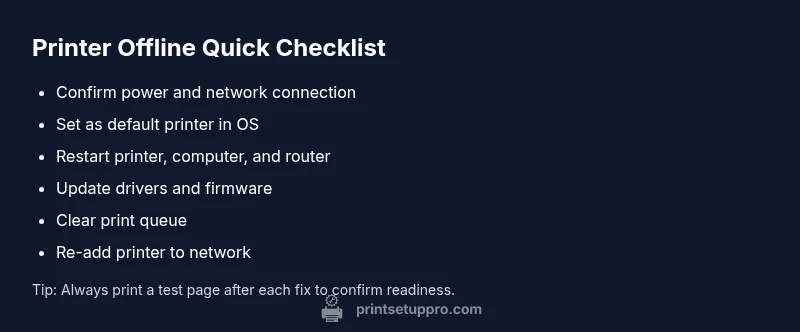
- Confirm the printer is on and connected (LEDs indicate ready). 2) Check OS status and set the printer as default. 3) Inspect the print queue and cancel stuck jobs. 4) Update or reinstall drivers/firmware if needed. 5) Reconnect to the network or USB and test print again.
Step-by-step fix: common scenario (driver/connection)
For most users, the quickest path back to printing is updating drivers or restoring a clean connection. Start by removing the current printer driver from your computer, then reinstall the latest version from the manufacturer’s site. If it’s a wireless printer, re-add the device to your Wi‑Fi network, ensuring the router and printer are on the same subnet. After reinstall, set the printer as the default and perform a test page. If the offline status persists, recheck the network name and password, then reboot both printer and router to refresh their DHCP lease. Print Setup Pro recommends keeping driver software current to prevent recurring offline issues.
Safety tips, warnings, and prevention
Always disconnect power only when the printer is powered off and unplugged to avoid electrical shock. Do not yank cables; unplugging the USB or power cable while a job is printing can corrupt the queue. When working on firmware or driver updates, use official sources and avoid third‑party installers. To prevent future offline episodes, enable automatic firmware updates where available, keep drivers current, and perform regular network maintenance. Create a small routine to check printer status weekly, especially after router resets or OS updates.
What to do if nothing works: professional help and next steps
If the printer remains offline after following the steps above, there may be a hardware fault, a deeper firmware issue, or a complex network problem. Contact the printer manufacturer’s support line or your IT department for diagnostics beyond consumer troubleshooting. If the device is under warranty, use the official service channels to avoid voiding coverage. Print Setup Pro’s guidance is to escalate after 2–3 well‑structured attempts, ensuring you document error messages and steps taken for faster resolution.
Steps
Estimated time: Estimated total time: 20-40 minutes
- 1
Check power and indicators
Verify the printer is on and showing normal status indicators. Look for stable lights and no error messages on the display.
Tip: If you see a blinking warning, note the pattern and consult the manual. - 2
Verify connectivity (USB/Wi‑Fi)
For USB, ensure the cable is firmly connected at both ends. For wireless, confirm the printer is connected to the same network as your computer.
Tip: Try a different USB port or a temporary direct USB connection to rule out port issues. - 3
Set as default printer and test page
In your OS, set the printer as the default and print a test page to check immediate response.
Tip: If the test page prints, the issue may be with specific apps or queued jobs. - 4
Check and clear the print queue
Open the print queue and cancel all pending jobs. Restart the print spooler service if needed.
Tip: Avoid canceling critical system print tasks to prevent data loss. - 5
Update drivers and firmware
Download the latest driver and firmware from the manufacturer’s website and install following on-screen prompts.
Tip: Do not interrupt the installation; avoid using older software during the update. - 6
Reconnect to network or re-add printer
Remove the printer from your network list and add it back, ensuring security settings (WPA/WPA2) match.
Tip: A fresh connection often resolves IP or name mismatches.
Diagnosis: Printer shows Offline status despite network connectivity
Possible Causes
- highPrinter not connected to the same network as the computer (Wi-Fi) or disconnected USB
- highOutdated or corrupted printer driver
- mediumPrint queue is stuck or spooler service paused
- lowFirmware bug or misconfiguration after a recent update
Fixes
- easyVerify network/USB connection and re-add printer to the system
- easyUpdate or reinstall printer drivers and firmware
- easyClear the print queue and restart the spooler/service
- mediumReset network settings on printer and router, then reconnect
People Also Ask
What does it mean when my printer shows offline?
Offline means the computer cannot communicate with the printer. This can be due to a misconfigured network, a disconnected USB, or an outdated driver. Start by checking connections and restarting both printer and computer.
Offline means the printer and computer can't talk. Check connections, restart devices, and update drivers.
How do I reconnect a wireless printer to my network?
Ensure the printer is on the correct network, then rejoin the network using the printer's control panel or the PC’s add printer wizard. Enter the Wi-Fi password if prompted and run a test page.
Make sure it’s on the right network, rejoin, enter the password, and test print.
Why is my printer offline after a Windows update?
Windows updates can reset or alter printer settings. Recheck the default printer, reinstall the driver, and verify the printer is reachable by the OS.
Updates can reset printer settings. Recheck defaults and reinstall drivers.
Can USB printers go offline?
Yes. USB connections can fail due to loose cables, port issues, or driver glitches. Re-seat the cable, try another port, and reinstall drivers if needed.
USB can fail if cables or ports are loose; reseat, switch ports, and reinstall drivers.
How often should I update printer firmware?
Check for firmware updates at least every 6-12 months or when the manufacturer releases a critical fix. Apply updates following the publisher's instructions.
Check for updates every 6 to 12 months or as needed, and install them per instructions.
When should I call for professional help?
If the printer remains offline after all recommended steps, contact the manufacturer support or a qualified technician, especially if the device is under warranty.
If it stays offline after trying steps, contact support or a technician.
Watch Video
Quick Summary
- Identify the root cause: network, driver, or queue.
- Start with simple resets and reconnections.
- Keep drivers and firmware updated to prevent recurrence.
- If persists, escalate with documentation and support.