Why is Printer Status Offline? Quick Troubleshooting Guide
Discover clear, step-by-step fixes for when your printer shows offline. Learn common causes—connectivity, drivers, network settings—and how to restore printing quickly with Print Setup Pro’s expert guidance.


Why the printer status can be offline and the common culprits
When you see the offline message, the first questions to ask are: is the printer powered, is it connected to the right network, and is the computer pointing to the correct device? If you’ve ever wondered why is printer status offline, know that most cases boil down to simple connectivity or configuration issues rather than a hardware failure. According to Print Setup Pro, the most frequent culprits are a misconfigured IP address, outdated drivers, or a busy print queue. In many home offices, a router reboot or a quick driver update clears the problem. This section sets the foundation by outlining what typically triggers the offline state and how to recognize the symptoms early before more invasive steps are needed.
Quick checks you can perform without tools
Start with the low-hanging fruit: confirm the printer is powered on, check cables or Wi‑Fi signal strength, and verify the printer appears in your device’s list of printers. If you can print a test page locally, your connection is likely intact. Review the printer status in the control panel to see if it’s paused, offline, or blocked by a pending job. A common pitfall is a stale print queue holding a job that never completes—clear the queue, restart the print service, and attempt a test print again. These fast checks cover the majority of “why is printer status offline” scenarios and buy you time to tackle deeper issues. Print Setup Pro reminds readers that most offline incidents resolve after re-establishing the connection or refreshing drivers.
How to confirm online status on Windows
On Windows, start by opening Settings > Bluetooth & devices > Printers & scanners. Select your printer and click Manage, then set it as default. If the status still shows offline, restart the Print Spooler service (services.msc), then re-add the printer. Checking the port configuration is crucial: compare the port type (USB vs. TCP/IP) and ensure the IP address matches the printer’s network address. A mismatch here will keep the device offline despite being physically connected.
macOS sanity checks for offline status
Mac users should go to System Settings > Printers & Scanners. Remove and re-add the printer, ensuring the correct driver is installed. Verify that the printer’s queue is not paused and that the IP address, if using Ethernet/Wi-Fi, matches the router’s ledger. If you’re using AirPrint, try adding a specific driver from the vendor to rule out compatibility issues. Mac workflows often expose driver-level differences that cause the offline state, so reinstallation can be a simple, effective remedy.
Drivers, firmware, and software as root causes
Outdated or corrupted drivers can make a printer appear offline. Visit the manufacturer’s site, download the latest driver package, and install it, restarting the computer after installation. Firmware on the printer itself can also drift; look for a firmware update utility in the control panel or on the vendor’s site. If the device is connected to a network with a firewall or VPN, ensure the necessary ports are open and that the VPN is not isolating the printer from the computer. These software-oriented checks address the most frequent root causes behind the offline status.
Network health and IP management
If you’re using a network printer, a misconfigured IP address is a classic offender. Consider setting a static IP to avoid address changes after router reboots. Confirm that the subnet mask, gateway, and DNS servers align with the network’s settings. Disable IPv6 if your environment doesn’t support it, then test with IPv4. Routers can block printer traffic if Quality of Service (QoS) or firewall rules are too aggressive. These steps prevent intermittent offline statuses caused by dynamic addressing or blocked ports.
Hardware and firmware health checks
A printer can go offline for non-obvious hardware faults or jam-sensing issues. Power cycle the printer, check for paper jams, and ensure indicator lights show normal status. If the issue persists after a full reset, consult the printer’s diagnostic pages to identify error codes. Firmware updates can fix known USB, network, or sensor glitches. In environments with multiple devices, reducing congestion and ensuring independent power sources helps maintain stable operation.
Re-adding the printer and resetting important settings
Sometimes the simplest fix is to remove the printer from your system and re-add it as a new device, selecting the correct protocol and port. If you’ve ruled out connectivity issues, a factory reset (carefully following the manual) can clear hidden misconfigurations that block communication. After a reset, reconfigure network settings or USB connections and add the printer again. This approach resolves stubborn offline states and aligns all components on the same baseline.
Preventing offline issues in the future
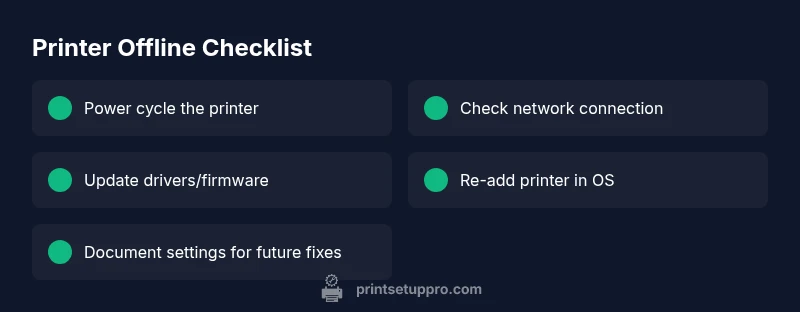
Establish a routine: update drivers and firmware on a fixed schedule, monitor your router’s firmware, and keep the printer’s software in sync with the OS. Create a simple maintenance checklist and run it monthly. If your environment uses VPNs or complex firewalls, document the required ports for printing and share the policy with your IT team. Proactive maintenance reduces surprises and minimizes downtime.
Quick troubleshooting flow you can follow in minutes
Start with power and network checks, then verify the correct printer is selected. If that fails, refresh or reinstall the driver, test from another device, and examine the print queue for stuck jobs. If issues persist, reset network settings or re-add the printer. Throughout, keep a log of changes to inform future fixes and know when to seek professional help.
When to seek professional help and what to provide
If offline status persists after following the steps, contact a printer technician or vendor support. Have your printer model, OS version, network details, and a log of recent changes ready. A professional will diagnose deeper hardware or firmware faults and can safely perform advanced resets without risking data loss or misconfiguration.