Brother Wireless Printer Setup: A Complete How-To
Learn how to set up a Brother wireless printer, connect to Wi‑Fi, install drivers, and print from multiple devices. This expert guide covers troubleshooting, security, and maintenance for home offices and small businesses.


Goal: Set up a Brother wireless printer on your home or small office network, then print from phones, tablets, and PCs. You’ll need a compatible Brother printer, a 2.4 GHz or 5 GHz Wi‑Fi network, a device to install the software, and a USB connection for initial setup if required. This guide walks you through a secure, reliable wireless configuration.
Why a Brother Wireless Printer Fits Home Offices
For many home offices and small businesses, a Brother wireless printer offers straightforward setup, dependable wireless performance, and broad compatibility with Windows, macOS, iOS, and Android. The brand is known for practical features that align with everyday workflows—print from a couch, print from a phone, or scan to email from a desktop. According to Print Setup Pro, choosing a reliable wireless printer can save time on setup and reduce ongoing troubleshooting, especially when the device supports common network standards and easy driver installation. When evaluating options, look for models with robust onboard security, easy mobile printing, and strong support resources. Brother devices typically provide a clear on-device menu, sensible LED indicators, and consistent firmware updates that help minimize connection drops. If you share the printer across devices, prioritize models that support multiple concurrent connections and straightforward device pairing.
Understanding Wireless Printing Basics
Wireless printing relies on your local network to send print jobs from any connected device. Most Brother wireless printers support common standards like 802.11n/ac and offer both 2.4 GHz and 5 GHz band compatibility, though some older models may rely primarily on 2.4 GHz. Expect driver packages for Windows and macOS, plus optional mobile apps for iOS and Android that simplify printing from smartphones and tablets. If you need to print from mobile devices, you’ll typically use AirPrint (Apple) or Brother’s own iPrint&Scan app (Android/iOS). Avoid relying on cloud print services as a sole path for printing from a computer; local network printing is faster and more secure for sensitive documents. Understanding these basics helps you pick the right model and plan a smoother setup.
Preparing Your Network and Hardware
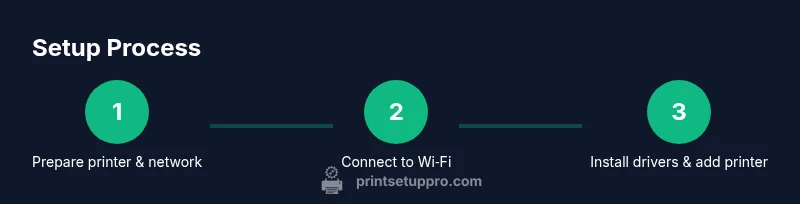
Before you start, gather the essentials: a compatible Brother wireless printer, a working Wi‑Fi network, and a device to install software (computer or mobile device). Have the network name (SSID) and password handy, and decide whether you’ll connect via 2.4 GHz only or also 5 GHz if your router supports it. Check that the printer’s control panel is functional and note any required USB cable for initial configuration (some models require a temporary USB connection to begin wireless setup). If your network has multiple subnets or guest networks, consider placing the printer on a standard home network for reliability. Finally, ensure your router firmware is up to date to prevent compatibility issues during setup.
Step-By-Step Setup Options
Most Brother printers offer two common setup paths: (1) through the printer’s onboard control panel using Wi‑Fi Setup or WPS (if your router supports it), and (2) via a USB connection to a computer to install drivers before switching to wireless. For WPS, press the WPS button on your router and then select the WLAN setup on the printer within a short window. If you don’t have WPS or your router doesn’t support it, choose the manual setup option on the printer’s screen and connect to your network by selecting the SSID and entering the password. Read the on‑screen prompts carefully and note any required PINs. In either path, verify the network status on the control panel after the connection is established.
Installing Drivers and Software
With the printer connected to Wi‑Fi, install the official Brother drivers and software on your computer or mobile device. Start at the Brother support site to download the correct package for your model and operating system. Run the installer and follow prompts to add the printer to your system; you may need to restart the device after installation. If you encounter driver conflicts, remove any old printer entries and reinstall from scratch. For Mac users, ensure the printer appears in System Preferences > Printers & Scanners; for Windows, use Devices and Printers to confirm the status and default settings.
Adding the Printer to Multiple Devices
Once the drivers are installed on one device, other devices on the same network should see the Brother printer automatically. If not, re-scan for printers on each device, or add the printer by IP address using the printer’s network configuration page. For mobile devices, install the Brother iPrint&Scan app or use AirPrint where supported. Keep a centralized list of printers in your home office so family members and coworkers can quickly select the right device when printing. Consider setting the main printer as the default and configuring basic print settings to ensure consistent results.
Security, Maintenance, and Troubleshooting Basics
Security starts with firmware updates; enable automatic updates if available and periodically check for new releases. Keep your printer on a secure network with a strong password and guest access disabled for everyday use. Regularly clean print heads and perform routine maintenance checks recommended by the model’s user guide. If printing issues arise, start with common checks: confirm power and network status, verify the printer is on the correct network, restart the printer and router, and re-run the setup if necessary. For persistent issues, consult the Brother support site or Print Setup Pro’s troubleshooting checklist.
Choosing the Right Brother Model for Your Needs
Your selection should reflect print volume, color vs. monochrome needs, and whether you require scanning or duplex printing. For light home use, a compact monochrome model with wireless and mobile printing support may suffice. If you regularly print photos or graphics, consider a color model with a larger paper capacity and strong print-quality metrics. Evaluate ongoing costs such as replacement toner, availability of compatible media, and the ease of firmware updates. Finally, confirm compatibility with your primary devices (Windows, macOS, iOS, Android) and ensure that the model has good online reviews for reliability and setup ease.
Tools & Materials
- Brother wireless printer(Model should be Wi‑Fi capable; verify two-band support if needed)
- Wi‑Fi network (SSID) and password(Prefer 2.4 GHz for broad compatibility; have 5 GHz as backup if supported)
- Smartphone, tablet, or computer(Used for installing drivers and sending print jobs)
- Printer driver/software(Available from Brother’s official site; include firmware updater)
- USB cable (optional)(May be required for initial configuration on some models)
Steps
Estimated time: 30-45 minutes
- 1
Power on and prepare the printer
Plug in the printer, turn it on, and perform any required initial setup like language selection. If there’s a reset option, perform a clean network reset to ensure a fresh start.
Tip: Place the printer within clear line-of-sight of the router for a stable signal. - 2
Choose your connection method
Decide between WPS (if your router supports it) or manual wireless setup through the printer’s control panel. WPS is faster but has potential security drawbacks; manual setup is more controllable.
Tip: If using WPS, press the router’s WPS button first, then initiate WLAN setup on the printer within 2 minutes. - 3
Connect to your Wi‑Fi
On the printer, select the correct SSID and enter your Wi‑Fi password. Confirm the printer shows a connected status and has a valid IP address on the network.
Tip: Avoid using a guest network for the printer to prevent access restrictions. - 4
Install drivers on your device
Download the correct Brother driver package for your OS and run the installer. Follow prompts to add the printer to your system and set preferences.
Tip: If you encounter a driver not found error, delete any old printer entries and reinstall from scratch. - 5
Add the printer to other devices
On each device, re-scan for printers on the same network or add by IP if needed. Test a print job from multiple devices to verify connectivity.
Tip: Set a default printer to streamline everyday printing. - 6
Test print and calibrate
Print a test page to verify alignment, color accuracy, and paper size. Adjust printer settings if required for best results.
Tip: Run maintenance tasks like print head cleaning if you notice streaks or blurry text. - 7
Enable mobile printing
Configure AirPrint (iOS) or Brother’s iPrint&Scan app for Android and iOS to print from mobile devices easily.
Tip: Keep the app updated to ensure compatibility with OS updates. - 8
Secure and maintain the device
Enable firmware updates, set a strong admin password if supported, and run periodic maintenance checks as advised by the model’s manual.
Tip: Schedule firmware checks monthly to stay protected.
People Also Ask
What should I do if my Brother printer won't connect to Wi-Fi?
First verify the SSID and password, then retry the manual setup. If the problem persists, restart the printer and router, and ensure the firmware is current. You can also try the WPS method if your router supports it and see if the printer obtains an IP address.
First check the network name and password, then reboot devices and try again. If needed, use the WPS option or install the latest firmware.
Can I print from my smartphone to a Brother wireless printer?
Yes. Most Brother printers support mobile printing via AirPrint on iOS or Brother's iPrint&Scan app on Android. Ensure the printer is on the same network as your phone and that the drivers were installed on your computer if needed.
Yes, you can print from your phone using AirPrint or Brother's app.
Do I need a wired connection during setup?
No. Wireless setup is common and recommended for everyday use. Some models may require a temporary USB connection to install drivers, but you can switch to wireless after installation.
A wired connection is not required; many setups are wireless-only, though USB can help during initial driver installation.
How do I update the printer firmware?
Check the printer’s menu or the Brother support site for the latest firmware. Update only when prompted and avoid interruptions during the process to prevent bricking the device.
Go to the printer’s menu or Brother's site, and update when prompted.
What if my printer isn't visible on some devices?
Ensure all devices are on the same network and that the printer has a valid IP address. Re-scan for devices or add by IP address if needed, and verify firewall settings on the host device.
Make sure all devices are on the same network and try adding the printer by IP.
Is using WPS secure for setup?
WPS is convenient but has security limitations. Use manual setup when possible for stronger protection, and disable WPS after installation if your router allows it.
WPS is quick but less secure; prefer manual setup when possible.
Watch Video
Quick Summary
- Prepare the network and device before starting.
- Use official Brother drivers for reliability.
- Test printing on all intended devices to confirm connectivity.
- Regularly update firmware and secure the device.
- Enable mobile printing for flexible workflows.