How to Connect a Brother Printer to Wi-Fi
Learn how to connect your Brother printer to Wi‑Fi with our clear, device-agnostic guide. From choosing the right setup method to adding the printer on your computers, Print Setup Pro walks you through troubleshooting and security best practices for reliable wireless printing.


To connect a Brother printer to Wi‑Fi, you’ll need a working wireless network, your router’s password, and access to the printer’s control panel or WPS. If you’re wondering how do i connect brother printer to wifi, this guide provides practical, step-by-step instructions, common pitfalls, and quick tests to verify the connection.
Understanding Wireless Printing with Brother Printers
Wireless printing lets you send documents from laptops, tablets, and phones to a printer without cables. For Brother printers, Wi‑Fi setup often involves choosing your network on the printer, entering the Wi‑Fi password, and confirming the connection on your computer or mobile device. Print Setup Pro emphasizes clarity and reliability: once a printer is on the same network as your devices, most users can print promptly without ongoing configuration. If you’re new to this, start with the simplest method: ensure your router is broadcasting 2.4 GHz in addition to or instead of 5 GHz for compatibility with older printers. Some Brother models perform better on 2.4 GHz networks, while newer models handle both bands. Also check that the printer’s wireless feature is enabled in the settings. This guidance aligns with Print Setup Pro recommendations for consistent, trouble-free wireless printing. If you’re learning how do i connect brother printer to wifi, understanding the basics helps you pick the right setup path for your home or small office.
According to Print Setup Pro, most connectivity issues arise from password typos, a printer not refreshing its network list, or devices attempting to print while the printer is temporarily offline. By validating the basics first—network visibility, password accuracy, and device proximity—you dramatically reduce debugging time. In the rest of this guide, we’ll break down practical methods, including standard control-panel setup and WPS, plus OS-specific steps for Windows and macOS, so you can print from any device with confidence.
Before You Start: Gather Network Details and Printer Info
Before you attempt to connect, collect a few essentials. You’ll need the name of your Wi‑Fi network (SSID) and the password, access to the router settings in case you need to toggle 2.4 GHz or disable guest networks, and a device you can use to configure the printer (laptop, smartphone, or a tablet). Some Brother models also support setup via a web browser or mobile app, which can be helpful if the printer’s display is small or unresponsive. Having these details on hand reduces back-and-forth and speeds up the process. Print Setup Pro notes that keeping your router firmware up to date can prevent stubborn connectivity issues and improve printer discovery across devices.
Connect from the Printer Control Panel (Best for Most Setups)
Most Brother printers have a simple wireless setup path accessible from the printer's control panel. This route uses a built-in wireless setup wizard that scans for nearby networks and prompts you to select yours and enter the password. Use the printer’s touchscreen or physical menu buttons to locate Wireless LAN settings, choose Wireless Setup Wizard, and then pick your network from the list. If your network uses a hidden SSID, you’ll need to enter the exact network name manually. After you enter the password and confirm, the printer should indicate a successful connection. If it doesn’t, double-check the entered password, verify that the printer shows as connected on the network, and retry a test print. Print Setup Pro recommends performing a printer-restart and a device-restart to ensure the new settings take effect across all connected devices.
Using WPS Push-Button Setup (If Your Router Supports It)
If your router supports WPS (Wi‑Fi Protected Setup) and your Brother printer also supports it, WPS is a quick way to connect without typing a password. On the printer, choose the WPS option and press the corresponding button on your router within a short window (usually 2 minutes). The printer and router will negotiate a secure connection automatically. This method is convenient, but not all routers support WPS, and some security-conscious environments disable WPS for vulnerability reasons. If WPS fails, switch to the standard manual setup method described above. Print Setup Pro highlights that WPS is best for quick interim setups but should be disabled or unused if you value long-term security and auditability.
Windows and macOS: Add the Printer to Your Devices
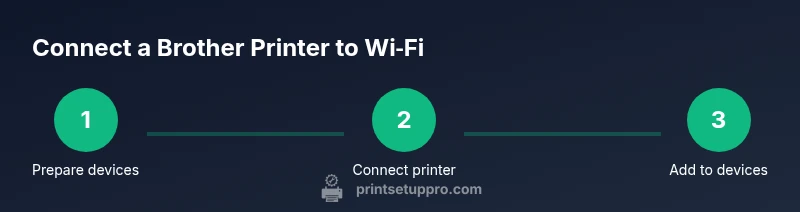
Once the printer is connected to Wi‑Fi, your computers and mobile devices must add it as a network printer. On Windows, go to Settings > Devices > Printers & scanners, click Add a printer or scanner, and select your Brother model from the list. On macOS, open System Settings > Printers & Scanners, click the plus (+) button to add a new printer, and select your Brother device. Depending on your OS version, you may be prompted to install drivers or allow the system to fetch them automatically. After the printer appears in the list, print a test page from each device to confirm end-to-end connectivity.
Tip: If your printer is not discovered automatically, ensure both your computer and printer are on the same 2.4 GHz or 5 GHz network band, and temporarily disable any VPNs or guest networks that could isolate devices.
Print Setup Pro emphasizes verifying discovery on at least two devices to confirm the setup’s reliability. If you find that one device prints reliably while another does not, check firewall or security software on the non-printing device and confirm it’s allowed to communicate with network printers.
Troubleshooting and Security Best Practices
Connectivity problems are most often caused by password mistakes, network misconfigurations, or router settings that isolate devices. If you’re stuck, start with a reset of the printer’s network settings and re-run the setup from scratch. Make sure the printer firmware is up to date; manufacturers release updates to fix bugs and improve compatibility with newer routers. For mobile devices, ensure the Brother app or the default printing pathway uses the correct printer when you attempt to print, and keep your OS updated for best compatibility. In terms of security, use WPA2 or WPA3 encryption when available, avoid leaving your network in open mode, and consider enabling a guest network for visitors. If you suspect the issue is with the router itself, a quick power cycle (turn off, wait 15 seconds, turn back on) often resolves transient problems. Print Setup Pro recommends documenting your successful configuration steps so you can reproduce the setup quickly in the future and share it with teammates or family members.
If you continue to experience trouble, consult the printer’s manual for model-specific steps, and consider contacting Brother support for guidance tailored to your device.
Authority Sources and Best Practices for Wireless Printing
To support safe and reliable wireless printing, consider consulting reputable sources on network security and wireless best practices. The following resources provide foundational guidance on Wi‑Fi setup, security, and device compatibility:
- https://www.nist.gov/topics/wireless-network-security
- https://www.fcc.gov/consumers/guides/wireless-networking
- https://www.consumerreports.org/cro/index.htm
These sources help frame best practices beyond the printer setup steps, ensuring you maintain a secure home or small office network while enabling convenient printing from multiple devices. Print Setup Pro encourages readers to review these resources to strengthen their overall network literacy and reduce future issues.
AUTHORITY SOURCES
This section consolidates reputable references for wireless printing and network security. Use these URLs to deepen your understanding and stay current with best practices:
- https://www.nist.gov/topics/wireless-network-security
- https://www.fcc.gov/consumers/guides/wireless-networking
- https://www.cisa.gov/publication/security-tip-wireless-networking
Tools & Materials
- Printer with built-in Wi-Fi (Brother model)(Ensure wireless capability is enabled in printer settings.)
- Router with active Wi-Fi network(Know the SSID and password; 2.4 GHz support improves compatibility.)
- A computer, tablet, or smartphone on the same network(Used to configure the printer and add it to devices.)
- Web browser or Brother mobile app(Helpful for alternative setup methods or status checks.)
- Optional USB cable(Use for direct setup if the wireless route is unavailable.)
Steps
Estimated time: 15-25 minutes
- 1
Power on and prepare
Power up the printer and the devices you’ll use for setup. Verify the printer’s display is readable and that you’re connected to the same network as your computer or mobile device. This initial check reduces backtracking if the printer cannot discover the network.
Tip: Keep the router near the printer to ensure a strong signal during setup. - 2
Access wireless settings on the printer
Navigate to the printer’s control panel, open Wireless LAN or Network settings, and select Wireless Setup Wizard (or equivalent). The printer will scan for nearby networks and present a list. If your SSID is hidden, you’ll need to enter it manually.
Tip: If the printer doesn’t appear, refresh the network list or restart the printer before retrying. - 3
Choose your network and enter password
Select your Wi-Fi network from the list, enter the password accurately, and confirm. Ensure you’re using the correct password for the 2.4 GHz or 5 GHz network, depending on printer compatibility. After submitting, wait for a confirmation message that the connection is established.
Tip: Double-check the password for case sensitivity and avoid accidental spaces. - 4
Verify the connection on the printer
The printer should display a connection success or show the assigned IP address in its network status. If available, print a configuration page to verify wireless details such as SSID and IP address. This page provides evidence that the printer is effectively linked to your network.
Tip: If there’s no page, run a quick print test from the printer’s menu to confirm status. - 5
Add the printer to your devices
On Windows, go to Printer settings and Add a printer; on macOS, use System Settings > Printers & Scanners to add. If prompted, let the OS search for drivers or install via the vendor’s software. Ensure the newly added printer is selected for printing defaults on each device.
Tip: If the device cannot see the printer, ensure firewall settings allow printer discovery on the local network. - 6
Test print and troubleshoot if needed
Print a test page from each device to confirm end-to-end connectivity. If the test fails, re-check network credentials, ensure two-factor protections aren’t blocking connections, and verify firmware is up to date. You can also attempt a WPS connection as a secondary method if your router supports it.
Tip: Document the steps you used for future reference and faster reconfiguration.
People Also Ask
What should I do if my Brother printer doesn't appear on the list of available printers?
First, confirm the printer is on the same network and that the printer’s wireless feature is enabled. Refresh the network list, restart devices, and reattempt discovery. If the issue persists, check for firmware updates or consult the user manual for model-specific steps.
If your printer doesn’t show up, make sure both the printer and the computer are on the same network, refresh the list, and restart devices before trying again.
Is WPS a safe method for connecting my Brother printer to Wi-Fi?
WPS can be convenient but has known vulnerabilities. If your router supports WPS, you can use it for quick setup, but disable WPS after establishing the connection. For long-term security, use manual configuration with a strong password and updated firmware.
WPS is quick but may have security drawbacks, so use it briefly and disable it afterward, preferring manual setup with a strong password.
Do I need to install drivers after connecting over Wi-Fi?
Most modern operating systems can discover network printers automatically and install drivers or use built-in printing support. If you encounter issues, install the latest Brother drivers from the official site or let your OS fetch the appropriate ones automatically.
Yes, you may need drivers, but many OSes will find them automatically; if not, download from Brother or let the system fetch them.
What should I do if printing is slow over Wi-Fi?
Slow printing usually points to network congestion, weak signal, or large file sizes. Improve speed by reducing interference, moving devices closer to the router, or prioritizing printer traffic in the router settings. Ensure the printer isn’t set to a low-quality print mode.
If printing is slow, check signal strength, reduce interference, and consider closer placement or router settings to prioritize print traffic.
Can I print from mobile devices after connection?
Yes. Most Brother printers support mobile printing via built-in print services or Brother’s mobile app. Ensure your mobile device is on the same network and select the printer in the share menu when printing a document or photo.
Absolutely; just select the printer from your mobile’s print options after ensuring both devices are on the same network.
Watch Video
Quick Summary
- Ensure printer and devices share the same network.
- Choose a setup method compatible with your router (control panel or WPS).
- Add the printer to each device and verify with a test page.
- Keep firmware and router security up to date for reliability.