Can a Printer Be Connected to a Laptop? A Practical Guide
Learn how to connect a printer to a laptop via USB, Wi‑Fi, or Bluetooth. This educational guide covers drivers, OS differences, troubleshooting, and best practices for home offices, students, and small businesses.


Yes. A printer can connect to a laptop through USB, Wi‑Fi, or Bluetooth. The exact steps depend on your printer model and operating system, but the basic flow is: install the driver, connect the device, and verify printing. This Print Setup Pro guide walks you through wired and wireless options, common pitfalls, and quick verification checks.
Understanding printer-laptop connectivity basics
Can the question be answered with a simple yes or no? In most cases, yes—the printer can be connected to a laptop using multiple methods, and each method has its own setup path. The most common options are USB (wired), Wi‑Fi (networked), and Bluetooth (short-range wireless). Before you start, confirm that the printer is powered on, has paper and ink/toner, and that your laptop is in a stable environment with proper power. The phrase can printer be connected to laptop is frequently asked by students and home office users who want a smooth, offline-to-online printing workflow. Print Setup Pro emphasizes clarity: pick a method that matches your environment, then follow the concrete steps in this guide. If you are in a shared workspace, prioritize network printing for easier multi‑user access. This approach ensures a reliable print experience and reduces troubleshooting later on.
noteWikiZones:null},
toolsMaterials...
stepByStep
tipsList
keyTakeaways
videoEmbed
faqSection
mainTopicQuery
Tools & Materials
- Printer(Ensure it is powered on and within reach during setup.)
- Laptop(Running a compatible operating system with access to network or USB ports.)
- USB cable(Use the appropriate USB type (A-to-B, USB-C, etc.) for your printer.)
- Printer drivers/installer(Download latest drivers from the manufacturer’s site for your OS.)
- Stable network access(Needed for Wi‑Fi or Ethernet connections; confirm the network is functioning.)
Steps
Estimated time: 30-45 minutes
- 1
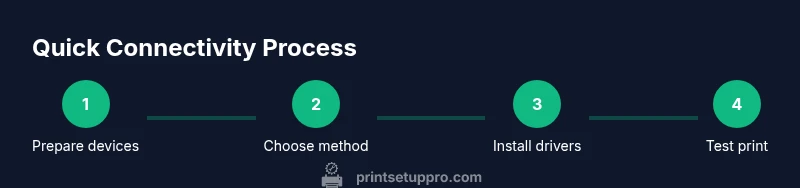
Prepare devices
Power on both the laptop and printer. Connect the printer locally to your workspace to avoid misplacing cables. Confirm that the operating system recognizes basic hardware like USB ports or Wi‑Fi adapters before proceeding.
Tip: If the printer is new, remove any packaging and run a quick power cycle to ensure all internal modules initialize correctly. - 2
Choose a connection method
Decide between USB for a direct, tactile connection or Wi‑Fi for wireless printing from any device on the same network. Bluetooth is an option for some models but tends to have shorter range and slower speeds.
Tip: USB generally provides the most stable connection with fewer setup steps. If you want flexibility for multiple devices, choose Wi‑Fi. - 3
Install drivers and software
Install the printer driver or software package on the laptop. Use the manufacturer’s official site to download the latest version compatible with your OS. This step ensures the laptop can communicate with the printer correctly.
Tip: If you’re prompted to allow installation from your browser, approve it to proceed smoothly. - 4
Connect via USB
Plug the USB cable into the printer and laptop, then turn on the printer if it wasn’t already. In Windows or macOS, go to the printer settings and select the new USB device as the default printer.
Tip: If the driver installs automatically but the printer isn’t listed, try unplugging and replugging the USB cable. - 5
Connect via Wi‑Fi (network printing)
From the printer menu, select Wireless or Network settings and connect to your Wi‑Fi network. On the laptop, add a new printer in the system settings and choose the printer that appears on the network.
Tip: Ensure both devices are on the same network segment; a guest network can block printer discovery. - 6
Print a test page
Open a document and print a test page to verify the connection. If the page prints correctly, your setup is complete. If not, revisit the driver installation and network configuration steps.
Tip: Use a simple document first to confirm basic printing before sending complex graphics. - 7
Troubleshoot common issues
If printing fails, check status lights on the printer, confirm the correct driver, and verify the printer queue is not paused. On Windows, you can restart the spooler service; on macOS, reset the printer system if needed.
Tip: Document any error codes you see to speed up troubleshooting and searches for solutions.
People Also Ask
Can I connect a printer to a laptop via Bluetooth?
Some printers support Bluetooth, but it’s less common for modern setups due to range and compatibility constraints. If your printer and laptop both support it, pair them per the device menus and install any required drivers.
Yes, Bluetooth is an option on some models, but wired or Wi‑Fi is usually more reliable.
Do I always need to install drivers?
Most printers require drivers or at least a basic printer driver provided by the OS. Drivers enable features like color control and duplex printing, and ensure the printer is recognized. In some cases, universal print drivers may work, but full functionality is best with the manufacturer’s software.
Usually you’ll install the vendor’s driver for the best compatibility.
What if my laptop doesn’t find the printer after setup?
First, verify the printer is on and connected to the same network or cable. Reinstall or update drivers, restart the printer spooler (Windows) or reset the printer system (macOS), and check for any firmware updates.
If it still doesn’t show up, recheck the network settings or try a direct USB connection.
Can I print from Linux or Chromebooks?
Linux and Chromebooks support printers via CUPS or vendor-provided drivers. You may need to add the printer manually in system settings or install a compatible driver package. Wireless printing can sometimes be easier than USB on these platforms.
Yes, but you might need to adjust settings or use a compatible driver.
Why is network printing slow or unstable?
Network performance depends on router quality, bandwidth, and signal strength. Close the printer to the router, reduce interference, and ensure firmware updates on both printer and router. Printing large files may require more robust networking.
A weak network is a common cause of slow printing.
Can multiple laptops print to the same printer?
Yes. When a printer is shared over a network, any device on the same network can print. Ensure the correct sharing settings and clear the print queue if many jobs accumulate.
Yes, but set proper permissions to avoid conflicts.
Watch Video
Quick Summary
- Connect via USB for stability and speed
- Wi‑Fi enables multi-device printing on a single network
- Install official drivers before attempting a connection
- Verify printer visibility in OS settings and test print
- Follow a step-by-step approach to avoid common pitfalls
- Always secure printers on shared networks