Portable Printer for Laptop: How to Choose, Connect, and Print On the Go
Discover how to pick, connect, and use a portable printer with your laptop. This educational guide covers features, setup steps, troubleshooting, and cost considerations for home offices, students, and mobile work.


You will learn how to select and set up a portable printer that works seamlessly with your laptop, including connectivity options, power considerations, and practical printing workflows. The guide covers USB-C and wireless models, OS compatibility, and common troubleshooting steps to get you printing quickly on the go.
What is a portable printer for laptop?
A portable printer for laptop is a compact, battery-friendly device designed to bring printing abilities to mobile work setups. It normally combines light weight, a small footprint, and at least one modern connectivity option (USB-C, Bluetooth, or Wi‑Fi). The goal is to let you print documents, receipts, or labels directly from your laptop without needing a full-size printer. According to Print Setup Pro, these devices are especially valuable for remote workers, students, and small teams who travel or work in tight spaces, offering true on-the-go capability without sacrificing print quality or reliability.
As you explore models, expect variations in media support (petty sizes like 4x6, letter, or A4), print technology (inkjet vs. thermal vs. label printers), and battery life. By understanding these differences, you can pinpoint a portable printer that matches your laptop setup and typical tasks.
Core considerations when evaluating a portable printer
When choosing a portable printer for your laptop, start with battery life, weight, and footprint, then evaluate connectivity and print quality. A good option balances portability with dependable performance. Look for models that offer USB-C charging, Wi‑Fi, and Bluetooth, so you can print from a wide range of laptops and mobile devices. OS compatibility is also crucial: ensure drivers exist for Windows, macOS, or Linux if you rely on a non-Windows environment. Print quality may be measured in dots per inch (DPI) and color accuracy, so compare sample prints if possible. Finally, assess media support to confirm it prints the sizes and surfaces you use most—paper, cardstock, labels, or receipts. Print Setup Pro emphasizes testing a model with your most common tasks before committing.
Types of portable printers you’ll encounter
Portable printers come in several flavors, each optimized for different workflows:
- Inkjet pocket printers: Produce high-quality color prints on standard paper and photos, but typically require more frequent cartridge replacements.
- Thermal (no ink): Excellent for receipts and labels with low maintenance, long shelf life, and fast printing, though limited to specific media.
- Label printers: Ideal for shipping labels, name tags, or inventory labels; excellent for small business workflows.
- Small all-in-one: Combine printing with scanning or copying in a compact form; good for students and home offices.
Choosing the right type depends on your typical tasks, media types, and whether you need color printing or simple black-and-white outputs.
How to connect a portable printer to a laptop (USB, Wi‑Fi, or Bluetooth)
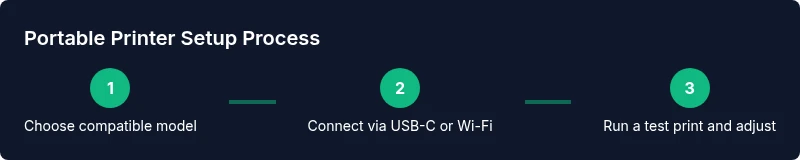
Most portable printers offer multiple connectivity options. USB-C or USB-A connections are reliable for direct laptop prints, while Wi‑Fi enables wireless printing from desktops, laptops, and mobile devices. Bluetooth is convenient for immediate pairing with nearby devices. Start by charging the printer and ensuring it has the latest firmware. Install the manufacturer’s driver or use a driverless/airprint-compatible setup if your laptop supports it. On Windows, add the device via Settings > Bluetooth & devices > Printers & scanners; on macOS, use System Preferences > Printers & Scanners. Once connected, print a test page to confirm alignment and color accuracy. Print Setup Pro recommends keeping firmware updated to improve compatibility and stability.
Practical workflows for everyday use
For everyday documents, printing directly from your laptop via USB-C is fastest and most reliable. If you travel or work in different locations, connect via Wi‑Fi and use cloud-print or email-to-print workflows to minimize carry methods. For receipts or on-site labeling, choose a model with label media support and quick-dry ink or thermal printing. When preparing presentations, print a few copies in advance to avoid last-minute glitches. If you work with photos, ensure the printer supports color management profiles and offers a reasonable color gamut. Always carry spare media and a lightweight USB-C cable to stay ready for spontaneous print jobs.
Battery life, charging, and travel readiness
A portable printer’s battery life depends on print volume, print quality settings, and media type. Light-duty use (black-and-white text) typically consumes less power than color-rich image printing. When traveling, keep the printer charged, and consider a USB-C power bank as a backup charging option if the built-in battery runs low. Carry a compact power adapter that is compatible with multiple voltages if you travel internationally. Print Setup Pro notes that choosing a model with a user-replaceable battery or a capacious internal cell can extend your on-the-road printing capability significantly, reducing downtime between charges.
Maintenance, print quality, and media handling
Regular maintenance preserves print quality and device longevity. Clean print heads or rollers as recommended by the manufacturer, and replace consumables (ink cartridges or ribbon) before prints show signs of wear. Store paper and media in a dry, clean environment to prevent jams and curling. For best results, calibrate color profiles if your printer supports it and use media recommended by the manufacturer. Proper media handling, such as fan-folded stacks and aligned guides, reduces misfeeds and jams during busy workflows.
Troubleshooting common issues
If the printer goes offline or stops printing, check the connection (USB, Wi‑Fi, or Bluetooth) and confirm the device appears in your operating system’s printer list. Ensure you have the latest drivers and firmware, and restart the printer and laptop to clear stuck processes. Alignment issues or color misrepresentation may require head cleaning or nozzle checks; refer to the user manual for the correct procedure. For wireless printing, verify the network name (SSID) and password, and ensure the printer and laptop are on the same network. If problems persist, consult the manufacturer’s support resources or Print Setup Pro for troubleshooting best practices.
Cost considerations and value for money
Portable printers vary in price based on features, media support, and build quality. Expect to see a range from basic monochrome printers to feature-rich color devices with better connectivity. Consider total cost of ownership, including ongoing ink or label consumables, media packs, and warranty terms. If you print infrequently, a cheaper model with lower running costs may be more economical; if you print often, a mid-range device with robust wireless features often yields greater long-term value. Print Setup Pro suggests evaluating your typical tasks, total monthly prints, and travel frequency to determine the best value option for your needs.
Tools & Materials
- Portable printer for laptop(Choose a model with USB-C charging and wireless options if possible)
- Power adapter and USB-C/USB-A cable(Use the cable that matches the printer's port; keep a spare for travel)
- Laptop(Ensure OS compatibility (Windows/macOS/Linux) and available drivers)
- Printer media (paper, labels, etc.)(Stock the media you’ll most often use)
- USB-C hub or extra extension (optional)(Helpful if your laptop has limited ports)
- Carrying case or sleeve(Protects the printer during travel)
- Spare ink cartridges or toner (if applicable)(Check model compatibility and predict ink usage)
Steps
Estimated time: 60-90 minutes
- 1
Assess printing needs and laptop setup
Identify the primary tasks you’ll perform with the portable printer (text documents, photos, labels). Check your laptop’s ports and OS compatibility to determine whether USB-C or wireless connections are your best option. This step ensures you pick a device that will genuinely fit into your workflow.
Tip: Note your typical print sizes and media types to narrow media support requirements. - 2
Choose the right connectivity approach
Decide between USB-C for reliability or Wi‑Fi/Bluetooth for flexibility. If you frequently print away from your desk, wireless is essential. Ensure your chosen model supports your preferred connection method and can switch easily between them.
Tip: For laptops with limited ports, carry a small USB-C hub to keep options open. - 3
Install drivers or configure driverless printing
Install the printer driver on your laptop, or configure a driverless setup if your OS supports it (AirPrint, Mopria, or manufacturer app). Confirm the printer appears in the OS printer list and run a test page.
Tip: Keep a digital copy of the setup guide in your notes for quick reference. - 4
Load media and run a test print
Insert the correct media type and size, align guides, and print a test page. Verify margins, alignment, and color accuracy. Adjust print settings if needed to balance speed and quality.
Tip: Always fan paper before loading to prevent jams. - 5
Configure printing preferences for travel
Set default print quality to conserve battery during travel or choose draft mode for quick notes. Save your commonly used settings as a preset so you can print with one click.
Tip: Create a travel profile with the most common media and sizes. - 6
Perform routine maintenance
Clean printer heads and check for media jams regularly. Replace consumables before they run dry to avoid mid-job failures. Store the printer in a clean, dry environment when not in use.
Tip: Keep spare media and a cleaning kit in your travel kit. - 7
Troubleshoot common wireless issues
If printing fails over Wi‑Fi, verify network connectivity, confirm the printer is on the same network, and re-pair the device. Update firmware if available and reboot devices if needed.
Tip: Rebooting both printer and laptop resolves the majority of miscommunications. - 8
Test a real-world task
Before a critical deadline, print a typical document or label to ensure reliability under real conditions. This final validation minimizes surprises during important work.
Tip: Keep a printed sample in your travel kit to compare against digital expectations.
People Also Ask
What defines a portable printer for laptop compared with a standard printer?
A portable printer is compact, battery-friendly, and designed for mobile use with USB-C, Bluetooth, or Wi‑Fi connectivity. Standard printers are larger, typically require a power outlet, and are optimized for desktop use. Portable models emphasize travel readiness and lightweight design.
A portable printer is small, battery-friendly, and designed for mobile use with wireless options, unlike standard printers that are larger and rely on a power outlet.
Can I print from a laptop without installing drivers?
Many portable printers support driverless printing via protocols like AirPrint or Mopria, but some models require vendor drivers. Check compatibility with your OS and test a print to confirm functionality.
Some portable printers support driverless printing, but others need the vendor driver. Always test and verify compatibility with your OS.
Which laptops are most compatible with portable printers?
Most portable printers work with Windows and macOS. Linux support varies by model. Look for explicit OS support in the product specs and ensure drivers or driverless options exist for your system.
Most portable printers work with Windows and macOS, and some support Linux. Check the product specs for OS compatibility.
What media types do portable printers usually support?
Common options include standard letter-sized sheets, A4, labels, receipts, and specialty media like photo paper for some inkjet models. Always verify media compatibility before purchasing and printing.
Most portable printers support paper and label media; verify exact media compatibility before buying.
How should I assess total cost of ownership for a portable printer?
Consider upfront price, consumables (ink or labels), media supplies, battery replacements if applicable, and warranty terms. A model with moderate upfront cost and economical consumables often yields better long-term value.
Look at price plus ongoing consumables and warranty to gauge long-term value.
What’s a quick way to verify a model will meet my travel needs?
Create a small travel test that mirrors your typical prints (documents, photos, labels). Check battery life, print speed, alignment, and reliability after travel conditions and adjust your choice accordingly.
Test with real travel tasks to confirm battery life, speed, and reliability before purchase.
Is it worth printing photos on a portable printer?
Some portable inkjet models can print photos, but photo quality may not match larger, dedicated photo printers. If photo printing is a priority, select a model known for color accuracy and media compatibility.
Photo printing is possible on some portable inkjets, but expect lower quality than dedicated photo printers.
Can portable printers print wirelessly from multiple devices at once?
Many portable printers support multiple paired devices over Wi‑Fi or Bluetooth, allowing you to switch between a laptop, tablet, or phone. Check device pairing limits in the product specs.
Yes, most portable printers can print from several devices via wireless connections; verify the number of paired devices supported.
Watch Video
Quick Summary
- Choose a model balancing weight, battery life, and media support
- Ensure your laptop OS and drivers are compatible
- Prefer USB-C or Wi‑Fi for flexible, reliable printing
- Test workflows with real documents before important deadlines
- Keep maintenance supplies handy and follow manufacturer guidance