How to Add a Printer to a Laptop: Step-by-Step Guide
Learn how to add a printer to a laptop with step-by-step USB and wireless setup, driver installation, and essential troubleshooting for Windows and macOS.


To add a printer to your laptop, connect via USB for fast setup or use wireless networking for ongoing printing. On Windows, open Settings > Devices > Printers & scanners and install the driver prompts; on macOS, use System Settings > Printers & Scanners to add and install software as needed.
Overview: how to add printer to laptop
According to Print Setup Pro, most modern printers support both USB and wireless connections, giving you flexibility in small spaces. Print Setup Pro Analysis, 2026, shows that when users opt for the official drivers and follow the setup wizard, the likelihood of successful installation on the first try increases significantly. In this guide, you’ll learn when USB is preferable, how to prepare for wireless setups, and which OS-specific steps you’ll follow to complete the process with fewer headaches.
USB setup basics
Using a USB cable is the fastest way to get a printer up and running. Start by ensuring the printer is powered on and set to a standard USB connection mode. Plug the cable into a free port on your laptop and into the printer’s USB port. Your operating system should recognize the device and prompt you to install drivers. If prompts appear, follow them and allow any required permissions. Keep the printer close to your computer to reduce cable length and signal issues, and disconnect other USB devices if you experience conflicts.
Wireless setup: network printers
Wireless printers rely on your local network, so make sure both the printer and laptop are connected to the same router. Power on the printer and enable its wireless setup mode if required. In most cases, the printer will appear in the Windows or macOS add-device wizard after the network connection is established. If your printer supports IP printing, you can add it by its IP address for a more stable connection, especially in busy networks. AirPrint and Mopria compatibility can simplify the process on supported devices.
Driver installation and updates
Drivers are the bridge between your OS and the printer hardware. On Windows, you’ll typically run the downloaded installer from the manufacturer’s site or insert the driver CD and follow the prompts. On macOS, System Settings will prompt you to install additional software when the printer is added. After installation, check for updates to ensure compatibility with the latest OS updates and application software. Keeping drivers current helps avoid feature gaps such as duplexing or advanced color management.
Printing test pages and basic customization
Once the printer is added, print a test page to verify the setup. This helps you confirm print quality, margins, and color calibration. If things aren’t perfect, adjust the printer’s preferences, such as paper size and print quality, from the printer settings panel. You can also set the printer as the default for quick printing and save commonly used profiles for different tasks, like photo printing versus document printing.
Common issues and quick fixes
If the printer doesn’t appear, check that both devices are on the same network, the printer is powered and in discovery mode, and any firewalls aren’t blocking the connection. For USB, try a different cable or port and reinstall the driver. If the printer shows as offline, run a printer troubleshooter (Windows) or reset the printer system (macOS) and try again. In stubborn cases, reinstalling the driver or using a different USB port often resolves conflicts.
Tools & Materials
- Printer(Ensure it supports USB or wireless setup)
- Laptop or desktop computer(Windows 10+/macOS 11+ recommended)
- USB cable (if using USB)(Quality matters; try a different cable if issues arise)
- Wi‑Fi network(Needed for wireless setup on home networks)
- Printer driver installer(Download from manufacturer site or use CD)
- Printer IP address (optional)(Use for IP-based wireless setup)
Steps
Estimated time: 15-30 minutes
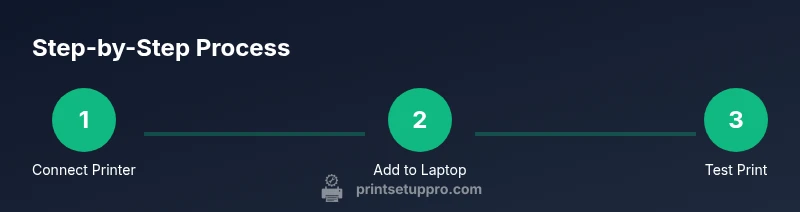
- 1
Check compatibility and connection type
Identify whether your printer supports USB, Wi‑Fi, or both and decide which path you’ll use. This pre-check saves time later.
Tip: If you’re unsure, start with USB to verify basic functionality. - 2
Connect printer via chosen method
Physically connect the printer using USB or ensure it’s on the same network as your laptop. Turn on the printer if it isn’t already.
Tip: For wireless, ensure the printer’s network LED is steady. - 3
Add printer on Windows
Open Settings > Devices > Printers & scanners, click Add a printer or scanner, and follow prompts to locate and install the driver.
Tip: If prompted for a driver, choose Windows Update to get the latest compatible version. - 4
Add printer on macOS
Open System Settings > Printers & Scanners, click Add, select your printer, and install any available software.
Tip: Grant permission if macOS asks to install software from the printer vendor. - 5
Verify the setup with a test page
Print a test page or a document to confirm printing works and check alignment and color.
Tip: If the test page looks off, recalibrate by adjusting printer properties. - 6
Update drivers and set preferences
Install the latest drivers and configure default settings for your typical tasks.
Tip: Regularly check for driver updates to maintain compatibility.
People Also Ask
Do I need administrator rights to add a printer?
Most systems require admin rights to install drivers. If you don’t have rights, ask your IT administrator or use a printer already installed on the device.
Admin rights are usually required to install printers. If you don’t have them, contact your IT admin.
Can I add a printer without internet access?
Yes, USB printing works without internet. Wireless printing may require local network access even without internet.
Yes, USB works offline; wireless needs a local network.
What if the printer never appears in the list?
Check power and connections, ensure the printer is in discovery mode, and retry the add printer wizard. Update drivers if needed.
Make sure the printer is on and discoverable, then try again.
Should I download the latest driver or use the CD?
The latest driver from the manufacturer’s site is usually best for compatibility and security; use the CD only if you lack internet.
Download the latest driver for reliability.
How do I remove a printer I no longer need?
In Windows, remove from Printers & scanners. In macOS, remove from Printers & Scanners and delete the driver if needed.
Remove it from printer settings when it’s no longer needed.
What about AirPrint or Mopria compatibility?
If your printer supports AirPrint (iOS/macOS) or Mopria (Android/Windows), use these built-in standards for simpler setup.
Use AirPrint or Mopria for easy setup when supported.
Watch Video
Quick Summary
- USB provides quick, reliable initial setup
- Wireless setup offers flexibility but may require network fiddling
- Install current drivers for best compatibility
- Test print to verify success
- Keep firmware and OS in sync with printer updates