Can a Printer Be Connected to a Tablet? A Practical Guide
Learn how to connect a printer to a tablet across iOS and Android. This guide covers compatibility, wireless setup, troubleshooting, and best practices for reliable tablet printing.


Yes—most printers can be connected to tablets via wireless methods or vendor apps. Whether you use an iPad or an Android tablet, printing is usually possible once the devices share a network and the printer supports AirPrint (iOS) or Mopria (Android) or the printer’s own app. This guide shows practical steps, compatibility checks, and quick troubleshooting.
Can a printer be connected to a tablet? Why it matters
If you use a tablet for homework, freelancing, or small-office tasks, being able to print directly from the tablet saves time and avoids transferring files to a computer. The core question—can printer be connected to tablet—has a practical answer: yes, in most cases. The connection method depends on your printer’s capabilities and your tablet’s operating system. Print Setup Pro has found that the vast majority of modern printers support wireless printing via AirPrint for Apple devices or Mopria for Android devices, or offer a companion app for direct on-device printing. Before you start, verify that the printer supports wireless printing and that both devices can see each other on the same network, or that Bluetooth printing is supported and enabled. With these basics in place, you can print from a wide range of apps with just a few taps. In short, can printer be connected to tablet? Most often, yes—provided you choose the right method and follow a clear setup sequence.
How printers and tablets typically connect
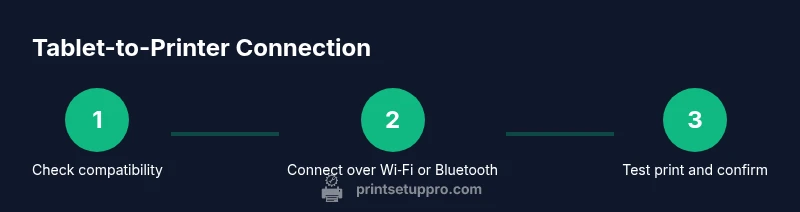
There are three broad pathways to connect a printer to a tablet: wireless network printing, Bluetooth printing, and direct app-based printing. Wireless network printing relies on standard protocols like AirPrint on iOS and Mopria on Android, which lets tablets discover compatible printers on the same Wi‑Fi network. Bluetooth is another option for nearby printers, though it’s less common for document-heavy tasks due to slower speeds. The third pathway, app-based printing, uses the printer manufacturer’s mobile app to bridge the tablet and printer, often offering features like queue management and cloud print support. When can printer be connected to tablet? The simplest route is to ensure both devices join the same reliable network and that the printer advertises AirPrint or Mopria compatibility. If you don’t see the printer during discovery, check firmware, network settings, and whether the printer is in “ready” state for printing.
How to verify printer compatibility before you start
Compatibility is the linchpin of a smooth setup. Check the printer’s user guide or the manufacturer’s website for statements about AirPrint (for iOS) or Mopria (for Android), as well as supported mobile apps. Ensure the printer firmware is up to date, because newer firmware frequently expands tablet printing support and fixes discovery issues. If you plan to print from a specific app (like a notes or photo app), confirm that the app supports printing and can access the system print dialog. For can printer be connected to tablet scenarios, a quick compatibility sweep saves time—confirm AirPrint or Mopria support, confirm the network is stable, and confirm the tablet’s OS version aligns with the printer’s requirements.
iOS printing basics: AirPrint and manufacturer apps
For iPad and iPhone users, AirPrint is the most reliable bridge to most modern printers. First, ensure the printer supports AirPrint and is on the same Wi‑Fi network as the iPad. On your iOS device, open a document or photo, tap the share or print option, and select the printer from the AirPrint list. If the printer doesn’t appear, update the printer’s firmware and reboot both devices. If your printer doesn’t support AirPrint, check the manufacturer’s app—many brands offer their own apps that enable printing from iOS devices with the same network. Can printer be connected to tablet on iOS tends to be straightforward when AirPrint is available, but vendor apps provide alternatives when AirPrint is absent.
Android printing basics: Mopria and vendor apps
Android devices typically use Mopria Print Service or a printer-specific app. Start by confirming that Mopria is installed and enabled in Settings > Connected devices > Print (path may vary by device). On some Android tablets, you may need to install the printer’s official app to enable printing and to access extra features like scan-to-print or cloud print support. Ensure the tablet and printer share the same Wi‑Fi network; enable the printer’s mobile printing feature if required by the brand, and test print from a simple document. If you run into trouble, check that the Mopria service is set as the default printing option and that you granted the app the necessary permissions. Can printer be connected to tablet on Android hinges on having a compatible print service or app.
Troubleshooting common problems
If the tablet cannot find the printer, first verify the printer is powered on and on the same network. Restart both devices and reattempt discovery. Ensure your router isn’t isolating devices on separate subnets, which can block printer discovery. Update firmware on the printer and OS updates on the tablet, as outdated software commonly causes discovery failures. If using Bluetooth, confirm pairing is established and that the printer is within range. In many cases, removing and re-adding the printer in the system print settings resolves edge cases. Remember, can printer be connected to tablet ends up failing primarily due to network or firmware issues, so start with the basics before diving into advanced settings.
Best practices for reliable tablet printing
Establish a dedicated printing network whenever possible, with a named network and stable bandwidth to reduce dropouts. Keep both devices updated—tablet OS, printer firmware, and any required apps. Use the printer’s own app for enhanced control and faster support if AirPrint or Mopria isn’t available. For security, avoid printing over public or guest networks and disable printing when not in use to minimize exposure. Finally, keep a simple test document ready to verify setup after changes, updates, or resets. Can printer be connected to tablet most successfully when you maintain consistent network conditions and up-to-date firmware.
Quick-start comparison: AirPrint vs Mopria vs vendor apps
- AirPrint (iOS): Seamless integration, no extra apps required, broad compatibility with many printers.
- Mopria (Android): Built into many devices, good cross-brand support, may require enabling in system settings.
- Vendor apps: Offer advanced features like cloud printing, scanning, and document management; useful when AirPrint or Mopria isn’t available.
Choosing the right method depends on your tablet OS, printer capability, and the apps you use most. In general, AirPrint and Mopria provide quick, plug-and-play printing, while vendor apps unlock additional printer functions and better troubleshooting.
A note on security and privacy when printing from tablets
Printing over local networks keeps data within your home or office. Avoid sending sensitive documents over public networks, and use printer features like password protection and secure print if available. Regularly review printer permissions for any apps installed on the tablet, and disable direct cloud printing when the feature isn’t needed. This keeps can printer be connected to tablet secure while maintaining convenience for everyday tasks.
Tools & Materials
- Printer with wireless capability or Bluetooth(Ensure the printer supports AirPrint or Mopria, or comes with a mobile app)
- Tablet (iPad or Android)(Updated to latest OS version if possible)
- Stable Wi-Fi network(2.4 GHz is widely compatible; ensure network isn't isolating devices)
- Printer manufacturer app (optional)(Install if AirPrint/Mopria is insufficient)
- USB-C to USB-B or USB-C OTG cable (optional)(Only for direct USB printing if supported by printer)
Steps
Estimated time: 30-60 minutes
- 1
Prepare devices and network
Power on the tablet and printer, then verify both devices are connected to the same stable Wi‑Fi network. This is the foundation for discovery and printing. If you use a guest network, switch to the main network or create a dedicated printer network to improve reliability.
Tip: If the printer supports Bluetooth and is near the tablet, enable Bluetooth printing as a fallback. - 2
Check compatibility and update firmware
Consult the printer’s manual or manufacturer site to confirm AirPrint or Mopria compatibility and install the latest firmware. Firmware updates fix bugs and expand mobile printing support, which reduces discovery issues on can printer be connected to tablet scenarios.
Tip: Set the printer to 'Automatic firmware update' if available to keep it current. - 3
On iOS, enable AirPrint or use the printer app
Open a document or photo, tap share or print, and select the AirPrint-enabled printer. If the printer doesn’t appear, reboot devices and recheck the network; use the manufacturer app if needed to bridge connectivity.
Tip: If multiple printers appear, choose the one with the strongest signal and confirm it is the intended device. - 4
On Android, enable Mopria or install the vendor app
Go to Settings > Connected devices > Print and enable Mopria Print Service, then try printing from a document. If the printer isn’t listed, install the printer’s official app and add the device there.
Tip: Test printing from two different apps to confirm broad compatibility. - 5
Print a test page
From a simple document or photo, print a test page to verify the setup. Look for alignment, color accuracy, and page completeness. If issues appear, check paper size and print quality settings in the app’s print dialog.
Tip: Keep a basic document handy for quick retests after changes. - 6
Troubleshoot and retry if needed
If printing fails, restart the printer and tablet, reselect the printer in the print dialog, and reattempt printing. Check for network changes or recent OS updates that might affect discovery.
Tip: Document the exact error message as it helps support or future troubleshooting.
People Also Ask
Can tablets print wirelessly to most printers?
In most cases, yes. If the printer supports AirPrint or Mopria, a tablet can print without drivers. Some printers require the manufacturer’s app for full features. Always confirm compatibility before starting.
Yes. Most tablets can print wirelessly if the printer supports AirPrint or Mopria, or via the vendor app.
Do all printers support tablet printing?
Not all printers support native tablet printing. If AirPrint or Mopria isn’t available, you may need the printer’s app or a third‑party printing solution.
Not all printers support native tablet printing; some require the manufacturer’s app.
Can I print from an iPad to a non-AirPrint printer?
Yes, using the printer’s app or a compatible third‑party print service can bridge iPad to non-AirPrint printers. This typically adds features like cloud printing and scan-to-print.
Yes, via the printer’s app or a third‑party service when AirPrint is unavailable.
What if my tablet can't find the printer?
Check that both devices are on the same network, reboot devices, and confirm the printer is in ready mode. Update firmware and OS versions if discovery issues persist.
If the printer isn’t found, ensure both are on the same network and try rebooting everything.
Is Bluetooth printing supported for tablets?
Some printers support Bluetooth printing, but it’s less common for documents due to speed. If your printer and tablet both support it, pairing is usually straightforward.
Bluetooth printing is possible on some setups but less common for doc printing.
Do Android tablets ever need drivers for printing?
Most Android printing relies on the system print service (Mopria) or the printer’s app, which means traditional drivers aren’t always required. Some advanced printers may need vendor software.
Often no, but some advanced printers may still need vendor software.
Watch Video
Quick Summary
- Verify compatibility first to avoid frustration.
- Use AirPrint or Mopria for quick, plug‑and‑play printing on iOS and Android.
- Vendor apps are valuable when native services are unavailable.
- Keep firmware and OS up to date to prevent discovery issues.
- Test with multiple apps to confirm broad compatibility.