Can You Print with an iPad? A Practical How-To Guide
Learn how to print from an iPad using AirPrint or apps. This step-by-step guide covers setup, troubleshooting, and best-practice tips for home offices and students.


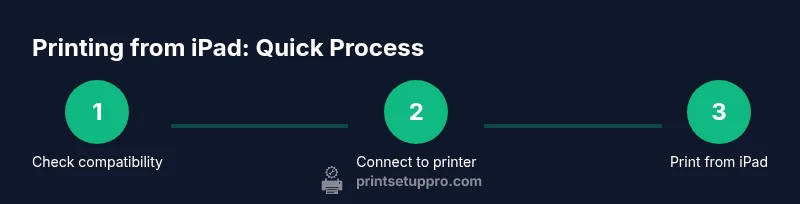
Yes, you can print from an iPad using AirPrint, printer apps, or cloud printing. This quick guide confirms compatibility, lists simple setup steps, and points to common troubleshooting tips. Print Setup Pro provides practical, tested guidance for home offices and students. Whether you print photos, documents, or receipts, this approach works with most AirPrint-enabled printers and many printer apps.
Can an iPad Print? How AirPrint, apps, and cloud services work
According to Print Setup Pro, printing from an iPad is built into iPadOS and designed to be straightforward for most home networks. The core pathway is AirPrint, which lets the iPad discover compatible printers over your Wi-Fi network without installing drivers. If your printer supports AirPrint, you can print directly from apps with the standard share or print option. Even when AirPrint isn’t available, many printers offer official apps or cloud-based solutions that let you print from an iPad. This article guides you through setup, common pitfalls, and practical options so you can print from photos, documents, or receipts with minimal friction.
Check printer compatibility and network basics
The first requirement is a printer that can communicate with the iPad. AirPrint compatibility is the easiest path, but many manufacturers provide apps for non-AirPrint models that still work from the iPad. Ensure the printer is connected to the same Wi-Fi network as your iPad and that both devices are on the same network segment. If you recently changed your router or network name, re-connect the printer and iPad. Updating your printer’s firmware can resolve discovery issues and improve compatibility. Print Setup Pro recommends verifying the printer’s official documentation to confirm AirPrint support and any app-based alternatives.
Network stability matters: a weak signal can cause prints to drop or fail. If you have multiple access points, place the printer within solid signal range of at least one. Avoid network isolation features on the router that might block device-to-device communication. These steps lay the groundwork for a smooth print experience.
Printing with AirPrint: Quick-start from the iPad
AirPrint is the easiest route for most users. On your iPad, open the document, photo, or webpage you want to print, tap the share or action button, and select Print. Choose the AirPrint-enabled printer from the list, adjust print settings like the number of copies or page range, and tap Print. If the printer doesn’t appear, go back to the iPad's Wi-Fi settings, ensure the printer is online, and restart both devices if needed. Pressing print from the app will send the job to the printer almost instantly in many cases.
Tip: For larger documents, some apps offer a quick preview so you can confirm pages before printing.
Using the printer's official app and third-party printing options
If AirPrint isn’t available or if you want extra features, your printer’s manufacturer app can provide more control, such as print quality presets, direct scanning, or cloud-based printing. Install the official app from the printer maker, connect it to the same Wi-Fi network, and follow in-app prompts to add the device. Some third-party printing apps support multiple printers and offer batch printing, edge-to-edge options, and color management. In any case, ensure you grant the app the necessary permissions and keep the app updated for security and compatibility.
Printing from Photos, Documents, and Websites on iPad
You can print from many core apps on iPad. Photos allows direct printing from the Photos app; Files lets you print documents stored in iCloud Drive or other cloud storage; Safari and other browsers support printing web pages. The key is selecting Print from the app’s share or export menu and choosing the appropriate printer. If you frequently print, consider creating a Shortcuts workflow to automate common print tasks, such as printing the latest receipts or daily reports. Custom print presets can save time on color vs. monochrome, orientation, and duplex settings.
Troubleshooting common printing issues on an iPad
Printing from an iPad is usually smooth, but glitches happen. If the printer doesn’t show up, confirm both devices are on the same network, restart your router, and reboot the printer. Check for firmware updates, and verify AirPrint is enabled in the printer settings. If prints come out faint or misaligned, review print quality settings in the app or printer app and ensure the correct paper type is selected. For persistent problems, forget the printer from both devices and re-add it, then run a small test print.
Privacy, security, and best practices for wireless printing
Wireless printing involves network connections and potentially shared documents. Use a strong Wi-Fi password, enable guest networks for visitors, and keep printer firmware up to date to minimize security risks. When printing sensitive documents, consider queueing prints on the device or using secure print features that require a PIN at the printer. If you share a printer between multiple devices, periodically review connected devices and remove any you no longer recognize. These practices help protect your data while keeping printing convenient.
Accessibility, reliability, and optimizing iPad printing in a home office
For home offices, reliability comes from resilient network design and consistent printer placement. Place the printer within range of a strong signal, and keep it connected to power and network during work sessions. Consider enabling print notifications in your iPad’s settings so you know when a job completes or if there’s an error. If you frequently switch devices, document your setup steps so new users can reproduce the process quickly and avoid common misconfigurations.
Quick-start recap and next steps
By confirming printer compatibility, using AirPrint where available, leveraging printer apps for added features, and following basic troubleshooting steps, you can establish a reliable iPad printing workflow. Remember to keep firmware and apps up to date, maintain a stable home network, and practice security basics. Print Setup Pro’s guidance emphasizes practical, repeatable steps that work for home offices, students, and DIY enthusiasts alike.
Tools & Materials
- iPad or iPadOS-compatible tablet(Recent iPad models or iPads with up-to-date iPadOS)
- AirPrint-enabled printer or printer with manufacturer app(Check compatibility in the printer’s manual)
- Stable Wi-Fi network(All devices must be on the same network for AirPrint)
- Printer paper and consumables(Before you print, ensure you have paper loaded and ink/toner sufficient)
- Printer manufacturer app (optional)(Useful for additional features if AirPrint is limited)
- USB-C or Lightning cable (for initial setup, optional)(Some printers support direct wired setup; not required for AirPrint)
Steps
Estimated time: 15-30 minutes
- 1
Verify printer compatibility and network
Check that the printer is AirPrint-compatible or has an official iPad app. Ensure both devices are on the same Wi‑Fi network and that the network is stable. If you recently changed networks, reconnect the printer and the iPad.
Tip: If the printer doesn’t appear, restart the printer and the router, then retry from the iPad. - 2
Enable AirPrint or install the printer app
If AirPrint is supported, no driver installation is needed. For non-AirPrint models, install the manufacturer’s app and add the printer through the app’s setup flow.
Tip: Make sure the printer’s firmware is current to maximize compatibility. - 3
Print from a document or photo
Open the item you want to print, tap the share or export option, and choose Print. Select the printer, adjust copies and pages, then tap Print.
Tip: If the printer doesn’t show up, try a different app or re-add the printer in Settings > Printers. - 4
Print from a browser or files app
In Safari or Files, use the Print option in the share menu. Choose the same printer and customize the print settings as needed.
Tip: Use page range to limit the print to needed sections for faster results. - 5
Troubleshoot common issues
If printing fails, verify network stability, restart devices, and clear pending print jobs. Update firmware or app as a last resort.
Tip: Keep a short checklist handy: confirm network, confirm app version, confirm printer status. - 6
Review privacy and maintenance
Periodically remove old devices from printer access and ensure firmware is up to date. Use secure print features for sensitive documents where available.
Tip: Schedule a monthly check of connected devices to prevent unknown access.
People Also Ask
What is AirPrint and do I need it to print from iPad?
AirPrint is Apple’s built-in printing protocol that lets iPads print wirelessly without additional drivers. If your printer supports AirPrint, you can print directly from apps. If not, you can use the printer’s official app or other supported methods.
AirPrint lets your iPad print wirelessly without extra software. If your printer supports it, you can print directly from apps; otherwise use the manufacturer's app or alternative methods.
Can I print without Wi-Fi?
Most iPad printing relies on a Wi‑Fi network. Some printers support direct wireless or Bluetooth printing, but that depends on the model. Check your printer documentation for offline or direct printing options.
Most printing from iPad needs Wi‑Fi. Some printers offer direct wireless or Bluetooth; check your model’s manual.
Why doesn’t my iPad see the printer?
Ensure both devices are on the same network, restart the printer and router, and verify AirPrint is enabled. If needed, forget and re-add the printer on the iPad in Settings or in the printer app.
Make sure the iPad and printer share a network, restart devices, and re-add the printer if it’s not showing up.
Do I need to install printer drivers on iPad?
Typically no. AirPrint and many printer apps handle communication without traditional drivers. If you’re using a non-AirPrint printer, you’ll likely need the manufacturer’s app.
Mostly no drivers are needed on iPad; use AirPrint or the printer's app if AirPrint isn’t supported.
Can I print from iPad to a printer via cloud printing?
Some printers support cloud printing through their apps or services. You may print from iPad by connecting through the cloud service provided by the manufacturer.
Some printers support cloud printing; you can print from iPad by using the printer’s cloud service.
Is wireless printing from iPad secure?
Wireless printing can be secure when you use strong network passwords, secure print features, and firmware updates. Review who has access to the printer and disable guest access if sensitive data is involved.
Yes, with strong network security and printer security features enabled, wireless printing can be secure.
Watch Video
Quick Summary
- Verify printer compatibility and network first
- AirPrint offers a driverless printing path
- Printer apps extend capabilities when AirPrint falls short
- Print from Photos, Files, and Safari using standard share sheets
- Regularly update firmware and practice basic security