Where is Printer on iPad: A Practical Guide to AirPrint
Learn where to find printer options on iPad and how to print wirelessly from AirPrint-enabled printers. This guide covers iPad printing basics, prerequisites, step-by-step actions, and troubleshooting for home and office users.


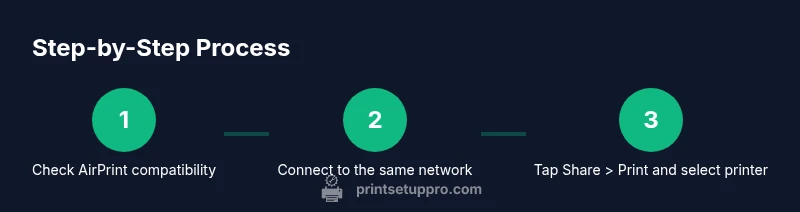
From an iPad, printing is normally done through AirPrint. Open the app’s share menu, tap Print, and choose a nearby AirPrint-enabled printer on the same Wi‑Fi network. If you don’t see a printer, verify AirPrint compatibility and network connection, then update your iPadOS and printer firmware. On iPad, you can also print from Settings > Printers or via supported apps that show a printer icon.
Why this matters: understanding iPad printing basics
Printing from an iPad has become simpler with AirPrint and Wi‑Fi printing. Knowing where the printer is on iPad means you can quickly access print options from almost any app. According to Print Setup Pro, most modern printers support AirPrint, which makes pairing seamless. The key is to ensure both devices are on the same network and that the printer is ready to accept jobs. This familiarity reduces frustration when you need to print a document, photo, or receipt from a mobile device. The iPad’s printing pathway is designed to be intuitive, but the exact steps can vary slightly by app and printer model. By understanding the common locations of printer options, you can save time and avoid needless navigation. Print Setup Pro emphasizes consistency across iPadOS versions, so once you learn the pattern, you can apply it across apps.
Your iPad and printer prerequisites
Before you can print, you must confirm three things: AirPrint compatibility, a printer on the same network, and an active Wi‑Fi connection. iPad printing relies on discovery over a local network, so both devices need to be reachable to each other. Check that your printer is turned on and connected to the same router as your iPad. If your printer supports AirPrint, you’ll typically see it listed as an available printer in the print dialog. If not, many manufacturers offer a companion app that enables printing from iPad; however, AirPrint remains the simplest option for most users. Keeping firmware and iPadOS up to date helps prevent compatibility issues and improves reliability over time. Print Setup Pro notes that while AirPrint is the default, some printers may require vendor software for advanced features.
Step-by-step: locate printer options in iPadOS
To access printer options on iPad, you’ll generally use the share button from within an app. The path is usually: open the document or image you want to print → tap the share icon (a square with an arrow) → select Print. If the printer doesn’t appear, verify that you are on a supported network and that both devices are online. Some apps place print controls under a different menu (three dots or a more options button), so look for an icon labeled Print or a printer symbol. If the share sheet lacks the Print option, trying a different app or saving the file first can help. You can also reach the printing settings via Settings > Printers on newer iPadOS builds. Print Setup Pro recommends a quick reboot of devices if printing fails to appear after these checks.
Printing across apps and workflows
Different apps place the print option in slightly different spots. In Photos, for example, you will share a photo and pick Print. In Safari, printing a webpage is typically done from the share sheet after selecting the printer. In Notes, a note can be printed by using the share icon and selecting Print. Some apps support direct print options within their own menus, offering faster access or additional print options like page range, color settings, or two-sided printing if your printer supports it. If you rely on automation, Shortcuts can trigger print actions for predefined content, streamlining repetitive tasks. The core idea is to locate Print through the app’s share or menu system and confirm the correct printer appears before printing.
AirPrint vs third-party printing apps and alternatives
AirPrint is the universal standard for iPad printing and typically offers the smoothest experience. It requires no driver installation and discovers printers automatically on the same network. Some printers miss AirPrint support or offer richer features through vendor apps. In those cases, you can install the printer’s official app to extend capabilities, or use a third‑party printing app that supports your model. When choosing printing methods, consider what you value most: simplicity (AirPrint) or advanced features (vendor apps). Print Setup Pro notes that for most home users, AirPrint delivers reliable results with minimal setup. If you need cross‑platform printing (e.g., from a Windows PC or Android device), you’ll want a printer that supports multiple protocols and consider network printing solutions.
Troubleshooting: printing discovery issues on iPad
If your iPad can’t find any printers, start with the basics: verify that both devices are on the same Wi‑Fi network, confirm printer readiness, and ensure AirPrint is enabled. Restarting your router, printer, and iPad can clear temporary network glitches. Check for software updates on both devices, as vendor firmware and iPadOS updates frequently fix compatibility bugs. If the printer shows up intermittently, toggle Airplane Mode on and off or forget and reconnect to the Wi‑Fi network. Ensure your firewall or guest network settings aren’t blocking device discovery. In some cases, reset the network settings on the iPad to re‑establish a clean, local network context. Print Setup Pro suggests documenting your network setup to simplify future printing tasks.
Best practices for reliable iPad printing
Keep your devices up to date with the latest iPadOS and printer firmware, as older software can cause discovery or printing issues. Maintain a stable Wi‑Fi network with minimal interference—place the printer closer to the router if possible and minimize obstacles between devices. When printing sensitive documents, prefer a secure network and avoid printing over public networks. If you frequently print from iPad across different rooms, consider a printer with reliable wireless range and a warm standby mode to speed up print times. Finally, test print with non-critical documents first to verify formatting and page setup before sending important files.
Quick reference: getting the most from iPad printing
Always start with AirPrint for the simplest experience. Verify both devices are on the same network, and use the Print option from the share sheet. When multiple printers are available, select the right one, then adjust copies, color, and page range as needed. If problems persist, consult the printer’s support resources or vendor apps for advanced features. Documenting your setup helps reduce future troubleshooting and speeds up print tasks.
Tools & Materials
- iPad with latest iPadOS(Ensure Wi‑Fi is enabled and the OS is up to date)
- AirPrint-compatible printer(Printer must be on the same network as the iPad)
- Stable Wi‑Fi network(Prefer a 2.4 GHz or 5 GHz network with good signal)
- Printer power source(Keep the printer plugged in during testing and printing)
- USB-C or Lightning adapter (optional)(For non-AirPrint or wired setups (limited use on iPad))
Steps
Estimated time: 5-10 minutes
- 1
Open app and access the share/print option
Open the document or image you want to print, then tap the share icon (usually a square with an arrow). Look for Print in the share sheet or app menu. If Print isn’t visible, check for alternative print options within the app or try a different document.
Tip: If the printer doesn’t appear, try closing the app and reopening, or try printing from a different app. - 2
Verify network and printer readiness
Confirm both devices are on the same Wi‑Fi network and that the printer is turned on and connected. Ensure AirPrint is enabled on the printer if applicable. If you’re on a guest network, printing may be blocked, so switch to your main network if possible.
Tip: A quick router reboot can clear minor connectivity hiccups that block discovery. - 3
Tap Print and select your printer
In the Print screen, your iPad will show a list of Available Printers. Tap the one you want to use. If it’s not listed, tap Select Printer or similar to rescan, or ensure the printer supports AirPrint.
Tip: If you use multiple printers, set a default printer in your iPad settings for faster access. - 4
Adjust print settings
Choose the number of copies, range of pages, color options, and any other available settings. Preview pages if your app provides a preview to avoid wasting paper.
Tip: For photos, choose Best for Photo quality; for documents, choose Black & White if color isn’t needed. - 5
Print the document
Tap Print to send the job to the selected printer. If printing fails, retry after refreshing the print dialog or restarting devices.
Tip: If a print job gets stuck, use the iPad’s multitasking view to monitor the Print Center in the status bar. - 6
Print from apps without a built-in Print option
Some apps lack a direct Print button. Use the system share sheet from within those apps, or export the content to an app that supports printing.
Tip: Shortcuts can automate printing for frequently used documents. - 7
Non‑AirPrint printers and alternatives
If your printer isn’t AirPrint-enabled, check for a vendor app or driver that supports iPad printing. Some printers require you to install a companion app to enable printing from iPad.
Tip: Always verify compatibility before purchasing a non-AirPrint printer for iPad use. - 8
Troubleshoot persistent issues
If printing fails repeatedly, verify firmware updates, reset network settings on the iPad, and temporarily disable any firewall settings that may block device discovery.
Tip: Document your steps so you can repeat the solution quickly if needed.
People Also Ask
Can all printers be printed from iPad without drivers?
Most modern printers support AirPrint and are discoverable by iPad. Some legacy printers may require vendor apps or drivers. Always verify AirPrint compatibility with your printer model before buying.
Most printers on iPad use AirPrint, but check your model's compatibility in advance.
What should I do if my printer isn’t showing up?
Ensure both devices are on the same network, verify AirPrint is enabled, and restart the printer and iPad. If needed, update firmware and try again.
Make sure your iPad and printer are on the same network and try restarting devices.
Can I print from iPad using a USB connection?
AirPrint relies on wireless networking. USB printing from iPad requires adapters and possibly third-party apps. Wired setups are less common for iPad printing.
AirPrint is wireless; USB printing on iPad is limited.
Is a shared network printer required?
Yes. For AirPrint, the iPad and printer should connect to the same network. If you’re on guest networks, printing may be blocked.
Yes, same network needed for AirPrint.
How do I print from Photos or Notes?
Open the item, tap the share icon, select Print, choose a printer, adjust options, and tap Print.
Use the share menu to print from Photos or Notes.
Do I need to install printer drivers on iPad?
In most cases, AirPrint handles printing without drivers. Some printers may require vendor apps for full features.
Usually no drivers are needed thanks to AirPrint.
Watch Video
Quick Summary
- AirPrint is the simplest path to iPad printing
- Keep iPad and printer on the same network
- Tap Share > Print to access printer options
- Update iPadOS and printer firmware for best results
- Check app-specific print options for hidden printers