How to Print with iPad: Complete Step-by-Step Guide
Learn how to print from your iPad using AirPrint or printer apps. This guide covers setup, troubleshooting, and best practices for reliable mobile printing at home or in a small office.


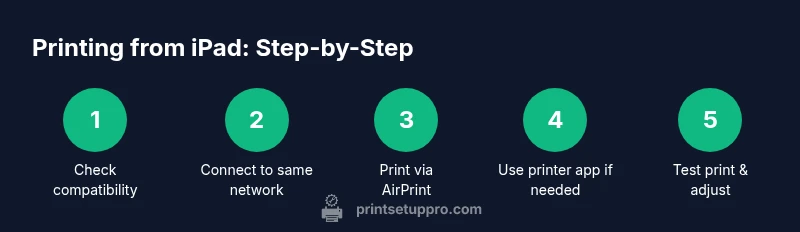
You can print from your iPad using AirPrint or your printer's app in a few simple steps. First, ensure your iPad and printer are on the same Wi-Fi network and that the printer supports AirPrint or has a companion app. If AirPrint isn't available, use the printer's app or email-to-printer option.
Why printing with iPad is convenient
Printing from an iPad offers true mobility: you can capture notes, share documents, and send print jobs directly from your tablet without tethering to a computer. For most home offices and classrooms, AirPrint-enabled printers provide a seamless experience, letting you initiate prints from apps like Photos, Safari, Mail, and Files with just a few taps. The Print Setup Pro team notes that many modern printers include AirPrint support or vendor apps, which simplify the workflow and reduce setup time. As you start exploring how to print with iPad, you’ll notice that most tasks hinge on a reliable Wi-Fi network and compatible software on your printer. The goal is to minimize friction so you can focus on the content you’re printing rather than the mechanics of the device.
Quick context and expectations
In practice, iPad printing is most straightforward when the printer is on the same local network and supports AirPrint. If your device meets these criteria, you can typically print from most apps with a standard share or print option. If not, you’ll rely on your printer’s companion app or a cloud-to-printer workflow. Print Setup Pro’s analysis in 2026 shows that a majority of mainstream printers offer AirPrint compatibility or a robust app ecosystem, which translates to faster, more reliable mobile printing for the average user.
What to expect from this guide
This article will walk you through compatibility checks, setup steps, app-specific printing tips, and troubleshooting strategies. You’ll see practical examples for Photos, Safari, Mail, and Files, plus advanced tips for mixed environments (AirPrint vs. manufacturer apps). We’ll include clear steps, visuals, and safety notes to ensure you can print with confidence on your iPad.
Tools & Materials
- iPad (iPadOS 13 or newer recommended)(Ensure the device is updated for best AirPrint support and app compatibility)
- AirPrint-enabled printer(If not AirPrint-enabled, verify the printer’s companion app is installed)
- Stable Wi‑Fi network(Both iPad and printer must be on the same network; avoid guest networks if possible)
- Printer manufacturer app (optional)(Useful for non-AirPrint printers or advanced features like scanning)
- Content to print (photos, PDFs, documents)(Have your file ready on the iPad or cloud storage accessible from the iPad)
Steps
Estimated time: 15-25 minutes
- 1
Verify printer compatibility
Check that your printer supports AirPrint or has a dedicated iPad app. If AirPrint is unavailable, plan to use the printer’s app or alternate printing method. This initial check saves time and avoids failed print attempts later.
Tip: Tip: Look for “AirPrint” in the printer’s spec sheet or enjoy vendor app support for enhanced features. - 2
Connect iPad and printer to the same network
Ensure both devices are connected to the same Wi‑Fi network. If the printer supports Ethernet, you can connect to the same router via wired or wireless; avoid guest networks that isolate devices. A single network reduces discovery delays and print failures.
Tip: Tip: If you switch networks, re-run the printer discovery from the iPad’s Settings → General → AirPrint (or the printer app). - 3
Open the content you want to print on iPad
Navigate to the file, photo, or web page you want to print. The print option is usually accessible from the app’s Share menu (the square icon with an arrow).
Tip: Tip: If printing from a browser, consider saving the page as a PDF first for easier formatting control. - 4
Initiate printing via AirPrint
In the Share sheet, select Print. Choose the printer from the list, then review the preview. If you don’t see your printer, tap ‘Select Printer’ and confirm the device is on the same network.
Tip: Tip: If you don’t see AirPrint, your printer may require the manufacturer app or a firmware update. - 5
Configure print settings
Adjust copies, color or grayscale, page range, and paper size before printing. If you’re printing photos, you may be able to choose borderless printing or image quality settings depending on the printer.
Tip: Tip: Always print a small test page first to confirm layout and color accuracy. - 6
Use printer app for non-AirPrint printers
If AirPrint isn’t available, open the printer’s companion app and initiate printing from there. This workflow often provides access to additional options like double-sided printing and cloud storage printing.
Tip: Tip: Sign in to the app with your account for easier future prints and firmware updates. - 7
Print from Files or Photos directly
For PDFs or documents stored in Files, tap the file, then the Share icon and Print. For photos, share directly from the Photos app. The process is similar across apps, with minor UI variations.
Tip: Tip: Some apps offer drag-and-print from the shared menu; use this to speed up multi-file printing. - 8
Test print and troubleshoot if needed
Run a quick test print to confirm everything works. If the job stalls, check for printer offline status, firmware updates, or network issues. Reboot devices if necessary and try again.
Tip: Tip: Clearing background tasks on iPad can improve print responsiveness when large files are involved.
People Also Ask
Can I print from an iPad to any printer?
Not every printer supports AirPrint. If your printer isn’t AirPrint-enabled, rely on a manufacturer app or an alternative printing method recommended by the printer maker.
Most printers work with iPad printing if they support AirPrint or the manufacturer’s app. If not, you’ll need to use an alternative method provided by the printer maker.
What should I do if my iPad can’t find the printer?
Verify both devices are on the same Wi‑Fi network, ensure the printer is awake and connected, and retry the discovery. Sometimes restarting the printer or iPad helps.
Make sure both devices are on the same network and retry. Restarting devices can fix discovery issues.
Do I need to be connected to Wi‑Fi to print from iPad?
Printing from iPad typically requires a network connection via Wi‑Fi. Some printers support direct printing via Bluetooth or USB adapters, but those options are less common and setup-dependent.
Usually, yes, you need Wi‑Fi, though some printers offer direct Bluetooth or USB-based printing with adapters.
How do I print from apps like Photos or Safari on iPad?
Open the content, tap the Share icon, and select Print. Then choose the printer and adjust basic settings before sending the job.
Open the content, hit share, choose Print, pick your printer, and print.
Can I print from iPad to a non-AirPrint printer using USB?
Direct USB printing from iPad to a non-AirPrint printer is generally not supported. Use the printer’s app or an alternate pathway recommended by the printer maker.
Typically not directly; you’ll need the printer’s app or another supported method.
What are common printing problems on iPad and how to fix them?
Common issues include the printer not appearing, stalled jobs, and poor print quality. Fixes often involve reconnecting to Wi‑Fi, updating firmware, and trying a different app or color setting.
Common problems include connectivity issues and print quality. Reconnect to Wi‑Fi, update firmware, and retry with proper settings.
Watch Video
Quick Summary
- Identify printer compatibility before starting
- Keep iPad and printer on the same network for reliable discovery
- AirPrint covers most common printing tasks with minimal setup
- Use manufacturer apps as a fallback for non-AirPrint printers
- Test prints help catch issues early