How to Print for iPhone: A Practical Step-by-Step Guide
Learn how to print from your iPhone using AirPrint or the printer’s companion apps. This step-by-step guide covers setup, troubleshooting, and print quality optimization for home and small offices.


By the end of this guide, you’ll be able to print from your iPhone using AirPrint or a printer’s companion app. Ensure your iPhone and printer share a Wi‑Fi network, select Print from the app’s share sheet, choose your printer, and adjust copies, pages, and color before printing. We’ll cover alternative methods when AirPrint isn’t available, plus common fixes for connectivity and driver issues.
Quick start: printing from
What printing from
Prerequisites and network readiness
Before attempting to print, confirm that both devices are on the same network and that the printer is powered on and ready. If your router creates multiple bands (2.4 GHz and 5 GHz), connect the printer to the 2.4 GHz band for maximum compatibility. Ensure the printer firmware is up to date; outdated firmware can lead to intermittent connectivity or missing features. For Windows or
AirPrint: the simplest path for
Using manufacturer apps when AirPrint is not an option
Some printers lack AirPrint support, which means you’ll rely on the manufacturer’s own
Print quality and media considerations on
Security and privacy when printing from
Troubleshooting quick fixes for common problems
If print jobs fail, start with the basics: verify network connectivity, restart the printer, and ensure the printer name appears in the
Accessibility, students, and budget tips
For students or home office users with limited budgets, consider printers with robust AirPrint support and affordable replacement ink or toner. Look for printers with automatic document feeders and duplex printing if you routinely print multi‑page worksheets. Accessibility features—like large print options and high‑contrast print settings—can improve usability for diverse users. Finally, always keep software up to date on both
Authority references and further reading
- Apple AirPrint overview and setup: https://support.apple.com/HT201808
- General printing and mobile workflows: https://www.nytimes.com
- Broad technology recommendations for home offices: https://www.bbc.com
Tools & Materials
- iPhone with iOS 16 or newer(Ensure Wi‑Fi is enabled and device is updated)
- AirPrint‑enabled printer or printer with manufacturer app(AirPrint compatibility is ideal; if not, use the official app)
- Stable Wi‑Fi network(Prefer a dedicated home/office network for reliability)
- Documents or images to print(Prepare the files in advance for a smoother workflow)
- Printer paper and ink/toner(Confirm availability before large print runs)
Steps
Estimated time: 25-40 minutes
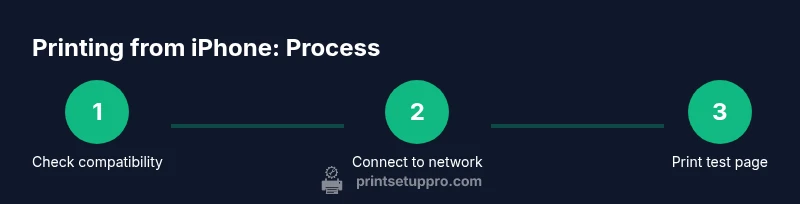
- 1
Verify printer compatibility
Check whether your printer supports AirPrint or has a dedicated iPhone app. Update firmware if needed to ensure compatibility with the latest iOS features.
Tip: If in doubt, consult the printer’s manual or support page for AirPrint status. - 2
Connect iPhone to the same network as the printer
Ensure both devices share the same Wi‑Fi network. If the printer has multiple network modes, select the one that matches your router’s band (usually 2.4 GHz for compatibility).
Tip: A weak signal can cause dropouts; move devices closer to the router if you notice delays. - 3
Open content to print and invoke Print
Open the item (photo, document, webpage), tap the Share icon, and choose Print. This opens the print dialog with available printers.
Tip: If the Print option isn’t visible, switch to another app that supports printing or check for system restrictions. - 4
Choose printer and adjust print settings
Select your printer, then configure copies, pages, color, and paper size. For photos, you may adjust borderless printing if available.
Tip: Document previews help you confirm margins and scaling before printing. - 5
Print a test page
Print a single page first to verify alignment, color accuracy, and text clarity. Adjust settings if the result isn’t satisfactory.
Tip: This saves waste and time when fine-tuning print quality. - 6
Troubleshoot if issues arise
If the printer isn’t visible or a print job fails, restart both devices, re‑select the printer, and verify network stability. If problems persist, try the manufacturer app as an alternative path.
Tip: Document the error message to help support resolve issues faster.
People Also Ask
Can I print from an iPhone without AirPrint?
Yes. If AirPrint isn’t available, use the printer’s iPhone app or other supported methods to print employer or personal documents. Some printers offer email-to-printer or cloud print options.
Yes. If AirPrint isn’t available, use the printer’s app or other supported methods to print. Email-to-printer and cloud features can help when you’re away from the main network.
Why can my iPhone not find the printer?
Ensure both devices are on the same network and that the printer is powered on and connected. Restarting the printer or router often resolves visibility issues.
Make sure the printer and iPhone are on the same Wi‑Fi network, then try reconnecting or restarting devices if it’s not found.
Can I print from any app on iPhone?
Most apps support printing via the iOS share sheet. Look for a Print option in the app’s menu or export options and choose Print.
Most apps let you print via the share menu; if you don’t see Print, check the app’s export options or use the app’s own print feature.
Is printing from a public network safe?
Printing on public networks can expose documents to risk. Prefer private networks with secure print features and avoid printing sensitive material on shared printers.
Printing on public networks can be risky. Use secure, private networks and secure print features when possible.
How can I print when I’m away from home?
Some printers support cloud printing or email‑to‑printer features. For others, set up a VPN or use manufacturer cloud services if offered.
You can print remotely with cloud or email‑to‑printer features on supported printers, or via VPN for secure access.
Watch Video
Quick Summary
- Verify printer compatibility with AirPrint or the manufacturer app
- Connect iPhone to the same network as the printer
- Use Share > Print to send jobs and adjust settings
- Test print and tweak settings for best quality
- Use manufacturer apps or cloud options if AirPrint is unavailable