Canon G7020 Setup and Troubleshooting Guide
A thorough, step-by-step guide to set up the canon g7020, connect to Wi‑Fi, install drivers, and troubleshoot common issues for home offices and students.


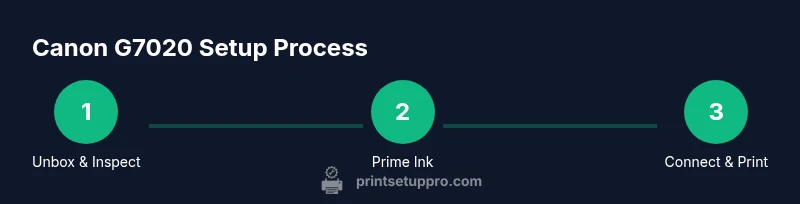
Goal: set up the canon g7020 printer and start printing quickly. This quick answer outlines unboxing, powering on, filling MegaTank ink, loading paper, connecting via USB or Wi‑Fi, installing drivers or the Canon PRINT app, and running a nozzle check and alignment to ensure your first print succeeds. The guide covers wireless config, driver installation, and common troubleshooting for home users.
Unboxing and initial inspection of the canon g7020
Begin with a calm, well-lit workspace. Carefully remove the printer from its box and lay out all contents on a soft surface to avoid scratching the finish. Check that you have the G7020 unit, MegaTank ink bottles (CMYK), power cord, user manual, setup CD or USB, and any starter paper. Inspect for any shipping damage and verify that the ink bottles have not leaked. If anything is missing, contact support before proceeding. This initial check helps prevent surprises mid‑setup and keeps your workflow smooth from day one. Remember to retain the box for any future transport. According to Print Setup Pro, a clean start reduces post‑setup support needs and accelerates getting to your first print.
Ink priming and MegaTank setup
The Canon G7020 uses refillable MegaTank ink bottles. Start by opening the ink cover and the color tanks. Be careful to match colors to their corresponding tank labels and avoid cross‑contamination. Gently pour ink into each tank until it reaches the fill line. Wipe any spills immediately to prevent staining and misalignment in future prints. After filling, reseal the caps tightly and wait a minute for the ink to settle. This priming step ensures consistent color accuracy and avoids air bubbles that can cause poor print quality. Print Setup Pro recommends performing a quick nozzle check after priming to confirm ink flow is steady before proceeding to loading paper.
Paper loading and tray adjustment
Load a clean stack of paper into the paper tray, aligning it with the printer's guides. Adjust the side and rear paper guides to fit the paper size (commonly Letter or A4). Avoid overloading the tray; this can cause misfeeds. If you’re printing photos or heavy media, use the appropriate weight paper setting in the printer driver. Inconsistent media can lead to skewed prints or jams. Keep a small pad or clipboard nearby to help organize different media types during batch printing. Print Setup Pro emphasizes setting up paper profiles early to prevent color and density mismatches later.
Establishing a power and driver configuration (USB or Wi‑Fi)
Power up the G7020 and allow it to complete its initialization. Decide whether you’ll use a USB connection for a single PC or a wireless connection for multiple devices. For USB, simply connect the cable from the printer to the computer and install the Canon IJ Printer Driver. For wireless, access the printer’s control panel to navigate to Wireless Setup and follow on‑screen prompts to connect to your wireless network. If your router supports WPS, you can press the WPS button on the router and the printer to create a quick link. After connecting, verify the network status and proceed to install drivers on your computer and the Canon PRINT app on mobile devices.
Driver installation and initial software setup
Windows and macOS users should install Canon’s official drivers from the Canon support site or use the bundled setup CD if provided. The driver will guide you through selecting the correct printer model and default settings. On mobile, download Canon PRINT Inkjet/SELPHY to enable printing from smartphones or tablets. When you complete installation, print a test page to confirm both color and text quality. If you encounter a driver conflict, remove older printer drivers and reboot before attempting installation again. Print Setup Pro notes that clean driver installs reduce post‑setup troubleshooting time.
Head alignment, nozzle check, and first print
With ink primed and connections established, run a nozzle check from the printer utility to ensure all colors print cleanly. If you notice gaps or color gaps, initiate the head cleaning and re‑run the nozzle check. Follow up with a test page to verify alignment; misalignment can cause blurring or color bleeding. Don’t skip this step, as it’s essential for ensuring the initial prints meet your expectations. Print Setup Pro emphasizes performing a nozzle check after any long print job or if print quality seems off, to maintain consistent output.
Wireless printing from mobile devices and cloud services
To print from phones or tablets, use the Canon PRINT app or native AirPrint (iOS) / Mopria (Android) support. Ensure all devices are connected to the same Wi‑Fi network as the printer. You can also set up printing from a computer via shared network printers. If you encounter intermittent wireless drops, restart the router and printer, then re‑authenticate the devices. Regular firmware updates can improve wireless stability and compatibility with new mobile apps. Print Setup Pro highlights the importance of keeping firmware current for ongoing reliability.
Routine maintenance and long‑term care
Regular maintenance keeps your printer performing well. Wipe the exterior with a microfiber cloth and avoid spraying cleaners on internal components. Check ink levels and refill promptly to prevent air intake. Perform periodic nozzle checks and head alignments, especially after long idle periods. Store ink bottles with caps closed and upright to prevent leaks. Finally, run a calibration print every few weeks if you use different media types or experience intermittent color drift. Print Setup Pro recommends a lightweight service interval checklist for home offices to prevent productivity dips.
Troubleshooting quick fixes and common scenarios
If you encounter print quality issues, start with a nozzle check and alignment, then verify ink levels. Color tints can be caused by insufficient ink or clogged nozzles. Paper jams are typically due to improper loading or worn rollers; remove jammed sheets gently and reinsert media correctly. If prints are blurry, verify print head alignment and printer driver settings. For connection issues, confirm both the printer and device are on the same network and restart your router or modem if needed. Print Setup Pro provides a stepwise, repeatable approach to common scenarios so you can resolve most issues quickly.
Tools & Materials
- Canon G7020 printer(MegaTank ink system included)
- Power cable(Original or compatible, 1 meter minimum)
- USB cable (Type-B to Type-A)(Only if you plan to connect via USB)
- Ink bottles (C, M, Y, K) for MegaTank(Canon official bottles; color-matched to tanks)
- Blank paper (Letter/A4, 150-200 sheets)(Use standard printer paper for first prints)
- Smartphone or computer(To install Canon PRINT app or drivers)
- Stable Wi‑Fi network (2.4 GHz recommended)(Ensure network access for multiple devices)
Steps
Estimated time: 45-60 minutes
- 1
Power on and verify contents
Unbox carefully, verify all components, and place the printer on a stable surface. Plug in the power cable and turn on the printer. Wait for the initialization screen to complete before proceeding.
Tip: Keep the packaging until you complete the setup in case you need to relocate the printer. - 2
Install ink and prime MegaTank
Open the ink cover and locate the four color tanks. Remove cap seals, insert the bottles into the correct color slots, and pour slowly until the fill line. Wipe any spills promptly and close lids securely.
Tip: Pour slowly to avoid air bubbles; do not shake bottles before opening. - 3
Load paper and adjust guides
Place a stack of paper in the tray, align the paper against the back edge, and adjust the side guides to fit the stack width. Ensure the paper is straight and flat to prevent jams or skewing.
Tip: Use a fresh stack to avoid curls that can cause feeding problems. - 4
Connect printer to power and network
Turn on the printer and choose USB or Wireless setup. For USB, connect to your computer and install the driver. For wireless, use the printer’s control panel to connect to your Wi‑Fi network or use WPS if supported by your router.
Tip: Prefer a 2.4 GHz network for compatibility with older devices. - 5
Install drivers or Canon PRINT app
On a computer, install the Canon IJ Printer Driver from the Canon support site and add the printer. On mobile, install Canon PRINT Inkjet/SELPHY to enable wireless printing and scan functions.
Tip: Restart the computer or phone after installation to ensure the new printer is recognized. - 6
Run nozzle check and head alignment
From the printer utility, execute a nozzle check to verify each color prints cleanly. If gaps appear, run a head cleaning and recheck until the test page is clean. Perform alignment as needed to prevent blurring.
Tip: If you see persistent gaps after two cleanings, check ink lines for air bubbles and reseat them. - 7
Print a test page and set preferences
Print a basic test page to confirm color accuracy and sharpness. Configure default print settings (quality, paper type, color management) to match your typical media. Save profiles for different tasks (text, graphics, photos).
Tip: Create separate profiles for plain paper vs. photo paper to optimize ink usage. - 8
Plan routine maintenance
Set a lightweight maintenance schedule: check ink levels weekly, perform nozzle checks monthly, and keep the print area clean. Replace any worn media trays or rollers and update firmware when prompted.
Tip: Keep a small calendar reminder for nozzle checks after long idle periods to maintain print quality.
People Also Ask
How do I connect the Canon G7020 to a wireless network?
Use the printer's control panel to select Wireless Setup and enter your network credentials, or press WPS if your router supports it. Once connected, install drivers on your computer and the Canon PRINT app on mobile devices.
Connect through Wireless Setup or WPS, then install drivers and the Canon PRINT app to enable wireless printing.
What ink does the Canon G7020 use and how do I refill MegaTank bottles?
The G7020 uses refillable MegaTank ink bottles. Open the ink cover, insert the correct color bottle into the matching slot, and pour until the fill line. Wipe spills and reseal the cap.
Refill MegaTank ink bottles by color, filling to the marked line, and wipe up any spills.
Why is my print quality off or colors wrong?
This is usually caused by clogged nozzles or misalignment. Run a nozzle check, perform head cleaning if needed, and re‑align the print head. Confirm ink levels are adequate and consider updating drivers.
Check nozzles, clean if needed, and realign the print head to fix color issues.
How often should I perform nozzle checks and cleaning?
Perform a nozzle check when you notice faded text or color shifts. If gaps appear in the test print, run a cleaning cycle and recheck. Regular checks prevent long‑term quality loss.
Do nozzle checks when quality drops, and clean if gaps appear.
Can I print from my phone or tablet with the canon g7020?
Yes. Use the Canon PRINT app or built‑in AirPrint/Mopria support on iOS and Android. Ensure the printer and mobile device share the same network.
Print from your phone with Canon PRINT, AirPrint, or Mopria.
What should I do if the printer doesn't show up on my network?
Restart the printer and router, re‑run the wireless setup, and verify you’re on a 2.4 GHz network. Disable VPNs or firewall rules if they block device discovery.
Restart, re‑setup wireless, use 2.4 GHz, and disable conflicting VPNs.
Watch Video
Quick Summary
- Unbox, inspect, and prime MegaTank ink
- Load paper correctly and align guides
- Choose USB or Wi‑Fi connection early
- Install drivers or Canon PRINT app
- Run nozzle check and alignment for first print
- Enable mobile printing with AirPrint/Mopria
- Schedule light maintenance to prevent downtime