Canon imageRUNNER: Setup, Configuration, and Troubleshooting for Home Offices
Learn how to set up and troubleshoot a Canon imageRUNNER in a home office. This authoritative guide covers connections, drivers, scanning, and common fixes to keep your workflow smooth.


Goal: Set up a Canon imageRUNNER printer for reliable home office printing. You'll learn how to connect it via USB or network, install the correct drivers, configure basic scan-to-email, set default preferences, and perform quick troubleshooting. The guide covers essential tools, common pitfalls, and practical tips to minimize downtime. Whether you are moving from an older model or starting fresh, this article keeps you on track.
Understanding Canon imageRUNNER: What It Is and Why It Matters
The canon imagerunner family represents Canon's line of multifunction printers (MFPs) designed to handle printing, scanning, copying, and often faxing in office environments. These devices range from compact, entry-level models suitable for a small home office to high-volume behemoths built for busy workgroups. When you choose a unit within the canon imagerunner ecosystem, you trade off footprint against capacity, cost-per-page, and advanced features like secure printing, reliable duplex scanning, and robust user administration. For home offices, the right ImageRUNNER model balances the daily print load with energy efficiency and low maintenance. In this guide, the Print Setup Pro team emphasizes practical setup steps and practical troubleshooting tactics to get you productive quickly. According to Print Setup Pro, starting with a clear assessment of your monthly print volume and required features helps you pick the right model and avoids overbuying.
In short, canon imagerunner devices are designed to integrate into existing networks and workflows, offering centralized management, cloud scanning, and streamlined paper handling. Understanding the basic capabilities—print, copy, scan, and optional fax—helps you tailor configuration to your workspace. This foundational knowledge prepares you for a smoother setup and reduces confusion during driver installation or network configuration.
Key Features of Canon imageRUNNER Series
Canon imageRUNNER machines share core capabilities that matter most to small offices: fast, reliable printing; color management for professional documents; robust scanning with OCR options; and security features like user authentication and secure print. Higher-end models add advanced job accounting, centralized management, and enhanced network protocols. The canon imagerunner line also supports scanning to email, network folders, or cloud services, which can streamline document workflows without requiring a separate scanner. The user interface typically provides a web-based admin panel for configuration, plus on-device prompts to simplify first-use setup. For quick wins, ensure you enable duplex printing, set a sensible default tray, and configure a standard address book for scanning destinations. In addition, firmware updates play a critical role in maintaining security and compatibility with new software. Print Setup Pro notes that staying current with firmware reduces compatibility hiccups with modern operating systems and network environments.
When evaluating features, map them to your daily tasks: how many pages you print, whether you need color, how many users require secure access, and if you need automated workflows like scan-to-email or cloud storage. A well-chosen canon imagerunner supports your business processes, not just print jobs.
Preparing for Setup: Tools, Apps, and Network Considerations
Before you start, gather essentials and plan your network approach. You’ll need access to a power outlet, a stable network connection (Wi‑Fi or wired Ethernet), and a computer or mobile device for driver installation. Have the printer’s documentation or admin password handy. If you’re connecting via USB, ensure you have a compliant USB cable. For network setup, identify the router’s IP address or use DHCP to assign one automatically. Download the latest Canon imageRUNNER drivers and utilities from Canon’s official support site, and keep firmware up to date. If you plan to enable scanning features, prepare an email address or cloud destination for scan-to-email or scan-to-folder workflows. Print Setup Pro emphasizes that documenting your target IP address and keeping credentials secure reduces reconfiguration time during future changes. Source configuration notes from your IT policy to maintain consistency across devices.
Additionally, decide on security settings: who can print, who can scan, and whether to require a personal identification number (PIN) or user authentication for sensitive tasks. A small business environment benefits from establishing a baseline configuration now to avoid later lockouts or misconfigured defaults. Finally, confirm you have the necessary permissions to install software on your computer and to adjust router settings if needed.
Step-by-Step: Connecting, Installing, and Configuring
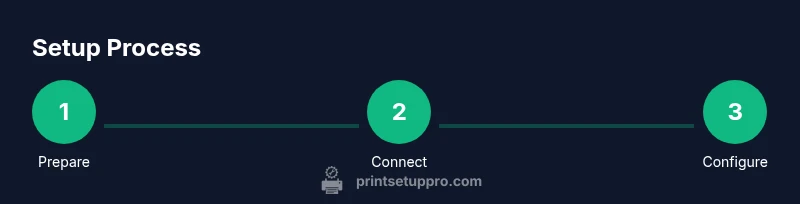
This section provides a practical narrative flow for most home-office setups. Start by placing the device in a central, accessible location with good ventilation and sufficient clearance for feeding papers and opening trays. Next, connect the power cable and turn on the unit to initialize prompts. If you’re using a wired network, connect an Ethernet cable to your router or switch and note the device’s IP address via the control panel. For USB setup, connect the printer directly to your computer. Then, download the latest Canon imageRUNNER drivers from Canon’s official site and install them following the on-screen wizard. Add the printer to your operating system and set it as the default. Finally, print a test page and adjust print quality or tray settings as needed. Pro Tip: disable any energy-saving features that slow down wake times during initial setup, and re-enable after confirming everything works. The official docs typically guide you through additional options like duplex mode, stapling, and secure print if supported by your model.
Remember to confirm the printer’s status in your OS printer list and ensure there are no conflicting drivers from older printers that could cause misrouting of documents.
Network Configuration and Driver Management: A Deeper Look
After initial setup, focus on refining network configurations and ensuring driver reliability. If you’re on Windows, use the Add Printer wizard to locate the device by its IP address or host name and install the recommended driver package. macOS users should add the printer via System Preferences > Printers & Scanners and select the Canon driver. On some networks, you’ll want to reserve the printer’s IP in the router to prevent address changes after power cycles. Regularly check Canon’s support site for driver updates and firmware releases to minimize compatibility issues with new operating systems. Print Setup Pro suggests scheduling quarterly reviews of your device settings to keep firmware and drivers aligned with security best practices and your organizational policies. Ensure that print queues are named clearly and that you have a documented default paper size and tray assignment to avoid confusing print results during peak hours.
If your organization uses multiple Canon devices, consider central management software or a lightweight admin account on the device to control permissions and job accounting. This approach reduces user errors and helps you track usage patterns for future purchases or upgrades.
Scanning, Email, and Cloud Integration: Getting More from ImageRUNNER
Scanning is where imageRUNNER devices shine, especially for digital workflows. Start by enabling basic scan-to-email or scan-to-folder, then configure destination addresses and authentication. If your model supports cloud destinations, set up secure connections to your preferred cloud service. For scanning, ensure OCR capabilities are installed if you require searchable PDFs. When possible, create standardized profiles for common tasks (e.g., “Invoices,” “Contracts,” “Receipts”) so users can scan directly into the correct folders or mailboxes. If you’re in a corporate environment, ensure compliant handling of sensitive documents through secure print or password-protected PDFs. The right setup reduces manual data entry and speeds up document processing. Print Setup Pro notes that aligning scanning destinations with user groups improves security and reduces misrouted documents.
Maintenance, Security, and Best Practices
A well-maintained imageRUNNER requires regular firmware checks, consumables monitoring, and periodic diagnostics. Establish a maintenance window every few months to clean paper paths, check rollers for wear, and replace consumables before failures occur. Security should be a continuous process: enforce strong network credentials, enable secure print, and keep the device’s firmware updated to mitigate vulnerabilities. Implement access controls for sensitive features and set up audit logs where available to monitor usage. Regularly back up configuration settings so you can restore them after a firmware upgrade or network change. Print Setup Pro recommends documenting changes and testing each major update with a small batch of print tasks to ensure stability before broader rollout.
Troubleshooting Scenarios: Quick Fixes That Save Time
When problems arise, start with checkpoints that identify the root cause quickly. If the printer doesn’t show up on a computer, verify the IP address, confirm network connectivity, and restart the printer, router, and computer if needed. If print quality is poor, start with a nozzle check and alignment; replace consumables if necessary and ensure correct media type is selected in the driver. For scanning issues, confirm that the destination email address or cloud path is accessible and that authentication tokens are valid. In many cases, issues stem from driver mismatch or outdated firmware, so updating both can resolve most interruptions. The Print Setup Pro team emphasizes a disciplined approach: isolate the variable (network, driver, or firmware) and confirm one change at a time to identify the exact fix.
Tools & Materials
- Canon imageRUNNER printer unit(Model-agnostic; ensure power switch works)
- Power cable(Surge-protected outlet preferred)
- USB cable(If USB setup is used)
- Ethernet cable(Use for wired network setup if available)
- Computer or mobile device(For driver installation and printer setup)
- Printer driver/software package(Download from Canon support site; keep version current)
- Network credentials(Wi‑Fi password or router admin access)
- Basic paper stock and a few test pages(Useful for first print test)
Steps
Estimated time: 60-90 minutes
- 1
Power and place the printer
Place the printer on a stable surface with clear access to paper trays. Plug the power cable into a grounded outlet and turn on the device. Wait for the initial calibration prompts to finish before proceeding.
Tip: Keep the printer in a central location to simplify cabling and maintenance. - 2
Connect to power and network
Choose between USB or Ethernet. If using USB, connect the cable to the computer and the printer. If using Ethernet, connect to the router and note the IP address shown on the device’s screen.
Tip: Assign a fixed IP address to prevent network changes after restarts. - 3
Install the drivers
On your computer, download the latest Canon imageRUNNER drivers. Run the installer and follow prompts to add the printer. Choose the recommended driver and print test page.
Tip: Run the installation as an administrator and reboot if prompted. - 4
Add the printer to your OS
Open your OS’s printer settings and add a new printer by IP or USB. Set it as the default printer if appropriate, and verify the driver matches your model.
Tip: Disable any conflicting drivers from previous printers. - 5
Configure basic scanning
Set up scan destinations (email or network folders). Ensure authentication is working and test a scan to verify the workflow.
Tip: Create reusable profiles for common destinations to save time. - 6
Run a test print and adjust settings
Print a mixed page count to verify margins, media type, and duplex. Fine-tune tray selection and print quality as needed.
Tip: Document defaults for quick reference in future tasks.
People Also Ask
What is the difference between Canon imageRUNNER and standard Canon printers?
ImageRUNNER models are designed as multifunction devices with integrated scanning, advanced security, and centralized administration, making them better suited for office workflows than consumer-grade printers.
ImageRUNNER devices are multifunction printers with built‑in scanning and better office management features than typical consumer printers.
Can I use wireless printing with a Canon imageRUNNER?
Yes, most imageRUNNER units support wireless networking via Wi‑Fi or network sharing. You’ll configure the wireless settings in the device's control panel and install drivers on each computer.
Yes, you can print over Wi‑Fi; just set up the network in the printer’s menu and install the drivers on your devices.
What should I do if the printer doesn’t appear in Windows Printer List?
Check network connectivity or USB connection, verify the IP address, and ensure the correct driver is installed. Restart the printer and computer if needed, and re-add the printer using the Add Printer wizard.
If Windows won’t see it, check connections, verify IP, reinstall drivers, and reboot devices before re-adding.
How often should firmware be updated on Canon imageRUNNER?
Regular firmware updates help with security and compatibility. Check Canon support quarterly or when security advisories are released, then test critical functions after updating.
Update firmware as part of routine maintenance; test key tasks after each update.
What scanning features are typically available on these devices?
Most models offer scan-to-email, scan-to-network folders, OCR for searchable PDFs, and cloud destinations. Enable profiles for frequent destinations to streamline workflows.
Scanning typically supports email, folders, OCR, and cloud destinations; set up profiles to save time.
Watch Video
Quick Summary
- Identify the right imageRUNNER model for your volume.
- Install the latest drivers and set a stable network config.
- Configure secure print and scan destinations for efficiency.
- Test thoroughly to avoid downtime during peak hours.
- Maintain firmware and consumables for reliability.