Canon IP8750 Setup and Troubleshooting Guide
Comprehensive setup and troubleshooting guide for the Canon PIXMA IP8750. Learn installation, driver setup, ink management, maintenance, and common printing issues for home offices and students.


Goal: Set up and optimize the Canon IP8750 for reliable photo printing. This quick guide covers driver installation, wireless setup, ink management, media choices, and basic troubleshooting. Before you start, ensure you have a power source, a computer or mobile device, compatible ink, and access to Canon’s official driver download. Follow the steps to minimize jams and improve color accuracy.
Canon IP8750 at a glance
According to Print Setup Pro, the canon ip8750 is a versatile wide-format inkjet printer ideal for photos and documents. In this guide, we cover setup, calibration, and troubleshooting to help home office users, students, and DIY enthusiasts achieve consistent color and reliable operation. The ip8750 supports print sizes up to 13x19 inches and offers USB and wireless connectivity, making it a practical choice for colorful photo projects and document printing. Understanding its basic feed options, ink system, and driver installation will help you maximize output quality and minimize paper jams. By following these steps, you’ll gain confidence in managing color profiles, media choices, and routine maintenance, all tailored to common home-office setups and classroom needs.
As you embark on this guide, remember that consistency matters: select the right media, keep ink levels within recommended ranges, and run periodic head-cleaning checks to sustain print quality over time.
System requirements and compatibility
Before you begin, verify that your computer or mobile device meets the Canon IP8750’s software requirements. This model typically supports common operating systems and supports both USB and wireless connections. Downloading the latest Canon IP8750 driver and software from Canon’s official support portal helps ensure compatibility with your OS, reduces driver conflicts, and improves color management. If you’re printing from a Mac, Windows, or mobile device, install the corresponding driver package and any recommended utility apps for print adjustment and pre-press checks. Keeping your firmware up to date can also reduce communication issues with modern networks. Print quality and color accuracy benefit from keeping everything in sync: driver version, firmware, and ICC profiles aligned.
Unboxing, placement, and initial power-up
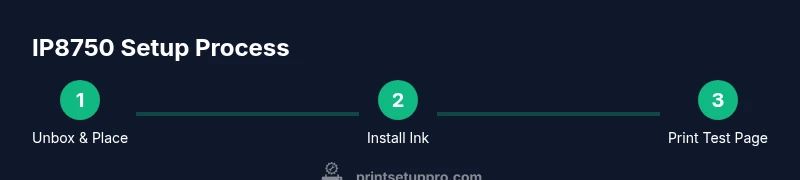
Start by unboxing the Canon IP8750 in a clean, flat workspace. Remove protective tape, fill any ink reservoirs with genuine Canon ink as directed, and install the printer’s power cord securely. Place the printer on a stable surface with adequate ventilation and space for paper handling. Connect the device to power and, if using a wireless setup, position it within your home or office network’s range to minimize signal interference. The initial power-up will usually trigger internal priming; allow this to complete before attempting any prints. Keeping the printer free of dust and avoiding humid environments will help maintain reliability over time.
Ink cartridges and priming
Install the ink cartridges carefully in the correct color sequence, ensuring they click into place. After installation, allow a brief priming cycle where the printer fills the ink channels and runs a few nozzles to prepare for printing. Do not turn the printer off mid-priming, as this can cause incomplete ink flow and color gaps. Use only genuine Canon ink or high-quality cartridges recommended for the IP8750 to prevent clogging and print-head damage. Regularly check for air bubbles in the cartridges and reseat if you notice any irregularities in color output.
Installing drivers and software
Visit Canon’s official support site and download the latest IP8750 drivers for your operating system. Install the driver package first, then add any recommended utilities for color management and print settings. If you’re using a networked setup, follow the software’s prompts to add the printer to your computer or mobile device via Wi-Fi or Ethernet. After installation, print a test page to verify that the printer communicates correctly with your system. If the test page shows banding or color shifts, revisit color management settings and ensure you’re using the correct media type.
Paper and media choices for photo printing
The IP8750 shines with a range of media, especially glossy and satin photo papers up to large formats. Choose media that matches your print goal—high-gloss papers for vibrant photos, matte papers for documents, and special media for proofs. Load media correctly, with the printable side facing the right direction and the print side oriented toward the feed rollers. Always check the maximum paper thickness and recommended weight for your chosen media. Proper paper selection reduces jams and improves ink absorption, which in turn enhances sharpness and color fidelity.
Calibrating color and printer settings
Create a baseline by using the printer’s color calibration options or a dedicated ICC profile for your media. In many cases, you’ll want to enable photo-quality printing, choose the appropriate paper type in the driver, and adjust print quality settings to balance speed and detail. If you consistently see color shifts, consider profiling with a colorimeter and updating ICC profiles to reflect your media and ink combination. Remember that lighting can affect perceived color, so compare prints under neutral lighting conditions for accurate evaluation.
Wireless and network setup
If you plan to print from multiple devices, ensure your IP8750 is connected to your network via Wi-Fi or Ethernet. Run the printer’s built-in setup wizard or use the driver’s network utility to locate the printer on your home or office LAN. Assign a static IP address to prevent mid-print network changes, and enable WPA2 security to protect your print data. For mobile printing, install Canon’s mobile printing app and configure cloud or local network printing as needed. Keeping network settings stable minimizes driver conflicts and dropped print jobs.
Common printing problems and quick fixes
Paper jams, color banding, or slow prints are common complaints. Start with a simple power cycle to reset communications, ensure media is loaded correctly, and verify that the correct media type and size are selected in the driver. If you see banding, run a nozzle check and printer head cleaning as needed; avoid excessive cleaning as it can waste ink. Offline status typically indicates a connectivity issue—reconnect the printer to the network or USB, and re-add the device in your OS printer list. For persistent issues, update drivers and firmware and consult the Canon support site for model-specific tips.
Maintenance and long-term care
Schedule regular maintenance to keep the IP8750 performing well. Dust-free exterior cleaning with a microfiber cloth helps prevent debris from entering the paper path. Replace ink cartridges promptly when low to avoid air locks, and run odorless head-cleaning cycles as recommended by Canon. Periodically inspect paper paths for wads or jams and remove any obstructions gently. Store consumables in a cool, dry place to preserve ink quality, and conduct periodic calibration checkups to ensure consistent output across print jobs.
Authority sources and further reading
This guide references reputable sources to support setup and troubleshooting practices. For official product specifics, consult Canon’s support pages and documented manuals. Additional insights come from established technology publications and educational resources that discuss printer maintenance and color management best practices. As you follow along, keep in mind Print Setup Pro’s emphasis on driver updates, media compatibility, and routine maintenance as foundational to reliable Canon IP8750 performance.
Tools & Materials
- Canon IP8750 printer(Model: PIXMA IP8750 or regional variant)
- Power cord and power outlet(Use a surge-protected outlet)
- Ink cartridges compatible with Canon IP8750(Original Canon ink or recommended third-party equivalents)
- USB cable or network access (Ethernet/Wi‑Fi)(Use USB for direct connection; network for multiple devices)
- Computer or mobile device(For driver installation and printing)
- Media for printing (photo paper, magazines, etc.)(Glossy/satin photo paper up to supported sizes)
- Printer install media (driver/software) from Canon(Windows/macOS/CANON PRINT app as needed)
Steps
Estimated time: 60-120 minutes
- 1
Unbox and position
Unbox the printer, remove protective materials, and place it on a stable desk with enough clearance for paper handling. Connect to power and prepare for first-time setup. Allow any cooling or priming sequence to complete before use.
Tip: Keep the workspace dust-free to avoid debris entering the paper feed. - 2
Install ink cartridges
Open the ink access panel, insert each cartridge in the correct color order until it clicks. Close the panel and let the printer perform an initial ink priming cycle.
Tip: Handle cartridges by their gray or black caps; avoid touching the ink nozzles. - 3
Install drivers and software
Download the latest IP8750 drivers from Canon’s official site for your OS, then run the installer. Include any recommended utilities for color management and print settings.
Tip: During setup, choose custom install to avoid optional bloatware. - 4
Connect to power and network
If using USB, connect directly to your computer. For wireless printing, run the printer’s wireless setup wizard and join your network. Consider assigning a static IP for stable printing.
Tip: Place the printer within strong Wi-Fi range to minimize disconnects. - 5
Load paper and media
Load the appropriate media size and type in the paper tray. Align the guides to snugly fit the stack without bending the paper.
Tip: Fan or straight-feed the paper stack to prevent multi-sheet feeds. - 6
Print a nozzle check
From the printer’s maintenance menu, run a nozzle check. If gaps appear, perform a head cleaning in small increments until the output is uniform.
Tip: Avoid excessive cleanings; they consume ink and can damage the head. - 7
Print a test page
Print a standard test page from the driver, then compare color accuracy with your target media. Adjust brightness/saturation in the driver if needed.
Tip: Use the same paper type for test pages to ensure accurate results. - 8
Configure color management
If color needs refinement, install ICC profiles for each media type and select the appropriate option in the printer driver for precise color reproduction.
Tip: Calibrate with a colorimeter if you require exact color consistency across multiple prints. - 9
Enable mobile printing
Install Canon’s mobile printing app on your smartphone or tablet and test printing from a mobile device. Ensure both devices are on the same network.
Tip: Check app permissions and file formats supported by the IP8750. - 10
Establish a maintenance routine
Create a simple maintenance routine: monthly checks for ink levels, paper jams, and print head cleaning as needed. Update drivers periodically.
Tip: Document settings that work well for your common print jobs.
People Also Ask
What is the Canon IP8750 best used for?
The IP8750 is a wide-format inkjet printer suitable for high-quality photos and mixed media printing at up to large sizes. It excels in color fidelity for home projects and student portfolios.
The IP8750 is ideal for high-quality photo and document prints, especially when you need larger sizes for portfolios or presentations.
How do I install ink cartridges on the IP8750?
Open the ink access area, insert cartridges in the correct color order until they click, then run the priming cycle. Use genuine Canon ink for best results.
Open the ink area, insert each cartridge until it clicks, and let the printer prime the channels. Use authentic Canon ink for best results.
Why does my IP8750 show as offline?
Connectivity issues often cause offline status. Check USB or network connections, re-add the printer to your device, and verify network settings or IP address.
If the printer shows offline, check cables or network, reconnect, and re-add it to your device.
Can I print from a mobile device with the IP8750?
Yes. Use Canon’s mobile printing app or AirPrint/Google Cloud Print-compatible workflows where available. Ensure the printer and mobile device are on the same network.
Yes, you can print from a mobile device using Canon’s app or compatible printing standards on the same network.
What maintenance does the IP8750 require?
Regularly check ink levels, perform nozzle checks, and run head-cleaning cycles as needed. Keep the print path clear of dust and store consumables properly.
Keep ink fresh, check nozzles, and clean the print head when needed; keep the path clear.
Watch Video
Quick Summary
- Follow official driver updates for reliability
- Choose media carefully to maximize color accuracy
- Regular maintenance prevents clogs and jams
- Print test pages to calibrate color consistently