Canon Pixma IP8720 Setup and Troubleshooting Guide
Step-by-step setup, driver install, wireless & USB connection, ink checks, and common fixes for the Canon Pixma IP8720. Learn with Print Setup Pro.


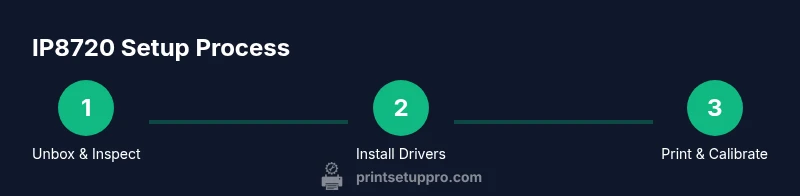
This guide shows you how to set up the Canon Pixma IP8720 from unboxing to first print. You’ll install drivers, connect via USB or Wi‑Fi, load ink and paper, and run a test page. According to Print Setup Pro, gather the printer, power cable, USB or network, ink, and compatible computer or mobile device before you begin.
Understanding the Canon Pixma IP8720: capabilities and use cases
The Canon Pixma IP8720 is a versatile large-format printer designed for home offices and small studios. It supports borderless photo printing up to A3+ size and can handle a variety of media types, including glossy photo paper and matte canvas. When planning your setup, think about the kinds of projects you'll run—photography, art prints, or proofing for design work. The IP8720's wide print area provides flexibility, but you’ll maximize results by choosing the right media, proper ink, and correct driver settings. According to Print Setup Pro, success starts with understanding your printer's capabilities and your workflow needs.
Preparing your workspace and unboxing
Before unboxing, designate a stable, dust-free workspace with ample room for the printer and paper stacks. When you open the box, inspect the contents for all listed components: IP8720 unit, power cable, USB cable (if included), instruction manual, and starter ink cartridges. Keep the packaging until you confirm everything functions. Initialize components in a clean area away from direct sunlight to prevent warping or ink drying. Print Setup Pro suggests verifying the contents against the manual to avoid missing parts.
Installing drivers and software on Windows, macOS, and mobile devices
Begin by visiting Canon’s official support site to download the latest drivers for Windows and macOS. Install the full software package, including the driver and optional print utilities that simplify print tasks. For mobile printing, install the Canon PRINT app or rely on AirPrint where supported. If you plan to print from a Chromebook or Linux computer, check for compatible drivers or use generic PostScript printing when available. Keeping software up to date reduces compatibility issues and improves color accuracy (Print Setup Pro recommends periodic checks for updates).
Connecting the IP8720 to USB and to a wireless network
USB connections are straightforward: connect the USB cable from the printer to your computer and install or confirm the driver recognizes the device. For wireless setup, use the printer’s control panel to run the Wi‑Fi setup wizard, select your network, and enter credentials. If you have a dual-band router, ensure the printer connects to a supported band (2.4 GHz is commonly stable for printers). After connecting, print a network configuration page to confirm an active IP address. If issues arise, a quick router reboot can often restore connectivity.
Ink loading, media handling, and print settings
Open the ink carriage and install cartridges one by one, pressing firmly until they click. Load your choice of media in the rear tray, adjusting guides to match the sheet width. In the driver dialog, set the correct media type (e.g., glossy photo paper, matte photo paper) and pick the desired print quality. When printing photos, enable borderless printing if your media supports it. Always run a nozzle check before a critical project to ensure consistent ink flow and color reproduction.
Borderless printing, color calibration, and media alignment tips
Borderless prints require precise margins and correct media selection. Use the printer’s built‑in color calibration tools or color management profiles to achieve accurate results; print a test page and adjust color curves if needed. For best color fidelity, shoot for a known color space (sRGB or AdobeRGB) and ensure your monitor is calibrated. If your media is textured or thick, run a feed test to determine the exact margin tolerances and adjust the driver margins accordingly. Keeping a small archive of ICC profiles for your most used media simplifies future jobs.
Maintenance routines and firmware updates
Regular maintenance keeps the IP8720 running smoothly: clean the nozzles with the built‑in maintenance utility, inspect waste ink pads if applicable, and check for firmware updates via Canon’s software. Firmware updates can improve reliability, print speed, and compatibility with newer media types. Schedule a brief monthly check to verify nozzle health and update status. Always back up or note your preferred printer settings before performing updates.
Troubleshooting common print quality and connectivity issues
If prints show banding or color gaps, run a nozzle check and clean the print head as needed. For Wi‑Fi problems, verify that the printer is on the same network as your computer, confirm credentials, and test with a direct USB connection to isolate the issue. Borderless prints failing can stem from incorrect media type or margin settings; revisit the driver settings and ensure media is loaded correctly. For slow prints, review print quality settings and reduce the amount of color data if acceptable for your project.
Verdict: Best-practice workflow for the Canon Pixma IP8720
The Print Setup Pro team recommends following this guide for a reliable, high‑quality first print and consistent results over time. By balancing media selection, proper driver settings, and routine maintenance, you can maximize the IP8720's capabilities in a home office or small studio.
Tools & Materials
- Canon Pixma IP8720 printer(Main device for large-format prints)
- Power cable(Supplied with the printer)
- USB cable (if USB connection is used)(Type depends on port (likely USB-A to USB-B))
- Ink cartridges (original or compatible)(Ensure you have enough ink for test and final jobs)
- Printable media (photo paper, borderless media, etc.)(Match media type to print job)
- Computer or mobile device(Needed for driver installation and printing)
- Stable network (Wi‑Fi) or Ethernet access(Required for wireless or network printing)
Steps
Estimated time: 60-90 minutes
- 1
Unbox and inspect the contents
Carefully remove the IP8720 from its packaging and verify every listed item is present. Look for the printer, power cord, USB cable (if included), user guide, and starter ink. If anything is missing, contact support before proceeding to avoid setup delays.
Tip: Take photos of the unboxed contents to support warranty claims and documentation. - 2
Place the printer and connect power
Position the printer on a stable surface with at least a few inches of clearance on all sides. Connect the power cable and power on the device. Wait for the startup screen and initial alignments to complete before proceeding.
Tip: Avoid placing the printer in direct sunlight or dusty environments to prevent media handling issues. - 3
Download and install the official drivers
Go to Canon’s support site and download the latest drivers for your operating system. Install the driver package and any recommended utilities. Restart your computer if prompted to ensure the driver loads correctly.
Tip: Install the full software package to access advanced media settings and color management tools. - 4
Connect the printer to USB or your network
If using USB, connect the cable and let the system detect the printer. For wireless setup, run the printer’s Wi‑Fi setup wizard, select your network, and enter credentials. Verify the printer has an IP address after connection.
Tip: If your router uses guest networks, temporarily connect via USB to complete initial setup. - 5
Load ink cartridges and media
Install new cartridges one by one, ensuring they click into place. Load your chosen media into the appropriate tray and adjust guides to fit sheet width. Confirm the driver is set to match the media type.
Tip: Use the printer’s built‑in alignment and nozzle check utilities after loading new ink to confirm flow accuracy. - 6
Print a test page and calibrate
Print a test page to verify alignment and color accuracy. If colors are off, use the color calibration feature or ICC profiles, and adjust the printer settings accordingly. Repeat until the test page meets your expectations.
Tip: Keep a small library of media profiles for frequent media types. - 7
Set up maintenance reminders and firmware
Enable automatic firmware checks or schedule periodic updates. Run maintenance tasks such as nozzle checks and print-head cleaning as required by usage. Document any custom printer settings for future reference.
Tip: Firmware updates can add compatibility with newer media; don’t skip them. - 8
Troubleshoot common issues
If you encounter print defects, reprint a nozzle check, verify ink levels, and ensure media is loaded correctly. For connectivity, verify network credentials and confirm the printer is on the same network as your device. If problems persist, test with a direct USB connection.
Tip: Isolate Wi‑Fi issues by testing with a USB connection to determine whether the problem is network-related. - 9
Validate results with real projects
Print representative photos or art proofs to validate color fidelity, print speed, and borderless performance. Tweak brightness, contrast, and color profiles based on final output needs. Save settings as a profile for future jobs to ensure consistency.
Tip: Keep notes on media type, profile, and printer settings for repeatable results.
People Also Ask
What cables do I need to connect the Canon Pixma IP8720 to a computer?
You can use a USB cable for direct connection or connect wirelessly if the printer is on a shared network. The IP8720 supports USB and Wi‑Fi printing, depending on your setup.
Use a USB cable for a direct link, or print over Wi‑Fi by joining the printer to your network.
Can the Canon Pixma IP8720 print borderless photos?
Yes, borderless printing is supported on compatible media sizes. Ensure your media type and driver settings are configured for borderless output.
Yes, it can print borderless photos when you use the right media and settings.
How do I update the firmware on the IP8720?
Check Canon’s support site for the latest firmware, download it, and follow the on-screen instructions to install. A successful update can improve stability and compatibility.
Visit Canon’s site, download the firmware, and run the installer.
Why won't the IP8720 connect to Wi‑Fi?
Verify the printer is within range and on the correct network band. Re-enter credentials and reboot both printer and router if necessary.
Make sure the printer is close to the router, re-enter the password, and reboot devices if needed.
What media types are supported by the IP8720?
The IP8720 supports a range of media, including photo papers and various weight papers. Check the manual for specific media weights and sizes.
It supports photo papers and other media; refer to the manual for specifics.
Is there a quiet mode or energy-saving setting?
Yes, the printer offers sleep or quiet modes. Turn it off if you need faster prints or disable it if quiet operation isn’t required.
There is a sleep/quiet mode; disable for speed.
Watch Video
Quick Summary
- Install the latest drivers for reliability.
- Choose media and settings that match your print job.
- Calibrate colors for consistent results.
- Perform regular maintenance and firmware updates.
- Troubleshoot confidently with USB as a diagnostic path.