Canon Pixma MG3620 Setup and Troubleshooting Guide
Learn how to set up the Canon Pixma MG3620 for wireless printing, install drivers, print from mobile devices, and troubleshoot common issues with clear, step-by-step instructions.


In this guide, you will learn how to set up the Canon Pixma MG3620 for reliable wireless printing and scanning. We'll cover network connection, driver installation, mobile printing, and common troubleshooting steps. By following these steps, home office users can get the MG3620 printing crisp documents and photos again quickly.
About the Canon Pixma MG3620: What it is and why it’s popular
The Canon Pixma MG3620 is a compact, all-in-one printer designed for home offices. It supports wireless printing via Wi‑Fi and mobile apps. It’s a versatile choice for students and DIY enthusiasts who want basic color and grayscale printing alongside scans. According to Print Setup Pro, the canon pixma mg3620 remains a popular choice for home offices thanks to its simple wireless setup and all-in-one capabilities.
Key features include built‑in Wi‑Fi, a compact footprint, and broad compatibility with common operating systems. For newcomers, the MG3620’s straightforward control panel and streamlines setup flow reduce friction often seen with multi‑function devices. In practice, many households use this model for school assignments, home budgeting, light photo work, and general document printing. Maintaining a steady ink supply and performing regular printhead cleanings helps sustain output quality over time.
Before you start: prerequisites and network basics
Before you unbox the MG3620, gather the essentials and confirm your network setup. You’ll want a power outlet, a 2.4 GHz Wi‑Fi network (many MG3620 models rely on it for stable wireless printing), and a computer or mobile device ready to install drivers or apps. Have your router's password handy, and ensure your device is on the same network you plan to connect the printer to. Print Setup Pro notes that a smooth experience begins with a stable connection and the correct driver package installed from Canon’s official site. A clean workspace free of clutter also reduces the chance of accidental unplugging during setup.
If you’re setting up for the first time, keep a pen handy to write down the printer’s IP address if you opt for a static assignment. This makes future printer discovery automatic on your devices. Finally, ensure you have fresh ink cartridges or a compatible supply so you can immediately test print once the installation completes.
Step-by-step: setup on Windows
-
Connect the MG3620 to power and turn it on. Make sure the device lights stabilize before proceeding. This confirms the printer is ready for initial configuration. Pro tip: having the printer close to the router improves signal during setup.
-
Choose your preferred connection method. For most Windows users, a wireless setup is simplest. The printer can switch to AP mode for direct configuration if needed. The goal is to connect the printer to the same Wi‑Fi network as the computer.
-
Install the driver and software. Go to Canon’s official support site, search for the MG3620, and download the Windows driver package. Run the installer and follow on-screen prompts to complete the setup. Pro tip: install all recommended components to enable scanning and cloud features.
-
Add the printer to Windows. Open Devices and Printers, click Add a printer, and select the MG3620 from the list. Windows will perform a quick test print after installation. Pro tip: disable any VPN temporarily if discovery fails during setup.
-
Print a test page. Use a simple document or image to confirm alignment and color accuracy. If colors look off, run the printer’s alignment utility from the printer’s software suite. Pro tip: perform a basic cleaning if lines appear faint.
-
Optional: connect via USB for a direct setup. If your network is unstable, USB can provide a stable fallback. Pro tip: USB setup often bypasses wireless discovery issues, but you’ll still want to enable Wi‑Fi printing for mobility.
Step-by-step: setup on macOS
-
Power up the MG3620 and ensure it’s connected to the same Wi‑Fi network as your Mac. A stable network is vital for AirPrint and driver-based printing. Pro tip: place the printer within a few meters of the router to reduce signal dropouts.
-
Install the macOS driver package from Canon’s official site. Open the installer and follow prompts to install the CUPS-compatible drivers. Pro tip: grant necessary permissions if macOS blocks the installer; you may need to allow the software in Security & Privacy settings.
-
Add the printer in System Preferences. Navigate to Printers & Scanners, click the “+” button, and select the MG3620. If you don’t see it, try adding using IP or re-run the driver installer.
-
Run a print test from macOS. Try a text document and a color image to verify print quality. Pro tip: keep the printer’s firmware up to date via Canon’s site for best compatibility with macOS updates.
-
Enable scanning to Mac. Use the Canon Scan utility or Image Capture for direct scanning tasks. Pro tip: calibrate scan settings for best results based on document types you frequently scan.
Wireless printing from mobile devices using Canon PRINT
Use mobile printing to avoid tying up a computer. Canon PRINT app (iOS and Android) supports printing from most apps and can manage basic scan tasks. Ensure your phone is on the same network as the MG3620. Pro tip: enable AirPrint on compatible devices to simplify printing from iOS without installing extra drivers. For Android, ensure the Canon PRINT app is up to date and that the MG3620 is discoverable in the app’s printer list.
If you prefer a quick shareable option, print from cloud apps that your device supports, but always confirm the MG3620 is selected as the destination before sending your job. Pro tip: save frequently used settings as presets in the Canon PRINT app to speed up future prints.
Troubleshooting common issues
Issues with wireless setup are the most common early stumbling blocks. If the printer fails to appear on your device, verify network connectivity, restart the router, and re-run the setup wizard. If the MG3620 prints with faint lines, run a printhead cleaning and alignment from the printer’s control panel or the driver software. If the printer prints blank pages, check ink levels and ensure you selected the correct paper type in print settings. Pro tip: perform a factory reset if all else fails, then reconfigure from scratch.
Another frequent problem is apps not seeing the printer after OS updates. In that case, reinstall the Canon drivers, re-add the printer, and restart devices involved. Pro tip: temporarily disable firewall or antivirus during initial setup if discovery fails, then re-enable protection afterward to maintain security.
Maintenance scheduling and routine care
Create a simple maintenance routine to keep print quality high. Schedule monthly nozzle checks and head cleanings if you print infrequently, and align the printer after substantial ink use or printer movement. Use high-quality paper to prevent jams and to minimize ink bleed. Pro tip: store ink cartridges in a cool, dry place and replace them when color density noticeably fades. Regular cleaning helps extend print life and reduces the likelihood of misfeeds.
Additionally, update firmware when Canon releases improvements for compatibility and fixes. Pro tip: set firmware updates to automatic so you won’t miss critical improvements.
Optimizing print quality and ink economy
Print quality depends on media type, color calibration, and ink usage settings. For documents with text, select the ‘Plain Paper’ or ‘Text’ profile; for photos or color graphics, choose the appropriate photo or color profile. Calibrating color in the printer’s settings can significantly improve fidelity. Pro tip: use draft mode only for internal documents to save ink. When printing photos, use high-quality photo paper to maximize color accuracy and durability. Regularly checking ink levels and replacing cartridges before they completely run dry ensures consistent quality and avoids mid‑print interruptions.
Finally, consider adjusting print resolution for everyday tasks: higher dpi for photos, lower dpi for drafts. Pro tip: avoid excessively high dpi for large documents, which can slow down printing and waste ink.
Safety considerations and end-of-life options
Always unplug the printer before performing any internal maintenance beyond basic cleaning. Keep the device away from liquids and humid environments to protect electronics. When the MG3620 reaches end of life, explore recycling options through local electronics recycling programs or Canon’s take-back initiatives. Pro tip: consult the user manual before disposing of any cartridges or the printer itself to ensure proper handling.
Tools & Materials
- Printer power cable(Included in box; connect to a grounded outlet)
- USB cable (optional)(Useful for direct setup or troubleshooting if wireless is unstable)
- Wi‑Fi network and password(2.4 GHz preferred for MG3620 compatibility)
- Computer or mobile device (Wi‑Fi enabled)(For driver installation or app setup)
- Driver software from Canon(Download for Windows/macOS from Canon's official site)
- Canon PRINT app (optional)(For mobile printing and scanning)
- Plain/color paper and ink cartridges(New, compatible consumables for testing)
Steps
Estimated time: 45-60 minutes
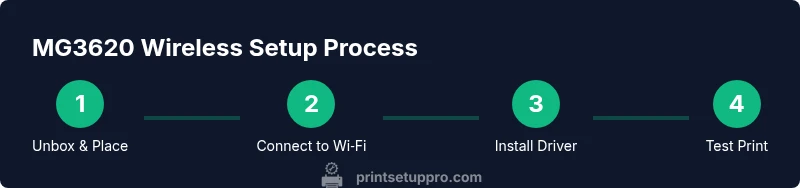
- 1
Unbox and place the MG3620
Remove packaging, place the printer on a sturdy surface near power and access to Wi‑Fi, and remove protective materials. Ensure the printer has 4-6 inches of clearance on all sides for paper paths and ventilation.
Tip: Keep the printer away from direct sunlight and heat sources to prevent ink drying. - 2
Plug in power and power on
Connect the power cord and switch on the MG3620. Wait for the startup sequence and initialize the printer’s memory. This confirms the device is ready for configuration.
Tip: If the display is blank, check the outlet and power switch; a tripped breaker can mimic a dead device. - 3
Connect to Wi‑Fi
Using the control panel, select the wireless setup wizard and connect to your 2.4 GHz network. Enter the password accurately and confirm the connection indicator lights glow steadily.
Tip: Move the printer closer to the router if the connection is unstable to prevent dropouts. - 4
Install Windows/macOS drivers
Download the latest Canon MG3620 driver package from Canon’s official site and install it on your computer. Follow prompts to complete installation and select network printer if prompted.
Tip: Choose the full driver package to enable scanning and other features, not just basic printing. - 5
Add the printer (Windows)
Open your system settings, go to Devices > Printers, and add a new printer. Select the MG3620 from the discovered devices. Print a test page to confirm proper operation.
Tip: If the printer does not appear, reboot the computer and printer, then retry.” - 6
Add the printer (macOS)
Open System Preferences > Printers & Scanners, click + to add, select the MG3620, and complete the setup. Print a test page to verify alignment and color accuracy.
Tip: If the printer does not appear, use the IP tab to connect via IP address. - 7
Set up mobile printing
Install Canon PRINT or ensure AirPrint compatibility. Connect the mobile device to the same network and print a test page. Use the app to scan and manage print tasks.
Tip: Create a preset for common document types to speed up future print jobs. - 8
Update firmware and test again
Check for firmware updates via Canon’s site or the printer’s menu. After updating, run another test page to confirm improvements.
Tip: Firmware updates can fix compatibility issues with newer OS versions. - 9
Routine maintenance
Schedule regular nozzle checks and alignments. Keep ink fresh and paper appropriate for routine tasks. Periodically clean the printer’s exterior and accessible mechanisms to prevent dust buildup.
Tip: Avoid letting the printer sit idle for long periods without a print job; occasional use helps prevent clogging.
People Also Ask
Can I use the MG3620 without a computer?
Yes — you can print from mobile devices using the Canon PRINT app and wireless printing. Scanning is often managed via the same app or the printer’s control panel, depending on your setup. You do not strictly need a computer for basic printing tasks.
Yes. You can print from mobile devices using the Canon PRINT app and wireless printing, without a computer. Scanning may also be available through the app.
Why won’t the MG3620 connect to Wi‑Fi?
Common causes are a weak signal, incorrect password, or network band mismatch. Ensure you’re using a 2.4 GHz network, re-enter the password carefully, and place the printer closer to the router if needed. Rebooting the router and printer can resolve temporary conflicts.
If the MG3620 won’t connect, check the network band, re-enter the password, and try moving the printer closer to the router. Reboot devices if necessary.
How do I update the MG3620 firmware?
Firmware updates are available on Canon’s official site. Download the latest version and install it via the printer’s control panel or the driver software. After updating, perform a test print to confirm improvements.
Update firmware from Canon’s site and install it via the printer or driver; test print afterward.
What ink cartridges does the MG3620 use?
The MG3620 uses Canon‑official ink cartridges compatible with the model. Replace cartridges when colors begin to fade or when a warning indicates low ink. Use genuine or high‑quality compatible cartridges for best results.
It uses Canon‑official ink cartridges compatible with the MG3620. Replace when colors fade or ink is low.
How do I fix a paper jam?
Carefully remove jammed paper from accessible paths, power cycle the printer, and check for any remaining scraps. Ensure you are using the correct paper type and size, and avoid forcing paper through when resistance is felt.
Gently remove jammed paper from accessible paths, reboot, and check for scraps. Use the correct paper type and size.
Why is my print blurry or faded?
Blurry or faded prints can result from low ink, misalignment, or clogged nozzles. Run a nozzle check and cleaning cycle, align the print head, and ensure you are printing with the correct paper type and quality settings.
Check ink levels, run nozzle checks, and align the print head. Make sure you’re using proper paper and settings.
Watch Video
Quick Summary
- Connect MG3620 to Wi‑Fi before printing.
- Install the correct drivers for your OS.
- Print from mobile devices using Canon PRINT for convenience.
- Run regular maintenance for consistent results.
- Keep ink fresh and use proper media for best output.