DeskJet 2130 Setup and Troubleshooting Guide
A complete, step-by-step guide to setting up the deskjet 2130, installing drivers, connecting to devices, and troubleshooting common print issues for home offices.


With this guide, you will set up the DeskJet 2130, install the driver software, connect the printer to a computer or mobile device, and troubleshoot common printing issues. You'll need a power outlet, the USB cable, a computer or smartphone, and access to the DeskJet 2130 to complete setup.
Why deskjet 2130 shines in a home office
The deskjet 2130 remains a popular choice for students, freelancers, and small home offices thanks to its compact footprint, simple setup, and dependable print quality. When space is limited, a small all-in-one device that can copy and scan alongside printing is a real win. The deskjet 2130 is designed for plug-and-play use, with minimal setup steps and straightforward cartridge replacement. According to Print Setup Pro, the model's appeal lies in its predictable performance and low ongoing costs compared with more feature-rich printers. Users appreciate that there is no complicated wireless configuration to master for basic tasks; a direct USB connection is often all that is required. However, this limited feature set also means you should have realistic expectations: wireless printing, mobile app integration, and advanced paper handling are not part of this model's core strengths. For most home users, the deskjet 2130 delivers reliable, everyday printing and a simple, affordable path to get started. To get the most from the device, keep a clean workspace, stock a couple of replacement cartridges, and run routine maintenance like head cleaning and nozzle checks on a schedule. In practice, the secret to longevity is consistent use and timely cartridge replacements. The guidance here from Print Setup Pro emphasizes practical, repeatable steps rather than flashy customization.
Quick-start basics
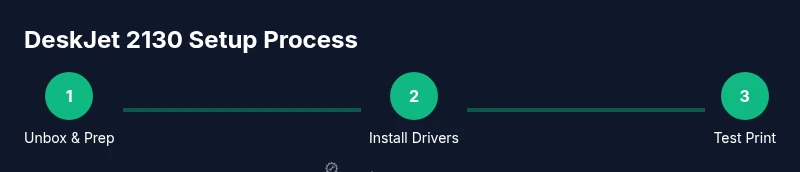
Before you begin, lay out the essentials and unbox the printer in a clean, stable area. Verify you have a power outlet within reach, the USB cable (likely included with the printer), and a computer or mobile device that can access the internet for driver installation. Remove protective film and packing material, connect the power cord, and turn on the device. When prompted, set your preferred language and date/time. Install the driver software from HP's official support site on your computer or device, then run a quick alignment page. This stage sets the foundation for error-free printing and reduces the need for troubleshooting later. Print a test page after installation to confirm that all colors align and that the nozzle is not clogged. For best results, use plain white copy paper and avoid high-gloss photo paper unless the printer driver explicitly supports it. If you encounter issues, a simple reboot of both the printer and the computer can resolve many minor connection problems.
Installing drivers and software
The DeskJet 2130 uses basic driver software that exposes straightforward printing and scanning options. Start by visiting the official HP support site and selecting the correct operating system, then download and install the recommended driver package. During installation, the installer will query you to set the default printer and enable features such as bidirectional communication and automatic updates. Once installation completes, run a printer test from your computer to verify connectivity. If you see a denial or error message, check that the USB cable is firmly connected and that the printer is set as the default device in your OS settings. On macOS, you may need to add the printer from System Preferences > Printers & Scanners. The end result should be a recognizable DeskJet 2130 listed as the active printer, ready for basic print jobs.
Connecting printer and using it
The DeskJet 2130 is primarily USB-connected, so expect a direct cable link to your PC or laptop. If you need to print from other devices, you must share the printer from a host computer or use cloud-enabled printing through a mobile device if your setup supports it; note that this model has limited wireless features. To print, open your document, select Print, choose DeskJet 2130, and confirm settings (color vs. grayscale, page range, and number of copies). For scans, use the built-in control panel or HP software to initiate a scan to your computer or email. Keep drivers up to date and periodically check for firmware updates from HP.
Troubleshooting common print problems
Common deskjet 2130 issues include faded print, color misalignment, and paper jams. Start with a simple approach: verify the printer is online, check the ink levels, and run a nozzle check from the HP software. If colors are off, run a print head cleaning; this can fix clogged nozzles but may consume extra ink. If a jam occurs, gently remove the stuck paper, clear the feed path, and reinsert the sheet. For persistent alignment problems, print an alignment page from the printer software and follow on-screen prompts. Finally, if the printer is not recognized by the computer, try another USB port, reboot both devices, and re-install the driver if necessary.
Maintenance and cost-conscious care
Regular maintenance helps extend the life of the deskjet 2130. Store cartridges in a cool, dry place and avoid exposing them to direct sunlight. Run a routine nozzle check and print head cleaning every few weeks if you print infrequently. Use only recommended paper types and avoid loading mixed media that could cause jams. If you notice frequent streaks or poor alignment, reseat the cartridge, perform a deeper cleaning cycle, or consult HP support for further guidance. Keeping your printer clean and up-to-date reduces downtime and toner/ink waste over time.
Advanced optimizations and tips
For sharper text and more vibrant color, ensure you select the correct paper type in the driver settings and adjust the print quality to a higher DPI when needed. Always run a calibration after replacing cartridges to optimize color accuracy. If you share the printer over a network, assign a fixed IP address to reduce connection drops and ensure consistent accessibility. Consider keeping a spare ink set on hand and rotating cartridges to prevent clogging when the printer sits idle for long periods. Finally, pursue sanity checks: confirm the driver version matches your OS and verify that automatic updates are enabled so security vulnerabilities or bugs don’t disrupt printing.
Tools & Materials
- DeskJet 2130 printer(Unbox and place on a stable surface near an outlet)
- Power outlet(Accessible with appropriate cord length)
- USB cable(Standard USB-A to USB-B cable, if included with the unit)
- Computer or mobile device(For driver installation and print testing; internet access recommended)
- HP printer driver/software installer(Download from official HP support site; match your OS)
- Plain printer paper(Used for test pages and basic printing checks)
- Cleaning supplies (soft, lint-free cloth)(Optional for exterior cleaning and maintenance)
Steps
Estimated time: 60-90 minutes
- 1
Unbox and prepare the printer
Carefully remove packaging, preserve manuals, and position the printer on a flat surface near a power outlet. Remove protective tape and protective sheets from the scanner glass and printer interior as applicable. This initial preparation reduces the risk of jams or misfeeds during setup.
Tip: Keep packaging until you confirm everything works; it makes repacking easier if you need to transport the printer later. - 2
Plug in and power on
Connect the power cord to the printer and a powered outlet, then press the power button to turn it on. Wait for the startup sequence to complete and for any status lights to indicate normal operation.
Tip: If the device doesn’t power on, try a different outlet or inspect the power cord for damage. - 3
Download and install the driver
Visit the official HP support site, locate the DeskJet 2130 driver package for your OS, and follow the prompts to install. Restart the computer if prompted. This ensures your device can communicate properly with the printer.
Tip: Always download from the official HP site to avoid malware or outdated drivers. - 4
Connect the printer to your computer
Attach the USB cable securely between the printer and the computer. Set DeskJet 2130 as the default printer in your OS settings and run a test print from a simple document.
Tip: If the computer doesn’t detect the printer, try a different USB port and re-run the driver installation. - 5
Run a print alignment and test page
From the HP software, run the nozzle check and alignment utilities. Print a basic test page to verify color accuracy and print alignment; adjust settings if needed.
Tip: If colors are off, perform a deep cleaning cycle and re-align. - 6
Enable printing from other devices (if needed)
DeskJet 2130 is primarily USB-based; enabling sharing on a host computer allows printing from other devices without built-in wireless support. Follow your OS guide to enable printer sharing.
Tip: Wireless printing is not natively supported by this model; use sharing from a host PC if needed. - 7
Regular maintenance and cartridge care
Inspect ink levels, replace cartridges when necessary, and perform mild exterior cleaning. Schedule periodic nozzle checks and head cleanings to prevent clogging.
Tip: Keep spare cartridges on hand to minimize downtime and ensure you can print without delay when replacements are needed.
People Also Ask
Can the DeskJet 2130 connect to Wi-Fi or print wirelessly?
No. The DeskJet 2130 is a USB-only printer and does not have built-in wireless networking. You can print from other devices only by sharing the printer from a host computer or using a wired setup.
The DeskJet 2130 does not support wireless printing; you’ll need a USB connection or share the printer from another computer.
How do I align printheads on the DeskJet 2130?
Use the HP software utilities to print a nozzle check and alignment page, then follow on-screen prompts. This helps ensure accurate color and text alignment across pages.
Run the alignment routine in the HP software after installing or replacing cartridges.
What should I do if my printer isn’t detected by the computer?
Check the USB connection, try a different USB port, and ensure the driver is installed correctly. Reboot both the printer and computer if necessary and re-run the installation.
Make sure the USB cable is firmly connected and that the printer shows as online in your OS.
Are there any cost considerations for running the DeskJet 2130?
Ink costs depend on cartridge usage and refill frequency. Choose genuine HP cartridges for reliability, and consider high-yield options if you print frequently to reduce per-page cost.
Ink costs vary with usage; opting for official, higher-yield cartridges can lower the per-page price.
Can I print from mobile devices using DeskJet 2130?
Printing from mobile devices is possible via USB sharing or third-party apps if your computer is connected and shared. The printer itself does not offer direct mobile wireless printing.
You can print from a mobile device by sharing the printer from a host computer.
What maintenance can prevent print quality problems?
Regular nozzle checks, head cleanings, using correct paper, and keeping cartridges fresh help prevent streaks and color issues. Address problems early to avoid wasting ink.
Keep up with nozzle checks and cleanings to prevent common print quality problems.
Watch Video
Quick Summary
- Install official drivers for reliable communication.
- DeskJet 2130 is USB-connected; use printer sharing for multi-device use.
- Regular maintenance reduces jams and print quality issues.
- Keep spare cartridges and tested paper on hand for smooth operation.