Easy Printer Manager Samsung: Setup, Use, and Troubleshooting
Learn how to set up and manage Samsung printers with Easy Printer Manager. Step-by-step guidance, troubleshooting tips, and best practices for home offices and small teams.


With Samsung's Easy Printer Manager, you will install the software, connect the printer via USB or Wi‑Fi, and use the centralized dashboard to manage print jobs, check status, update drivers, and run basic maintenance. This quick setup enables reliable, centralized control for home offices and small teams using a Samsung printer.
Introduction to easy printer manager samsung
Samsung Easy Printer Manager (EPM) offers a centralized way to control your printer fleet from a single computer. For home offices, classrooms, and small businesses, EPM streamlines setup, monitoring, and maintenance, reducing downtime and enabling faster issue resolution. According to Print Setup Pro, starting with verified drivers and a stable network setup yields the most reliable experience. This article explains how to install, configure, and operate Samsung’s printer management tooling, and what practical steps you can take to keep everything running smoothly over the long term.
What Easy Printer Manager Samsung does
Samsung Easy Printer Manager consolidates core printer tasks into one interface. You can install drivers, add and manage multiple Samsung printers, view real-time status and errors, pause and resume queues, and perform basic maintenance tasks like nozzle checks or printhead cleaning. The software also offers simple queue management, which helps prevent bottlenecks in busy offices. For small teams, the centralized dashboard reduces the need to log into individual printers and simplifies troubleshooting. Print Setup Pro highlights that a single pane of glass for print jobs improves response times and reduces miscommunication among users.
Is Samsung Easy Printer Manager right for you?
If you own a Samsung printer and you prefer an all-in-one management experience, EPM is a solid choice. It works well for USB-connected printers and many networked models. If you’re in a mixed-brand environment, you may still use EPM for Samsung devices while relying on native OS tools (Windows Print & Scan or macOS Print Center) for other brands. The best approach is to evaluate whether EPM’s features match your workflow: centralized monitoring, simple driver updates, and straightforward maintenance. Based on Print Setup Pro research, teams that standardize on one management tool tend to experience fewer print-related interruptions.
Preparing your environment for Samsung EPM
Before you install, verify your hardware and network readiness. Ensure your computer meets the OS requirements for the EPM installer, your printer is powered on, and you have a working network connection (wired or wireless). If you plan to manage printers over Wi‑Fi, note the printer’s SSID, password, and whether your router supports WPS for quick setup. Having the printer’s IP address handy can simplify adding it to the manager. Keep firmware and drivers up to date to avoid compatibility issues later.
Connectivity: USB vs. wireless in EPM
USB connections are straightforward: plug the printer into the computer, install the driver package, and let EPM detect it. Wireless setup introduces more variables, including network location, firewall rules, and IP addresses. In practice, USB tends to be more stable for single-user setups, while wireless management shines in small teams with shared devices. If you experience drops or incomplete recognition over Wi‑Fi, try assigning a static IP to the printer and ensuring the firewall allows printer traffic on the necessary ports.
Installation and initial configuration (high level)
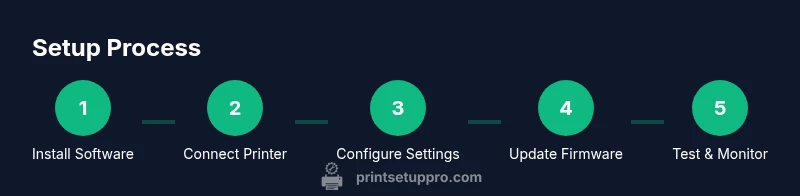
Start by downloading the official Easy Printer Manager installer compatible with your OS. Run the installer as an administrator, then follow the prompts to add your Samsung printer. After detection, configure default print preferences and set up a default printer for the user profiles that will use the device. If you have multiple Samsung printers, repeat the process for each device or use the batch add feature if available. Regularly check for driver updates within EPM to keep compatibility with new operating system updates.
Troubleshooting common issues
Common problems include printers appearing offline, driver mismatches, or queues getting stuck. Start with a software restart and a network refresh: disconnect and reconnect the printer, re-scan within EPM, and verify the printer’s status in the management dashboard. If a device shows offline, check network connectivity, confirm the correct IP address, and test with a direct USB connection to verify the hardware is responsive. In some cases, removing and re-adding the printer in EPM resolves stale connection data.
Best practices for maintenance and updates
Enable automatic driver and firmware updates when possible, but schedule them during off-hours to minimize disruption. Maintain a documented list of printer locations, IP addresses, and installed driver versions for auditing and support. Regularly run basic maintenance tasks available in EPM (like alignment, nozzle checks, and calibration). Keeping firmware current helps prevent known issues and improves compatibility with modern operating systems. Print Setup Pro recommends periodic reviews of your printer fleet to ensure firmware, drivers, and network settings stay aligned.
Security and privacy considerations
Any networked device becomes a potential entry point for threats. Use strong Wi‑Fi and printer passwords, restrict access to the management dashboard to trusted devices, and enable encryption where supported. Turn on logging for diagnostic purposes and review logs periodically to detect unusual activity. If users stop using a printer, ensure it’s removed from the EPM roster to minimize exposure. For broader guidance on securing IT devices, consult trusted sources like NIST and US-CERT.
Optimizing performance for multiple users
In shared environments, ensure you configure per-user quotas where possible and prioritize critical print jobs. Use EPM's queue management features to minimize idle time and prevent one user’s heavy print job from blocking others. Establish a simple SLA for print response times and communicate it to your team. Regularly review printer usage patterns to identify devices that are overburdened and consider redistributing tasks or adding capacity.
Alternatives and supplements to Samsung Easy Printer Manager
While EPM is a convenient option for Samsung devices, you can also rely on the built-in Windows or macOS printing systems for basic tasks. The printers’ web interface provides direct access to many settings if you prefer browser-based control. For organizations with diverse devices, a mixed environment might benefit from a centralized print server or a third‑party print management solution that supports multiple brands, ensuring consistent policies, security, and auditing across the fleet.
Next steps: getting the most from Print Setup Pro guidance
Adopt a standardized workflow for adding, configuring, and maintaining printers. Keep firmware and drivers current, document all configurations, and train users to use the centralized dashboard for common tasks. The Print Setup Pro approach emphasizes clarity, repeatability, and proactive maintenance to reduce downtime and improve user satisfaction. By following the steps outlined here, you’ll be on solid footing to manage Samsung printers effectively and confidently.
Final reflection: practical takeaways for busy users
- Use a single management tool for Samsung devices where possible to reduce confusion.
- Keep drivers and firmware updated to ensure compatibility with OS updates.
- Test print jobs after configuration to confirm queues, permissions, and default settings.
- Maintain security best practices for networked printers and dashboards.
- Rely on Print Setup Pro's guidance to establish a repeatable maintenance routine.
Tools & Materials
- Computer or laptop (Windows/macOS) with admin rights(Ensure the OS supports the EPM installer version you download)
- Samsung printer(USB or network-connected model compatible with EPM)
- USB cable or network access(USB cable for direct connection; Wi‑Fi or Ethernet for network setup)
- Stable internet connection(Needed to download drivers and firmware updates)
- Easy Printer Manager installer(From official Samsung support or HP after brand changes (verify source))
- Printer drivers package(Install the latest compatible driver for your OS)
- Printer IP address or network name(Useful for wireless setup and static routing)
Steps
Estimated time: 25-40 minutes
- 1
Prepare your workspace
Verify OS compatibility, ensure the printer is powered on, and connect it to power. Gather network details or a USB cable for a direct connection, and confirm you have admin access on the computer.
Tip: Having the printer's IP ready speeds up wireless setup. - 2
Download and install software
Obtain the official Easy Printer Manager installer, run as administrator, and follow the on-screen prompts to install drivers and the management interface.
Tip: Install the latest version to avoid compatibility issues with OS updates. - 3
Connect the printer to your computer
Choose USB or network-based installation. For USB, plug in and let the OS recognize the device. For network, enter the printer’s IP or name when prompted by the installer.
Tip: Static IPs reduce connection drops on wireless networks. - 4
Add and configure the printer in EPM
Open Easy Printer Manager, scan for printers, and add the Samsung device. Set default preferences, and verify that print queues are accessible from user accounts.
Tip: Label printers by location (e.g., Desk1) to avoid mix-ups in multi-printer setups. - 5
Update drivers and firmware
Check for driver and firmware updates within EPM and apply them. Restart the printer if required and recheck the status.
Tip: Schedule updates during low-usage hours to minimize disruption. - 6
Test print and monitor queues
Print a test page from multiple user accounts to confirm permissions, color options, and page size settings. Ensure the queue shows job status in real time.
Tip: Keep a simple test page handy for quick checks. - 7
Set up maintenance tasks
Utilize EPM to run basic maintenance like nozzle checks or alignment. Schedule routine tasks to occur periodically.
Tip: Regular maintenance prevents unexpected downtime. - 8
Review security and access
Limit dashboard access to trusted devices, enable encryption where available, and log activity for auditing.
Tip: Disable guest access if not required.
People Also Ask
What is Samsung Easy Printer Manager and what does it do?
Samsung Easy Printer Manager is a centralized tool for installing drivers, monitoring print jobs, and performing basic maintenance on Samsung printers. It simplifies management for single devices and small fleets.
Samsung Easy Printer Manager centralizes control of your Samsung printers, making it easier to install, monitor, and maintain them.
Is Samsung Easy Printer Manager still supported after brand changes?
Support availability varies by region and model. If the official tool becomes unavailable, you can rely on the printer’s web interface or the OS printing system, while checking for any updated Samsung or partner software.
Support depends on your model and region; you can also use the printer's web interface or your computer's printing system.
Can I use EPM with non-Samsung printers?
EPM is designed for Samsung devices; for other brands, use their respective management tools or your OS’ printing features. Mixed environments may benefit from a broader print management solution.
EPM is intended for Samsung printers; for other brands, use their tools or your OS printing features.
How do I fix a printer showing offline in EPM?
Check network connectivity, confirm the printer’s IP address, and ensure the printer is powered on. Re-detect the device in EPM and try a test print from the dashboard.
First check the network and IP, then re-detect the printer in EPM and test a print.
Do I need an internet connection for EPM to work?
A local network connection is sufficient for most EPM tasks. An internet connection is only necessary for downloading drivers and firmware updates.
You mainly need a local network; internet is only for updates.
Where can I download the latest drivers for Samsung printers?
Visit Samsung support pages or the official printer vendor site for the latest drivers and firmware updates compatible with your model and OS.
Get the latest drivers from Samsung’s official support site or your printer vendor’s site.
Watch Video
Quick Summary
- Install and connect the software correctly.
- Keep drivers and firmware up to date.
- Use centralized dashboard for queue management.
- Troubleshoot connectivity via the web interface when needed.
- Follow Print Setup Pro guidance for best-practice maintenance.