Easy Printer Setup Guide: Quick & Smooth for Home Office
Learn how to set up an easy printer with a clear, step-by-step process. From USB to Wi‑Fi, driver installs, and basic troubleshooting for home offices and students.


With this guide you’ll complete an easy printer setup from unboxing to first print. Expect clear wireless or USB setup, driver installation, and basic troubleshooting. Gather a USB cable or ensure your devices join the same network, then follow our step-by-step process for a smooth, reliable start. This approach emphasizes practical tips, avoids jargon, and uses common equipment in most home offices.
Why an easy printer setup matters for home offices
A printer that is simple to install and reliable saves time, reduces frustration, and keeps your workflow flowing. For home office users, a straightforward setup minimizes interruptions during busy workdays. The phrase easy printer is more than marketing—it’s a practical goal that affects productivity, device longevity, and user satisfaction. When you have a predictable process, you can deploy printers across multiple workstations without repeated calls to support.
Key reasons it matters:
- Fewer steps in initial config reduces errors.
- Clear driver and connection instructions decrease setup anxiety.
- Consistent results mean less troubleshooting later.
In this guide, Print Setup Pro draws on real-world setups from home offices and student dorms, focusing on steps that work with common consumer printers. We’ll cover USB and Wi-Fi options, driver installation, and common stumbling blocks. Whether you’re replacing an aging unit or adding a new device to a small team, a well-documented setup path helps everyone get to print faster.
Quick-start overview: USB vs Wi-Fi and cloud printing
Most printers today offer multiple connection methods. The easiest path is the one that matches your devices and workspace. USB is simple: just plug in, install the driver, and print. Wi-Fi adds flexibility, letting multiple devices print from laptops, phones, and tablets without cables. Cloud printing can simplify occasional use across devices, but it adds an extra layer of account management.
Consider these quick checks before you begin:
- Is the printer on the same network as your computer or mobile devices?
- Do you have the necessary admin credentials to install software?
- Is there a built-in display to guide you through wireless setup?
Print Setup Pro recommends starting with a wired USB connection if driver compatibility is uncertain. If you prefer wireless, verify your network name (SSID) and password, ensure strong signal, and update the printer firmware after connecting.
Step-by-step overview of the setup journey
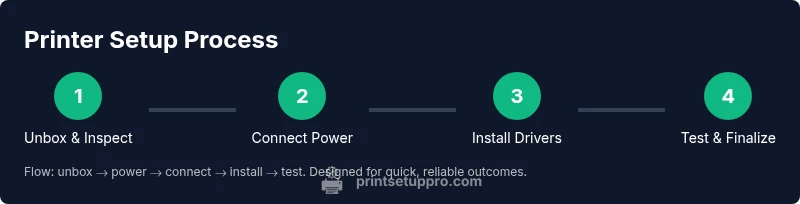
To keep things simple, follow a consistent sequence: unbox and inspect, connect, install drivers, configure preferences, test print, and maintain. This approach works whether you’re using Windows, macOS, or mobile devices. Planning ahead with a short checklist helps prevent missing steps or misconfigured options, especially for software updates or firewall prompts.
The core idea is to establish a single, repeatable workflow that you can reuse for future devices. In practice, this means labeling cables, saving printer profiles, and keeping your drivers in a known location. If something goes wrong, you’ll have a reliable reference to retrace. The goal is not to memorize every button, but to understand the flow from power-on to a completed test page.
Installing drivers and software: USB disc vs download
Driver installation is the linchpin of a successful printer setup. If your printer came with a USB flash drive, you can install from there. However, most modern printers rely on online downloads. Before you begin, locate your printer’s model number and visit the manufacturer’s official site to download the latest driver package for your operating system.
Key tips:
- Avoid third-party driver sites to minimize security risks.
- On Windows, you may need to approve a firewall rule to allow traffic to the printer.
- On macOS, you might need to grant accessibility or printer permissions during setup.
After installation, print a test page to verify alignment, font rendering, and color accuracy. If you notice issues, reinstall the driver, restart the computer, and ensure the printer’s firmware is current.
Wireless setup: connecting to Wi-Fi securely
Wireless setup is often the most appealing aspect of an easy printer. Start by connecting the printer to your Wi-Fi network, either via the LCD screen or the companion app. If your printer supports WPS, that can be a quick method, but it’s typically less secure than manual entry of your network credentials.
Steps include:
- Put the printer in setup mode and select your network from the list.
- Enter the Wi-Fi password carefully; a single mistake blocks all devices from printing.
- Confirm the printer obtains an IP address and shows as connected in the printer menu.
After connecting, run the software installer on each device you intend to print from. For mobile devices, install the official printer app, enable cloud printing if needed, and share the printer with the correct user accounts.
Testing and troubleshooting common problems
A thorough test page is your best friend to verify print quality, margins, and color balance. If issues emerge, address them in this order: verify connections, run a printer diagnostic from the control panel, reinstall drivers if necessary, and check for firmware updates.
Common problems include:
- Paper jams or misfeeds: Check paper type, tray alignment, and guides.
- Driver mismatch: Ensure you’re using the correct driver for your OS and printer model.
- Wireless dropouts: Reconnect to the network and reset the printer’s network settings if necessary.
Good practice is to keep a small field guide for quick checks, including IP address, printer model, and installed driver version.
Maintenance shortcuts for easy printer longevity
Maintenance makes setups easier over time by preventing recurring issues. Simple habits include cleaning the print head and rollers, using the correct paper and ink/toner, and scheduling firmware checks. Create a routine that includes monthly checks for paper jams, sensor positions, and print quality.
Useful routines:
- Run a print head cleaning once a month if you notice line gaps.
- Replace consumables before they run dry to avoid print gaps.
- Keep firmware up to date to fix bugs and improve compatibility with new OS updates.
By investing a few minutes periodically, you improve reliability, which is especially valuable for students and remote teams relying on consistent prints.
Security and privacy considerations for printers
Printers connect to your network and can expose data if misconfigured. Use a strong WPA2/WPA3 password, disable unnecessary network sharing, and enable printer-level security features like PIN printing or job encryption when available. Regularly review access permissions and consider isolating the printer on a guest network if you have company devices.
Also, consider physical security: keep the printer in a common area visible to deter tampering and ensure sensitive print jobs are collected promptly. If your printer supports cloud printing, review the data management settings and remove unused accounts.
Tools & Materials
- Printer(Any model that supports USB or Wi-Fi connectivity)
- Power cable(Make sure the outlet is accessible)
- USB cable (if using USB setup)(Length should be sufficient to reach from printer to computer)
- Computer or mobile device(On the same network for wireless setup; has web browser or driver support)
- Wi-Fi network credentials(SSID and password; admin access may be required)
- Printer driver/software(Download from official manufacturer site; avoid third-party sources)
Steps
Estimated time: 30-60 minutes
- 1
Unbox and inspect
Carefully remove the printer and accessories, check for damage, verify model number, and locate the manual. This ensures you’re not missing cords and that you have the correct drivers for your OS.
Tip: Reuse the packing materials to protect the printer during future moves. - 2
Power on and initial hardware check
Connect the power cable, turn on the printer, and complete any on-device setup prompts like language and region. Confirm the display indicates readiness for the next steps.
Tip: If the display indicates a fault, consult the manual or manufacturer support site before proceeding. - 3
Connect to network or computer
Decide between USB and network setup. For USB, simply plug in and wait for the OS to detect. For Wi‑Fi, use the printer’s onboard menu or app to join your network and verify a valid IP address.
Tip: Label the network you connect to so future devices can join easily. - 4
Install drivers and software
Download the latest driver package from the manufacturer’s site and install it on each computer or device that will print. Follow on-screen prompts and grant any required permissions.
Tip: Choose “custom installation” to avoid optional software that isn’t needed. - 5
Print a test page
From the printer panel or software, print a test page to verify alignment, color, and margins. This confirms the setup worked as intended before you start real work.
Tip: If the test page looks off, recalibrate the printer or reinstall the driver. - 6
Configure preferences and save profiles
Set default paper size, print quality, and color options. Save these as profiles for different tasks (drafts, photos, reports) to streamline future printing.
Tip: Document your profile names for quick recall later.
People Also Ask
What is the easiest way to set up a printer for a home office?
Begin with a USB connection to install drivers. Move to wireless after confirming fundamentals. Use manufacturer’s official site for drivers and firmware.
The easiest setup starts with USB for drivers, then switches to wireless once you confirm everything prints correctly.
Do I need to install drivers on every device?
Yes, typically you install the appropriate driver on each computer or device. Some OSs support shared drivers via network printing, but a per-device installation is most reliable.
Usually you’ll install the driver on each device that will print.
Why isn’t my printer appearing on the network?
Check that the printer and all devices are on the same network, verify the Wi‑Fi password, restart the printer, and re-check the IP address assigned by the router.
Make sure all devices share the same network and retry the connection.
Should I update firmware after setup?
Yes, check for firmware updates after setup. Updates fix bugs, improve compatibility, and can enhance security.
Firmware updates can improve reliability, so check after you finish setup.
Is cloud printing safe for sensitive documents?
Cloud printing is convenient but varies by provider. Enable available security features and use PIN printing or restricted access when handling sensitive materials.
Cloud printing can be convenient, but use strong security features for sensitive documents.
What should I do if I see repeated paper jams?
Check paper type and tray alignment, ensure guides are set correctly, and consider cleaning the rollers. If jams persist, consult the manual for jam-specific steps.
If jams keep happening, verify paper and tray setup and clean the rollers.
Watch Video
Quick Summary
- Follow a documented setup workflow to reduce delays.
- Start with USB if unsure about wireless security or compatibility.
- Test print quality early and frequently to catch issues.
- Keep drivers, firmware, and profiles organized for quick future setups.