Smart Printer Setup: From Unboxing to Troubleshooting
Learn how to pick, connect, and optimize a smart printer for home or small office. This step-by-step guide covers setup, mobile printing, and common fixes with practical tips and safety guidance.


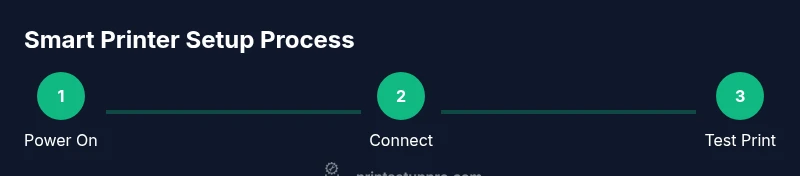
To get your smart printer up and running, follow these quick steps: 1) Choose a compatible model with your devices; 2) connect to Wi-Fi and install drivers; 3) run a test print, enable cloud features, and set up mobile printing.
What is a smart printer and why it matters
A smart printer is a network-enabled device with built-in apps and cloud capabilities that lets you print from multiple devices without a direct USB connection. For home offices, students, and small teams, smart printers simplify workflows by enabling wireless printing from phones, tablets, and laptops, plus remote diagnostics and easier maintenance. According to Print Setup Pro, the adoption of smart printers is driven by convenience, access to mobile printing, and ongoing cost control. When you understand what makes a printer 'smart', you can tailor features like cloud printing, app-based scanning, and automatic updates to your needs.
Key features of smart printers
Most smart printers offer a combination of wireless connectivity (Wi-Fi, Ethernet, or both), mobile printing apps, and cloud services. Common features include duplex printing, color or monochrome options, scanner-to-email or cloud storage, secure print, and energy-saving modes. Look for compatibility with your devices (iOS, Android, Windows, macOS), support for AirPrint or Mopria, and a robust companion app for status checks and maintenance reminders. Reliability often hinges on steady network performance and timely firmware updates.
How to choose the right smart printer for your needs
Begin with your primary use: document-heavy home-office work, casual family printing, or small business tasks like label printing or photo printing. Decide between inkjet and laser: inkjets are versatile for color photos, while lasers excel at sharp text and higher duty cycles. Consider print speed, duty cycle, paper handling, and the level of integration with your devices. Security features, firmware update cadence, and vendor support are also important to future-proof the device.
Connectivity and network planning for smart printers
A smooth setup starts with your network. Ensure your router supports both 2.4 GHz and 5 GHz bands if your printer requires it, and consider a dedicated guest network for printers to improve security. When possible, assign a static IP to the printer to reduce connection drops. Use strong WPA2/WPA3 encryption and disable WPS if you can. Having a plan for firmware updates and auto-recovery helps prevent downtime.
Step-by-step setup overview
This section provides a high-level overview of the setup workflow. You’ll identify the right model, prepare your network, install software, and run a test print. For a detailed, step-by-step sequence with precise actions and timing, see the dedicated STEP-BY-STEP section and the accompanying checklist.
Common issues and quick fixes
If the printer shows as offline, verify the device is connected to the same network as your computer or phone, restart the printer and router, and re-run the network setup. Driver installation problems are often caused by blocked permissions or outdated software; re-download the official driver from the manufacturer’s site. If prints come out faded or skewed, check ink or toner levels, print quality settings, and paper type.
Security, updates, and energy efficiency
Keep firmware up to date to receive security patches and feature improvements. Use strong, unique passwords for the printer’s admin interface and enable auto-update where available. For energy efficiency, enable sleep/auto-off modes when idle and select 'fast wake' only if you need quick wake times for frequent printing.
Advanced tips for homes and small offices
Leverage automation features like scheduled printing, print-to-cloud folders, and cloud-based scan-to-email for remote access. If you share the printer with multiple devices, configure separate user accounts and access rights. Regularly audit connected apps and devices to minimize exposure to unauthorized users.
Tools & Materials
- Smart printer(Choose a model with Wi-Fi, mobile app support, and cloud features)
- Power cable(Ensure a stable outlet within reach)
- Wi-Fi network with internet access(Prefer 2.4 GHz and 5 GHz bands; WPA2/WPA3)
- Smartphone, tablet, or computer(For setup and printing tests)
- Printer drivers and/or manufacturer app(Download from official site or app store)
- Optional USB cable for direct setup(Useful if the initial setup via wireless is difficult)
Steps
Estimated time: 25-40 minutes
- 1
Power on and reset the printer
Plug in and turn on the printer. If it’s not behaving, perform a factory reset following the manual. This ensures you start from a clean network state and avoids conflicts with old settings.
Tip: Reset settings before attempting a new network connection to avoid stale credentials. - 2
Connect to Wi-Fi and verify network access
Use the printer’s control panel or its app to join your secure Wi-Fi network. Confirm the printer shows as online and can print a test page from the panel.
Tip: Prefer a 2.4 GHz connection if the printer has single-band support; document your SSID and password clearly. - 3
Install drivers and apps on your devices
Download the official driver package or mobile app for your operating system. Install, then register the printer within your devices’ print settings.
Tip: Avoid third-party drivers; use the manufacturer’s official software to minimize compatibility issues. - 4
Enable mobile and cloud printing features
In the app or printer settings, enable mobile printing, cloud print, and any automation features you plan to use. Sign in if required and set a default printer for your devices.
Tip: Test printing from a phone before proceeding to ensure QA of the mobile workflow. - 5
Print a test page and adjust settings
Print a standard test page to verify color accuracy, alignment, and paper handling. Tweak print quality and paper type settings if needed.
Tip: Use the correct paper size and type to prevent misfeeds. - 6
Update firmware and enable security features
Check for firmware updates via the printer or app, install them, and enable administrator password protection and auto-update where possible.
Tip: Disable default passwords and enable two-factor if available.
People Also Ask
What defines a smart printer?
A smart printer is a network-enabled device with built-in apps and cloud capabilities, enabling wireless printing and remote management.
A printer with built-in network and apps for wireless printing and remote management.
Do I need a smart printer for basic printing?
No. A traditional printer can print via USB; smart printers add wireless features, mobile printing, and cloud integration for convenience.
If you mostly print from a single computer, a standard printer might be enough; smart printers make wireless printing easier.
Can I print from my phone?
Yes. Most smart printers support AirPrint, Mopria, or vendor apps. Ensure your phone and printer are on the same network.
Yes, you can print from your phone using the printer’s app or built-in wireless features.
What should I do if the printer won't connect to Wi-Fi?
Verify credentials, check firmware, restart router and printer, and use manual setup if needed. Ensure the right network band is used.
First check credentials and firmware, then reboot devices and try again.
Is cloud printing secure?
Cloud printing is convenient but requires secure networks and strong authentication. Avoid printing sensitive data on public networks.
Cloud printing is handy but use trusted networks and strong passwords.
How often should I update printer firmware?
Regular updates improve security and compatibility. Check the vendor app or web interface monthly for updates.
Keep firmware up to date to fix issues and improve security.
Watch Video
Quick Summary
- Choose a model with strong app support and security.
- Connect to a reliable network and run a test print.
- Update firmware and enable security features.
- Use energy-saving settings during idle periods.
- Keep drivers and apps up-to-date for compatibility.