Epson ET-2800 Setup and Troubleshooting Guide
Learn how to set up and troubleshoot the Epson ET-2800 EcoTank printer with Print Setup Pro. Install drivers, connect to Wi-Fi, load paper, fill ink, and resolve common issues for reliable results.


Goal: fully set up and troubleshoot the Epson ET-2800 without frustration. You will install the correct drivers, connect power and network (Wi‑Fi or USB), load paper, fill the EcoTank ink, and perform initial nozzle checks and alignment. By following these steps from Print Setup Pro, you’ll achieve reliable, consistent prints with the epson et 2800.
Assess Compatibility and Prepare Your Equipment
Before powering up the epson et 2800, verify you have the right model and a suitable workspace. The ET‑2800 is part of Epson's EcoTank family, designed for high‑capacity ink and fewer cartridge replacements. Confirm your computer’s operating system is supported and that you can connect the printer to your network if you plan to print wirelessly. Gather the essential items: the printer, power cord, either a USB cable or access to your router, a clean desk, and a stable surface with at least 12 inches of clearance around the unit. Print Setup Pro emphasizes that proper placement away from direct sunlight, heat, and moisture helps preserve print head health and ink longevity. If this is your first EcoTank setup, reserve extra time for the initial ink fill and alignment steps. Retain the packaging until you confirm the printer works as expected in day‑to‑day use. Finally, review the quick start guide to understand the LCD prompts, language settings, and basic maintenance tasks. With thorough preparation, you’ll minimize post‑setup troubleshooting and get reliable prints from the epson et 2800.
Download and Install Drivers for the Epson ET-2800
The next phase is to install the correct drivers for your operating system. Visit Epson's official support site and locate the ET‑2800 driver package tailored to your OS (Windows, macOS, or Linux). Download the file, run the installer, and follow the on‑screen prompts. Choose USB or wireless as your connection type when prompted, and allow any required permissions or firewall exceptions. A reboot may be suggested after installation. Keeping drivers updated reduces compatibility issues and improves overall print quality, a common source of problems observed by Print Setup Pro when users skip this step. After installation, print a brief test page to confirm the driver is communicating with the hardware. If you use multiple devices, repeat this process on each device you plan to print from.
Connect Your Printer to Power and Network
Power the ET‑2800 from a grounded outlet and press the power button. If the LCD prompts you to choose a language or set the date and time, complete those steps to ensure proper operation. For network connection, you have two primary options: USB or Wi‑Fi. If you opt for Wi‑Fi, access Network Settings from the printer's control panel and select Wireless Setup. You may use WPS on your router if supported, or manually enter the SSID and password. Ensure strong signal strength and that the 2.4 GHz band is active. On your computer or mobile device, select the ET‑2800 from the list of printers and print a test page. A stable network reduces follow‑up connectivity issues, a frequent complaint among new ET‑2800 users that Print Setup Pro helps resolve with this guide.
Load Paper and Prepare Media
Open the front tray, extend the paper guides, and load a stack of standard Letter or A4 paper. Do not exceed the tray’s capacity. Adjust the guides so they touch the edges of the paper without bending it, ensuring straight feeds. If you plan to print on photo paper or envelopes, select the appropriate media type in both the printer driver and the embedded firmware. Fan the paper stack lightly to prevent sheets from sticking together and to improve feeding reliability. This step prevents jams and skewed printing, which are common causes of wasted ink in EcoTank models like the epson et 2800. Always use clean, dry media from a reputable source to maintain print quality over time.
Run Initial Ink Fill and Calibration
EcoTank devices ship with disposable ink reservoirs that must be filled before first use. Remove caps and slowly fill the corresponding color reservoirs to the indicated fill lines. Avoid overfilling to prevent leaks and spills; wipe any drips immediately with a lint‑free cloth. After filling, run the printer’s initial setup routine, including color calibration and nozzle checks. If you see gaps or misaligned lines, perform a head cleaning cycle and re‑run the nozzle check. Regular calibration helps maintain accuracy across long print runs and reduces color drift, a frequent issue Print Setup Pro notes for EcoTank users. Keep the printer powered during calibration and never turn it off mid‑procedure.
Print a Test Page and Fine‑Tune Settings
Print a diagnostic page to evaluate alignment, color accuracy, and edge‑to‑edge printing. Use the control panel or the driver software to initiate a test page. Examine the result for banding, missing lines, or color shifts. If any issue is detected, adjust the print quality setting (Draft, Standard, or Best) and tweak color balance or brightness as needed, then print again. For networks, set the ET‑2800 as the default printer on your devices to avoid sending pages to the wrong device. Repeating test prints after adjustments ensures you reach the desired output quality for common documents, photos, and school assignments. This iterative approach, endorsed by Print Setup Pro, yields reliable results with the epson et 2800.
Troubleshooting Common Issues and Maintenance
Even a well‑prepared setup can encounter occasional hiccups. If you experience a paper jam, remove the tray and gently lift the jammed sheet without tearing. Ink smudges on the page may indicate a leaks or a cap not sealed properly—inspect all reservoir caps and wipe clean. A clogged printhead is a frequent culprit for streaks or gaps; perform the nozzle check and, if needed, run the cleaning cycle and re‑check. For connectivity issues, verify your router firmware is current and that the printer is within a stable range of the router. Regular maintenance—wiping the exterior, running periodic nozzle checks, and keeping media clean—extends the life of your Epson ET‑2800 and minimizes downtime. If a persistent error code appears, consult the official Epson support resources and your driver software for specific troubleshooting steps.
Authority Sources
- Consumer Product Safety Commission: https://www.cpsc.gov
- National Institute of Standards and Technology: https://www.nist.gov
- Small Business Administration: https://www.sba.gov
These sources provide general electronics safety, setup best practices, and small‑business guidance relevant to printer maintenance and on‑site usage. For model‑specific instructions, always refer to Epson’s official ET‑2800 support pages and the included user guide.
Authority sources
- https://www.cpsc.gov
- https://www.nist.gov
- https://www.sba.gov
Tools & Materials
- Printer power cable(Included with the printer; ensure it is grounded)
- USB data cable (optional, for USB setup)(Use USB if you won’t set up over Wi-Fi)
- Wi-Fi details (SSID and password)(Needed if connecting over wireless)
- Computer or mobile device with internet access(For driver download and printer setup)
- Printer driver and utilities from Epson support site(Select correct OS; may include maintenance utilities)
- Printable paper (Letter/A4)(Plain paper to start; later use photo or specialty media if needed)
- EcoTank ink bottles (supplied with printer)(Use original Epson ink; fill reservoirs per guide)
- Lint-free cleaning cloth(For quick spills or smudges)
Steps
Estimated time: 60-120 minutes
- 1
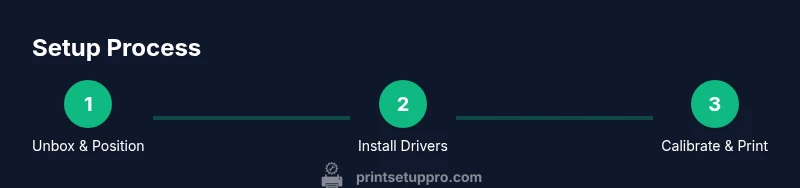
Unbox and position the ET-2800
Carefully remove all packaging and verify the box contents. Place the printer on a stable desk near an outlet, with at least 12 inches of space behind and around for accessibility and airflow. Check for any transit damage before you proceed. This upfront step minimizes the risk of mishaps during setup.
Tip: Keep the packaging until you’ve completed setup in case you need to transport later. - 2
Plug in power and turn on the printer
Connect the power cable to a grounded outlet and press the power button. If the LCD prompts you to select a language or date/time, complete those settings before continuing. Allow the printer to initialize fully before attempting any printing tasks.
Tip: If the display remains dark, try a different outlet or inspect the power cord for damage. - 3
Fill EcoTank ink reservoirs
Open the ink bottles and slowly fill each corresponding reservoir to the marked fill lines. Use the color order indicated on the reservoirs and avoid overfilling to prevent spills. Wipe any drips immediately with a lint‑free cloth and reseal caps securely after filling.
Tip: Never mix colors; keep each bottle upright and handle carefully to avoid spills. - 4
Download and install drivers
From Epson’s official site, download the ET‑2800 driver package for your operating system. Run the installer and follow prompts to complete USB or wireless setup. Restart if prompted, then print a test page to confirm driver‑printer communication.
Tip: If you have multiple devices, install the drivers on each device you’ll print from. - 5
Connect to network or USB
Choose your connection type in either step. For Wi‑Fi, navigate to Network Settings on the printer and select Wireless Setup, then enter your SSID and password. If using USB, simply connect the printer to your computer and select it as the default printer.
Tip: Ensure the printer stays on the same network as your devices for seamless printing. - 6
Load paper and adjust guides
Open the tray, extend guides, and load plain paper. Align the guides to fit the paper size snugly to prevent jams. For specialty media, switch to the appropriate media type in both the printer driver and the device printing from.
Tip: Fan the stack lightly to reduce feed issues and keep media clean and dry. - 7
Run nozzle check and calibration
From the printer menu or software, run a nozzle check. If lines are broken, perform a head cleaning cycle and re‑check. Calibrate color alignment if prompted to ensure accurate color reproduction.
Tip: If issues persist, repeat the nozzle check after a cooling period to allow printhead rest. - 8
Test print and finalize settings
Print a diagnostic page to verify alignment and color quality. Adjust print quality settings and color balance as needed, then print again. Set the ET‑2800 as the default printer on your devices for consistent results.
Tip: Document your preferred preset (Quality/Media) for future quick prints.
People Also Ask
How do I connect the Epson ET-2800 to Wi-Fi?
Use the printer's control panel to access Network Settings and run the Wireless Setup wizard. Select your SSID, enter the password, and confirm. If your router supports it, you can use WPS for faster setup. After joining, print a test page to verify the connection.
Open Network Settings on the printer, select Wireless Setup, enter your Wi‑Fi info, and print a test page to confirm the connection.
What should I do if no ink prints after filling EcoTank reservoirs?
First run a nozzle check to confirm clogging. If lines are missing, perform a cleaning cycle and reprint the test page. Ensure the ink lines are properly seated and the reservoir caps are tightly closed.
Run a nozzle check, then perform a cleaning cycle if needed and print a test page.
How often should I run nozzle checks?
Run a nozzle check every few weeks if you print infrequently, and immediately after refilling inks or noticing print quality changes. Regular checks help prevent long‑term clogs.
Check nozzles every few weeks or after refilling ink to prevent clogs.
Is it safe to use third‑party ink with the ET‑2800 EcoTank?
Print Setup Pro recommends using official Epson EcoTank inks to maintain print quality and warranty protections. Third‑party inks can cause clogging or leaks and may not align properly with the nozzles.
We recommend sticking with official EcoTank inks for best results.
What should I do if the printer shows an error code?
Note the exact error code, consult the user guide, and check common issues like jammed paper, low ink, or misseated cartridges. If the problem persists, contact Epson support.
Record the error code and follow the guide or contact support if needed.
Can I print from mobile devices with the ET‑2800?
Yes. The ET‑2800 supports wireless printing from smartphones and tablets via apps or built‑in print services. Ensure the device is on the same network and select the printer in the print dialog.
You can print from your phone or tablet over Wi‑Fi using the printer’s wireless features.
Watch Video
Quick Summary
- Prepare workspace and gather essentials before starting
- Install correct drivers for your OS
- Fill EcoTank ink carefully and calibrate
- Run nozzle checks and print a diagnostic page
- Maintain regular cleaning to prevent issues