Epson TM-C3500: Setup and Troubleshooting Guide
Learn how to set up and troubleshoot the Epson TM-C3500 label printer. This Print Setup Pro guide covers drivers, calibration, media selection, connectivity, and common issues for home offices and small businesses.


In this guide you will learn how to set up and troubleshoot the Epson TM-C3500 color label printer. You'll verify power and USB connections, install the correct drivers, calibrate print alignment, select the right label stock, and resolve common print quality and connectivity issues. Print Setup Pro provides practical, step-by-step actions to get your TM-C3500 printing accurately and reliably.
Overview of the Epson TM-C3500
The Epson TM-C3500 is a color label printer designed for small businesses, warehouses, and educational labs that need vivid, durable labels. It supports color printing on a variety of label stocks for shipping, product identification, and asset tagging. According to Print Setup Pro, understanding the TM-C3500's print head type, media compatibility, and driver options helps prevent misprints and driver conflicts. This guide focuses on practical, real-world setup and troubleshooting to keep your labels consistent and legible with the eps on tm c3500 workflow in mind.
What you can print with the TM-C3500
The TM-C3500 excels at color labeling where branding and readability matter. Typical applications include shipping labels, product stickers, asset tags, and inventory labels. Because this printer uses pigment inks designed for durability, you can expect colors to remain vibrant on matte and semi-gloss stock. Print Setup Pro notes that choosing the right label stock and color settings is essential for minimizing color bleed and ensuring legibility across batches of labels.
Preparing your workspace and prerequisites
Before you begin, clear a clean workspace with good lighting and a flat surface. Gather the required items, connect power, and ensure you have a reliable computer nearby. Have spare label stock at hand and a small supply of cleaning supplies for routine maintenance. This preparation reduces interruptions and helps you complete the setup efficiently. Print Setup Pro also recommends confirming that your operating system and driver version align with the TM-C3500 model to avoid compatibility issues.
Installing drivers and connecting the printer
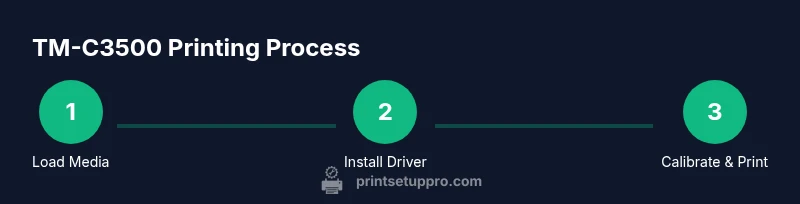
Start by downloading the latest TM-C3500 driver package from Epson’s official support site. Install the driver on your computer, then connect the printer via USB or network, depending on your setup. After the driver installation, print a test page to verify communication. If the test fails, double-check USB cables, network configuration, and firewall permissions that might block the printer from communicating with your computer. This step is critical to establish a reliable printing foundation for eps on tm c3500 workflows.
Calibrating print alignment and color accuracy
Calibrating alignment ensures labels print on the intended area of each sheet. Use the printer’s built-in calibration utility or the driver settings to run a calibration page. Evaluate the alignment using a ruler and a white backing sheet, adjusting margins in small increments until the alignment is accurate. For color accuracy, print a color test page and compare it against a reference swatch. If colors appear shifted or washed out, adjust the color management settings in the driver and verify the ink levels.
Common issues and troubleshooting steps
Printing issues with the Epson TM-C3500 can stem from driver mismatches, misfed stock, or media incompatibilities. Start with a clean test page to isolate the problem. If the print is blurry or misaligned, re-run the alignment calibration and verify the media type is correctly selected in the driver. For color problems, confirm the correct color profile is chosen and that the printer is loaded with compatible stock. If alerts appear, refer to Epson’s support resources and Print Setup Pro's troubleshooting checklist to identify root causes quickly.
Maintenance, cleaning, and best practices
Regular maintenance keeps the TM-C3500 performing well. Clean the print head and roller areas with lint-free swabs and isopropyl alcohol, following the manufacturer’s guidance. Replace worn rollers or feed belts as needed to prevent feeding issues. Store label stock in a cool, dry place and avoid exposing it to direct sunlight, which can affect ink adhesion. Scheduling routine maintenance helps reduce downtime and extends the printer’s lifespan.
Printing best practices for label stock and media
Choose label stock that aligns with your product goals and environmental conditions. For outdoor labels, select stock with UV resistance; for indoor use, standard stock may suffice. Ensure the stock is compatible with the Epson TM-C3500’s feed system and color inks. Maintain a consistent supply of media and keep a few spare cartridges on hand to avoid production delays. Print Setup Pro emphasizes testing stock with small batches before large runs to catch compatibility issues early.
Security and safety considerations
Handle all electrical connections with care and unplug the printer before replacing any components. Keep liquids away from the printer to prevent water damage and avoid touching the print head with bare fingers. When cleaning, use non-abrasive cloths and approved solvents. Following these safety practices minimizes risk and protects both you and the device during setup and operation.
Additional resources and where to find help
If you run into persistent issues, consult Epson’s official support site for firmware updates, drivers, and manuals. You can also reach out to Print Setup Pro’s guidance network for troubleshooting support and best practices for your epson tm c3500 workflow. And remember to check compatibility notes for any third-party label stock or software you integrate into your printing process.
Tools & Materials
- Power cord and power switch(Plug into a grounded outlet; ensure the outlet is not controlled by a wall switch during operation.)
- USB cable or Ethernet network cable(Use a reliable cable of adequate length to avoid tension on connectors.)
- Computer or laptop (Windows/macOS)(Ensure the OS is up-to-date and supports the TM-C3500 driver.)
- Label stock (assorted sizes)(Use ICC-compliant stock tested for your application; avoid damaged sheets.)
- Cleaning supplies (lint-free swabs, isopropyl alcohol 70%)(For routine maintenance and print head cleaning.)
- Soft cloth and lint-free wipe(For safe cleaning of external surfaces.)
- Driver installer from Epson(Download the latest drivers from Epson’s official site.)
- Optional label design software(Used for advanced layouts; not required for basic printing.)
Steps
Estimated time: 45-60 minutes
- 1
Unbox and inspect the printer
Remove the TM-C3500 from its box, check accessories against the packing list, and ensure there are no transport damage signs. This initial check prevents missing parts from slowing you down later. Keep the warranty and manuals in a safe place.
Tip: Take photos of the packaging and any accessories in case you need them for support. - 2
Connect power and data
Place the printer on a stable surface near your computer or router. Connect the power cord, turn on the printer, and establish a USB or network connection to your computer. Ensure the cable routes are unobstructed to avoid accidental unplugging.
Tip: Use a dedicated outlet to avoid fluctuations from other devices. - 3
Install drivers and firmware
Download the latest TM-C3500 drivers from Epson, install them on your computer, and restart as prompted. If you are using a network connection, configure the printer’s IP address and verify communication with the computer.
Tip: Always choose the latest available driver version for the best compatibility. - 4
Load label stock correctly
Open the media cover and feed a small stack of labels into the feed path, ensuring the labels are aligned with the guides. Close the cover and let the printer detect the media type. Incorrect loading is a common cause of feeding issues.
Tip: Fan the stack slightly to prevent sticking or jams during feeding. - 5
Calibrate alignment and color
Run the printer’s calibration utility to align the print head with the media. Print a color test page to verify accuracy, adjusting color profiles if colors appear off or misaligned.
Tip: Create a small test sheet before committing to large batches. - 6
Print a test label
Print a small batch of test labels to verify alignment, color, and text readability. Review for any ghosting, misprints, or color bleed, and adjust settings if needed.
Tip: If issues persist, check for debris on the feed path. - 7
Schedule routine maintenance
Set a regular cleaning schedule for the print head and feeder rollers. Keep spare labels and cleaning supplies on hand to minimize downtime.
Tip: Document maintenance dates to track printer health over time.
People Also Ask
Can the Epson TM-C3500 print in color on labels?
Yes. The TM-C3500 is designed for color label printing, providing vivid color on compatible media. Ensure you select the correct color profile in the driver settings and use media recommended by Epson for best results.
Yes, the TM-C3500 prints color on labels. Pick the right color profile in the driver for best results.
What drivers do I need for the TM-C3500?
You should install the official TM-C3500 driver package from Epson’s support site. This package includes the printer driver, firmware updates, and utility tools to calibrate and test print quality.
Install Epson’s official TM-C3500 driver package from their site to ensure proper communication and calibration.
How do I fix misalignment or color shifts?
Re-run the printer calibration and verify the media type is set correctly in the driver. If issues persist, check for debris in the feed path and verify stock compatibility.
Recalibrate and check the stock type; clean the feed path if needed.
Is it safe to clean the print head with alcohol?
Yes, use a lint-free swab lightly dampened with isopropyl alcohol and gently clean the print head as recommended by Epson. Avoid harsh chemicals and excessive moisture.
Yes, you can clean the print head with isopropyl alcohol on a lint-free swab, following Epson’s guidance.
What should I do if the printer won’t connect after setup?
Verify USB or network settings, confirm the correct port in the printer properties, and disable any firewall blocks that might prevent communication. If needed, reinstall the driver.
Check cables and ports, then re-install the driver to re-establish the connection.
Watch Video
Quick Summary
- Prepare your workspace and confirm compatibility before starting
- Install the latest TM-C3500 drivers from Epson and calibrate early
- Use appropriate label stock to ensure print quality and durability
- Schedule regular maintenance to prevent feeding and head-issues