Epson WF-7720 Setup & Troubleshooting Guide
Step-by-step setup and troubleshooting for the Epson WF-7720. Get reliable network setup, driver install, print quality tips, jams, and routine maintenance.


You will learn how to set up and troubleshoot the Epson WF-7720 for reliable wide-format printing. This guide covers initial connections, driver installation, network setup, and common issues like print quality, paper jams, and error codes. By following the steps, you'll minimize downtime and ensure consistent results. It emphasizes safe handling, routine maintenance, and when to seek expert help.
Overview: Epson WF-7720 in a Small Office
The Epson WF-7720 is designed for home offices, small businesses, and DIY enthusiasts who need wide-format capability without sacrificing print quality. With support for up to 13" x 19" media and borderless printing, it opens new possibilities for posters, presentations, and large-format proofs. For home studios and small studios alike, the WF-7720 balances cost, speed, and color fidelity. When you work with this model, you’ll notice that setup quality plays a big role in long-term reliability. According to Print Setup Pro, taking a methodical approach to wiring, drivers, and maintenance reduces downtime and leads to consistent results across projects. The model’s flexible paper handling makes it a strong candidate for everyday tasks like marketing flyers, classroom handouts, and project boards. In this guide, eps on wf 7720 is treated as a core reference point to ensure you achieve dependable prints from day one.
Unboxing, Placement, and Power
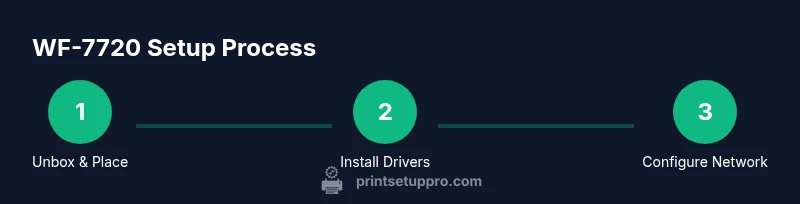
Unbox the WF-7720 with care and keep packaging until you confirm all parts are present. Place the printer on a stable, level surface with at least a few inches of clearance for ventilation and tray access. Connect the power cord securely and avoid coiled cables that can cause overheating. If you plan to use wired networking, keep the Ethernet cable routed away from power lines to minimize interference. For wireless setups, ensure your router broadcasts a stable signal in the printing area. The device should be powered on and ready before you start software installation or network configuration.
Driver installation and initial software setup
Begin by downloading the latest drivers from Epson’s official site or using the installation CD if provided. Install the driver package on your computer, and follow on-screen prompts to select the WF-7720 from the device list. When prompted, choose your connection type (USB, Ethernet, or wireless) and allow the installer to configure basic preferences like language and print defaults. After installation, print a test page to confirm that the driver is communicating with the printer and that colors align with expectations. The process is straightforward for typical home office setups, but if you’re pairing multiple devices, repeat the steps on each computer.
Network configuration: Wi‑Fi and wired options
If you’re setting up wireless printing, use the printer’s control panel to connect to your Wi-Fi network. Navigate to Network Settings, select Wireless Setup, and choose your SSID. Enter your network password carefully, then confirm the connection. For wired setups, connect an Ethernet cable from your router or switch to the WF-7720 and ensure the printer obtains a valid IP address (via DHCP or a static assignment). In both cases, print a network configuration page to verify connectivity and confirm the assigned IP. Regularly check for firmware updates to keep network functionality stable.
Print quality checks: nozzle check and color calibration
After establishing connectivity, run a nozzle check to verify that all print heads are firing correctly. If you notice gaps or missing colors, perform a printhead alignment and color calibration through the printer’s maintenance menu. Use matching paper to ensure accurate color output, and run a test print with a variety of colors to gauge gamut and shading. If results are inconsistent between devices, recalibrate per-device settings and ensure drivers are up to date. Small adjustments here can dramatically improve results on 13" x 19" media.
Common issues and quick resolutions
Paper jams, misfeeds, and occasional offline status are common, especially if the printer interacts with varied paper stocks. Start with routine maintenance: clean the paper path, reseat cartridges, and check that media types and weights are supported. For jams, power off, remove the tray, and gently extract the sheet from the rollers without forcing anything. If the printer goes offline, verify network connectivity, confirm the correct default printer is selected, and restart the device and router if necessary. In most cases, the issue is resolved with a fresh nozzle check and a reprint of the test page.
Best practices for longevity and efficiency
Store media in a cool, dry place and rotate stock to prevent moisture damage. Use the recommended media weights for 13" x 19" printing to avoid skew and feed issues. Schedule regular maintenance like cleaning the print head and aligning the cartridges every few weeks during heavy use. When not in active use, keep the printer powered on with a quick warm-up cycle to avoid head clogs. Finally, adopt a routine of exporting printer configurations and settings so you can reproduce a known-good setup after firmware updates or hardware changes.
Tools & Materials
- Power cord(Original or compatible, in good condition)
- USB cable(Optional for direct PC connection)
- Ethernet cable(Use if you plan a wired network connection)
- Computer or smartphone(To download drivers and access printer settings)
- Ink cartridges (original or compatible)(Ensure they are the correct WF-7720 color set)
- 14–19 lb (60–80 g/m²) printing paper(Use plain white paper for setup tests; vary media for tests)
- Printer cleaning kit(Cleansing swabs and lint-free cloths for maintenance)
- Dedicated workspace mat(Protects desk surface during setup and testing)
Steps
Estimated time: 60-90 minutes
- 1
Power on and inspect hardware
Place the printer on a stable surface, connect the power cord, and turn it on. Check the display for any immediate warnings. This step ensures the device is ready for setup.
Tip: Confirm that there is adequate ventilation and that the power outlet is stable. - 2
Prepare media and workspace
Load plain white paper into the tray and align it. Remove any protective seals or packing material from the print path. Having a clean, stable workspace prevents feeding issues.
Tip: Use the lightest recommended media first to verify feed accuracy. - 3
Install drivers and metadata
Download the latest WF-7720 drivers from Epson’s official site or run the provided installation CD. Follow on-screen prompts to complete installation and select the correct connection type.
Tip: Restart the computer after driver installation to ensure proper communication. - 4
Connect to network (Wi‑Fi or Ethernet)
In the printer’s control panel, choose Network Settings and select Wireless Setup to join your Wi‑Fi network, or connect an Ethernet cable for a wired setup. Print a network status page to verify connectivity.
Tip: If Wi‑Fi is unstable, switch to a wired connection for critical tasks. - 5
Run nozzle check and alignment
From the maintenance menu, print a nozzle check pattern. If gaps appear, run a head alignment and color calibration.
Tip: Use the same paper stock for accurate alignment results. - 6
Print a test page
Print a simple test page with text and color blocks to verify output across black, cyan, magenta, and yellow.
Tip: If colors appear off, re-run calibration or update drivers. - 7
Load media for real tasks
Load your preferred media (13x19 or other sizes) and print a sample project. Confirm margins and bleed align with expectations.
Tip: Always use media that is within the printer’s supported weights. - 8
Save settings and set maintenance reminders
Store your network and print defaults. Set a schedule for nozzle checks and cartridge replacement notifications.
Tip: Document settings to enable quick reconfiguration after firmware updates.
People Also Ask
Can I use third-party ink with the Epson WF-7720?
Third-party inks may work, but they can affect print quality and warranty. Always test on non-critical jobs first and monitor for clogging or color shifts. For mission-critical prints, use the recommended ink set.
Third-party inks can work, but they may affect quality and warranty. Test first and use caution for important jobs.
How do I set up Wi‑Fi on the WF-7720?
From the printer, access Network Settings, select Wireless Setup, and choose your network. Enter the password and verify a successful connection via the network config page.
Go to Network Settings, pick Wireless Setup, select your network, enter the password, and verify the connection.
Why is print quality poor after storage?
Quality can degrade if nozzles are clogged or the alignment is off. Run a nozzle check and alignment routine, then recalibrate color settings and driver defaults if needed.
Nozzle clog or misalignment can degrade quality. Check nozzles and realign as needed.
What media sizes does the WF-7720 support?
The WF-7720 supports up to 13" x 19" with various weights. Check the user guide for exact media compatibility and margins.
Supports up to 13 by 19 inches; consult the manual for exact media types and margins.
How often should I run a nozzle check?
Run a nozzle check when you notice color gaps or streaks. For heavy use, schedule a monthly check to maintain reliability.
Do a nozzle check if you see gaps, and consider a regular monthly check if you print often.
My WF-7720 shows offline. What should I do?
First verify network connectivity and that the printer is set as the default device. Restart the printer and router if needed, and reprint a test page.
If offline, check network, set as default printer, and reboot devices before retrying.
Watch Video
Quick Summary
- Verify connection type before driver setup
- Run nozzle checks regularly for consistent color
- Use supported media to avoid feed jams
- Maintain a simple maintenance schedule to prevent clogs