Epson XP‑7100 Setup & Troubleshooting: A Practical Guide
A comprehensive, step-by-step guide to install, configure, and maintain the Epson XP‑7100 printer for home offices, including drivers, network setup, media handling, ink care, and common error fixes.


You're about to set up and troubleshoot the Epson XP‑7100. The quick steps cover installing drivers, connecting to Wi‑Fi, loading media, replacing cartridges, and resolving common errors. Before you begin, gather a USB cable or network setup, a computer or mobile device, genuine ink, and a charged battery if using mobile printing. Ensure the printer firmware is current.
Why the epson xp 7100 Stands Out for Home Offices
The eps on XP‑7100 is a versatile, compact inkjet all‑in‑one designed for small workspaces. Its 4-color pigment and dye inks deliver sharp text and vibrant photos, while the printer’s size minimizes desk clutter. According to Print Setup Pro, its balance of print quality and cost per page makes it a practical choice for students, freelancers, and small business owners who need reliable everyday printing without occupying a large footprint. When people evaluate this model, they often highlight its flexibility with photo printing on letter and A4 media and its ability to handle duplex tasks via software settings. For long-term ownership, consider routine maintenance, firmware updates, and using genuine Epson inks to protect print quality and device reliability.
Compatibility and Requirements
The XP‑7100 supports Windows and macOS with driver software that keeps your system in sync with printer firmware. Mobile printing is possible via Epson’s iPrint app or standard AirPrint (on compatible devices). Before you start, confirm your network uses a modern router and that your computer or mobile device is connected to the same network as the XP‑7100. Print Setup Pro notes that keeping drivers updated reduces printing errors and improves scan-to-network performance. If you must print via USB, ensure you have a compatible USB cable and the computer recognizes the device after driver installation.
Preparing Your Workspace and Safety Measures
Clear a stable workspace away from direct sunlight and potential water spills. Place the XP‑7100 on a flat surface with at least 4 inches of clearance on all sides to allow proper ventilation and paper handling. Use a clean, dry surface when loading media and cartridges to avoid dust contamination. Power off the printer before connecting cables, and unplug during maintenance to prevent shocks. The XP‑7100’s front-loading paper tray and rear feed are designed to simplify loading different media types, but misloading can cause jams. A tidy workspace reduces misfeeds and helps you complete setup faster.
Paper, Media, and Print Quality Considerations
Loading media correctly is essential for consistent results. Use the XP‑7100 with standard A4 or Letter sizes, plus optional photo paper for best color depth. Align the media guides to the paper width to prevent skewing. The printer’s auto-tilt scanning surface is useful, but always place originals squarely for accurate scans. Print quality improves when you select the correct paper type in the printer driver (Plain Paper, Photo, or Matte), and when you run a nozzle check and head alignment after a firmware update. Regular maintenance helps preserve sharp text and color accuracy over time.
Ink Cartridges, Replacement, and Care
Use genuine Epson ink cartridges to guarantee optimal color, longevity, and print head protection. When a cartridge runs low, replace promptly to avoid print quality degradation or air intake in the system. Run a print head cleaning if you notice streaks or missing lines, but avoid excessive cleanings which waste ink. Store unused cartridges in a cool, dry place and avoid exposing them to sunlight. The XP‑7100 uses individual color cartridges, which saves cost by allowing you to replace only the color you’ve exhausted.
Networking, Printing from Mobile, and Cloud Printing
Connecting the XP‑7100 to Wi‑Fi enables flexible printing from laptops, tablets, and smartphones. Use the Epson iPrint app or your device’s native print function for wireless jobs. Ensure your router supports 2.4 GHz or 5 GHz bands if you’re in a congested network environment, and consider enabling Wi‑Fi Protected Setup (WPS) for easier pairing if your router supports it. For cloud printing, link to services supported by the printer’s firmware or app. Print Setup Pro highlights keeping firmware up to date to avoid compatibility issues with new mobile OS updates.
Common Errors and Quick Fixes
Typical issues include paper jams, driver recognition failures, and wireless connection drops. Start with a nozzle check and alignment to fix print quality issues. If the printer doesn’t appear on your network, re-run the wireless setup wizard and verify the correct network name and password. For stubborn errors, temporarily disable antivirus firewalls during installation to confirm there’s no software interference. Rebooting your router and printer can clear most temporary networking glitches. If problems persist, consult Epson’s official support resources and keep your firmware current.
Maintenance Routine for Longevity and Reliability
Create a simple weekly maintenance routine: check ink levels, wipe the exterior with a soft cloth, and run a nozzle check monthly. Update drivers and firmware quarterly or after major OS updates. Clean the paper paths with a soft brush to prevent dust buildup and ensure consistent feeding. Store spare consumables in their original packaging, away from heat and moisture. Regular maintenance reduces downtime and keeps Epson XP‑7100 performing at its best for longer.
Next Steps: Where to Get Help and Documentation
If setup or troubleshooting topics grow complex, consult Epson’s official support portal for model‑specific guidance, user manuals, and driver downloads. Print Setup Pro suggests keeping a local copy of your XP‑7100 user guide for quick reference, especially for media loading diagrams and warranty terms. If you are part of a small office, consider bookmarking the printer’s support page and a reputable forum or community where users share insights about XP‑7100 performance and compatibility.
Tools & Materials
- USB cable (Type-B to USB-A)(Only if you plan USB installation; wireless preferred)
- AC power cable(Use the original power supply)
- Wi‑Fi network access(2.4 GHz and/or 5 GHz compatible router)
- Computer or mobile device(For driver installation and setup)
- Genuine Epson ink cartridges(Use correct color set for XP‑7100)
- A4/Letter paper stock(Include photo paper if you plan photo prints)
- Printer driver software(Download from Epson official site)
- Optional ethernet cable(Use for wired network if preferred)
Steps
Estimated time: 30-60 minutes
- 1
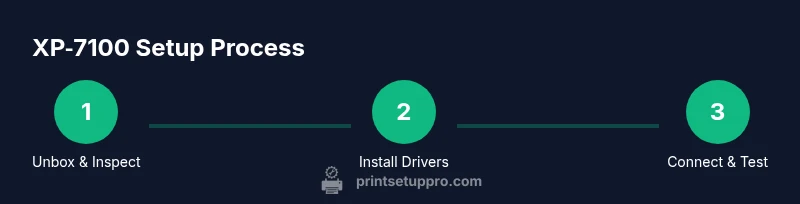
Unbox and inspect contents
Carefully remove the XP‑7100 from its box and verify all included accessories match the packing list. Look for any signs of transit damage and set aside packaging materials for recycling. This initial check prevents missing parts from derailing setup.
Tip: Take a photo of the box contents in case you need to file a claim with the carrier. - 2
Install ink cartridges and load media
Install the ink cartridges in the correct color slots and tighten until they click. Load plain paper in the rear feed or the front tray as appropriate for your first test print. Align the paper guides to the media width to prevent jams.
Tip: Keep a spare set of genuine cartridges on hand to minimize downtime. - 3
Install drivers and connect the printer
Download the latest XP‑7100 drivers from Epson’s official site and install them on your computer. When asked, choose Wireless setup to connect the printer to your network, or opt for USB if you are wired. Follow on-screen prompts to complete the basic setup.
Tip: If the computer doesn’t recognize the printer, try a different USB port or reboot the computer before reattempting the installation. - 4
Run initial alignment and nozzle check
From the printer control panel or driver software, run a nozzle check and then a head alignment. This helps ensure even ink distribution and margins before you print photos or documents.
Tip: If lines are missing, run a cleaning cycle once; avoid repeated cleanings to save ink. - 5
Test print and adjust settings
Print a test page from different media types (Plain Paper and Photo Paper) to compare quality. Adjust print quality settings in the driver for best results on the chosen paper. Save any preferred presets for future jobs.
Tip: Use the photo paper preset when printing photos to optimize color accuracy. - 6
Set up mobile printing and cloud options
Install Epson iPrint or use AirPrint, depending on your device. Enable cloud printing if you need access to documents from the cloud. Confirm the XP‑7100 appears in your device’s printer list and print a small document to verify.
Tip: Test both print from app and print from system dialog to cover typical workflows. - 7
Create a routine maintenance plan
Schedule monthly nozzle checks, alignment tests, and firmware checks. Keep spare consumables in stock and dispose of old cartridges responsibly. Document any recurring issues for future reference.
Tip: Set a calendar reminder to run preventative maintenance quarterly.
People Also Ask
How do I connect the Epson XP‑7100 to a Wi‑Fi network?
Use the printer's control panel to access Network settings, then select Wireless Setup. Choose your network, enter the password, and confirm the connection. You can also use the Epson app to facilitate the setup from a mobile device.
Open Network settings on the printer, select Wireless Setup, pick your network, enter the password, and confirm.
What should I do if the XP‑7100 isn’t detected by my computer?
Verify the USB connection or verify the printer is on the same network as the computer. Reinstall the driver from Epson’s official site and restart the computer if needed.
Check USB or network connection, reinstall the driver, and reboot if detection fails.
How often should I replace the ink cartridges?
Replace cartridges when the printer indicates low ink. Using fresh cartridges prevents color skew and print head clogging, improving overall print quality.
Replace cartridges when the printer says they’re low to keep colors accurate.
Can I print photos from the XP‑7100 without a computer?
Yes, you can print photos directly from a memory card using the printer’s built‑in media slots or via the iPrint app on a mobile device.
Yes, use the printer’s slots or the Epson iPrint app to print photos without a computer.
What maintenance should I perform monthly?
Run nozzle checks and alignments, update firmware, and verify media settings. Regular checks prevent quality drops and extend printer life.
Do nozzle checks and alignments, check firmware, and verify media settings every month.
Where can I find model‑specific guides for the XP‑7100?
Visit Epson’s official support portal for the XP‑7100, which includes manuals, drivers, and troubleshooting steps tailored to your region.
Go to Epson's support site for XP‑7100 manuals and drivers.
Watch Video
Quick Summary
- Install最新版 drivers from Epson before printing
- Keep firmware updated for compatibility
- Use genuine ink for consistency
- Load media correctly to avoid jams
- Regular maintenance reduces downtime