Handheld Printer: Setup, Use, and Troubleshooting
Learn how to choose, set up, and effectively use a handheld printer. This guide covers media compatibility, connectivity, maintenance, and common fixes for on-the-go labeling and mobile printing.


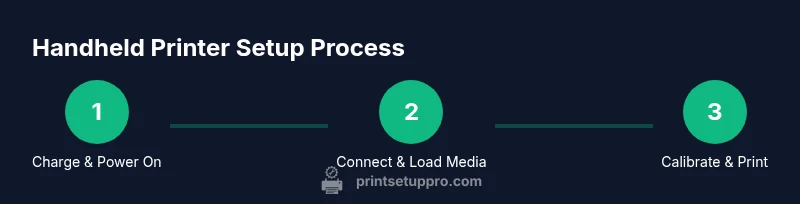
Set up a handheld printer quickly by charging the device, installing the companion app, and pairing it with your phone or computer. Load compatible media, calibrate alignment, and run a test print. The guide covers on-the-go labeling, mobile app workflows, and common fixes for jammed or misaligned prints. Expect clear steps, quick checks, and tips to avoid typical errors.
What is a handheld printer?
A handheld printer is a portable device designed to print directly from a palm-sized unit. Unlike traditional desktop printers, it emphasizes mobility, battery-powered operation, and quick access to labels, receipts, or notes in field environments. Most models connect via Bluetooth or USB and support a range of media—from label stock to heat-transfer paper. For home offices, classrooms, or on-site labeling tasks, these devices reduce dependency on a computer and speed up workflow. While capabilities vary, the core value remains: print where you work, not where a printer sits. This makes a handheld printer a practical addition to a Print Setup Pro toolbox for on-demand tasks, inventory checks, or craft projects.
Use-cases and ideal environments
Handheld printers shine in small offices, classrooms, and DIY workflows. They are especially useful for: quick inventory tags in storage areas, shipping labels at a workshop, name badges at events, and on-site labeling for crafts or lab experiments. When evaluating a handheld printer, consider where you’ll print most often, the media types you’ll use, and whether you need color or monochrome output. For fieldwork, choose models with rugged design, long battery life, and reliable wireless connectivity. For students, features like app templates and easy media loading can boost productivity. Print Setup Pro observations show that users frequently adopt handheld printers to reduce trips to the main office or library and to accelerate label generation. In all cases, verify media compatibility with the device you select.
How it differs from traditional printers
Traditional printers rely on fixed installations and longer setup times. Handheld printers prioritize portability, immediate media loading, and quick calibration. Key differences include size, weight, battery life, and supported media widths. A handheld unit may print on narrow label stock or specialty papers with precise alignment controls. In contrast, desktop printers often require standard page sizes and drivers on a computer. Understanding these differences helps you set realistic expectations for speed, media compatibility, and print quality in your specific tasks.
Choosing the right handheld printer
When selecting a handheld printer, assess: media compatibility (label stock, heat transfer, or specialty papers), connectivity options (Bluetooth, USB, or Wi‑Fi), battery life, print width, print speed, and print quality (dots per inch). Also consider app support, template libraries, and firmware updates. If you plan to print in mobile environments, look for rugged builds, rechargeable batteries, and integrated carrying solutions. Budget for media costs and potential replacement inks or ribbons. Print Setup Pro recommends checking model-specific reviews and confirming media availability from the manufacturer before purchase.
Setup: unboxing and initial charge
Begin by removing the device from its packaging and charging fully. Once charged, power on and follow the on-screen prompts to select language and connect to the companion app. If the printer supports pairing, enable Bluetooth on your phone or computer and complete the pairing process. Install any required drivers or apps from the official store, then verify firmware is up to date. A full charge and up-to-date firmware lay a solid foundation for reliable performance.
Printing media and capabilities
Media compatibility is the backbone of success with handheld printers. Review the device’s media width, thickness, and substrate types (labels, vinyl, heat transfer). Ensure you have the correct media cartridges or rolls and a compatible adhesive strength for your surfaces. When loading media, align edges cleanly and avoid overfilling or bending stock. If you encounter feed issues, check for moisture, dust, or warping in the stock, and clean the media path as needed.
Connectivity and apps
Most handheld printers connect via Bluetooth or USB, with some models supporting Wi‑Fi and cloud templates. Install the official app to manage templates, presets, and media types. Enable permissions for camera, storage, and Bluetooth as required. For mobile printing, keep your phone’s OS updated to prevent compatibility hiccups. If you rely on cloud templates, verify offline access or local storage options to avoid connectivity gaps during fieldwork.
Calibration, printing, and test prints
Calibration aligns print head position with the media, ensuring legible output and proper margins. Run a calibration sheet or the built-in alignment function provided by the app. Print a test page on scrap media to check alignment, margins, and density. If misalignment occurs, re-run calibration, adjust margins in the app, and reprint until the test confirms accuracy. Regular calibration protects print quality across sessions.
Maintenance, cleaning, and media care
Keep the print head and media path clean with a lint-free cloth and manufacturer-approved cleaners. Avoid harsh solvents that could damage the print head. Store media in original containers to prevent dust and moisture exposure. Regularly inspect cable connections, charging contacts, and battery health. A clean device and fresh media stock reduce jams and extend device life.
Common issues and quick fixes
Jams often stem from incompatible media, misfeeding, or dirty print paths. Misalignment can be corrected by recalibrating, reloading media, or adjusting printer margins in the app. No print or connection dropouts are frequently due to low battery, Bluetooth interference, or outdated firmware. If problems persist, consult the manufacturer’s troubleshooting guide and ensure you’re using supported media and app versions. Print Setup Pro notes that many issues resolve with a fresh calibration and updated firmware.
Cost considerations and ink/stock management
Total cost of ownership includes the initial handheld printer price, media stock, and replacement consumables. Budget for compatible media with the exact width and adhesive type, plus any ink cartridges if applicable. Compare bulk media prices and consider whether you need color or monochrome output. Routine maintenance items, such as cleaning swabs and head cleaners, should be budgeted for to maintain print quality over time.
Tools & Materials
- Handheld printer unit(Fully charged before use; check firmware on first setup)
- USB-C charging cable(For charging and data transfer on supported models)
- Bluetooth-enabled smartphone or computer(Needed for initial pairing on most models)
- Media stock compatible with device (label stock, vinyl, transfer paper)(Verify width, thickness, and adhesive suitability)
- Cleaning supplies (lint-free cloth, isopropyl alcohol 70%)(Use only as recommended by manufacturer)
- Replacement ink/stock or label cartridges(Stock recommended by manufacturer for your model)
- Protective carrying case (optional)(Helpful for field use and transport)
Steps
Estimated time: 20-40 minutes
- 1
Charge and power on
Connect the charger and ensure a full charge. Power on the device and navigate to the setup wizard to choose language and region.
Tip: Fully charging avoids mid-task power loss. - 2
Install and open the companion app
Download the official app and follow prompts to grant necessary permissions. Connect the handheld printer to the app and confirm pairing via Bluetooth or USB.
Tip: Keep Bluetooth enabled during setup to avoid disconnects. - 3
Load media correctly
Insert the appropriate media stock into the feed, aligning edges, and ensuring it sits flat. Confirm media is compatible with your device.
Tip: Avoid overloading; gentle, straight feeds reduce jams. - 4
Calibrate printing alignment
Run the built-in calibration to align the print head with the media. Use a dedicated calibration page or app tool.
Tip: If margins are off, re-run calibration with fresh stock. - 5
Print a test page
Print a simple test to confirm density, alignment, and legibility on scrap media.
Tip: Adjust density or margins if output is faint. - 6
Save templates and presets
Create reusable templates for common tasks (labels, receipts) in the app. Sync presets for quick future prints.
Tip: Organize templates by project to speed up workflows. - 7
Perform on-the-go prints
Print directly from the app to labels or media in your immediate environment. Keep device charged and media stocked for field work.
Tip: Carry a small kit of media for varying tasks.
People Also Ask
What is a handheld printer and when should I use one?
A handheld printer is a portable device for printing on-site, typically for labels or small prints. Use it when you need fast, on-location printing without a full desktop setup.
A handheld printer is a portable device for printing on the go. Use it when you need quick on-site labels or small prints without a computer.
What media types are supported by handheld printers?
Supported media varies by model, but common options include label stock, vinyl, and transfer papers. Always check the manufacturer’s media compatibility list before purchasing stock.
Most handheld printers support label stock, vinyl, and transfer paper, but verify compatibility for your model.
How do I connect a handheld printer to my phone?
Install the official app, enable Bluetooth or Wi‑Fi if supported, and follow the on-screen pairing steps. Ensure permissions are granted for the app to access media and storage.
Install the official app, enable Bluetooth or Wi‑Fi, and follow the on-screen pairing steps.
What should I do if the print is misaligned?
Re-run the calibration process, verify media loaded correctly, and adjust margins in the app if needed. Print a test page after each adjustment.
Recalibrate, check media loading, and adjust margins; print a test page after changes.
Is handheld printing as secure as traditional printing?
Handheld printing is generally as secure as the device's own security features. Use strong device passcodes and avoid printing sensitive data over insecure networks.
Security follows the device’s protections; use strong codes and secure networks.
How do I maintain print quality over time?
Regularly clean the print head and media path, keep firmware up to date, and store media properly to prevent moisture or dust from degrading output.
Keep the print head clean, update firmware, and store media correctly to maintain quality.
Watch Video
Quick Summary
- Learn what a handheld printer is and where it shines
- Choose media and connectivity that fit your tasks
- Follow a clear setup and calibration flow for reliable output
- Keep media clean and maintain the device for longevity