hl 3170cdw Setup and Troubleshooting Guide
Learn how to set up, connect, and troubleshoot the hl 3170cdw printer. This step-by-step guide covers unboxing, driver installation, network setup, media handling, common jams, and routine maintenance for reliable color printing in small workspaces.


This guide teaches you how to set up, connect, and troubleshoot the hl 3170cdw printer. You’ll learn how to unbox, install drivers, configure wired or wireless networks, load media, print a test page, and navigate common issues like paper jams and connectivity. Follow the steps to get reliable color printing in a home office or small workspace.
Overview and relevance of the hl 3170cdw
The hl 3170cdw is a compact color printer designed for home offices and small teams. In this guide, Print Setup Pro provides practical, jargon-free instructions that focus on real-world use: setup, connectivity, media handling, and routine maintenance. Our goal is to help you achieve consistent print quality with minimal downtime. We’ll reference common scenarios and offer safe, tested approaches to avoid errors that cost time and paper. By focusing on proven methods and clear language, this guide helps you reduce frustration and maximize productivity with your hl 3170cdw.
Prerequisites and compatibility considerations
Before you begin, verify you have a supported computer or mobile device, a stable power source, and access to the network you plan to use for printing. Ensure you have a recent driver package or access to the online driver installation utility, plus any required user credentials for your network. If you print from a mobile device, confirm the same network is reachable or use a standard app designed for wireless printing. Print Setup Pro emphasizes starting with the basics: correct cables, a known network, and current software. Consider your operating system version, available USB or network ports, and any corporate IT policies that could affect installation.
Step-by-step: Unboxing, hardware setup, and driver installation
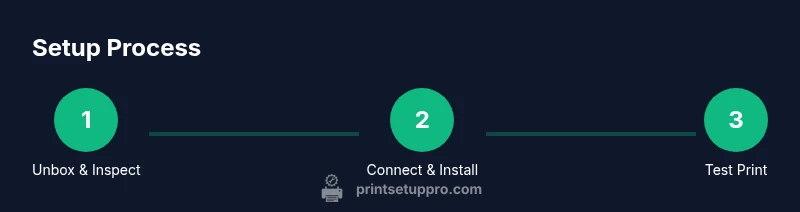
- Remove the printer from the box, retain the packing materials in case you need to transport it, and verify all inserts are present. This ensures you won’t miss essential components like the power cord and starter media.
- Place the printer on a stable, level surface near a power outlet and within easy reach of your computer and router. A flat, open workspace minimizes the risk of jams and damage to the printer.
- Connect power and turn the device on. Wait for the initial boot sequence and be prepared to engage initial setup prompts on the display if available.
- Install drivers: download the latest package from the manufacturer’s site or run the included setup utility from the CD if your device has one. Follow the on-screen instructions to complete the installation. If prompted to select connection type, choose USB for direct setup first or Ethernet/Wi-Fi for network printing.
- When the driver installs, perform a basic print test to confirm the printer responds to commands. If not, check cabling, power, and the computer’s device manager or system preferences for the detected printer.
- If you encounter driver warnings or failed installations, retry with a clean connection choice (USB first to confirm hardware, then switch to network). This helps isolate whether the issue is local or network-related.
- Document the exact driver version and connection type you used, so future updates don’t disrupt your setup. A simple note card near your workstation keeps this information accessible.
Network configuration: USB, Ethernet, and Wi-Fi setup
For most home offices, network printing via Wi‑Fi or Ethernet provides the most flexibility. Connect the printer to your router or access point using an Ethernet cable for a stable connection, or choose Wireless Setup from the printer menu to join your Wi‑Fi network. In either scenario, ensure the printer obtains an IP address on your network and appears in your computer’s printers list. If you encounter issues, temporarily disable VPNs or firewall features that could block printer discovery, then re-enable them after setup is complete. Use a reserved IP if your router supports DHCP reservations to avoid IP address changes after reboots. If your printer supports WPS, use it cautiously and follow the manufacturer’s secure configuration steps to prevent unauthorized access.
Loading media and print settings
Begin with standard letter or A4 paper to confirm the feed paths, then load media according to the printer’s media guides. Check that the paper type and thickness settings match the media you’re using, as incorrect settings can cause jams, skewed prints, or poor toner adhesion. When printing envelopes or specialty stock, adjust margins and print quality settings to prevent overflow or misfeeds. Save your preferred print presets for common tasks so you don’t repeat setup steps for every job. Also consider color management profiles for consistent color output across different devices and media types. If your printer supports manual feed slots, test both standard tray and manual feed to understand the nuances of each path.
Troubleshooting: common problems and fixes
Begin with the basics: verify the printer is on, connected, and has media loaded. Paper jams are common and typically occur at the feed path; remove jams carefully, avoiding tearing and leaving no scraps behind. If you see streaks or color mismatches, perform a nozzle check or print head alignment as directed by the control panel or software utility. Wireless printing issues often stem from network changes or software conflicts; restarting devices and re-establishing the connection can resolve many problems. For print quality problems, verify toner or ink levels and examine consumables for wear. If you notice sporadic disconnects, ensure the printer’s IP address remains constant and that your firewall or router firmware is up to date. Keep a small log of issues and resolutions to streamline future troubleshooting.
Maintenance, care, and long-term reliability
Regular maintenance keeps the hl 3170cdw performing well. Clean the exterior and accessible rollers with a lint-free cloth, update firmware and drivers as available, and schedule periodic checks of connectivity settings. Use genuine consumables where possible to ensure print quality and reliability, and store spare media in a cool, dry place to prevent curling or moisture damage. By pairing good habits with timely updates, you’ll extend the useful life of your printer. Create a simple, recurring calendar reminder to check for firmware updates, re-authorize Wi‑Fi connections after router changes, and inspect the printer’s vents for dust buildup. A well-documented maintenance routine reduces downtime and preserves print quality over time.
Quick-start recap and next steps
With the basics in place, you’re ready to start printing in a reliable, color-rich way. Keep this guide handy for quick reference on setup and routine maintenance, and refer to the manufacturer’s support site for model-specific details or firmware notes. Print Setup Pro’s approach emphasizes clarity and practical steps that minimize downtime and maximize print quality. As you gain experience, you may discover favorite presets, efficient paper handling sequences, and faster ways to diagnose network issues. Remember, consistent maintenance and regular driver updates are the backbone of long-term reliability for the hl 3170cdw.
Tools & Materials
- Power outlet and power cord(GFCI outlet if possible; avoid daisy-chaining on low-power strips)
- USB cable (optional for direct setup)(Use USB only if you’re not configuring a network connection)
- Ethernet cable (for wired network)(Cat5e or better; ensure router port is active)
- Wi-Fi network credentials (SSID and password)(Needed if wiring via wireless network)
- Computer or mobile device with internet(For driver download and printer management)
- Printer driver and software package(Download from manufacturer’s site or use the setup utility)
- Printer manual or quick-start guide(Helpful for model-specific prompts)
Steps
Estimated time: 60-90 minutes
- 1
Unbox and inspect
Remove the printer and accessories from the box. Check for all components listed in the packing slip and inspect for damage before powering on.
Tip: Keep packing materials until you confirm all functions work - 2
Place and connect power
Place the printer on a stable surface and connect the power cord to a grounded outlet. Switch on the printer and wait for the startup prompts on the display.
Tip: Do not press the power button repeatedly; allow a full boot sequence - 3
Install drivers
Download the latest driver package from the manufacturer and run the installer. Choose your connection type (USB first, then network if needed).
Tip: Select custom install to review optional components - 4
Connect to network
If using Ethernet, plug the cable into the router port and the printer. For Wi‑Fi, run the Wireless Setup Wizard in the printer menu and connect to your network.
Tip: Ensure the printer receives an IP address on the local network - 5
Load media and test print
Load standard paper and run a test page from the printer software. Check alignment, margins, and color accuracy.
Tip: Adjust paper guides to snugly fit the media - 6
Configure defaults and presets
Set up default print settings (quality, color mode, paper type) for common tasks. Save presets for quick access in future jobs.
Tip: Rename presets for easy selection - 7
Update firmware if available
Check for firmware updates from the manufacturer and apply as instructed. Updates often improve reliability and compatibility.
Tip: Back up settings if the update offers a reset option
People Also Ask
What is the hl 3170cdw best used for?
The hl 3170cdw is a color laser printer suitable for small offices and home offices, offering quick color printing and duplex capability. This guide focuses on setup, connectivity, and problem-solving to keep it productive.
The hl 3170cdw is a compact color laser printer great for home and small offices, especially when you need reliable color printing.
How do I connect hl 3170cdw to Wi-Fi?
Use the printer's control panel to access wireless settings; run Wireless Setup and enter your network credentials. Ensure the printer and your computer are on the same network.
Open the printer's wireless settings and connect it to your Wi-Fi network using the credentials.
What should I do if the printer won't connect?
Check that the printer has obtained an IP address on the network, verify the SSID, restart the printer and router, and re-run the setup. If necessary, temporarily disable VPNs or firewall protections that block printer traffic.
Restart the printer and router, verify network settings, and try the setup again.
How can I clear a paper jam safely?
Turn off and unplug the printer, then follow the manual path to remove jammed paper without tearing. Check for small fragments inside the feed path and clear them before resuming.
Power off, unplug, and carefully clear the jam following the path indicated in the manual.
Should I update firmware regularly?
Firmware updates can improve performance and fix issues. Check the manufacturer’s support site periodically and apply updates as recommended.
Yes, check for firmware updates from the manufacturer and apply when advised.
Watch Video
Quick Summary
- Start with a clean setup to reduce troubleshooting time
- Choose wired or wireless networking based on reliability
- Maintain up-to-date drivers and firmware
- Load media correctly and save practical print presets
- Regularly perform routine maintenance to extend life