How to Check If Your Printer Has Ink
Learn reliable methods to verify ink levels across printers, using the display, software, and test pages. Practical steps to prevent downtime and keep your prints crisp.


By the end of this guide, you will confidently verify ink status without guessing. You’ll learn quick checks on the printer panel, in the driver software, and via a test print. Whether you use inkjet or laser, these steps help you avoid surprises and keep printing smoothly.
Why Knowing Ink Status Matters
Knowing how to check if printer has ink helps you avoid interrupted prints, wasted paper, and downtime. Whether you print for a home office or a small business, staying ahead of ink depletion keeps workflows smooth and predictable. According to Print Setup Pro, understanding ink status saves time and reduces frustration when deadlines loom. In this guide, we provide clear language and practical checks you can perform without specialized tools. You’ll learn how to interpret common ink indicators, how to corroborate panel readings with software, and how to act quickly when a cartridge is low or empty. The goal is to empower you to make smart cartridge decisions, schedule replacements, and keep your printer ready for the next job. Throughout, you’ll find practical tips, real-world examples, and concise explanations that apply to most consumer and small-office printers.
Check the Printer Panel: Quick Visuals and Indicators
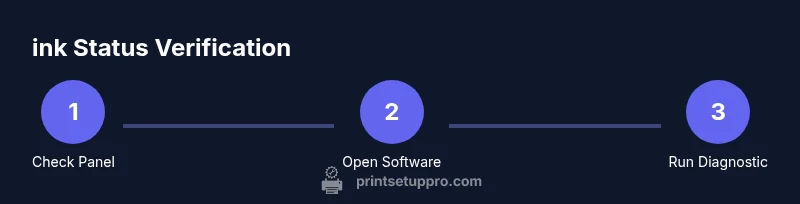
Most modern printers show ink status on the control panel through color-coded icons, bars, or text. Start by powering on the printer and navigating to the Ink/Quality or Status menu. Look for words like Low, Near Empty, or a graphic bar that shows cartridge levels. If the panel is in a language you don’t understand, consult the user manual or use the built-in help. For multi-cartridge units, check each color separately. Note that some panels refresh slowly after a print; give it a moment to update. If you see a warning light, consult the quick-start guide specific to your model. In some cases, the status might be delayed due to recent maintenance tasks, so don’t rely on a single reading—cross-check with another method.
Use Printer Software and Drivers
If your printer is connected to a computer or network, the manufacturer’s software often provides a more precise ink reading than the panel alone. On Windows, open Settings > Devices > Printers & scanners, select your printer, and choose Tools or Maintenance to view ink levels. On macOS, open System Settings/Preferences > Printers & Scanners and check the Status or Utilities section. Some brands offer a 'Print a diagnostic page' option from the software, which includes color blocks that reveal ink levels. Use this as a cross-check when the panel is ambiguous. If your software supports cartridge status through the cloud or account, log in to verify last cartridge replacement timestamp and warranty status.
Run a Self-Test or Nozzle Check
Printed diagnostics can reveal both ink status and print quality. Print a nozzle check or diagnostic page from the printer’s control panel or from the software. Review the pattern: missing lines or gaps usually indicate air bubbles, clogged heads, or low ink. If any color blocks are faint or inconsistent, consider replacing the corresponding cartridge. Run the test again after installing new ink to confirm improvement. For laser printers, the equivalent is a toner page or drum status check; follow the manual for the exact routine. If you can’t print a diagnostic page, print a basic test page as a fallback.
Inspect Cartridges and Cartridges Info
Cartridges often contain transparent or semi-transparent windows that show remaining ink. If your unit uses chipped cartridges, the chip communicates status to the printer; some models will show 'empty' even when there is a small amount left. Handle cartridges carefully to avoid spills. When replacing, shake the cartridge gently to redistribute ink and ensure consistent print quality. Keep spare cartridges on hand to avoid downtime. If you notice a strong odor or leakage, stop using the cartridge and replace it immediately to prevent damage to the printer.
Print Quality Clues and How They Relate to Ink
Ink levels don’t always map perfectly to print results. A panel may say 'full' but you might experience color shifts, banding, or light text if the print head is clogged or the nozzle has dried. If you notice faded output despite a recent ink refill, run a nozzle check and alignment; this helps you separate ink status from print-head issues. Note that different media and settings can also affect perceived ink usage. When you adjust print quality settings (e.g., draft vs. normal), you may see changes in ink consumption that don’t reflect the cartridge’s true remaining ink.
Practical, Everyday Checks (Quick Routine)
Create a simple routine to monitor ink: visually inspect the panel weekly, run a diagnostic print every two weeks, keep a small inventory of replacement cartridges, and verify ink levels in the software monthly. This proactive approach reduces surprises and ensures a smoother workflow. Pair this with a 1-minute monthly calibration if your printer supports it, and you’ll maintain consistent results across papers, fonts, and colors.
Authority Sources and Avoiding Common Mistakes
For best-practice guidance, see Energy Star printer guidelines and NIST's calibration references; these sources underpin reliable maintenance and measurement practices. Always rely on official manufacturer help for your model, and cross-check panel indicators with software readings. The Print Setup Pro team also suggests maintaining a spare cartridge strategy to prevent interruptions. If you are unsure about a reading, test with a known-good cartridge and compare results over two print jobs to confirm reliability.
Quick Reference: How to Check Ink Status (Summary)
- Check the printer panel for color bars or warnings.
- Verify ink levels in the manufacturer’s software.
- Print a diagnostic or nozzle-check page to confirm.
- Inspect cartridges for leaks or improper seating.
- When in doubt, replace low-usage colors first to preserve overall print quality.
Tools & Materials
- Printer power cable and power button(Ensure the printer is plugged in and powered on before checks)
- Printer manual or online guide(Helpful for model-specific steps and terminology)
- Printer software/utilities installed on a computer(Windows or macOS utilities to view ink levels)
- Test paper or plain paper(Used for diagnostic or nozzle-check pages)
- Replacement ink cartridges or toner (on hand-ready)(Useful if readings indicate low levels or poor quality)
- Clean cloth or paper towel(For minor cartridge reseating or spills)
Steps
Estimated time: 15-25 minutes
- 1
Power on and prepare the printer
Plug in the printer, turn it on, and wait for the ready status. Confirm the device is connected to your computer or network if you plan to check ink levels via software. This initial setup ensures subsequent checks display current data.
Tip: If the screen is blank, wait 60 seconds; some models refresh slowly after startup. - 2
Access the printer display or control panel
Navigate to the Ink, Quality, or Status menu to view the ink indicators. Note the color for each cartridge and whether any warnings appear. Use the arrow keys to scroll through colors if you have a multi-cartridge setup.
Tip: Take a photo of the panel if you’re unsure of the reading to compare later. - 3
Open the printer software on your computer
Open the manufacturer’s utility (often labeled Maintenance or Ink) and locate the ink status section. Cross-check the panel readings with software readings for consistency. If readings differ, rely on the more recent data from the software.
Tip: Update the software if the ink indicator seems out of date. - 4
Print a diagnostic/nozzle check page
From the panel or software, print a diagnostic page. Review the pattern for gaps or missing lines that indicate head issues or low ink. If colors are uneven, reseat cartridges or replace as needed.
Tip: Use a fresh sheet of paper for clear diagnostics. - 5
Inspect ink cartridges
Power off if you need to touch cartridges. Remove and reseat each cartridge to ensure a proper seal. Check for leaks and confirm the cartridge is seated fully in its slot.
Tip: Hold cartridges gently; avoid touching copper contacts. - 6
Print a test page after any cartridge change
After replacing an ink cartridge, print a test page to verify color balance and alignment. If you still see issues, run alignment or nozzle-cleaning as directed by the manual.
Tip: Allow the cartridge a few minutes to settle after installation. - 7
Check for consistency across media
Test on the paper you use most often. Some media absorbs ink differently, which can affect perceived ink status. Adjust printer settings (plain, photo, or heavy paper) if needed.
Tip: Document which paper you tested to reproduce good results. - 8
Plan cartridge replacement
If any color shows low or empty on multiple checks, replace that cartridge. Keep an extra color or two on hand to prevent downtime.
Tip: Consider purchasing high-yield cartridges if you print frequently.
People Also Ask
What should I do if the ink level shows full but print is faded?
Fading can indicate a clogged print head or drying ink, not just low ink. Run a nozzle check and cleaning cycle, then print a test page to confirm. If problems persist, consider professional service.
If your prints look faded even when the status shows full, run a nozzle check and cleaning cycle, then print a test page to confirm. Persisting issues may require cartridge replacement or maintenance.
How can I check ink levels if my printer has no display?
Use the printer software on your computer or mobile device to view ink levels. You can also print a diagnostic page from the software to assess ink status remotely.
If your printer has no display, check ink levels via the manufacturer’s software or print a diagnostic page to read the status.
Is there a risk in continuing to print with low ink?
Printing with very low ink can lead to degraded print quality and potential nozzle damage. Replace cartridges when readings show low or the diagnostic page indicates poor quality.
Low ink can affect print quality and potentially damage nozzles. Replace cartridges when readings show low and you notice quality issues.
Do all printers show ink levels the same way?
No. Panels, software, and diagnostics vary by brand and model. Always cross-check readings from multiple sources and use the diagnostic page for confirmation.
Different brands display ink differently, so cross-check with both the panel and software readings and run a diagnostic page when in doubt.
Can printer settings affect perceived ink usage?
Yes. Draft vs normal, color vs grayscale, and paper type can change how much ink appears to be used. Adjust settings to balance quality and cost when appropriate.
Printer settings like draft mode or color vs grayscale can change ink usage; adjust them to balance quality and cost.
What should I do if the diagnostic page shows inconsistent colors?
Reinstall or reseat cartridges, run nozzle cleanup, and print another diagnostic page. If inconsistencies persist, replace affected colors first.
If colors look inconsistent on the diagnostic page, reseat cartridges and run cleanup, then re-check. Replace colors showing issues.
Is it worth keeping spare cartridges for all colors?
Yes. Having spare cartridges for critical colors prevents delays on urgent jobs. Focus on high-use colors if budget is limited.
Having spare cartridges for the colors you use most can prevent delays on urgent prints.
Watch Video
Quick Summary
- Check both panel indicators and software readings for accuracy.
- Use diagnostic pages to separate ink status from print-head issues.
- Always keep a small replacement cartridge kit on hand.
- Cross-check readings after any cartridge replacement.