How to Make a Printer Wireless: A Practical Guide
Learn how to make a printer wireless with a clear, step-by-step approach. From verifying capabilities to testing your setup, this guide covers home offices and students seeking reliable, secure wireless printing.


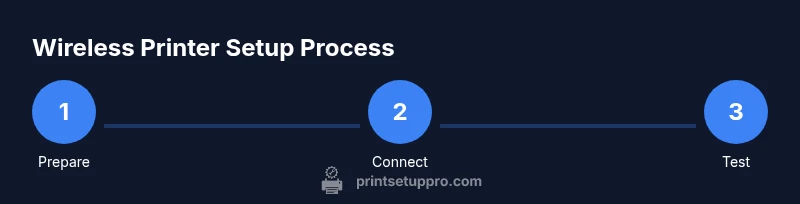
To make a printer wireless, enable its built-in wireless setup, connect it to your Wi‑Fi network by selecting your router's SSID and entering the password, then install or update drivers on your computer or mobile device and run a test print to confirm connectivity. Print from any networked device on your home or small business network.
How wireless printing works
Wireless printing lets you send print jobs from multiple devices over your local network without cables. Most modern printers include built-in Wi‑Fi, support for common standards like 802.11a/b/g/n/ac, and compatibility with Apple AirPrint or Android/Mopria drivers. In practical terms, your printer acts as a network device on your router, receiving jobs from laptops, phones, and tablets. The key is that both the printer and the sending device must be on the same network (or accessible via secure guest networks) and have compatible drivers. According to Print Setup Pro, wireless printing offers real convenience for home offices and students who want clean desks and flexible workspace without sacrificing speed or reliability.
Check your printer's wireless capabilities
Not every printer is wireless by default. Some models include built-in Wi‑Fi, while others require a USB-to-wireless adapter or a dedicated Ethernet-to-wireless bridge. Begin by locating the printer’s control panel and looking for a Wireless or Wi‑Fi menu. If you see options like Wireless Setup Wizard, WPS, or Network Settings, your device can connect wirelessly. If your model lacks wireless functionality, you have two practical options: use a USB-to-Wi‑Fi adapter recommended by the manufacturer, or consider upgrading to a printer with native wireless support. Keep your printer’s firmware up to date to ensure compatibility with recent routers and security standards.
Gather network details and security settings
Before starting the setup, collect your network’s SSID (the network name) and password. Decide whether your router broadcasts on 2.4 GHz, 5 GHz, or supports a dual-band connection. Many printers only support 2.4 GHz, so ensure the SSID you choose is 2.4 GHz compatible if your printer does not support dual-band. Note your security protocol (WPA2 is common; WPA3 is newer). Having these details on hand reduces setup time and avoids mid‑process password re-entry. If you have a guest network for devices you don’t fully trust, you may want to set up a dedicated printer network or a separate VLAN to keep devices segmented for security.
Prepare devices and printer drivers
Download the latest printer drivers from the manufacturer’s official site or use your operating system’s built-in printers list if supported. Ensure the driver matches your OS version (Windows, macOS, iOS, Android). Some printers support automatic driver detection when you add the printer on your device, while others require you to run a setup program first. Also, if you plan to print from mobile devices, check for companion apps (for example, Mopria or AirPrint compatibility) and install any recommended software. Having updated software reduces compatibility hiccups and improves print quality.
Step-by-step wireless setup: printer-first method
- Turn on the printer and navigate to the Wireless Setup menu. 2) Choose the Wireless Setup Wizard or similar option to scan for networks. 3) Select your network name (SSID) from the list. 4) Enter the Wi‑Fi password and confirm the connection. 5) Print a network/config page to verify the printer is connected. 6) Install or update the printer drivers on your computer or mobile device. 7) Add the printer in your OS settings and run a test print. 8) If prompted, update firmware and enable features like AirPrint or Mopria support.
Step-by-step wireless setup: router and mobile apps
If you prefer using a mobile app, install the printer’s official app from your device’s app store. Open the app and choose Add Printer, then follow the prompts to connect to the same Wi‑Fi network. Some apps can push the config to the printer automatically over Bluetooth or Wi‑Fi Direct, simplifying the process. For Windows and macOS, use the Add Printer wizard after ensuring the printer is discoverable on the network. In both cases, verify the connection by printing a test page from at least two different devices.
Test printing and finalize setup
With the printer connected, perform a test print from a computer and a mobile device to ensure consistent behavior. Check page layout, color accuracy, and duplex printing (if supported). If there are any anomalies, run a firmware update and re-run the wireless setup steps. Label the printer correctly in your devices panel to avoid selecting the wrong unit in a multi-printer environment. Finally, consider enabling a guest network for guests who need to print, which helps keep your main network more secure.
Troubleshooting common wireless issues
If the printer never shows up on the network, verify that the router is broadcasting the SSID and that the printer is within range. Make sure the correct 2.4 GHz band is used if required. If the device reports offline, refresh the network list or re-run the setup wizard. For driver issues, reinstall the driver and check the manufacturer’s support site for compatibility notes with your OS. When printing from mobile devices, confirm that the correct app settings and permissions are enabled. For persistent problems, a factory reset of the printer followed by fresh setup often resolves stubborn connectivity glitches.
Security, maintenance, and best practices
Keep firmware up to date and use strong Wi‑Fi passwords. Where possible, enable WPA2/WPA3 and configure a guest network for visitors. Disable unused features like remote printing if you don’t need them, and regularly review printer security settings. Place printers away from direct public access and ensure your router firmware is current. Routine maintenance, such as cleaning the printhead and updating drivers, helps prevent performance degradation over time. By following these practices, you’ll maintain reliable wireless printing for years to come.
Tools & Materials
- Printer with built-in wireless or wireless-capable adapter(Ensure it supports 802.11 standard used by your router (2.4 GHz commonly))
- Wi‑Fi router or access point(Active internet connection not required for basic wireless printing; local network is sufficient)
- Network name (SSID) and password(Have these written or stored in your device’s password manager)
- Laptop, desktop, or mobile device(Used to install drivers and add the printer to your OS)
- Printer driver/software from manufacturer(Choose the latest version compatible with your OS)
- USB cable (optional for initial setup)(Some printers allow temporary USB connection to configure Wi‑Fi)
- Access to router admin panel(Helpful if you need to set up a guest network or adjust security)
Steps
Estimated time: 30-45 minutes
- 1
Prepare the printer and network
Power on the printer and locate the Wireless Setup option. Ensure the router is broadcasting the signal and you know the SSID and password. This step ensures the printer can see the network during setup.
Tip: Have the network details handy before starting to avoid interruptions. - 2
Enable wireless mode on the printer
Navigate to the printer’s control panel and select Wireless or Network Settings to enable Wi‑Fi. If there is a reset option, perform it only if you’re changing networks to avoid old credentials lingering.
Tip: If a direct WPS setup is available and your router supports it, you can skip manual entry. - 3
Connect to your Wi‑Fi network
Use the printer’s wireless setup wizard to scan for your SSID and enter the password. Confirm the connection and print a test page from the printer to verify.
Tip: Prefer 2.4 GHz if your printer has limited dual-band support. - 4
Install drivers on your devices
On your computer or mobile device, install the manufacturer’s driver or use the OS printer setup flow. Ensure the driver matches your OS version and printer model.
Tip: Restart devices after installation if the printer isn’t detected. - 5
Add the printer to your OS
Open the printing settings and add a new printer. Follow prompts to select the wireless printer from the detected list and complete the setup.
Tip: If multiple printers appear, choose the one marked as network/wireless. - 6
Print a test page from multiple devices
Send a test document from at least one computer and one mobile device to confirm cross-device connectivity.
Tip: Check color, alignment, and duplex settings if available. - 7
Update firmware and apps
Check for any available firmware updates for the printer and updates for the driver/app. Apply updates and restart as needed.
Tip: Firmware updates can fix connectivity glitches and improve security. - 8
Set up security and usage preferences
Configure guest printing, device permissions, and scheduled maintenance alerts if supported by your printer.
Tip: Limit exposure by using a guest network for non‑trusted devices.
People Also Ask
Do all printers support wireless setup out of the box?
Most modern printers include built‑in Wi‑Fi, but some older or budget models may require a bridge or USB adapter. Check the manual for wireless capabilities before buying. If in doubt, contact the manufacturer’s support.
Most modern printers support wireless printing, but always check your model’s manual to confirm wireless capability.
What if my printer won’t appear on the network list?
Ensure the printer is in setup mode and within router range. Confirm the SSID is broadcasting and that you’re using a compatible frequency. Try a reset and re-run the setup wizard.
If your printer isn’t showing up, make sure it’s in setup mode and close to the router, then try again.
Can I print from mobile devices after wireless setup?
Yes. Most printers support AirPrint (iOS), Mopria (Android), or vendor apps. Install the appropriate app or ensure the OS supports standard printing, then select the wireless printer from the share menu.
Mobile printing is supported on most modern printers with the right app or standard print integration.
Do I need to keep my computer on for wireless printing?
No. Once set up, the printer connects to the network independently, and any device on the same network can print without your computer being on.
No, the printer stays on the network and can print from other devices even when your computer is off.
Is wireless printing secure for my home network?
Yes, by using WPA2/WPA3 encryption, strong passwords, and guest networks for visitors. Regularly update firmware and drivers to mitigate vulnerabilities.
Yes, use strong passwords, secure Wi‑Fi encryption, and keep firmware up to date.
What if my printer only supports 2.4 GHz?
Connect to your 2.4 GHz network if the printer lacks 5 GHz support. If you have a dual‑band router, ensure the 2.4 GHz SSID is distinct from the 5 GHz network.
If your printer is 2.4 GHz only, connect to that band or set up a dedicated 2.4 GHz network.
Watch Video
Quick Summary
- Identify printer capabilities before starting
- Have SSID and password ready to speed setup
- Install latest drivers on every device
- Test from multiple devices to confirm reliability
- Secure the network and printer after setup