Print to Wireless Printer: A Practical Step-by-Step Guide
Master wireless printing with a clear, step-by-step guide to print to wireless printer from Windows, macOS, iOS, and Android. Troubleshoot, secure, and optimize for home offices.


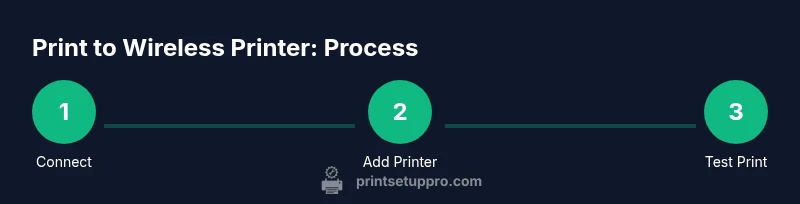
In this guide you will learn how to print to a wireless printer by ensuring both devices are on the same network, adding the printer to your computer or mobile device, and selecting the wireless printer in the print dialog. It covers setup, common methods, and basic troubleshooting for Windows, Mac, iOS, and Android.
Why print to wireless printer matters
In today’s home offices, a reliable wireless printing workflow reduces desk clutter, speeds up document handling, and makes collaboration across devices seamless. According to Print Setup Pro, a well-configured wireless print setup saves time and minimizes interrupt-driven tasks. When a printer is on the same network as your laptop, phone, and tablet, you gain flexibility to print from anywhere in your space. This section explains the benefits, including reduced cable wear, easier device sharing, and smoother maintenance routines. You’ll also learn how a secure, well-managed wireless printer supports sensitive documents and minimizes exposure to open networks. By investing a little time upfront, you unlock fast printing, consistent results, and fewer print errors across Windows, macOS, Android, and iOS. Print Setup Pro’s guidance emphasizes a predictable workflow that scales from a small home office to a student dorm room or a shared studio space.
Understanding wireless printing basics
Wireless printing lets devices send print jobs over Wi‑Fi or a direct wireless link to the printer. Key concepts include network names (SSIDs), password protection, and the difference between connecting to a printer via your home network versus a direct connection such as Wi‑Fi Direct. Modern printers advertise multiple methods to join, including standard Wi‑Fi, AirPrint (Apple), and Mopria (Android and cross‑platform). In practice, you’ll typically pair the printer with your router’s network, ensure your devices are on the same network, and then add the printer in the operating system’s printer settings. A stable network and up-to-date printer firmware are your strongest allies in achieving reliable wireless printing.
Common methods for wireless printing (Wi-Fi, AirPrint, and more)
There isn’t a single universal path to printing wirelessly because ecosystems vary by device and OS. The most common routes are: 1) standard Wi‑Fi printing, where the printer sits on your home network and appears as a listed device on each computer or mobile device; 2) AirPrint for Apple devices, which automates driver selection and simplifies printing; 3) Mopria or Google Cloud Print alternatives for Android and cross‑platform printing; and 4) Wi‑Fi Direct for direct peer‑to‑peer printing without a router. Consider your devices and choose the method that minimizes steps and maximizes reliability. Print Setup Pro advises documenting your chosen path, then sticking with it to reduce confusion later.
Preparing devices: network readiness and permissions
Before you start, verify that both the printer and your primary device (PC, Mac, tablet, or smartphone) can see each other on the network. Confirm the printer is connected to the same 2.4 GHz or 5 GHz Wi‑Fi network as your computer, and note the network name (SSID). If your printer supports guest networks, avoid placing it on a restricted VLAN that blocks printer traffic. Ensure printer firmware is current, and that you have any necessary app or driver updates installed. This preparation minimizes driver conflicts and ensures smoother setup across operating systems.
Ready-to-print: driver and app considerations
Drivers and printer apps drastically simplify the print experience, especially on Windows and macOS. When you install or update drivers, you gain access to essential features like color management, duplex printing, and document previews. Some printers offer a unified mobile app that handles scanning, photo printing, and maintenance tasks. If you seldom print from one device, consider using the app’s automatic updates or enabling automatic firmware checks on the printer. Keeping software current helps maintain compatibility with newer OS versions and reduces printing hiccups.
Step-by-step setup overview for Windows and macOS
This section provides a broad blueprint you’ll translate into the dedicated STEP-BY-STEP block. Start by turning on the printer, connecting it to your Wi‑Fi network through the printer control panel or its companion mobile app, then add the device to your computer’s printer list. On Windows, you typically go to Settings > Devices > Printers & Scanners and add a printer; on macOS, open System Settings > Printers & Scanners and add the printer there. If the printer supports AirPrint, macOS and iOS devices may discover it automatically. Always run a test page after setup to confirm settings such as paper size and duplex printing function correctly.
Optimizing for mobile printing (iOS and Android)
Mobile printing is designed for convenience. On iOS, AirPrint enables quick printing from apps like Mail, Notes, and Photos without installing drivers. On Android, Mopria compatibility or the printer’s own app provides streamlined printing from emails and documents. To ensure reliability, keep both the device and printer firmware current, and connect to the same network as your primary computer. If you frequently print while away from your desk, consider enabling cloud printing features if your printer supports them, while staying mindful of security implications.
Troubleshooting common issues
If your printer doesn’t appear on the device list, verify network connectivity, recheck SSIDs, and restart both printer and router. Check that firewall or antivirus software isn’t blocking printer broadcasts, and ensure the printer is set as the default for the relevant apps. For intermittent prints, reset the printer’s network settings and re‑connect. When a document fails to print, confirm it’s not a file-specific issue and try a different application. Finally, inspect ink or toner levels and paper availability; low resources can cause print jobs to stall. Print Setup Pro emphasizes documenting your exact steps so you can reproduce a fix when needed.
AUTHORITY SOURCES
- U.S. National Institute of Standards and Technology (NIST) on wireless network security: https://www.nist.gov
- U.S. Federal Communications Commission (FCC) consumer guidance on home networks: https://www.fcc.gov
- Cybersecurity and Infrastructure Security Agency (CISA) best practices: https://www.cisa.gov
For a deeper dive, consult official printer manufacturer support pages and OS documentation to align with your specific model and software versions.
Tools & Materials
- Wireless printer with network capability(Supports at least 802.11n/ac; check for dual‑band support if available)
- Device to print from (PC, Mac, phone, or tablet)(Ensure it’s on the same network as the printer)
- Wi‑Fi network name (SSID) and password(Needed to connect the printer to the network)
- Printer software or app (optional but recommended)(Can simplify setup and maintenance)
- Printer user manual or quick‑start guide(Helpful for model‑specific steps)
Steps
Estimated time: 25-40 minutes
- 1
Power on and prepare the printer
Turn on the printer and ensure it’s ready to connect. Navigate to the network or wireless settings and select your home Wi‑Fi. If you’re using Wi‑Fi Direct, decide whether you want a traditional network path or a direct print path.
Tip: If your printer shows a strong signal but prints fail, try rebooting the device to refresh network state. - 2
Connect printer to Wi‑Fi
Use the printer’s control panel or mobile app to join your home network. Enter the SSID and password exactly as shown on your router. Confirm the connection by printing a network configuration page.
Tip: Keep the printer within range of the router to avoid signal dropouts during setup. - 3
Add printer to Windows
On Windows, go to Settings > Devices > Printers & Scanners > Add a printer. Choose the wireless printer from the list and install any recommended drivers.
Tip: If Windows doesn’t find the printer, use the printer’s IP address as a manual port in the add printer wizard. - 4
Add printer to macOS
Open System Settings > Printers & Scanners and click Add; select the wireless printer. macOS may automatically download necessary drivers if AirPrint is supported.
Tip: For best results, disable any VPN during initial setup to ensure discoverability on the local network. - 5
Enable mobile printing
On iOS, print via AirPrint from apps that support it. On Android, use Mopria‑compatible apps or the printer’s own app for easier access.
Tip: Test a simple document from your phone to confirm it routes to the correct printer. - 6
Print a test page
From the computer or mobile device, print a test page to verify alignment, page size, color accuracy, and duplex settings if available.
Tip: If color is off, calibrate the printer or adjust print quality settings in the driver. - 7
Update drivers and firmware
Check for the latest drivers on your printer’s official site and apply firmware updates via the printer or its app.
Tip: Set a reminder to check for updates monthly to prevent compatibility issues. - 8
Create defaults and save profiles
Configure default print settings (paper size, quality, duplex) and save as profiles for common tasks (documents, photos, drafts).
Tip: Assign a easy‑to‑remember name to profiles to speed up future prints.
People Also Ask
What is required to print to a wireless printer?
You need a printer with wireless capability, a device on the same network, and the correct drivers or apps. Ensure the network is stable and the printer firmware is current.
You’ll need a wireless printer, a device on the same network, and the right drivers or apps. Make sure your network is stable and the printer firmware is up to date.
Will my printer work with iOS and Android?
Most modern printers support AirPrint on iOS and Mopria on Android. If your model is older, use the manufacturer’s app to print from mobile devices.
Most printers support AirPrint on iPhone and Mopria on Android. If not, use the manufacturer’s app.
What if the printer doesn’t show up in the list?
Verify network connection, restart devices, and check that the printer is on the same network. If needed, manually add using the printer’s IP address.
Check the network, restart devices, and verify the printer is on the same network. If needed, add it by its IP address.
Do I need to keep the printer on all the time?
Keeping the printer on is convenient but optional; many printers wake from sleep when sent a print job. For energy savings, enable sleep mode when idle.
The printer doesn’t always need to stay on; most wake up when you print, and you can use sleep mode to save energy.
How can I secure wireless printing at home?
Use a password‑protected Wi‑Fi network, enable printer firewall settings if available, and avoid printing over public networks. Regularly update firmware to patch security gaps.
Secure your Wi‑Fi, enable any printer security options, and keep firmware updated to protect your documents.
What’s the difference between Wi‑Fi and Wi‑Fi Direct?
Wi‑Fi connects through your network for multiple devices; Wi‑Fi Direct creates a direct link between devices without a router. Use Direct for guests or when the network is unavailable.
Wi‑Fi uses your network; Wi‑Fi Direct is a direct device‑to‑device link without the router.
Watch Video
Quick Summary
- Ensure both devices share the same network for reliable wireless printing.
- Update drivers and firmware before performing advanced tasks.
- Test with a simple document to confirm settings are correct.
- Use profiles to speed up common print tasks.
- Flag any network or security concerns early to prevent data exposure.