How to Print to a Printer in Another Location
Learn secure, reliable methods to print remotely to a printer located elsewhere. From IP printing to cloud options, follow our step-by-step guide for home offices, small businesses, and students.


By the end of this guide you will be able to print to a printer in another location using a secure network or cloud-based method. You’ll confirm printer availability, choose the right remote printing approach (IP printing, printer sharing, or cloud print), install any required drivers, and run a test print from your computer or mobile device.
Understanding Remote Printing and When to Use It
Printing to a printer located elsewhere is increasingly common for home offices, remote workers, and small teams. It enables you to send documents without physically transferring files or moving between locations. According to Print Setup Pro, the most reliable remote-printing setups start with a clear assessment of your network topology, printer capabilities, and security posture. The goal is to minimize lag, improve compatibility, and safeguard sensitive files. In this guide you will learn how to print to a printer in another location by choosing an appropriate method (IP printing, printer sharing, or cloud-based options) and following a structured setup path. Whether you work from a satellite office or you’re traveling, remote printing helps you stay productive while keeping control over where papers are produced. By the end, you’ll have tested results and a repeatable process you can reuse for future setups.
Before You Start: Prerequisites and Safety
Before attempting remote printing, collect a few essentials and verify safety considerations. Ensure you have access to the host computer (or print server) that will own the printer, a device capable of sending print jobs (laptop, desktop, or mobile), and a stable network connection. You should also confirm whether VPN access or cloud-based printing services are available in your environment. If sensitive documents will travel across networks, plan to use encryption, secure login, and trusted networks. Print Setup Pro Analysis, 2026 emphasizes starting with a known-good network and keeping firmware and drivers up to date. Having current printer firmware, the correct drivers installed on client devices, and a documented IP or hostname will save troubleshooting time later. This stage sets the foundation for reliable remote printing.
Choosing the Right Method for Your Situation
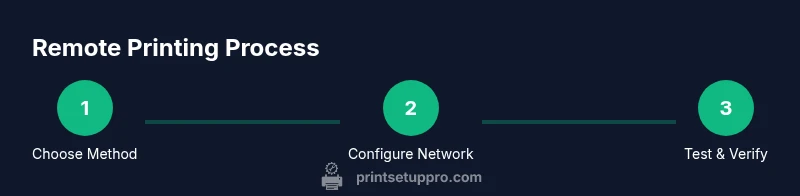
There isn’t one universal method for remote printing; the best choice depends on where the devices sit and how you’ll access them. • IP Printing (Direct to Printer): Printer has a reachable IP. It’s fast, but may require configuring firewall rules and ensuring the printer supports standard protocols (IPP or LPR). • Printer Sharing on a Host PC: The printer connects to a computer on the same network and is shared with others. This is simple if you already have a dedicated machine but depends on that host being online. • Cloud Printing or Email-to-Print: Manufacturer cloud services or email-print features can bypass some network hurdles, allowing you to print from anywhere with internet access. • Printing from Mobile: Many printers now support mobile apps or cloud print, which can streamline the workflow for tablets and phones. Think through reliability, speed, security, and ease of use when choosing a method. Print Setup Pro recommends starting with IP printing for consistent results on a trusted network, then exploring cloud or email printing for on-the-go needs.
Step-by-Step: Setting Up Printer Sharing on Windows and macOS
Printer sharing lets one computer act as the print server for others on the same LAN. This section focuses on both Windows and macOS setups, with the host computer acting as the central printer. You’ll enable sharing, add the printer to client devices, and test from multiple user accounts. On Windows, you’ll enable file and printer sharing and share the printer under Settings > Devices > Printers & scanners. On macOS, you’ll enable Sharing in System Preferences and add the printer to the Print & Scan preferences. Remember to verify firewall allowances and ensure the host machine remains powered on during use. The goal is a stable printing pipeline that works regardless of which device sends the job.
IP Printing: Directly Addressing the Printer
IP printing involves sending jobs straight to the printer’s IP address over the network. This method bypasses a host computer and can be more robust for multi-user environments. You’ll locate the printer’s network address, enable IPP or LPR on the printer, and add a new printer using its IP. On Windows, choose Add a printer > The printer that I want isn’t listed > Add a printer using IP address or hostname. On macOS, Use System Settings > Printers & Scanners > Add > IP. This method is particularly useful when the printer is always on and reachable, making it a strong baseline for remote workflows. Keep in mind that some networks require port configurations and secure credentials.
VPN, Remote Desktop, and Cloud Printing Options
If your devices sit behind NAT or across multiple networks, VPN access can make remote printing feel like you’re on the same LAN. Alternatively, use Remote Desktop or screen-sharing to print via a host machine connected to the printer. Cloud-based printing and email-to-print features from printer manufacturers provide convenient off-network printing for mobile devices. Each option has trade-offs in speed, reliability, and security. When choosing, consider your need for accessibility, ongoing stability, and whether cloud exposure is acceptable for your documents.
Security and Privacy Considerations
Remote printing introduces new exposure vectors. Use encrypted connections (VPN or TLS-enabled printing), strong authentication, and least-privilege access for shared printers. Keep firmware up to date, disable unused features, and audit access logs regularly. If you’re handling sensitive information, prefer direct IP printing on a secure network or a trusted cloud service with robust encryption. Print Setup Pro recommends documenting your security posture and testing data flows in a controlled environment before broad rollout.
Troubleshooting Common Issues and Quick Fixes
When printing remotely, you may run into connectivity, driver, or permission problems. Start with basic checks: confirm the printer is powered on, check network status, verify the IP address, and re-install drivers if needed. Look for common error messages like “offline,” “driver not found,” or “permission denied.” Check firewall rules, confirm VPN is connected, and ensure the print spooler service is running on Windows hosts. For cloud-based printing, verify email-to-print addresses and app permissions. Finally, review device compatibility lists from the printer manufacturer for any known issues.
Tools & Materials
- Printer with network capability (Wi‑Fi or Ethernet) or cloud-enabled printer(Prefer devices that support IPP or manufacturer Cloud Print features)
- Computer, laptop, or mobile device(Must be able to install drivers or use cloud apps)
- Stable network connection (LAN or internet)(Prioritize wired Ethernet when possible for reliability)
- Printer drivers and firmware(Install on host and client devices as needed)
- VPN access or cloud printing service account(Use if devices are on different networks or behind NAT)
- Printer IP address or hostname(Record this for IP printing or network setup)
- Security plan and credentials(Include for access control and encryption standards)
Steps
Estimated time: 40-90 minutes
- 1
Identify the remote printer and select your method
Determine whether IP printing, printer sharing, or cloud printing best fits your setup. Consider reliability, access needs, and security requirements before proceeding. This choice sets the subsequent configuration steps and impact on performance.
Tip: If you’re unsure, start with IP printing on a private network for the most direct path. - 2
Verify network connectivity
Check that both the sending device and the remote printer (or host) have stable, uninterrupted network access. Ping the printer’s IP or test the host’s connectivity to the cloud service. A stable connection reduces errors during print jobs.
Tip: Wired Ethernet often beats Wi‑Fi for consistency in home offices. - 3
Configure printer sharing on the host computer
On Windows, enable printer sharing under network & sharing settings; on macOS, enable printer sharing in System Settings. Ensure the host remains powered on whenever remote prints are expected.
Tip: Note the host computer’s name or address to help remote devices locate the shared printer. - 4
Set up IP printing (direct to printer) if chosen
Find the printer’s IP, enable IPP or LPR on the printer, and add it on the client device using the IP address. Test from multiple apps to ensure compatibility and reliability.
Tip: Record the printer’s IP and verify it doesn’t change with DHCP (consider static DHCP reservations). - 5
Install drivers on the remote device
Install the appropriate drivers or use built-in support for your OS. Ensure the correct printer is selected and that defaults are set as needed for quick reuse.
Tip: Run a test page to confirm driver behavior before real documents are sent. - 6
Test with a real document
Send a print job from the remote device and monitor the outcome. Check page alignment, color accuracy, and margins. Resolve any mismatches by adjusting printer settings.
Tip: Keep a small, representative document for quick re-testing after changes. - 7
Configure secure access
If using VPN or cloud printing, ensure encryption is enabled and credentials are managed securely. Limit access to only required users.
Tip: Enable two-factor authentication where available for added protection. - 8
Document and test the process
Create a simple, repeatable checklist for future remote prints, including required software versions, IPs, and steps to re-run if issues arise. Schedule periodic tests to catch drift early.
Tip: Store the checklist in a shared, version-controlled location for your team.
People Also Ask
Can I print to a home printer from a remote location like my office?
Yes, you can print remotely by using IP printing, printer sharing on a host computer, or a cloud-based service offered by the printer manufacturer. Each method has setup steps that depend on your network and security needs.
Yes—you can print remotely using IP printing, sharing from a host computer, or a cloud service. The exact steps depend on your network and security settings.
Do I need a VPN to print remotely?
A VPN can simplify access by placing your devices on the same virtual network, especially across different locations. If you already rely on a cloud printing service or IP printing within a secure network, a VPN may be optional.
A VPN can help if devices are on different networks, but cloud printing or direct IP printing may suffice in secure setups.
Is it safe to print over the internet?
Remote printing can be secure when you use encrypted connections, strong authentication, and updated firmware. Avoid exposing printers to untrusted networks and prefer trusted cloud services with robust security features.
Remote printing is safe when encrypted connections and strong authentication are used, and firmware is kept up to date.
What if the printer is offline or unreachable?
Check the printer’s power and network status, verify IP settings, and confirm the host device or cloud service is online. Rebooting devices and re-adding the printer often resolves most offline issues.
If a printer is offline, verify power, network, and IP settings, then retry adding the printer or reboot devices.
Can I print from mobile devices to a remote printer?
Yes, many printers support mobile apps or cloud printing. You can print from smartphones or tablets if the printer or service supports mobile-to-printer workflows.
Yes. Use the printer’s mobile app or a cloud printing service to print from a phone or tablet.
Why is remote printing slow or failing?
Causes include network latency, outdated drivers, firewall blocks, or misconfigured printer settings. Systematically checking connectivity, updating drivers, and validating permissions usually resolves the majority of failures.
Usually caused by network or driver issues; update drivers, test the connection, and check permissions to fix slow or failed prints.
Watch Video
Quick Summary
- Choose the remote printing method based on network and security needs.
- Verify connectivity before adding printers on remote devices.
- Test with representative documents to ensure accuracy.
- Secure remote printing with encryption and strong access controls.