How to Find the IP Address of a Printer: A Complete Guide
Learn how to locate the ip address of a printer, assign a static IP, and troubleshoot connectivity for home offices and small businesses with clear, actionable steps.


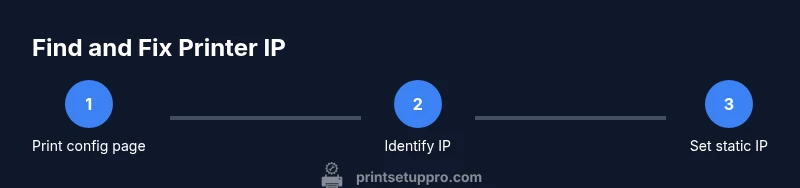
You can locate the ip address of a printer by printing a network configuration page or viewing the printer’s network settings. You can also check your router’s attached devices list or view the printer properties on a connected computer. This quick guide covers three reliable methods to get the ip address of a printer and prepare for setup.
Why IP addresses matter for printers
The ip address of a printer is the unique network address that allows devices on the same local network to send print jobs. For home offices and small teams, a stable address means fewer connection hiccups, easier driver installation, and reliable mobile printing. When you understand how a printer sits on your network, you can diagnose issues quickly, print from multiple devices, and manage access. Print Setup Pro emphasizes consistent addressing to reduce downtime and ensure smooth workflows. A printer's IP is especially important when you integrate it with shared folders, cloud print services, or multi-room setups. Keeping track of the ip address of a printer also makes it easier to troubleshoot if a device suddenly stops printing or if you switch routers.
In many networks, printers use IPv4 addresses (for example 192.168.1.x). Some newer setups may use IPv6 or a combination of both. Regardless of the protocol, the address is how your computer or phone locates the printer on the local network. As you work through this guide, you’ll learn practical methods to find that address and verify it stays stable over time.
Quick methods to find the ip address of a printer
There are several reliable ways to identify the ip address of a printer. Each method works in different environments, so you can choose the approach that matches your hardware and network setup.
- Print a network configuration page: Most printers offer a Print Configuration or Network Summary page accessible from the control panel. This page lists the printer’s IP address, subnet mask, default gateway, and DNS if configured. Printing this page is quick and doesn’t require a computer.
- Check the printer’s built-in menu: Navigate to Network or Wireless settings on the printer’s display. Look for a section labeled IPv4 address, IP address, or TCP/IP settings. This on-device method is useful when you don’t have access to the printer’s paper tray or to a connected computer.
- Use your router’s admin page: Log in to your router and view the list of connected devices. Most routers show each device by name and IP address; you can identify the printer by the device name or MAC address.
- Look in your computer’s printer properties: On Windows, go to Settings > Devices > Printers & scanners, select the printer, and choose Printer properties to view the port information. On macOS, open System Preferences > Printers & Scanners and inspect the IP address in the printer’s info.
- Mobile app or printer software: Some printers ship with a configuration app that reports the current IP address. This is convenient if you often switch between devices or mobile printing apps.
Pro tip: If your network uses IPv6, note that the IP shown may be IPv6. You may still print via the IPv4 address if supported by your driver. Print Setup Pro recommends verifying both address types if you encounter printing issues.
How to interpret the network page and identify the IP address
When you print or view the configuration page, locate the section labeled TCP/IP, IPv4, or IP Address. The ip address of a printer appears as four groups of numbers separated by periods (for IPv4), such as 192.168.1.45. If your network uses DHCP, the address can change over time, so you may want to set a static IP later to improve reliability. If you see multiple addresses, focus on the one listed under IPv4 or the primary TCP/IP entry. For IPv6, you’ll see a longer hexadecimal string; many home networks still rely on IPv4 for compatibility. Always confirm the address by printing a fresh configuration page after any network changes.
Assigning a static IP to improve reliability
A static IP ensures your printer keeps the same address, which reduces reconfiguration after network changes and firmware updates. You can assign a static IP in two primary ways: via the printer’s built-in web interface or through your router’s DHCP reservation feature.
- Printer web interface: Connect to the printer using the current IP address in a browser, log in if required, and navigate to Network settings or TCP/IP. Change the IP assignment from DHCP to Static, and enter a preferred IP within your subnet (for example, 192.168.1.100) along with the correct subnet mask and gateway. Save changes and print a configuration page to verify.
- Router DHCP reservation: On your router, add a DHCP reservation by locating the printer’s MAC address (often on a label on the printer or in the configuration page) and binding it to a specific IP address. This method keeps the printer visible on the network with a fixed address without changing printer settings.
After setting a static IP, update the printer port on each device that sends jobs to the printer. Also check that the address doesn’t conflict with other devices. Print Setup Pro notes that a reserved static IP is preferable for shared environments because it minimizes manual reconfiguration.
Troubleshooting common IP address issues
IP address problems are common but solvable. Below are typical scenarios and the quickest fixes.
- IP address changes after reboot: If the printer returns to DHCP after a reboot, verify DHCP lease settings or switch to a DHCP reservation. Ensure you applied the change on the printer and confirmed via a new configuration print.
- Printer not appearing on the network: Confirm the printer is connected to the correct Wi‑Fi or wired network. Restart the printer and router. Check for a duplicate IP conflict in the router's device list.
- Two IP addresses displayed (IPv4 and IPv6): Many networks offer both. Prefer the IPv4 address for most legacy drivers. Disable IPv6 on devices that don’t need it, or configure the printer to prefer IPv4 in its settings.
- Print jobs failing with “printer not found”: Remove and re-add the printer in your computer’s printer panel, using the current IP address. Ensure firewall settings allow the printer’s ports.
If you suspect a persistent issue, reset the printer’s network settings to defaults and reconfigure from scratch. Print Setup Pro reminds readers to document any changes for future troubleshooting.
Best practices for small teams and home offices
For households and small offices, consistency is the key to smooth printing. Use a documented IP address scheme, keep a master list of devices and their IPs, and set non-print devices to auto-assigned addresses where appropriate. Create a simple reference sheet with each device name, IP, and location. Schedule periodic checks (every 3–6 months) to print a test page and verify connectivity. Consider enabling a DHCP reservation for printers to balance stability with ease of management. Finally, ensure you have backups of printer settings in case of a router reset or hardware replacement.
Conclusion and next steps
Understanding the ip address of a printer is the foundation for reliable network printing. By using configuration pages, printer menus, or router lists, you can locate the address quickly. For long-term reliability, set a static IP or a DHCP reservation, and keep a small, accessible record of addresses. With this approach, you’ll reduce troubleshooting time and keep team workflows moving smoothly. Print Setup Pro’s guidance emphasizes proactive management and clear documentation to protect your printing setup.
Tools & Materials
- Printer manual or on-device help(Search for Network, TCP/IP, or Wireless settings)
- Access to the printer control panel(Touchscreen or physical buttons)
- Router admin credentials(Needed if using DHCP reservation)
- A computer, tablet, or smartphone on the same network(Used to view printer properties or access the web interface)
- Pen and paper or digital notes(Record IP addresses and configuration steps)
Steps
Estimated time: 30-60 minutes
- 1
Access printer settings
Power on the printer and open the control panel. Navigate to Network or Wireless settings to prepare for IP discovery. This initial step confirms you’re on the correct network while gathering required information.
Tip: If the printer lacks a display, proceed to the router’s attached devices list for the IP. - 2
Print a Network Configuration page
From the printer menu, locate and print a configuration page. The page lists the IP address alongside gateway, subnet, and DNS details. This page is the fastest way to capture the current ip address of a printer.
Tip: Keep a copy of this page for future troubleshooting. - 3
Check the router’s device list
Log in to the router’s admin interface and view the connected devices. Identify the printer by name or MAC address and note its IP address. If you rename devices in the router, the printer should be easy to spot.
Tip: If you don’t see the printer, refresh the device list or reboot the router. - 4
View printer IP via computer
On Windows, open Settings > Devices > Printers & scanners, select the printer, then view its properties. On macOS, go to System Preferences > Printers & Scanners and inspect the printer's IP. This confirms the ip address of a printer on the host OS.
Tip: Ensure you use the same user account that installed the printer driver. - 5
Decide between DHCP and static
If the address may change, plan for a DHCP reservation or switch to a Static IP within your network range. Enter the chosen IP in the printer’s TCP/IP settings, along with the correct subnet and gateway, and save.
Tip: Choose an IP outside the dynamic pool to avoid future conflicts. - 6
Test printing after changes
Print a test page from the printer and from a connected device to verify the ip address of a printer is correct and reachable. If failures occur, recheck the IP, subnet, and gateway values.
Tip: If tests fail, restart printer and devices and retry.
People Also Ask
What is the difference between a static IP and DHCP reservation for a printer?
A static IP is manually set on the printer and never changes. A DHCP reservation binds a device’s MAC address to a specific IP in the router, giving stability without configuring the printer itself.
Static IPs require printer configuration; DHCP reservations are router-based and easier to manage for multiple devices.
Why does my printer show two IP addresses?
Many printers support both IPv4 and IPv6. Use the IPv4 address for compatibility with most older drivers; IPv6 is useful for modern networks.
Look for IPv4 first; you may see an IPv6 address as well depending on your network.
I can’t find the IP on the printer screen. What now?
If the printer has no display, check the router’s connected devices or print a configuration page from the printer’s control panel.
If you can’t view it directly, use the router or a connected computer to identify the IP.
Should I disable IPv6 on my network for printing?
Not always. If your printers support IPv6, enable it; if you see connectivity issues, you can opt to prioritize IPv4 until devices are compatible.
IPv6 can stay enabled if printing works; otherwise, focus on IPv4 as a starting point.
Watch Video
Quick Summary
- Identify the printer’s IP using multiple methods.
- Prefer a static IP or DHCP reservation for stability.
- Test after every change to confirm connectivity.
- Document IPs and settings for future troubleshooting.