Where is printer IP address: Find it quickly and reliably
Learn where is printer ip address and how to locate it across Windows, macOS, and routers. Clear steps for home and small business networks to simplify setup and troubleshooting.


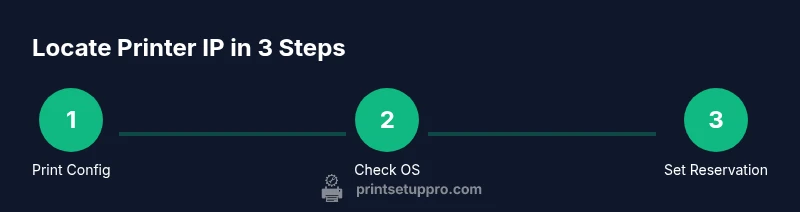
To locate where is printer ip address, start by printing the printer’s network configuration page or opening the printer’s onboard menu. Then check your computer’s printer settings or your router’s DHCP list to confirm the IP. For Windows, use Devices and Printers; for Mac, go to System Preferences > Printers & Scanners. This quick path covers most home and small-business setups.
What is a printer IP address and why it matters
An IP address is the unique label that identifies your printer on your local network. Knowing the printer IP address lets devices send print jobs, check status, and perform management tasks without guesswork. In most networks, printers use IPv4 addresses like 192.168.1.45, though IPv6 addresses also appear in some modern routers. Your printer may obtain its address automatically via DHCP or you can assign a static IP for stability. Understanding where is printer ip address helps you troubleshoot connectivity, configure mobile printing, and ensure secure access from shared devices. According to Print Setup Pro, having quick access to a printer IP reduces setup time and minimizes repeated configuration.
Why this equals fewer headaches: practical implications
When you know the IP address, you can immediately add the printer to a new computer without endlessly scanning the network. It also makes it easier to set up firewall rules that permit print traffic, monitor printer availability, and create consistent paths for IT support. If you manage multiple printers, documenting each IP helps avoid conflicts and makes audits smoother. This knowledge is especially valuable for home offices and small businesses relying on reliable, repeatable printing workflows.
On-device methods to view network information (quick checks)
Most printers provide a network page you can print or view directly on the display. Look for labels like Network, WLAN, or TCP/IP. If you can print a configuration page, the IP address is usually listed next to IPv4 (or IPv6) under Network Settings. If your printer supports a display menu, you can often navigate to Status or Network, then view the IP there. This is the fastest way to identify where is printer ip address without using a computer.
Windows and macOS: find IP using system settings
Windows: Open Settings > Devices > Printers & scanners, select your printer, then click Manage or Printer properties. Look for the Port or Location tab, which shows the IP. MacOS: Open System Settings (or System Preferences) > Printers & Scanners, select the printer, then click Options & Supplies to view the IP. If your printer uses a different protocol (AirPrint, WSD), you may see a hostname instead of a direct IP; in most cases, you can still ping the hostname to reveal the IP.
Note: If the printer uses a dynamic IP, that address can change after a reboot. For stability, consider reserving an IP on the router or assigning a static IP to the printer.
Router-based discovery: locate IP from the DHCP client list
Access your router’s admin page (often 192.168.1.1 or 192.168.0.1) and log in with your credentials. Find a section like Attached Devices, DHCP Clients, or LAN Status. The list shows connected devices by name and IP; locate your printer by its model or hostname. If your router supports device names, this is a reliable cross-check for where is printer ip address on a busy network.
Common issues and quick fixes: IP address gotcha
If the IP changes after you reboot, you’re probably on DHCP. Reserve the printer’s MAC address in the router’s DHCP reservation list to assign a fixed IP. If you can’t see the printer on the network, verify cabling (for wired printers) or your Wi‑Fi connection, confirm the correct network band, reprint the config page, and check for firmware updates. Some printers also support direct IP printing via a web interface; consult the manual for port settings.
Best practices for managing printer IP addresses
Keep a small, centralized log of printer IPs and hostnames, note whether they’re IPv4 or IPv6, and document any DHCP reservations. Use static IPs for critical printers and keep firmware up to date. If you work with IT teams, create a standard naming convention for printers and assign consistent, non-conflicting IP ranges. This proactive approach minimizes outages and streamlines future setup.
Tools & Materials
- Printer manual(Model-specific steps for network settings)
- Computer or smartphone(To view printer properties or router admin pages)
- Active network access(Must be on the same network as the printer)
- Router admin credentials(Needed to view DHCP clients or set reservations)
- Notepad or digital note tool(Record IPs and hostnames for future reference)
- Ethernet cable (optional)(Wired setup may be required on some printers)
Steps
Estimated time: 25-45 minutes
- 1
Power on and connect the printer to the network
Ensure the printer is plugged in, powered on, and connected to the same router or access point as your computer. A stable connection is essential for accurate IP reporting and subsequent configuration.
Tip: If you connect via Wi‑Fi, verify the correct SSID and password before proceeding. - 2
Print or view the network configuration page on the printer
Use the printer’s control panel or onboard display to navigate to the Network/Connectivity section and print a configuration page. This page lists the IP address (IPv4 or IPv6) and the network they’re on.
Tip: If printing a page isn’t available, many printers can display the information directly on the screen. - 3
Record the IP address from the configuration page
Copy the IP address shown on the page into a notebook or a digital document. Note whether it’s IPv4 or IPv6 and the subnet if provided.
Tip: Double-check for subtle digits that can be easy to misread (e.g., 0 vs O or 1 vs l). - 4
Verify IP in Windows settings
On Windows, open Settings > Devices > Printers & scanners, select the printer, and access Printer properties. Check the Port settings to confirm the IP address is correct.
Tip: If you don’t see the IP, click Details or Ports to identify which port the printer uses. - 5
Verify IP in macOS settings
On macOS, go to System Settings > Printers & Scanners, select the printer, and view its IP in the Details pane or under Options & Supplies.
Tip: Mac users often see hostnames; ping the hostname in Terminal to reveal the IP. - 6
Check your router for the printer's IP
Log into the router and locate the DHCP Client List or Attached Devices to find the printer by name; the corresponding IP confirms where is printer ip address on the network.
Tip: If the printer isn’t listed, reboot the printer and router and retry. - 7
Set a static IP or DHCP reservation
To prevent IP changes, configure a static IP on the printer or create a DHCP reservation in the router using the printer’s MAC address.
Tip: Document the reservation so future changes don’t interrupt printing. - 8
Test printing and finalize the setup
Send a test page from your computer or mobile device to confirm the IP works and remains stable after reboots.
Tip: Keep the IP address handy for future device additions and troubleshooting.
People Also Ask
What is the quickest way to find my printer IP address?
Print the network configuration page from the printer or view the IP in the printer settings on your computer. This gives you the exact address in a few minutes. If needed, confirm with the router's DHCP client list.
Print the printer's network page or check your computer’s printer settings to get the exact IP quickly.
Why does my printer IP keep changing?
Most printers obtain IPs via DHCP, which can assign different addresses after reboots. Set a DHCP reservation or a static IP to prevent changes.
DHCP can assign new addresses; use a reservation to fix the IP.
Can I find the IP without printing a config page?
Yes. You can usually view the IP from the printer's onboard display or from OS printer settings. If unavailable, check the router's DHCP list.
You can view it from the printer menu or your computer, or check the router list.
What if the printer uses IPv6?
Many modern networks support IPv6. If you see an IPv6 address, you can still connect, but you may prefer IPv4 for simplicity in basic networks.
IPv6 addresses exist; you can use IPv4 for easier setup if available.
What should I do if the printer is offline after changing IP?
Reboot the printer and router, recheck the IP assignment, and re-add the printer using the confirmed IP. Ensure the device is on the same network.
Restart devices and verify IP; then reconnect the printer.
Is there a difference between static IP and DHCP reservation?
Static IP sets a fixed address on the printer itself, while DHCP reservation locks an IP at the router for the printer's MAC address. Both achieve stability.
Static IP fixes address on the printer; a DHCP reservation fixes it in the router.
Watch Video
Quick Summary
- Identify IP via printer page, then verify on OS or router
- Use static IP or DHCP reservation for stability
- Document IPs for efficient future setups
- Test with a real print job to confirm reliability