Find and Use Your Printer Address on Any Network
Learn to locate and use your printer address on any network. Find IPs, choose DHCP vs static, and set up printing across Windows, macOS, and mobile devices with expert guidance from Print Setup Pro.


Goal: Locate and use your printer address on a home or small business network. You’ll learn how to find the printer’s IP address, decide between a dynamic DHCP lease or a static address, and set up printing from Windows, macOS, and mobile devices. This quick guide also covers basic troubleshooting and security tips.
What is a printer address and why it matters
In computer networks, a printer address is the identifier printers use to receive print jobs. For most home networks, there are two addresses you should know: the IPv4 address (a four-part number like 192.168.1.42) and the hostname or printer name that you see in your devices. The printer address is essential for direct printing, remote printing from Wi-Fi devices, and remote management via a web interface. This is especially true for small offices or students who use shared printers. According to Print Setup Pro, understanding your printer address reduces setup time and avoids misdirected jobs, particularly in multi-printer environments. In practice, you’ll often configure a printer by its address in Windows or
How to locate the printer address on Windows,
Static vs dynamic addressing for printers: choosing what works best
Dynamic addressing, via DHCP, assigns addresses automatically. It’s simple and ideal for home networks with a single printer, but the address can change after a reboot or lease expiration, which forces you to reconfigure print settings on every device. Static addressing assigns a fixed IP, which makes print setup predictable and reliable across Windows,
How to configure the printer address on your router for DHCP reservations
A DHCP reservation ties a printer’s MAC address to a chosen IP address within your router’s DHCP range. Access the router’s admin page via its gateway address (often something like 192.168.1.1). Navigate to DHCP, LAN, or Advanced settings, then locate “DHCP Reservations” or “Address Reservation.” Add a new entry using the printer’s MAC address (printed on the printer or viewable in its network settings) and assign the desired IP. Save changes and reboot the printer. This approach delivers a static-like stability without manual IP entry on every device. Print Setup Pro notes that keeping a simple naming convention for devices (e.g., PRN-Office-Desk) helps with future changes and audits.
Step-by-step: add or connect to a printer by its address on Windows,
Common issues with printer addresses and how to fix them
IP address conflicts happen when two devices are assigned the same address. Check your router’s DHCP client list to identify duplicates and release or reassign addresses. If a printer’s address changes unexpectedly, consider enabling a DHCP reservation or switch to a static address, verified on all connected devices. Firewalls or VPNs can block printer discovery or remote printing; temporarily disable non-essential security features to test connectivity, then re-enable them with proper exceptions. If you still cannot print, verify the printer’s subnet matches your computer’s network, confirm the protocol (IPP/LPR/SMB) chosen on both ends, and ensure the printer’s firmware is up to date. Print Setup Pro suggests maintaining a small, labeled sheet with the address and protocol on or near the printer for quick reference during troubleshooting.
Security considerations when exposing a printer address
Exposing a printer address to the wider internet introduces risk. If remote access is unnecessary, disable remote printing and management features. Use encryption where possible (IPP with Encryption or TLS) and keep firmware updated to patch vulnerabilities. Place printers on a guest network or a separate VLAN if your router supports segmentation; never expose admin interfaces publicly. Use strong, unique passwords for any web interfaces and routinely audit connected devices. Print Setup Pro highlights that prudent network planning and regular firmware updates reduce the attack surface while keeping printing reliable.
Tools & Materials
- Printer manual or model information(Needed to locate MAC address and supported protocols)
- Computer or mobile device on the same network(Needed to verify the printer address and test printing)
- Router admin access(Required for DHCP reservations or static IP settings)
- Ethernet cable (optional)(Useful for stable initial setup if Wi‑Fi is unstable)
- Notebook or digital note app(Record IP addresses, hostnames, and steps)
Steps
Estimated time: 25-40 minutes
- 1
Prepare network details
Power on the printer and ensure it’s connected to the network. Gather the printer’s MAC address and any current IP info from the printer’s control panel or status page. This foundation prevents misconfigurations later.
Tip: Write down the MAC address and current IP if it’s shown on a status page. - 2
Find the printer address on Windows
Open Settings > Devices > Printers & scanners, select the printer, click Manage, and view the port information. Note the IPv4 address if shown or print a configuration page.
Tip: If no address is listed, use Add a printer and give it the IP address to force a connection. - 3
Find the printer address on macOS
Go to System Preferences > Network, select your active network, and look for the printer in the list of connected devices. A separate Print & Fax/Printers panel also reveals the address for the added printer.
Tip: Use IPP (Internet Printing Protocol) for broad compatibility when adding via IP. - 4
Check the printer’s own web interface
Many printers host a small web page you can access with the address you found. Open a browser and enter the address; confirm the status, IP settings, and available protocols.
Tip: If you can’t reach the web interface, verify the printer is on the same network and no firewall blocks apply. - 5
Decide between DHCP and static addressing
DHCP is simpler; static ensures the address won’t change. If you choose static, configure the IP, subnet, gateway, and DNS in the printer’s settings or set a DHCP reservation on the router.
Tip: DHCP reservation on the router is often the easiest way to get the benefits of a fixed address without manual device reconfiguration. - 6
Add the printer to devices by address
On each computer or mobile device, add a printer by address. Select the correct protocol (IPP is common) and install the appropriate driver. Repeat for all devices you print from.
Tip: Label printers clearly (e.g., Office_Printer) to avoid confusion in multi-printer environments. - 7
Test printing and verify
Print a test page from each device. Confirm job routing to the correct printer address and resolve any misrouting issues by rechecking the address and protocol settings.
Tip: If a test page fails, recheck the network segment and ensure no VPN or firewall blocks the traffic.
People Also Ask
What is a printer address?
A printer address is the network identifier a printer uses to receive print jobs, typically an IPv4 address. It can be the IP or hostname, and it enables devices on the same network to locate and send jobs to the printer.
A printer address is the network identifier printers use to receive print jobs, usually an IP address on your local network.
How do I find the printer address on Windows?
Open Settings, go to Devices, then Printers & scanners. Select your printer and view the port or network settings to locate the IPv4 address. You can also print a configuration page from the printer.
On Windows, check the printer properties under Printers & scanners to see the address, or print a configuration page from the printer.
What is the difference between DHCP and static addresses for printers?
DHCP assigns addresses dynamically and is easy to manage. Static addresses stay the same but require manual management. A common solution is a DHCP reservation to bind a fixed IP to the printer’s MAC address.
DHCP is automatic, static is fixed. A DHCP reservation is a good compromise for stability without manual updates.
Can I use IPv6 for printers?
Yes, many modern printers support IPv6. Most home setups still rely on IPv4 for compatibility, but you can enable IPv6 in printer settings if your network supports it.
Printers can use IPv6, but IPv4 remains common for straightforward home printing.
What should I do if two printers have the same address?
Check the router’s DHCP client list to identify the conflict, then reassign one device’s address or use a DHCP reservation to prevent future collisions.
If two printers conflict, reassign addresses or set a DHCP reservation to avoid duplicates.
Is it safe to expose my printer address to the internet?
Generally no—avoid exposing printers directly to the internet. Use local network printing, VPNs, and secure credentials for any remote access features.
Don’t expose printers to the internet. Use local network access and secure remote options if needed.
Watch Video
Quick Summary
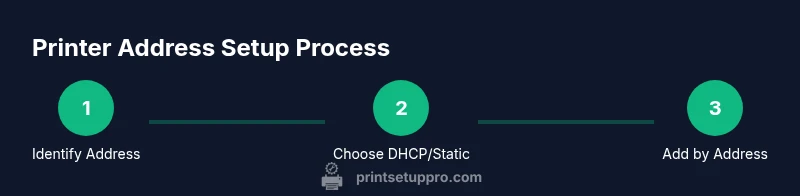
- Identify the printer address on every device you intend to print from.
- Choose DHCP with reservation or a static IP to ensure consistency.
- Add the printer by address using a compatible protocol (IPP recommended).
- Test print from all devices and document the setup for future changes.