How to Print Without Comments: A Complete Guide
Learn how to print documents without comments or markup. This educational guide covers Word, Google Docs, PDFs, and common printers with practical steps, tips, and troubleshooting for clean, comment-free prints.


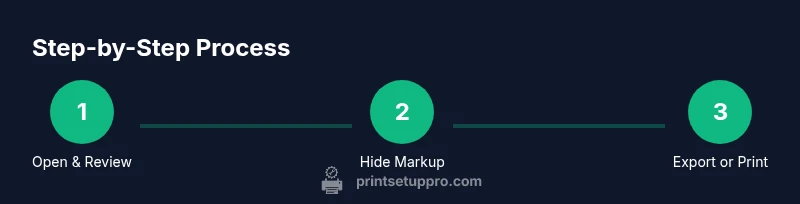
To print without comments, first open your document in the source app and hide or remove markup. Then choose a clean print option or export a clean version (e.g., PDF) before printing. This approach applies to Word, Google Docs, and PDF workflows, and minimizes clutter for reviewers and teammates. Following these steps will ensure your printed copy contains only the final text, margins, and formatting, with no comments, tracked changes, or review balloons. You can adjust per app—Word uses Show Markup and Print Markup toggles; Google Docs uses the Print settings; PDFs should be exported from a clean view.
Why you might want to print without comments
According to Print Setup Pro, printing without comments helps teams and individuals share clean, decision-ready documents. When you hand off a draft for review, heavy markup can obscure final text and distract readers. A comment-free printout supports clarity, reduces revision cycles, and speeds up onboarding for new collaborators. In practice, this means you should aim for a version that shows only the final content, basic formatting, and page layout. This approach minimizes confusion and keeps meetings efficient by removing side conversations from the printed page. By following this philosophy, you’ll create documents that communicate clearly the moment they leave your screen, which is especially valuable in client handoffs, project briefs, and academic submissions.
Where comments hide clutter and how to hide them or reveal them when needed
Comments, balloons, and tracked changes are designed to aid collaboration, but they can overwhelm a printed copy. The goal is to suppress those indicators without losing the original intent of the document. In most workflows, the trick is to switch the editor into a final view and disable any option that says "Print Markup" or "Include Comments". If you’re preparing a version for a stakeholder meeting, consider saving a separate copy that preserves the comments for internal use while producing a clean print for external audiences. Print Setup Pro analysis shows that many teams underestimate how pervasive markup is in final documents, so a deliberate separation of final content and reviewer notes is essential.
Default printer settings and markup controls across common apps
Different applications expose markup controls in distinct places. In Word, you’ll typically use the Review tab to toggle Show Markup and the Print options to disable Print Markup. In Google Docs, you may find an option related to comments in the Print dialog or under the document’s comment area visibility. LibreOffice and other editors also offer a final- or clean-view mode with a dedicated print setting. The common thread is to locate the controls for markup and ensure they are turned off before printing a hard copy or saving a PDF. If you’re unsure where these controls live, consult the app’s help section or use the document’s Save As or Export functions to generate a markup-free file.
Export-first workflows: ensuring a clean output before printing
Exportting to PDF is a reliable way to guarantee clean output, especially when you must share the file with others who may not use your original editor. Create a copy of the document, remove or hide all comments, and then export to PDF. If you don’t have robust PDF options, printing to PDF from the source app (instead of printing to a physical printer) can also help you preview exactly what will appear on paper. This approach reduces the risk of last-minute markup reappearing on the printout and makes it easier to distribute a professional, comment-free version.
Cross-platform workflows: Word, Google Docs, and PDF in one sequence
Establish a consistent, repeatable workflow for all platforms you use. For Word users, perform a final view and disable markup, then print or export to PDF. For Google Docs, use File > Print and ensure comments are not included in the print view; for PDFs, confirm that the source file is clean before printing. Creating a simple one-page checklist for your device or team can help ensure everyone follows the same steps and reduces confusing print outcomes. Print Setup Pro’s guidance emphasizes consistency across tools to maintain a professional appearance in every printed document.
Practical validation before printing: a quick preflight checklist
Before you commit to printing, run a quick preflight check: verify there are no visible comments, confirm the intended pages are selected, and perform a quick printer test page to ensure margins align with your layout. This saves wasted paper and ink. If a stray comment still prints, retrace the steps to locate the source in your application (some programs rely on hidden settings or styles that reintroduce markup during export). This diligence is especially important for business proposals, exam submissions, and formal reports.
Troubleshooting and edge cases: when markup sneaks back in
If comments reappear, re-check the source file for layers or sections that could be carrying markup through embedded objects, templates, or notes. Some templates include metadata that propagates to new documents; re-create the document from a clean template if necessary. For shared documents, make sure to grade a fresh copy rather than reprinting an older version. Finally, consider saving a dedicated “print-ready” file that you use solely for output to prevent accidental inclusion of comments in future print jobs.
Tools & Materials
- Computer with word processor (Word, Google Docs, or LibreOffice)(Ensure you have access to the document you intend to print and an internet connection if using cloud apps)
- Printer with paper and ink/toner(Check that the printer is connected and functioning)
- Document Inspector or export feature(Used to strip metadata or comments before printing)
- Export as PDF capability(Useful for producing clean, portable print-ready files)
- Additional device for cross-checking(Optional to test print on another system)
Steps
Estimated time: 20-40 minutes
- 1
Open the document and locate markup
Open the source document in its native app and review where comments, tracked changes, or balloons appear. This initial check helps you decide whether you will hide or remove markup before printing.
Tip: If you can’t find comments, switch the app to a Final view or use a View menu option to hide markup entirely. - 2
Choose your clean printing path
Decide whether to print directly from the app after hiding markup or to export a clean copy (PDF) first. Exporting to PDF often guarantees the cleanest print across devices.
Tip: Export to PDF when sharing outside your organization to preserve layout integrity. - 3
Hide or remove comments in Word
In Word, go to the Review tab, disable Show Markup, and uncheck Comments and any other items under Show Markup. Then ensure Print Markup is unchecked in the Print settings.
Tip: If you need to keep comments in the document for internal review, save a separate copy before printing the clean version. - 4
Hide comments in Google Docs or other editors
In Google Docs, ensure the print dialog does not include comments. You may need to switch to a final view or disable embedded comments before printing.
Tip: For cloud docs, a local PDF export can help bypass browser print quirks. - 5
Preview and print a test page
Always preview the print in the app’s print dialog and, if possible, print a test page. Check for any stray markup before doing a full run.
Tip: Use a draft page to avoid wasting paper on a full run. - 6
Print the final clean copy
Print the final clean copy or the PDF. Confirm the output shows only the final text and formatting, with no comments or balloons visible.
Tip: Keep a copy of the clean version for future reference and avoid reintroducing markup by mistake.
People Also Ask
How do I print without comments in Word?
In Word, hide comments via Review > Show Markup > uncheck Comments, and ensure Print Markup is off in the Print settings. You can also export to PDF from the final view for an extra layer of reliability.
In Word, turn off comments in Show Markup, then print or export the final view to PDF.
Can I print without comments in Google Docs?
Yes. Use File > Print and confirm that the print dialog does not include comments. If needed, switch to a final view or export a clean PDF for printing.
Yes, print from Google Docs with comments disabled or export a clean PDF first.
Will removing comments affect tracked changes?
Removing comments does not delete tracked changes in most editors, but it does hide them from the print. If you need to finalize, accept changes first, then print the clean version.
Hiding comments doesn’t erase changes; accept or reject them before printing for a clean result.
What if I still see comments after printing?
Double-check that you selected the correct view (final/print-ready) and that the output is not a cached version. Reopen the document and re-export or reprint a fresh copy.
If comments show up, re-check the view and export a fresh copy before printing again.
Is there a universal method to print without comments across apps?
Most apps share a core approach: switch to a final view, disable markup, and use a print or export option that omits comments. When in doubt, export a PDF from the final view.
Generally, switch to final view, turn off markup, and print or export a clean version.
Watch Video
Quick Summary
- Hide markup before printing to keep output clean.
- Export to PDF for reliable cross-device results.
- Always preview a test page prior to full print run.
- Maintain a separate print-ready copy for repeat use.
- Follow consistent workflows across apps to prevent errors.