How to Print Without Margins in Word: A Complete Guide
Learn how to print without margins in Word with borderless printing tips, page setup, and practical workarounds. This guide covers Word margin settings, printer compatibility, and troubleshooting for edge-to-edge results.


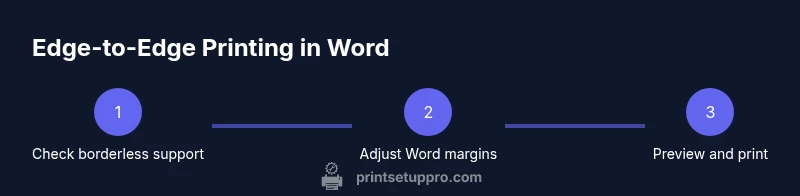
You can print without margins in Word by enabling borderless printing (where supported), adjusting page margins to the minimum safe values, and using the printer's borderless option in the Print dialog. This guide covers Word page setup, printer compatibility, and practical workarounds to achieve edge-to-edge results. Note that many printers require specific drivers or paper types, and full bleed may not be possible on all models. According to Print Setup Pro, borderless printing is a combination of document setup, printer capability, and correct print settings.
Why printing without margins matters
If you are wondering how to print without margins in Word, the answer starts with your printer's borderless capability. Edge to edge printing is a powerful option for posters, flyers, and photo-like documents. While Word provides margin controls, true edge-to-edge results depend on both the document setup and the printer hardware. Print Setup Pro Team notes that borderless printing works best when you align text and graphics away from the safe margin zone and test with your model.
In practice, most consumer printers leave a slight nonprintable border. To maximize print area, set Word margins to the smallest value supported by your device and choose the printer option for borderless printing if available. Always run a test print to verify alignment before producing final pages.
- Know your printer's limits: borderless printing works best on models designed for it.
- Expect slight cropping: lines near the edge may be trimmed.
- Use the preview: Print Preview in Word shows where margins will land.
Print Setup Pro Team notes that borderless options benefit banners, handouts, and photos, but you must verify capability for your exact printer model.
Confirm printer capabilities for borderless printing
Before you invest time in layout changes, confirm that your printer can actually print to the edge. Check the printer manual, the manufacturer's website, or the printer dialog in Windows or macOS. Some models advertise borderless printing but only for specific paper sizes and types. If borderless mode is unavailable, you may need to use a workaround described later.
Print Setup Pro analysis shows that verifying borderless support per paper size avoids wasted prints. If you print on a non-borderless model with forced edge-to-edge attempts, you risk misalignment and skewed cropping. Always test with the same paper stock you intend to use.
Prepare Word page setup for edge-to-edge printing
Open your document in Word and navigate to Page Setup. Set Orientation to Portrait or Landscape based on your design. In the Margins tab, choose Custom Margins and set all margins to the smallest safe value your printer can handle, typically 0 to 0.25 inches depending on model. In the Layout tab, select Paper Size that matches your printer's supported size. Save this as a template for future edge-to-edge prints.
Pro tip: Start with 0.2 inch margins if 0 is rejected by Word. Borderless capable printers may ignore Word margins anyway, but starting with a defined margin helps content remain legible.
Use Word's print options and margins settings
When you print, use the File > Print dialog and review the Settings panel. Choose the correct printer, paper size, and orientation. If a borderless option appears, enable it. In the Scale section, select Actual Size or 100% to prevent unwanted rescaling that could reintroduce margins. Use Print Preview to confirm the expected print area. Keep an eye on the printer's preview window for any cropping hints.
Borderless printing vs. bleed and safe margins
Edge-to-edge printing means the ink runs to the edge of the sheet, but true bleed occurs when the print extends beyond the page. Word cannot guarantee bleed like professional design software. Always keep critical text at least a quarter inch from the edge. When borderless printing is available, content near the edge should be evaluated for readability and alignment.
Workarounds for printers without borderless support
If your printer cannot borderless print, export to PDF and use the PDF viewer's print settings to attempt edge-to-edge. Some printers allow borderless printing only from the printer driver, not from Word directly. Another workaround is to print on a slightly larger sheet and crop after printing, or to adjust content using a larger safe margin and trim manually. These methods work best for simple layouts.
Printing on different paper sizes and orientation
Borderless options can vary by paper size. A4 and Letter may support borderless, while custom sizes might not. When switching from portrait to landscape, recheck margins and alignment. Always run a test print on the intended paper stock to confirm cropping and content alignment before mass printing.
Troubleshooting common issues and tips
If margins persist, re-check the printer's borderless settings and the Word margin values. Ensure the latest drivers are installed and the document is not scaled by the printer driver. Some printers have a separate borderless checkbox under print settings; enable it if present. Finally, test with a simple document to isolate formatting issues.
Alternative: exporting to PDF and printing from PDF
If Word cannot achieve edge to edge, export the document to PDF and print from a PDF viewer that offers borderless or edge-to-edge options. This method often yields better alignment because PDF renderers handle page geometry differently. Save a template for future PDF-based edge-to-edge prints and keep the Word version for editing.
Tools & Materials
- PC or Mac with Microsoft Word installed(Word 2016/2019/365 or equivalent)
- Borderless-capable printer(Check printer manual for borderless support)
- Latest printer drivers and firmware(Install from the manufacturer site)
- Test paper (plain A4 or Letter)(Use for initial trials to verify margins)
- PDF printer or PDF export capability(Useful for workaround to print full bleed from PDF)
- Paper with margin-safe area marked(Helpful to align content)
- Calibrated color printer (optional for photos)(If printing photos to edge)
Steps
Estimated time: 25-40 minutes
- 1
Verify borderless capability
Check your printer model and documentation to confirm borderless printing support for your chosen paper size. If unsupported, plan to use the PDF workaround or manual cropping.
Tip: Reference the printer's user manual or support site for exact margins. - 2
Update software and drivers
Ensure Word is up to date and download the latest printer drivers. Software updates reduce misalignment and improve compatibility with borderless options.
Tip: Restart the computer after installing drivers to ensure changes take effect. - 3
Set Word margins to minimum
Open a document, go to Layout > Margins > Custom Margins, and set all margins to the smallest value your printer can handle. Apply to Whole document and save as a template.
Tip: If Word rejects 0, start with 0.2 inches and test. - 4
Choose proper page size and orientation
In Page Setup, select the paper size your printer supports and decide between Portrait or Landscape based on layout needs. This prevents cropping from unexpected margins.
Tip: Match page size to printer capabilities for best results. - 5
Enable borderless in printer settings
During Print, select the printer, then look for a borderless or edge-to-edge option in the driver or print dialog and enable it.
Tip: If you cannot find it, check the driver advanced settings. - 6
Preview and adjust
Use Print Preview to verify print area. Ensure that critical content stays within safe margins and is not cropped.
Tip: Zoom in on edges to confirm content visibility. - 7
Print a test page
Print a single test page on plain paper to check alignment. Compare the result with the document preview and tweak margins if needed.
Tip: Mark the paper edges with a light pencil for cropping reference. - 8
Use PDF as a fallback
If Word cannot borderless print, export to PDF and print from a PDF viewer with borderless options. This often yields better edge-to-edge results.
Tip: Save a PDF version for quick repeats. - 9
Save a borderless template
After achieving satisfactory results, save a Word template with the borderless settings for future use.
Tip: Name it clearly, e.g., EdgeToEdge_Template.
People Also Ask
Can Word print without margins on every printer?
No. Borderless printing depends on hardware. Many home printers have a nonprintable border. Always verify borderless support for your model and paper size before attempting edge-to-edge printing.
Borderless printing depends on your printer. Check your model's capabilities before trying edge-to-edge printing.
How do I set margins to zero in Word?
In Word, go to Layout > Margins > Custom Margins and set all margins to the smallest value supported by your printer. If Word rejects zero, start with 0.2 inches and test.
Set margins to the smallest value Word accepts, then test print.
What if my printer doesn't support borderless printing?
Use a PDF workaround or crop after printing. Export to PDF and print from a viewer that supports borderless options, or print on a larger sheet and trim the edges.
If borderless isn't supported, try printing from a PDF or plan to crop after printing.
Does borderless printing affect text alignment?
Yes, edge cropping can affect alignment. Always use Print Preview and keep critical text within the safe margin area.
Borderless can crop edges, so preview and safe margins matter.
Can I print borderless on any paper size?
Borderless support varies by paper size and printer model. Check your printer documentation for supported sizes and test accordingly.
Borderless support depends on the paper size and model. Verify first.
Is borderless printing suitable for business documents?
Borderless printing is a hardware feature. For professional documents, ensure accuracy and readability with tested margins and branding guidelines.
Borderless printing is about hardware; ensure readability and accuracy with tested margins.
Watch Video
Quick Summary
- Set Word margins to the printer's minimum.
- Enable borderless printing when available.
- Preview before printing to avoid cropping.
- Use PDF as a reliable edge-to-edge fallback when needed.
- Save a reusable edge-to-edge Word template.