How to printer on computer: Step-by-step setup and troubleshooting
A comprehensive, step-by-step guide to getting your printer to work with your computer, covering USB and wireless setups, driver installs, and common troubleshooting.


You will learn to connect your printer to a computer via USB, Wi‑Fi, or Ethernet, install the correct drivers, and print a test page. This guide covers Windows, macOS, and common network printing scenarios, plus practical troubleshooting tips for connectivity, driver conflicts, print queue issues, paper jams, and optimizing print quality.
Quick Introduction to Printing from a Computer
According to Print Setup Pro, the journey to a reliable print experience starts with clarity about your printing tasks and the best way to connect your devices. The Print Setup Pro team found that most setup questions come down to choosing the right connection type, ensuring the driver is correct for the printer model, and testing with a simple page. In this guide, you’ll see how to translate those principles into concrete, repeatable steps so you can print documents, photos, and school assignments with confidence. Whether you’re setting up a single office printer or sharing one across a small team, the goal is a smooth, predictable print process. You’ll gain a practical workflow, from plugging in the hardware to validating your first print, plus tips to avoid common pitfalls.
Throughout, expect practical steps, OS-specific notes, and checks that help you verify each stage before moving on. This approach minimizes back-and-forth and reduces the chance of surprises in busy days. Print Setup Pro emphasizes testing early and keeping drivers up to date as a core habit for long-term reliability.
In the sections that follow, you’ll find concrete actions, common-sense checks, and recommended sequences that work for most home office and small business printers. The goal is to empower you to finish each stage with a successful print and a solid baseline for future tasks.
Preparing your workspace and prerequisites
Before you touch any cables or install software, take a moment to prepare. Confirm your computer’s operating system is supported by the printer model and that you have the latest updates installed. Have the printer’s model number handy and consult the official manual or online support for model-specific steps. Locate power and connectivity options, and ensure your work area is comfortable for wiring and testing. If you plan to print over a network, note your network name (SSID) and password, and ensure the printer is placed where it can connect reliably to Wi‑Fi or Ethernet. Print Setup Pro recommends starting with a clean, organized workspace to avoid misplacing cables or documents during setup. Finally, gather test paper and a simple document you can use for quick print tests so you can verify both content and alignment early in the process.
Connecting your printer to the computer: USB, Wi-Fi, Ethernet
Connectivity is the bridge between your computer and printer. Decide whether you’ll use a direct USB connection, a wireless (Wi‑Fi) setup, or a wired Ethernet link. USB is straightforward for a single PC, while Wi‑Fi offers flexibility to place the printer anywhere on the network. Ethernet can provide stable throughput for busy environments. If your printer supports Wi‑Fi, ensure it is connected to the same network as your computer and that the network credentials are correct. For USB, use the provided cable and avoid extensions that can degrade signal quality. When both ends are connected, perform a quick power cycle: turn off both devices, wait a moment, and turn them back on to reset the link. This improves recognition by the operating system and reduces driver conflicts later on.
Installing drivers and printer software: step-by-step guidance
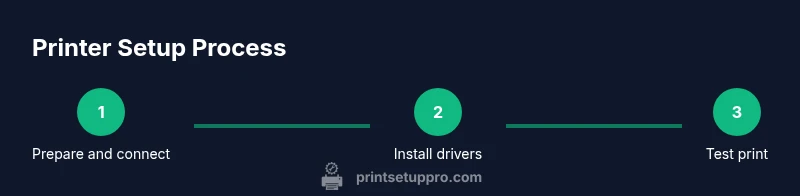
The driver is the translator between your computer and printer. Start by downloading the official driver package from the printer manufacturer’s site or using the installation CD provided with the device. Run the installer and follow on‑screen prompts to add the printer. In many cases, the OS will automatically detect the printer after a driver is installed; if not, use the OS printer settings to add a new device and select the correct model. After installation, print a test page to confirm the device prints correctly and that color, grayscale, and page layout options work as expected. If you encounter errors, check for firmware updates or reinstall the driver with administrative privileges.
As Print Setup Pro notes, keeping the driver current is often the simplest path to preventing future problems. If you use multiple printers, consider naming conventions and default printer prioritization to maintain predictable results.
Setting a default printer and managing print queues
Setting a default printer helps ensure your documents print on the intended device without extra steps. On Windows, use Settings > Devices > Printers & scanners to select the default; on macOS, open System Preferences > Printers & Scanners and set Default Printer. Print queues can hold jobs when the printer is busy or offline. Review the queue to retry, pause, or cancel stuck jobs. If you see recurring delays, check that queued jobs aren’t blocked by a long-page document, large images, or complex fonts. Regularly clearing the queue and monitoring the printer’s status reduces confusion and wasted prints.
This stage is about establishing predictable behavior, so you don’t have to wonder why your document disappeared into the queue or printed somewhere unexpectedly.
Printing from Windows, macOS, Linux: OS-specific steps
Windows users typically print directly from the File menu or by pressing Ctrl+P, selecting the printer in the dialog, and adjusting preferences as needed. macOS users access printing through the Print dialog in any app, with access to options like paper size, quality, and two-sided printing if supported. Linux users often rely on CUPS or native system print managers, which provide robust control for print jobs, font embedding, and driver compatibility. In each case, verify that the correct page orientation, margins, and paper size are chosen, and run a test print.
Note the importance of matching the OS with the correct printer model and driver. Mismatches are a frequent source of driver conflicts and failed prints. If you encounter trouble, recheck compatibility notes from the manufacturer and ensure your OS permissions allow printer access.
Shared printers and mobile printing options
Sharing a printer across a home or small office network enables multiple users to print from different devices. When sharing, ensure proper permissions and security settings so only authorized users can submit jobs. For mobile devices, many printers support AirPrint, Mopria, or manufacturer apps that enable printing from phones and tablets. Verify that mobile and desktop devices are on the same network or connected via the correct app, and consider enabling cloud printing if your workflow requires remote access from outside the local network. This expands flexibility without sacrificing control.
Troubleshooting printing problems: common errors and fixes
When printing stalls or fails, start with the simplest checks: confirm the printer is powered on, connected to the correct network or USB port, and not showing error lights or low ink warnings. If the print job disappears, verify the printer is online and not paused. Check for driver conflicts by reinstalling the latest official driver and restarting the computer. If the page prints with errors, inspect page setup, margins, and print quality settings. Print Setup Pro Analysis, 2026 shows that most issues relate to driver compatibility and network permissions, so prioritizing driver updates and correct network configuration can resolve many problems quickly. For persistent issues, consult the manufacturer support site or your OS help resources.
Optimizing print quality and efficiency
Print quality is a function of driver settings, ink or toner levels, paper type, and printer calibration. Start with the basic settings: choose the correct paper size and orientation, and select a high‑quality mode for final documents and a draft mode for internal drafts. Regular printhead cleaning and alignment can improve output, especially for color work. Consider using high‑quality paper for color prints and ensure the printer is placed on a stable surface to prevent feed issues. If you print in bulk, consider batch jobs or duplex printing to save resources while maintaining consistency.
Security and privacy considerations for printers on networks
Networked printers can be entry points for data leakage if misconfigured. Ensure printers on shared networks require authentication or at least a strong password, disable unnecessary services, and keep firmware up to date to mitigate vulnerabilities. Regularly review access lists and disable features you don’t use, such as remote printing if not required. When printing sensitive materials, consider using secure print features that require a PIN or login before the job is released at the printer. These measures help protect your documents while preserving the convenience of modern printing setups.
Tools & Materials
- Printer manual or official online support(Model-specific steps and troubleshooting tips)
- Computer with updated OS(Windows, macOS, or Linux computer)
- Printer USB cable or network access(USB for direct connection or ensure printer is on the same network for wireless/Ethernet)
- Official driver/software installer(Download from manufacturer site; avoid unverified sources)
- Wi‑Fi information (SSID and password)(Needed for wireless setup; skip if using USB)
- Test paper and basic printing media(Used for first page test and calibration)
- Admin credentials on the computer(Required to install drivers and modify system settings)
- Smartphone or tablet for mobile printing test(Useful to verify AirPrint/Mropia or manufacturer app printing)
Steps
Estimated time: 60-90 minutes
- 1
Prepare system and verify compatibility
Check the printer model against your computer’s OS version and gather the model number for reference. Ensure your computer has network access or USB availability and that you have administrative rights to install software. This pre-flight check reduces misconfigurations later.
Tip: Have the manual handy and confirm the exact printer model before proceeding. - 2
Choose connection type
Decide whether you’ll connect via USB for a single computer or via Wi‑Fi/Ethernet for a shared setup. If wireless, confirm the printer is within range of the router and the network name is correct.
Tip: For shared environments, wireless setup offers flexibility but ensure signal strength is stable. - 3
Connect the printer to the chosen interface
Plug in the USB cable or power on and connect the printer to the network. If using Wi‑Fi, navigate to the printer’s control panel to join your network and note the IP address if displayed.
Tip: A quiet reboot after connecting helps the OS recognize the device cleanly. - 4
Install the official driver/software
Run the downloaded installer and follow prompts to add the printer. If the OS detects the printer automatically, you can still proceed with the vendor’s driver for full feature support.
Tip: Choose the custom install option only if you need specific features; otherwise, the default install is fine. - 5
Set default printer and test print
Open your OS printer settings and set the new printer as default. Print a test page from a simple document to verify output and check for color accuracy and alignment.
Tip: If the test page looks off, recheck paper size and print quality settings before retesting. - 6
Network sharing and mobile testing
If you plan to share, enable printer sharing and configure access permissions. Test printing from a mobile device using AirPrint or the manufacturer’s app to confirm cross-device compatibility.
Tip: Document the steps you took so teammates can replicate the setup. - 7
Troubleshoot common issues
If prints fail, restart printer and computer, recheck connections, and ensure drivers are up to date. Review the status lights on the printer for error codes and consult the manual for specific meanings.
Tip: Always check for a firmware update if the driver appears current but issues persist. - 8
Optimize for quality and efficiency
Adjust print quality settings based on document type, and consider duplex printing for savings. Regularly clean print heads and align cartridges if your printer supports maintenance routines.
Tip: Keep a simple calibration print handy to quickly verify color and alignment after changes.
People Also Ask
Do I need to install drivers for every printer?
Most operating systems can print with generic drivers, but official vendor drivers enable full functionality such as color management and advanced settings.
Most systems can print with generic drivers, but installing the official driver gives you full features.
Why can't my computer find the printer on the network?
Ensure both devices are on the same network, that the printer is connected to that network, and that the correct network name is used. Restart devices if needed.
Make sure both devices are on the same network and retry after restarting if necessary.
How do I set a default printer on Windows or macOS?
On Windows, go to Settings > Devices > Printers & scanners and choose the default. On macOS, open System Settings > Printers and select Default Printer.
Go to your printer settings and choose the printer you want as default.
What should I do about paper jams?
Turn off the printer, carefully remove the jammed paper, check for hidden bits, and run a short alignment/cleaning cycle if available.
Power off, remove the jam gently, and run any built-in cleaning or alignment options.
Can I print from my phone or tablet?
Yes. Use AirPrint on iOS, Mopria on Android, or the printer’s own app to print from mobile devices.
Yes, you can print from mobile devices using built-in or manufacturer apps.
How can I improve print quality?
Adjust print quality settings, use appropriate paper, and perform routine maintenance like head cleaning and alignment.
Tweak quality settings, use the right paper, and maintain the printer regularly.
Is it safe to share my printer over Wi‑Fi?
Sharing is convenient but ensure you limit access to trusted devices and keep the printer firmware updated to reduce security risks.
It's convenient but keep access restricted and firmware up to date.
What if I need to print from Linux?
Linux users can rely on CUPS and printer-specific drivers; most common printers are supported with open‑source or vendor-provided drivers.
Linux uses CUPS and often supports many printers with open or vendor drivers.
Watch Video
Quick Summary
- Verify the connection type before driver installation.
- Use official drivers and keep them updated.
- Test print early to catch alignment or color issues.
- Configure defaults and queues for predictable results.
- Secure network printers to protect data.