How to Put a Printer in Pairing Mode
Learn how to put a printer in pairing mode for Bluetooth or Wi-Fi. This guide covers prerequisites, OS-specific steps, troubleshooting, and best practices to connect printers quickly and securely.


By the end of this guide, you will successfully put your printer in pairing mode and connect it to a computer or mobile device. You’ll need your printer manual, a stable power source, and access to the device you’re pairing with. We cover Bluetooth and Wi‑Fi pairing for common brands.
What pairing mode means for printers
Pairing mode is a temporary state that makes your printer discoverable by other devices, either over Bluetooth or Wi-Fi. When you enable pairing, your printer broadcasts its presence so phones, tablets, laptops, or desktop PCs can connect and exchange print jobs. Understanding the difference between Bluetooth pairing and network-based pairing helps you choose the right method for your setup. According to Print Setup Pro, selecting the correct pairing path reduces setup time and avoids driver conflicts later. If you own a modern all-in-one device, you’ll likely use Wi-Fi pairing to print from multiple devices, while Bluetooth is handy for direct printing from a single nearby device. In either case, keeping the printer powered and within range improves discovery success. This section lays the groundwork so you can approach the actual setup confidently.
Printer compatibility and prerequisites
Before you begin, confirm that your printer model supports Bluetooth or Wi‑Fi pairing. Check that the printer is on the latest firmware, and that you know the network name (SSID) and password if you plan to pair over Wi‑Fi. Operating systems commonly used with printers include Windows, macOS, iOS, and Android; ensuring OS compatibility avoids driver conflicts and feature limitations. The Print Setup Pro team notes that newer printers tend to offer more straightforward pairing experiences via a built‑in wizard or companion app. If your printer is older, you may need a USB connection for initial setup or to download drivers. Gather the printer’s model number, the user manual, and a powered supply so setup proceeds without interruption.
Preparing devices before pairing
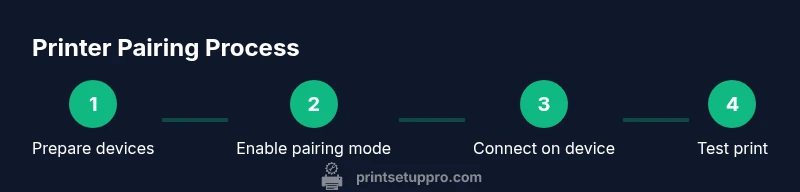
Charge or power your printer and the device you will pair with. Turn on Bluetooth or Wi‑Fi, depending on your chosen method. If you’re using Wi‑Fi, bring the SSID and password to the setup workflow, and make sure your smartphone or computer is connected to the same network you intend the printer to join. Disable any VPNs temporarily during the setup, as VPNs can complicate local network discovery. Keep your printer within close range of the pairing device so discovery is reliable. Having both devices ready reduces back‑and‑forth and speeds up pairing, a point emphasized by Print Setup Pro Partner guidelines.
Bluetooth pairing workflow: Windows, macOS, iOS, Android
With Bluetooth, the printer becomes discoverable and you pair it from your device’s Bluetooth settings. On Windows, open Settings > Devices > Bluetooth & other devices, then select your printer and follow prompts. On macOS, go to System Preferences > Bluetooth, click the printer, and confirm the pairing code if prompted. For iOS or Android, navigate to Bluetooth in Settings, locate the printer, and tap Pair. Some printers require you to confirm a PIN shown on the screen or accept a pairing request. The exact wording varies by brand, but the flow—enable pairing, discover the device, confirm pairing—remains consistent across platforms.
Wi‑Fi pairing and network-based setup
Wi‑Fi pairing typically uses a Wireless Setup Wizard or a companion app. Start the wizard on the printer, select your home network, and enter the password. On your computer or mobile device, join the printer’s network temporarily if needed, or allow the printer to configure itself on the existing network. When the printer reports a successful connection to your router, return to the OS’s Printers settings and select the printer as the default. This approach supports multiple devices and is common for home offices and small businesses. Print Setup Pro recommends keeping the printer on a fixed IP to simplify future connections.
Troubleshooting common pairing issues
If your device can’t find the printer, verify both devices are on the same network or Bluetooth range. Restart the printer and the pairing device, then retry. For Wi‑Fi, ensure the password is correct and that the router isn’t applying client isolation. Disable or reconfigure any firewall rules that might block printer discovery. On Bluetooth, ensure the printer’s discoverable state is active and that another device isn’t actively connected to it. If problems persist, update the printer’s firmware and verify drivers on the computer or mobile device.
Security and best practices after pairing
Rename the printer to a recognizable label and keep the firmware up to date to minimize security risks. Disable WPS if you aren’t actively using it, as WPS can introduce security vulnerabilities. Use a strong Wi‑Fi password and periodically review connected devices in your router’s admin interface. When done, set the printer to a default state that supports automatic updates and backups of configuration profiles where possible. These steps help maintain a secure printing environment for home offices and small teams.
Final checks and testing print
Once pairing is complete, print a test page from at least two devices to confirm proper communication in both directions. Verify color accuracy and alignment if you’re printing photos or graphics. If you encounter issues, re-check the default printer settings and confirm the correct driver version is installed on every device. Keeping a simple notes sheet with the printer name, model, IP address, and setup date can help with future maintenance.
Tools & Materials
- Printer manual(Illustrates exact menu paths for pairing mode)
- Smartphone, tablet, or computer(Device to pair with printer)
- Power supply for printer(Keep printer powered during setup)
- Stable Wi‑Fi network or Bluetooth-enabled device(Network name (SSID) and password if using Wi‑Fi)
- Optional: USB cable or driver installation media(May help in some models or initial setup)
Steps
Estimated time: 25-45 minutes
- 1
Check printer and device readiness
Power on both the printer and pairing device. Ensure the printer has paper and ink/toner, and that it is in a ready state. Confirm your model supports Bluetooth or Wi‑Fi pairing and locate the exact menu path in the manual.
Tip: Having all components ready avoids back‑and‑forth during setup. - 2
Enable pairing mode on the printer
Access the printer’s control panel or screen. Navigate to Wireless or Bluetooth settings and select Pairing mode or Discoverable. Wait for an indicator (LED blink or notification) that confirms the printer is discoverable.
Tip: If there’s no obvious button, consult the manual for a hidden combo or reset method. - 3
Choose pairing method on the device
On your pairing device, open Bluetooth settings or the network chooser. For Bluetooth, select the printer from the list. For Wi‑Fi, decide between direct Wi‑Fi or joining the printer’s network, following on‑screen prompts.
Tip: Be patient—sometimes you must refresh the list or re-scan after enabling pairing on the printer. - 4
Complete Bluetooth pairing
If pairing via Bluetooth, confirm any displayed PIN or passkey. Accept the pairing request and wait for a confirmation that the device is connected. Some printers require you to set a default driver after pairing.
Tip: If the code doesn’t match, cancel and restart the pairing attempt. - 5
Complete Wi‑Fi setup
If using Wi‑Fi, run the printer’s Wireless Setup Wizard, select your home network, and enter the password. Confirm the connection on the printer and then configure the device to print to that network.
Tip: Keep the password handy and ensure the network isn’t on 2.4 GHz vs 5 GHz confusion. - 6
Install drivers or apps
On a computer or mobile device, install or update the printer driver. Use the manufacturer’s site or app to complete the setup. Select the newly discovered printer as the default, if desired.
Tip: Always use the latest driver version recommended by the manufacturer. - 7
Print a test page
From at least two devices, print a test page to confirm bidirectional communication. Check color accuracy and page alignment. If issues arise, adjust driver settings or re-run the setup.
Tip: Documentation of the exact printer name and IP helps future troubleshooting. - 8
Troubleshoot common issues
If the printer isn’t discovered, double‑check that both devices are on the same network or in Bluetooth range. Restart the devices and retry. Verify firmware and driver versions are current.
Tip: Reset network settings on the printer if needed and re‑attempt pairing from scratch. - 9
Finalize setup and secure the connection
Rename the printer for easy identification and enable any available security features. Document IP/host details and ensure firmware remains up to date for ongoing reliability.
Tip: Regularly review connected devices in your router to maintain security.
People Also Ask
What does pairing mode do on a printer?
Pairing mode makes the printer discoverable to other devices so you can establish a connection for printing over Bluetooth or Wi‑Fi. This state is temporary and usually ends once a device connects or after a timeout.
Pairing mode makes the printer visible to nearby devices so you can connect and start printing, either via Bluetooth or Wi‑Fi.
Do all printers support Bluetooth pairing?
Most modern printers support Bluetooth or Wi‑Fi pairing. Some older or budget models may require USB setup or rely solely on network printing via Wi‑Fi.
Most new printers support Bluetooth or Wi‑Fi pairing, but older models may need USB or network printing only.
How long does pairing typically take?
Pairing usually takes a few minutes. The exact time depends on the device type, OS version, and whether drivers are already installed.
Pairing typically takes a few minutes, depending on your devices and drivers.
What if my computer can’t find the printer?
Ensure both devices are on the same network or within Bluetooth range, restart devices, and re-run the pairing process. Check for firmware or driver updates if the issue persists.
If the printer isn't found, check network or Bluetooth range, restart, and try again. Update firmware if needed.
Do I need to install drivers after pairing?
Yes. Most systems require the correct printer driver or a vendor app to complete setup and enable full features like scanning or color management.
Most printers need the right driver or app after pairing to work fully.
How can I improve security after pairing?
Rename the printer, keep firmware updated, use a strong Wi‑Fi password, and disable unnecessary features like WPS when not in use.
Rename the printer, update firmware, and use a strong Wi‑Fi password to keep things secure.
Watch Video
Quick Summary
- Make sure the printer and device are ready before starting.
- Choose Bluetooth or Wi‑Fi pairing based on your needs and network setup.
- Update firmware and drivers for reliable connections.
- Test with multiple devices to confirm robust connectivity.
- Secure the printer after pairing and document the connection details.